
Translate Your Survey#
In this lesson you add French as a second language and translate the first questions. At the end you will preview the survey in French.
The video below performs every step in this lesson.
Add French#
Open the
Meridian Internet Access Survey.Open the survey’s Settings page from the navigation bar.
In the Languages card, click Add language, choose French, and click Add.
The Translations page appears in the navigation bar. English stays first in the list, so it remains the survey’s source language.
Translate the Household Section#
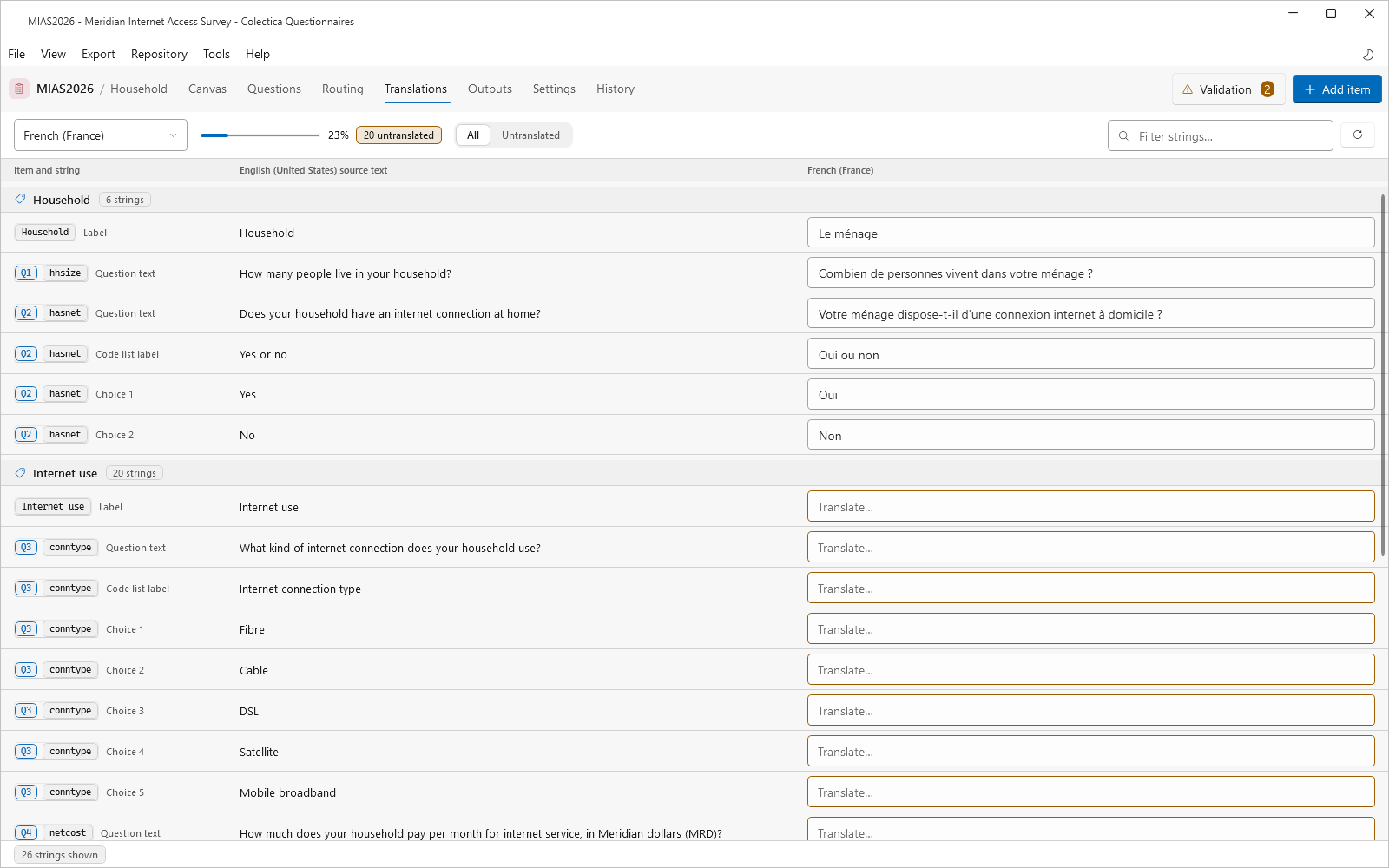
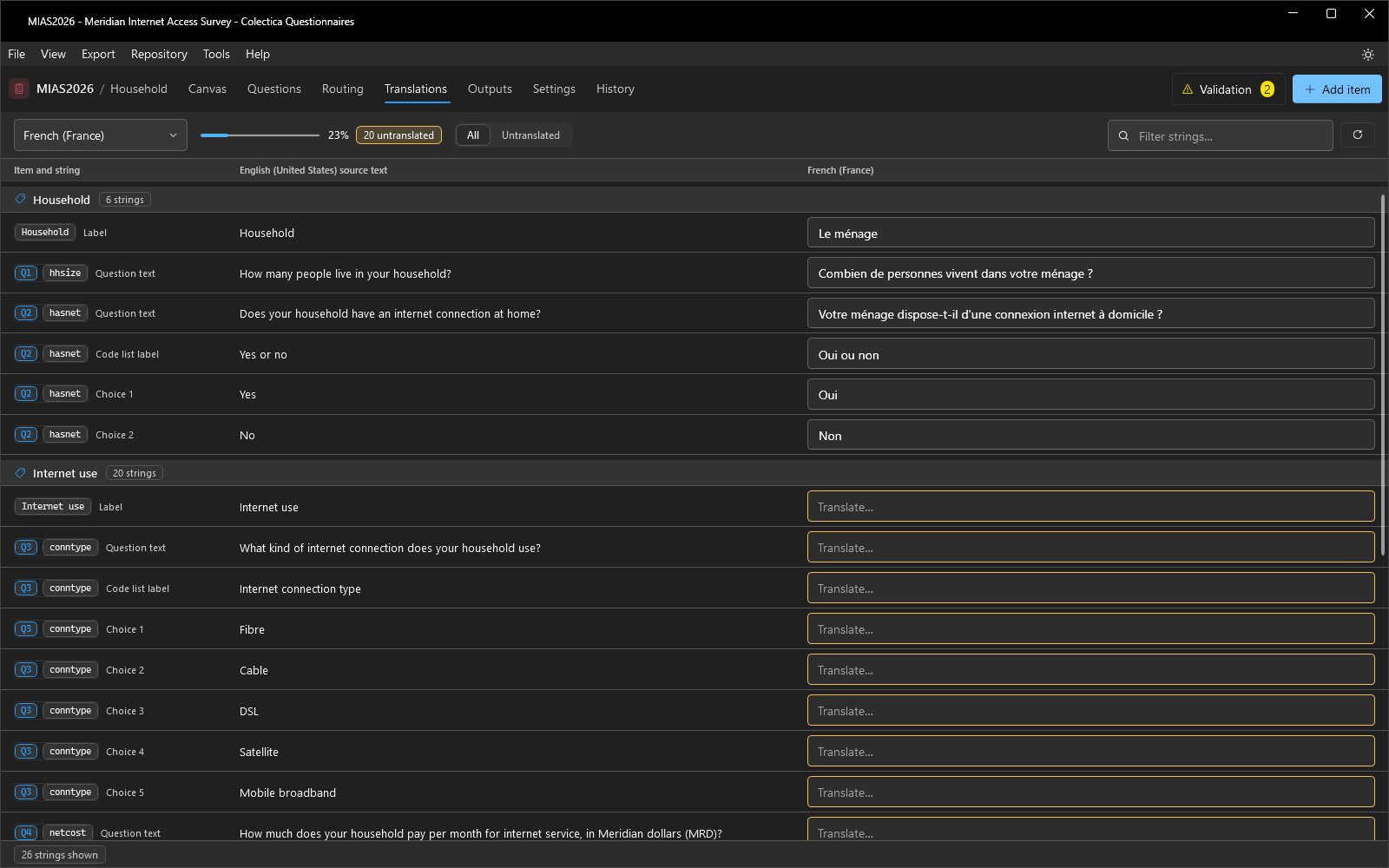
Open the Translations page.
The source column shows the English strings; the target column awaits the French.
Translate the Household section’s strings, for example:
Household:Le ménageHow many people live in your household?:Combien de personnes vivent dans votre ménage ?Does your household have an internet connection at home?:Votre ménage dispose-t-il d'une connexion internet à domicile ?Yes:Oui, andNo:Non
Watch the completion bar advance, and switch the filter to Untranslated to see what remains.
Preview in French#
Open the Household section on the canvas and switch to Preview.
Choose French in the preview’s language dropdown.
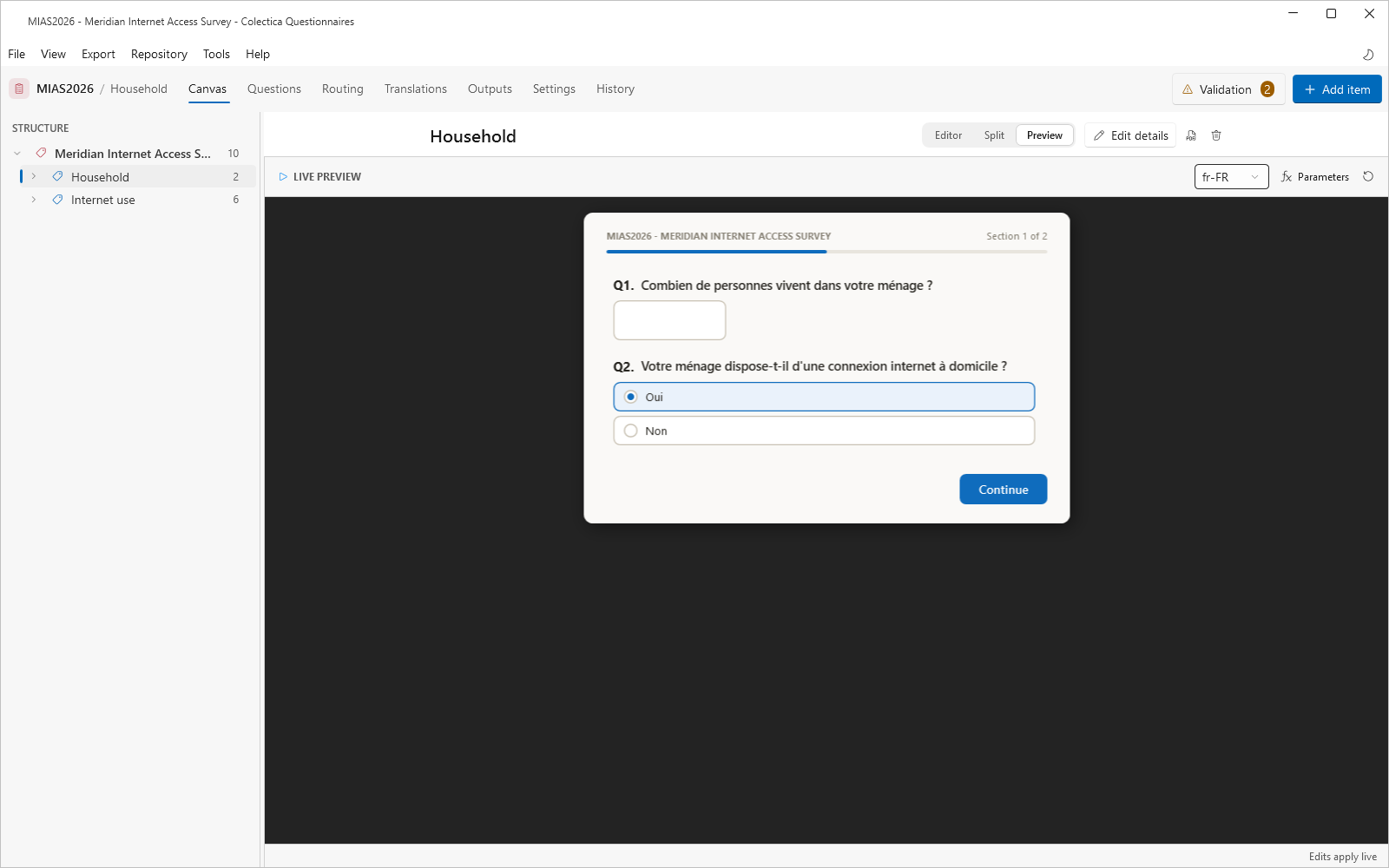
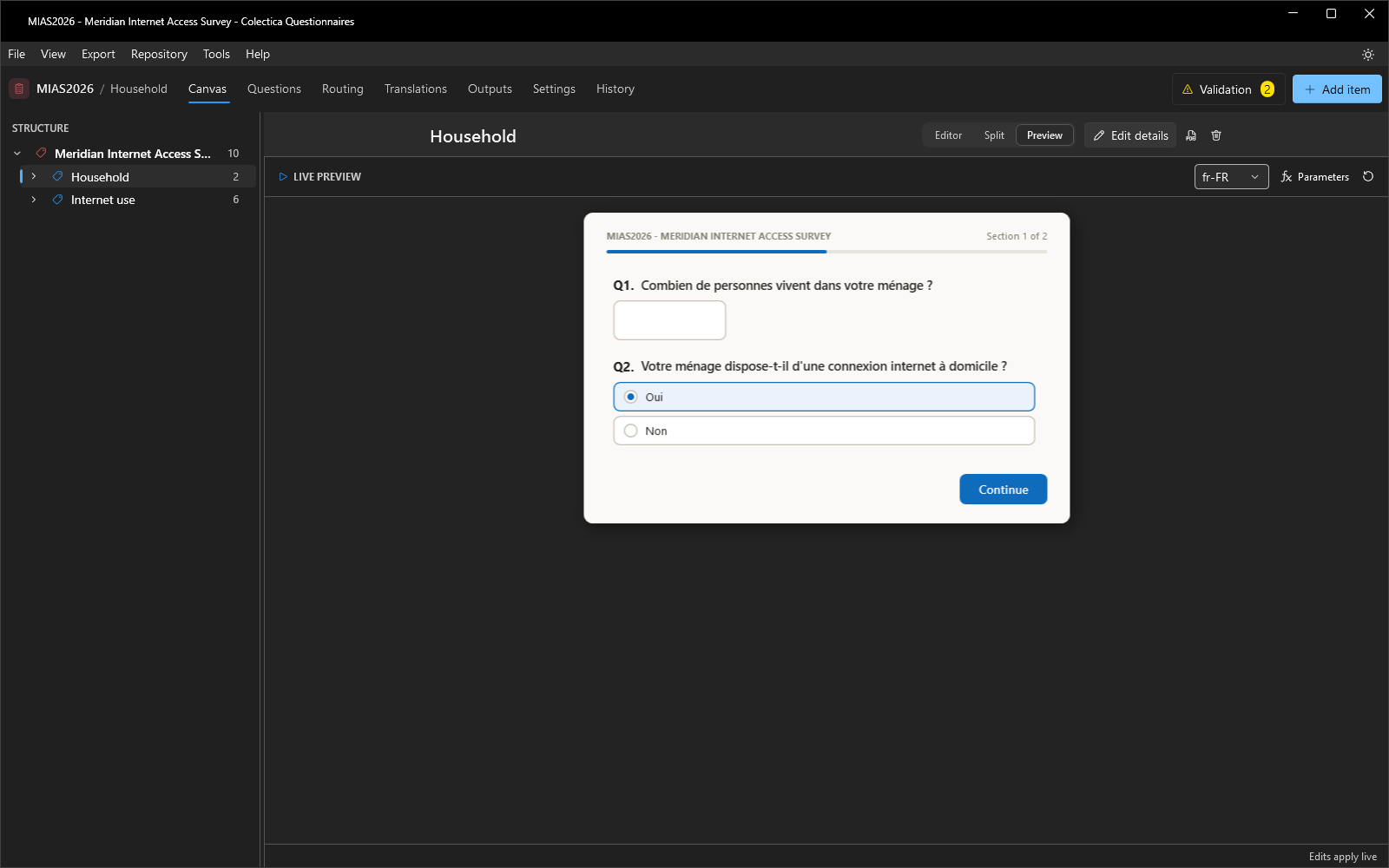
The translated strings render in French, and anything still untranslated falls back to English, so gaps are easy to spot in context. Switch back to Editor when done.
See also
Next lesson: Check, Preview, and Export.