
Translate a Survey#
A survey’s first language is its source language; every other language is a translation of it.
Add a Language#
Open the survey’s Settings page from the navigation bar.
In the Languages card, click Add language.
Choose the culture in the Add a Language dialog and click Add.
The Translations page appears in the navigation bar once a second language exists. The first language in the list is the source language; drag to reorder if the wrong language is first.
Translate the Strings#
Open the Translations page.
Pick the target language in the dropdown.
Type each translation into the target column; the source column shows the first language’s text.
Use the Untranslated filter to see only the remaining work; the completion bar tracks progress.
Click a row’s name chip to inspect the item on the canvas; use the text filter to find specific strings.
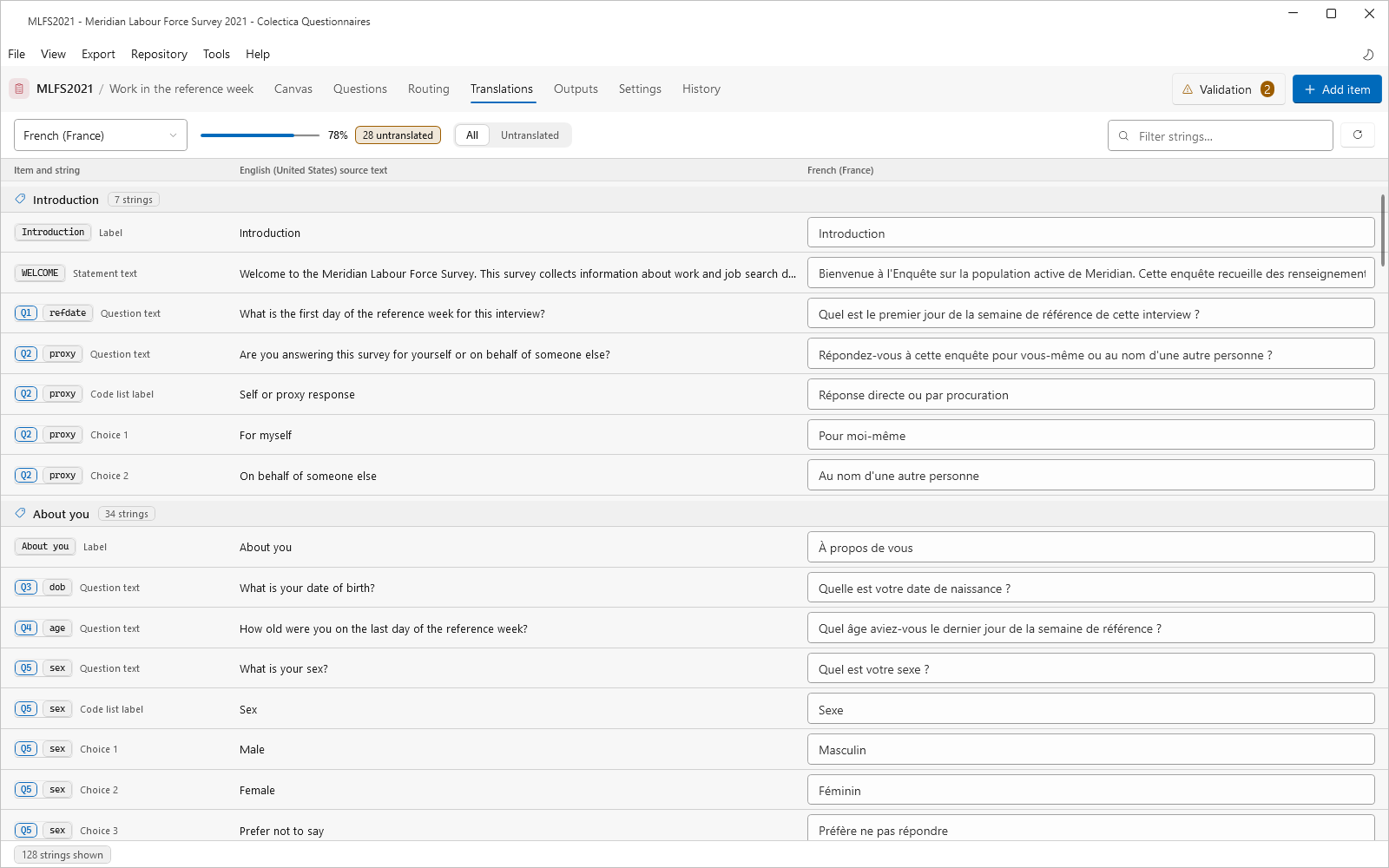
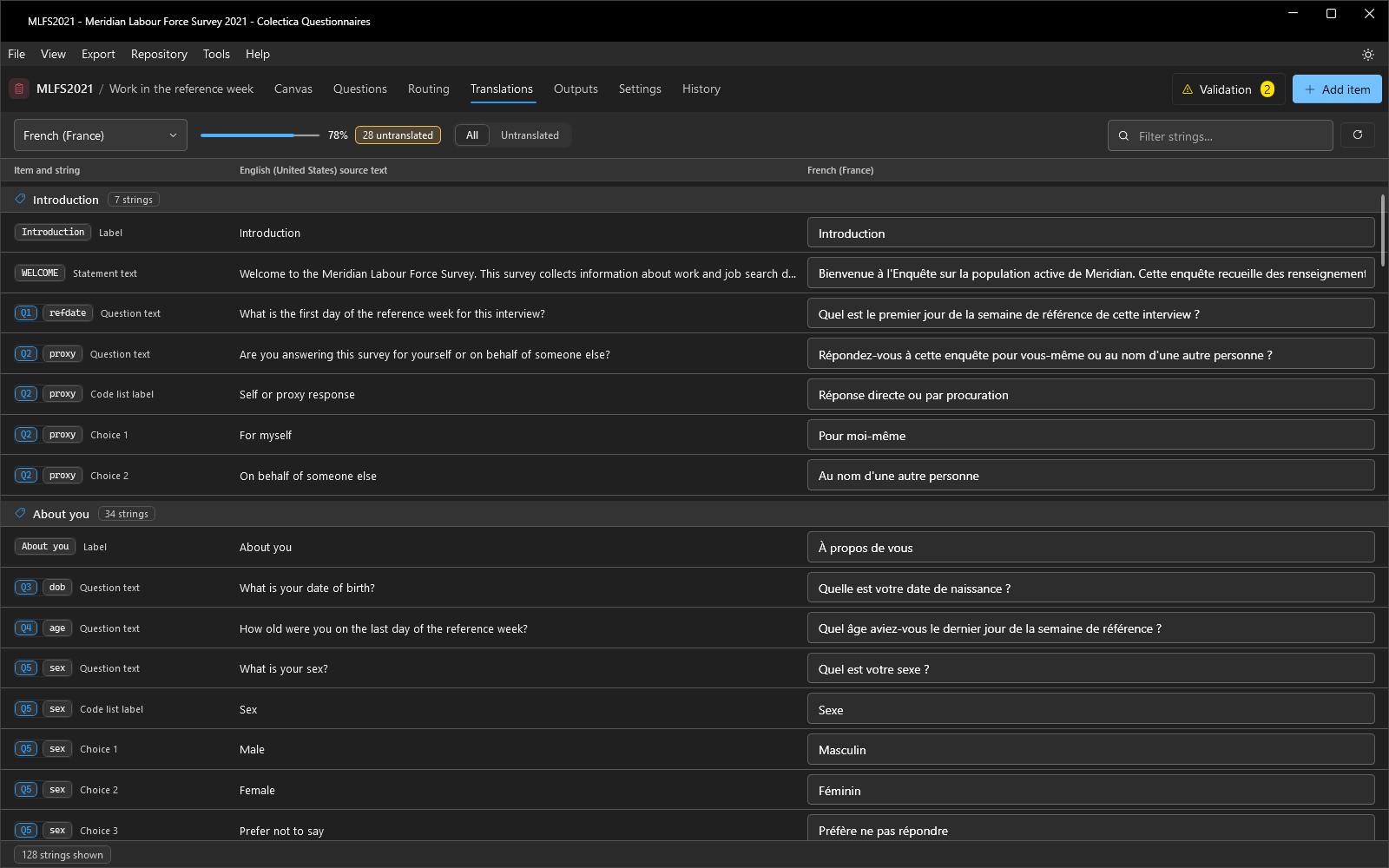
Edits are saved with the normal save, including automatically when leaving the page. Individual item editors also accept per-language text directly, one row per language.
Check the Result#
Switch a section to Preview.
Choose the target language in the preview’s language dropdown.
Untranslated strings fall back to the source language, so gaps are visible in context.
See also
Source Language and Translations explains the language model. Translations Page describes every control on the page.