
Insert Answers into Question Text#
A fill inserts an earlier answer or computed value into question text, for example the respondent’s chosen provider in a follow-up question.
Declare the Token#
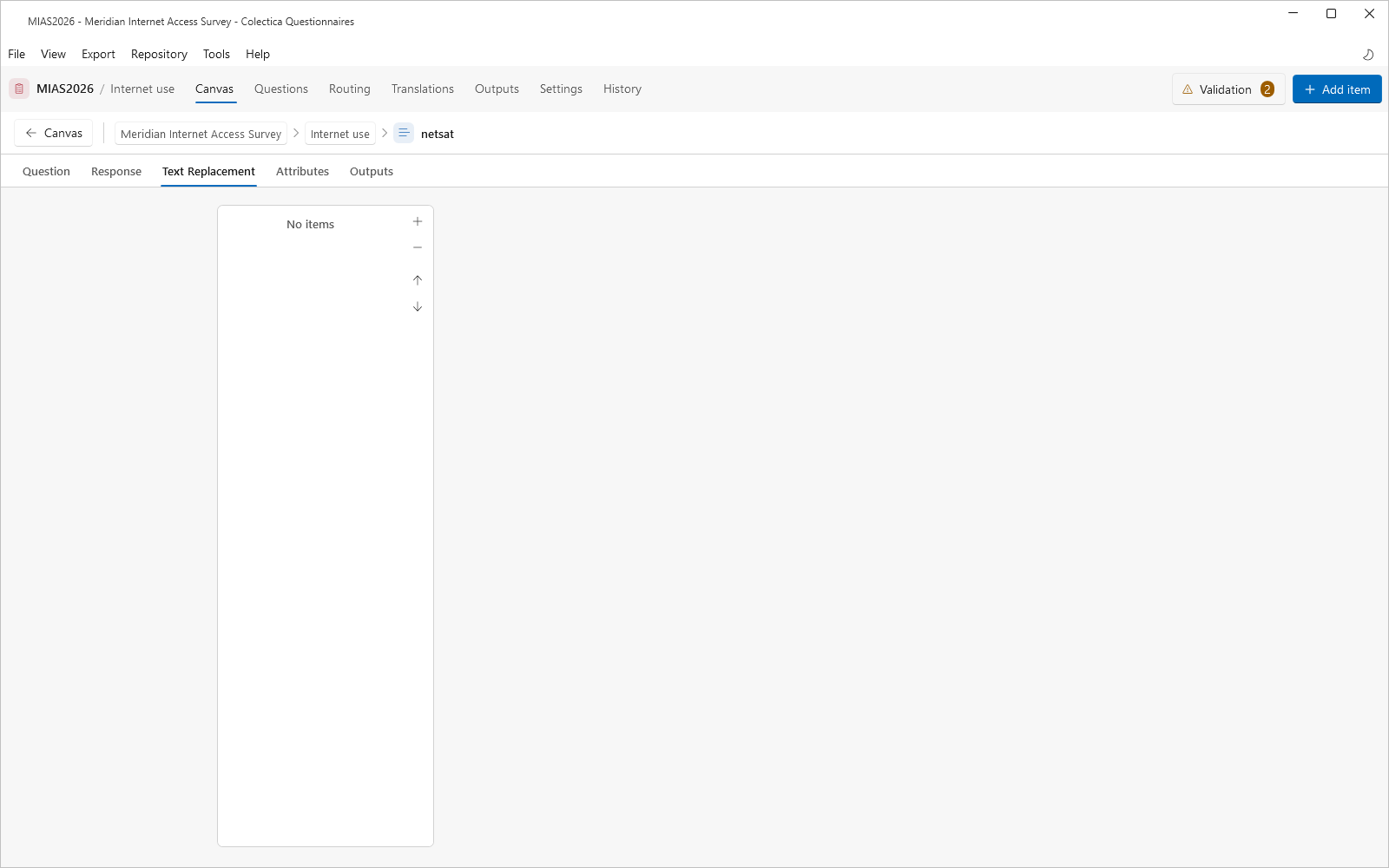
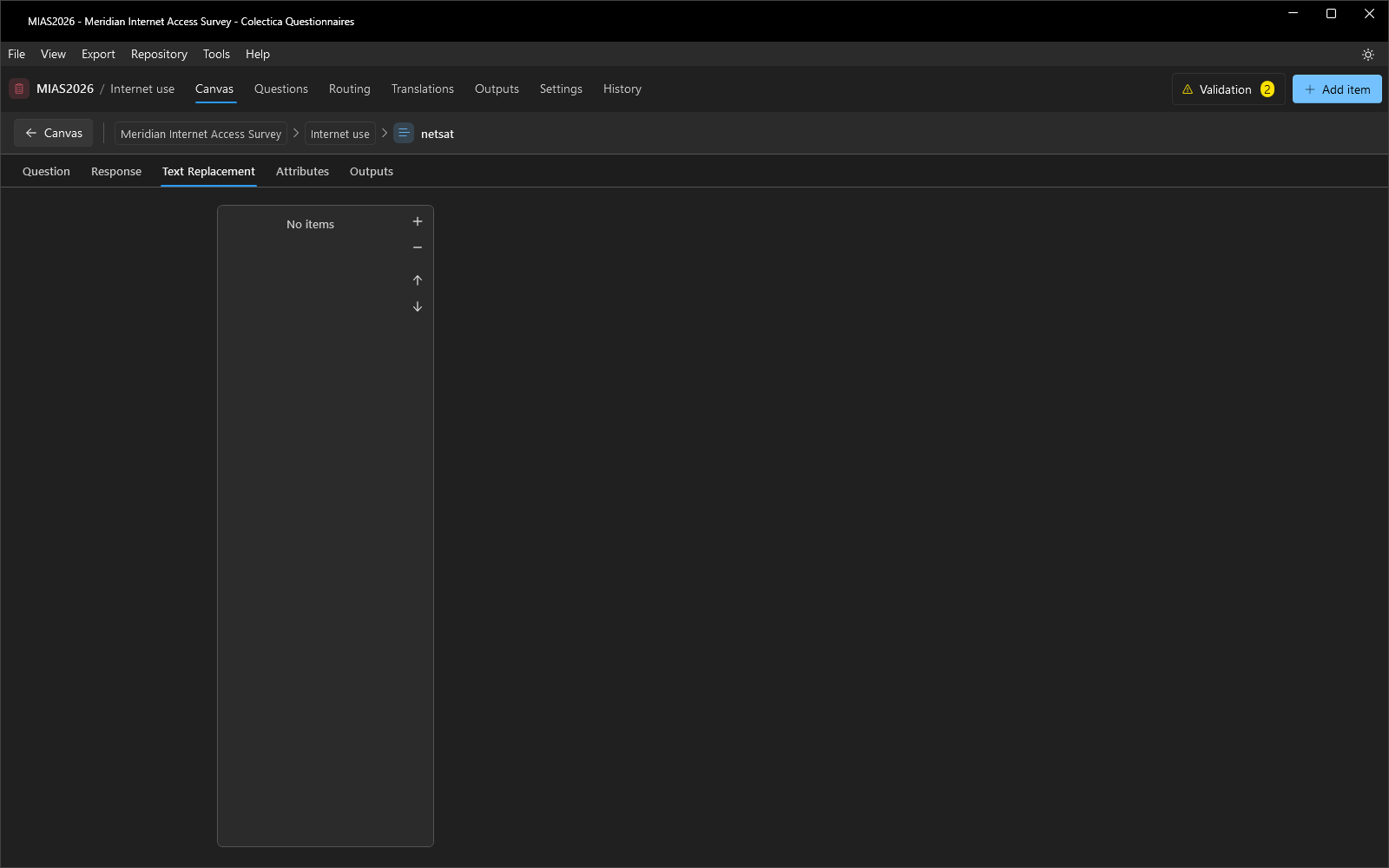
Open the question’s editor and go to the Text Replacement tab.
Add a row with a Token name and a Description. Token names start with a letter and contain only letters, digits, and underscores, such as
connection_type.
Use the Token in Text#
On the Question tab, write the token into the text in double braces:
How satisfied are you with your {{connection_type}} service?.On the canvas, the token renders as a chip: blue when bound, amber while unbound.
Bind the Token#
Click the input indicator on the question’s card to open the Inputs dialog.
Bind the token’s input to the earlier answer or computed value that supplies it.
Verify#
Switch to Split or Preview.
Answer the source question and confirm the text renders with the substituted value.
See also
Display Logic and Expressions describes fills alongside the other dynamic content.