
Question Editor#
The question editor opens as a full page when you click Edit on a question card. A breadcrumb at the top leads back to the canvas and through any enclosing sections; a comments button shows the item’s comment count. The same editor layout serves single questions, question grids, and choice grids, with tabs Question, Response, Text Replacement, Attributes, and Outputs. Changes are committed when you leave the editor.
Question Tab#
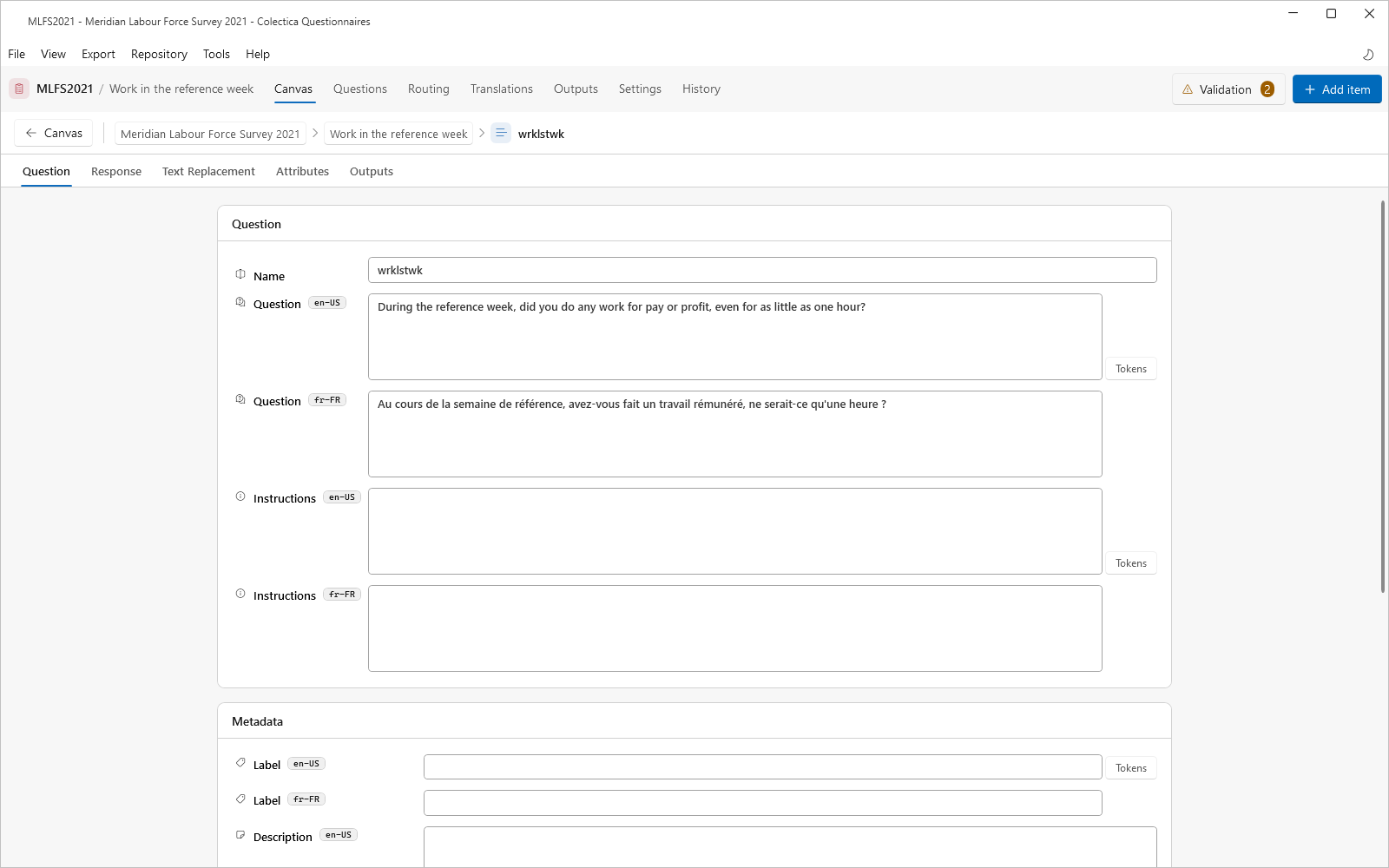
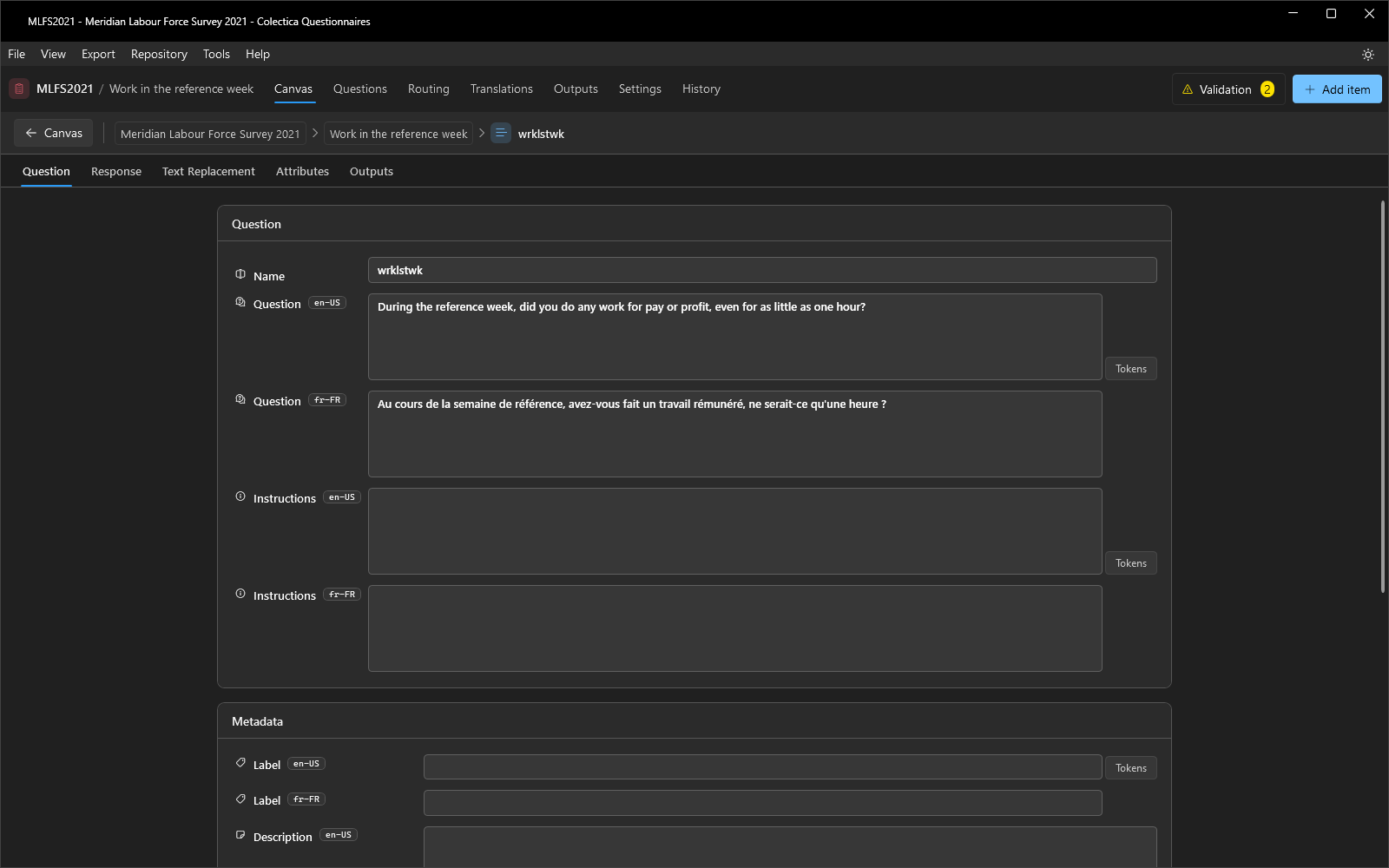
The Question card holds the item’s identity and text.
Field |
Description |
|---|---|
Name |
The question’s short name, used for output variables and references in logic. |
Question |
The question text, one row per survey language; may contain |
Instructions |
Interviewer or respondent instructions, per language. |
The question’s number is not a field: it is assigned automatically, shown on the card and in the structure tree, and cannot be edited. See Question Numbers.
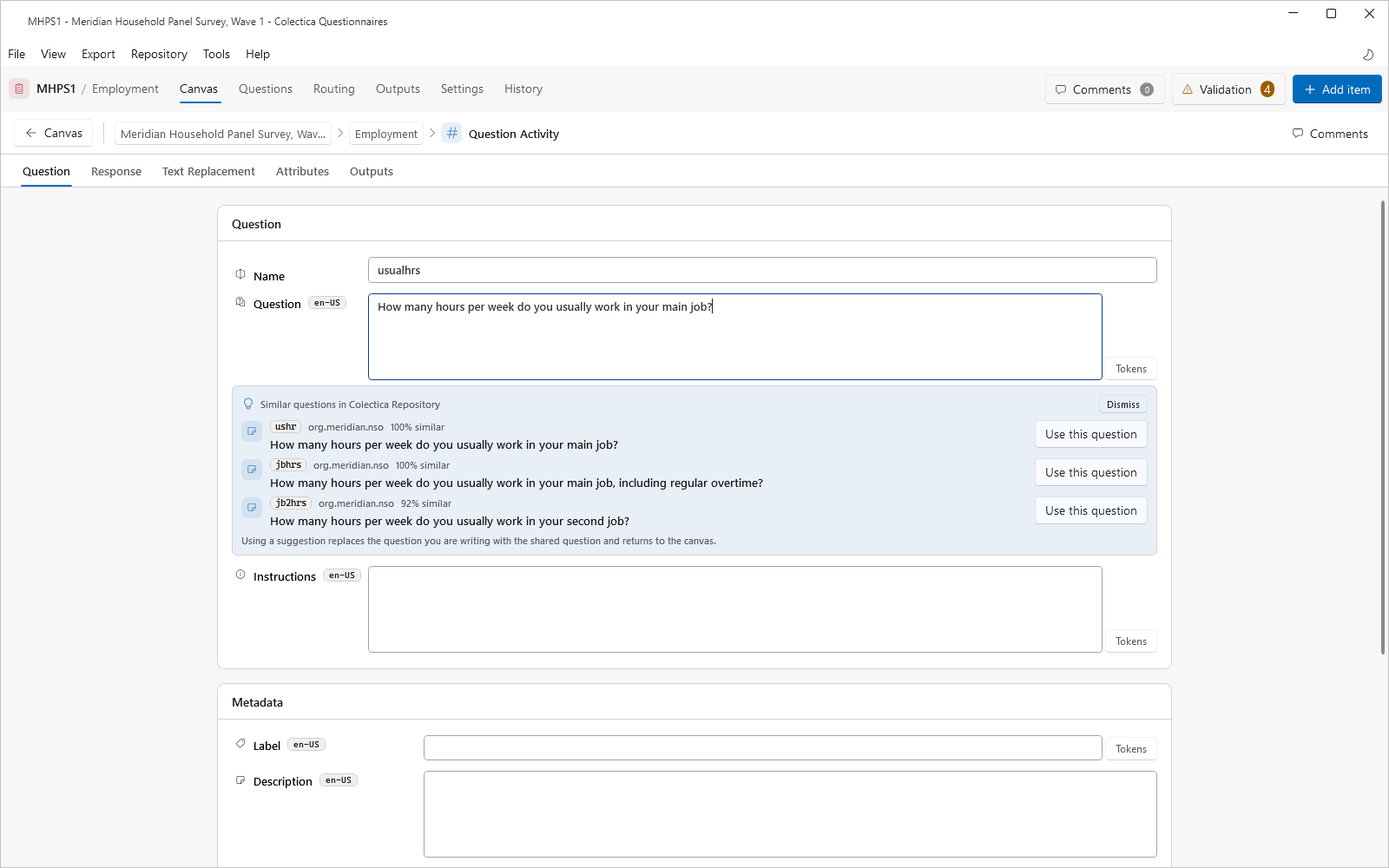
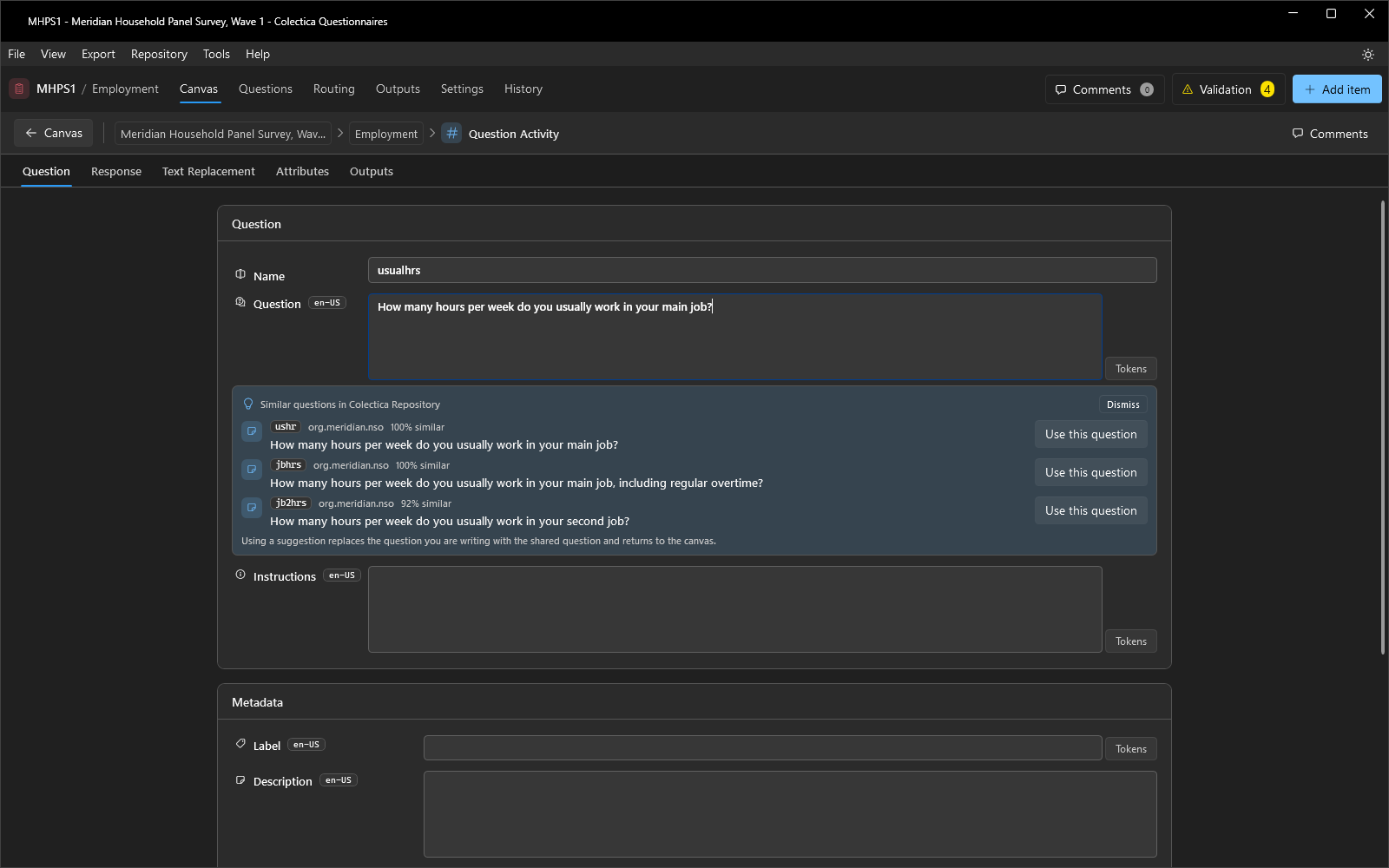
For a question just added from the palette, and when Suggest similar questions while writing a new question is on in the Settings dialog, a Similar questions panel appears under the question text while you type. It lists up to three shared questions from the chosen repository, each with how closely it matches. Use this question replaces the question you are writing with the shared one and returns to the canvas; Dismiss hides the panel. See Reuse Items from a Repository.
The Metadata card holds a Label, a Description, and the Custom fields list, with one row per custom field defined for questions and an Add a custom field button. See Record Custom Fields. When the question is reused elsewhere, an information bar reports how many places use it.
Response Tab#
The Response tab holds the settings of the question’s response type. Its content depends on the type; see Response Types and Code Lists.
Text Replacement Tab#
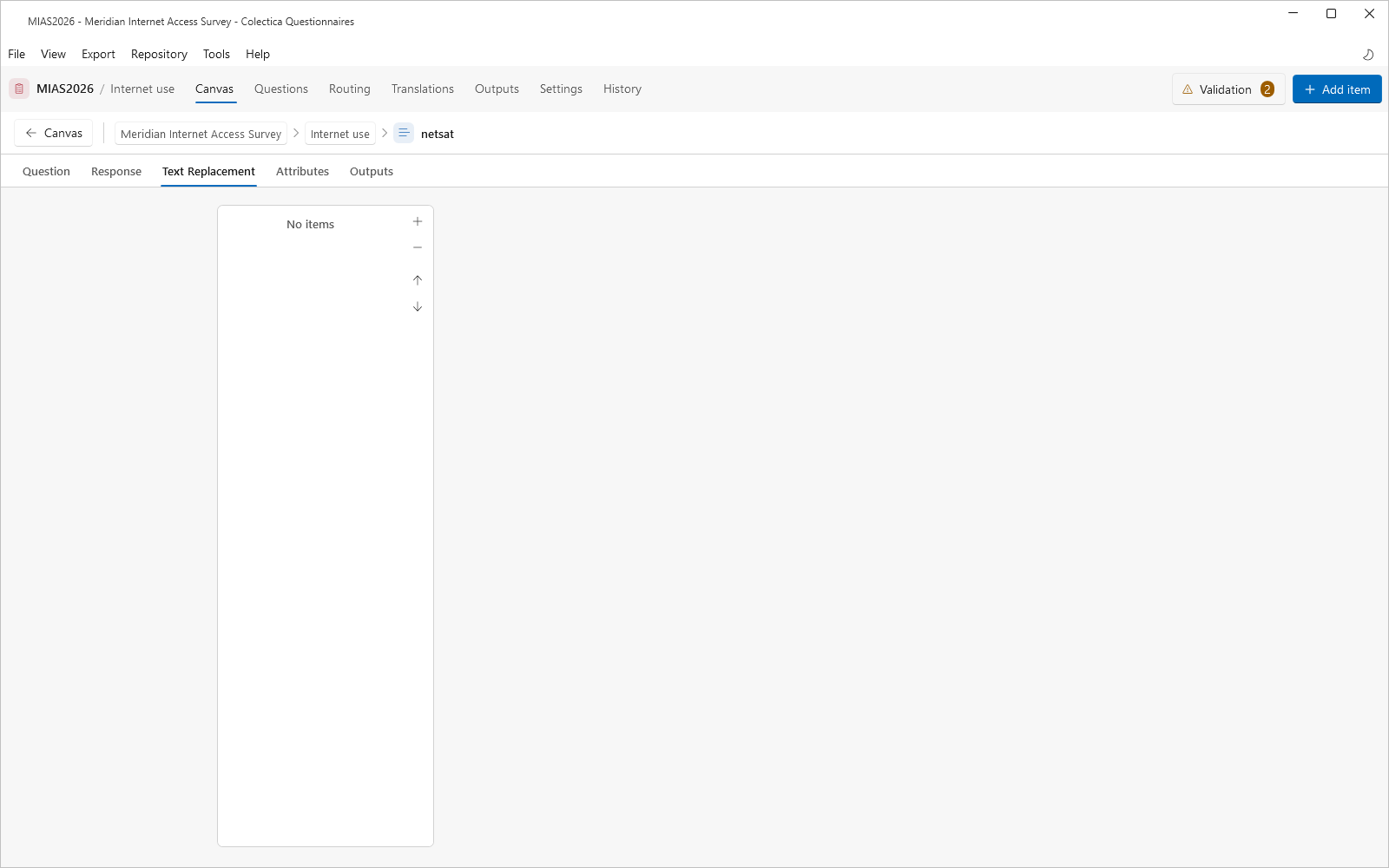
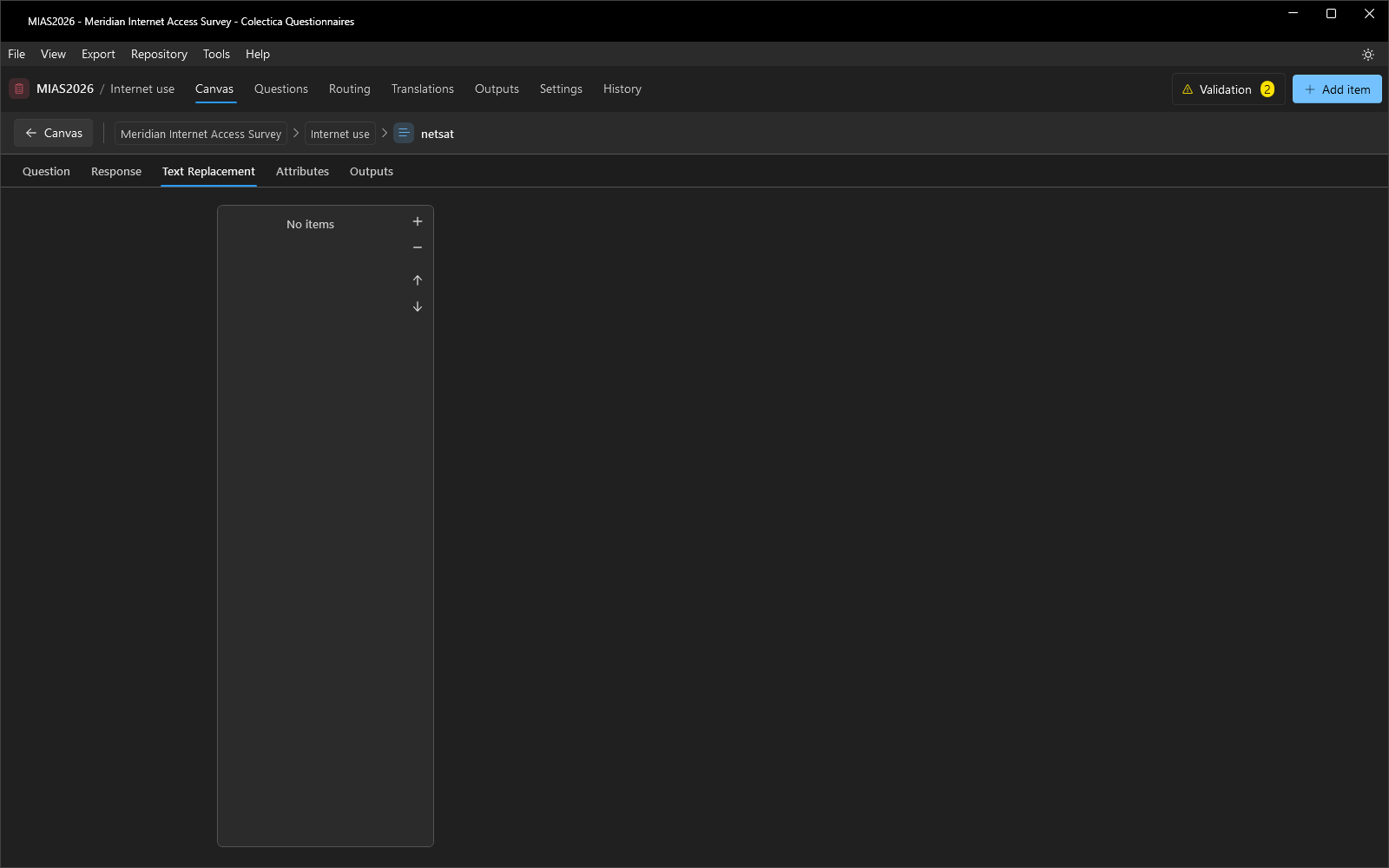
Each row declares a fill token: a Token name and a Description.
A token appears in question text as {{token}} and renders as a chip on the canvas: blue when bound to a source value, amber when unbound.
Tokens are bound to earlier answers or computed values through the item’s Inputs dialog; see Insert Answers into Question Text.
Attributes Tab#
The Response attributes card overrides the survey-wide answering rules for this question.
Field |
Description |
|---|---|
Override Instrument Attributes |
Enables the three settings below for this question. |
Allow Empty |
The question may be left unanswered. |
Allow Don’t Know |
A Don’t Know response is accepted. |
Allow Refused |
A Refused response is accepted. |
The survey-wide defaults live on the Settings page; see Survey Settings Page.
Outputs Tab#
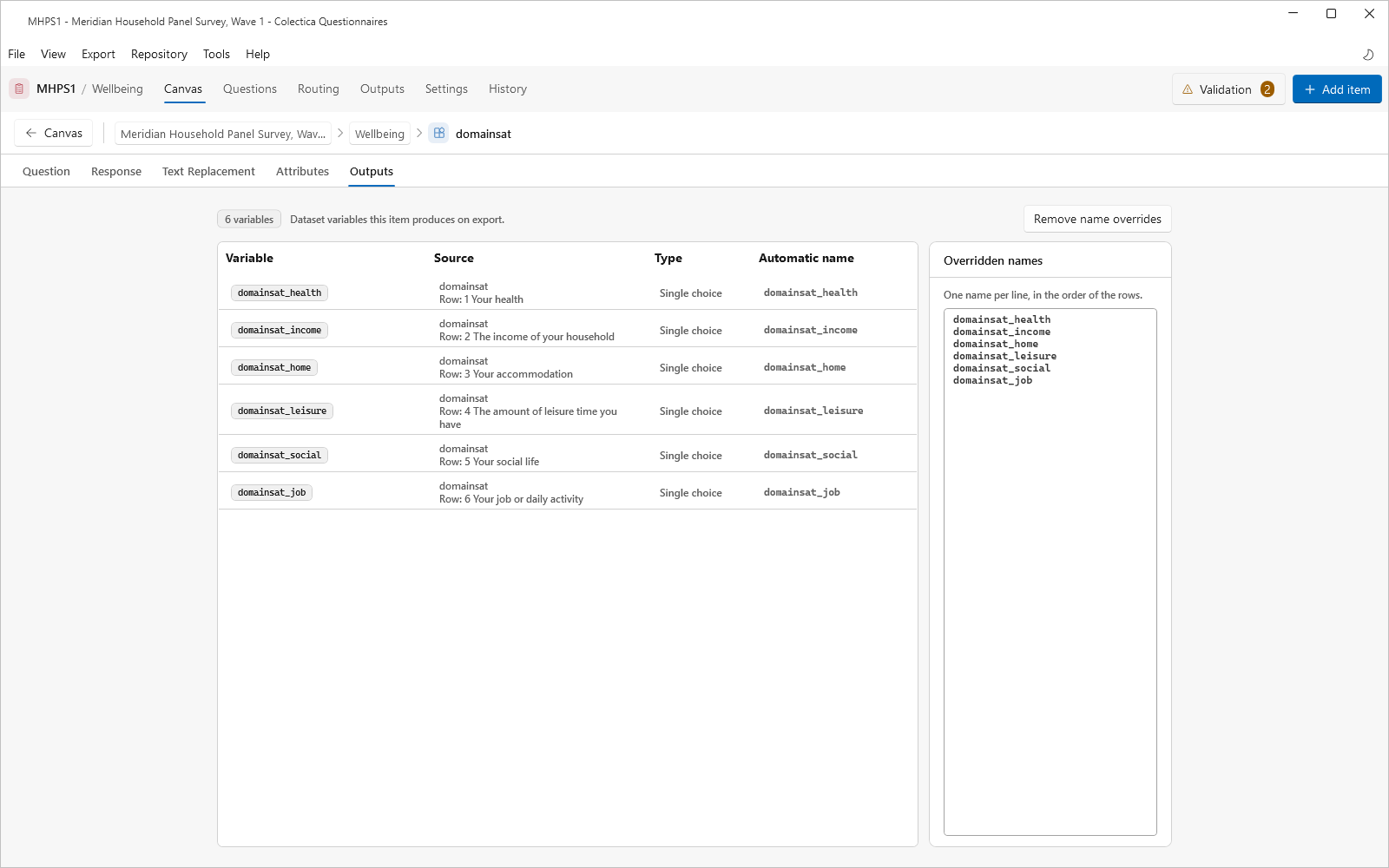
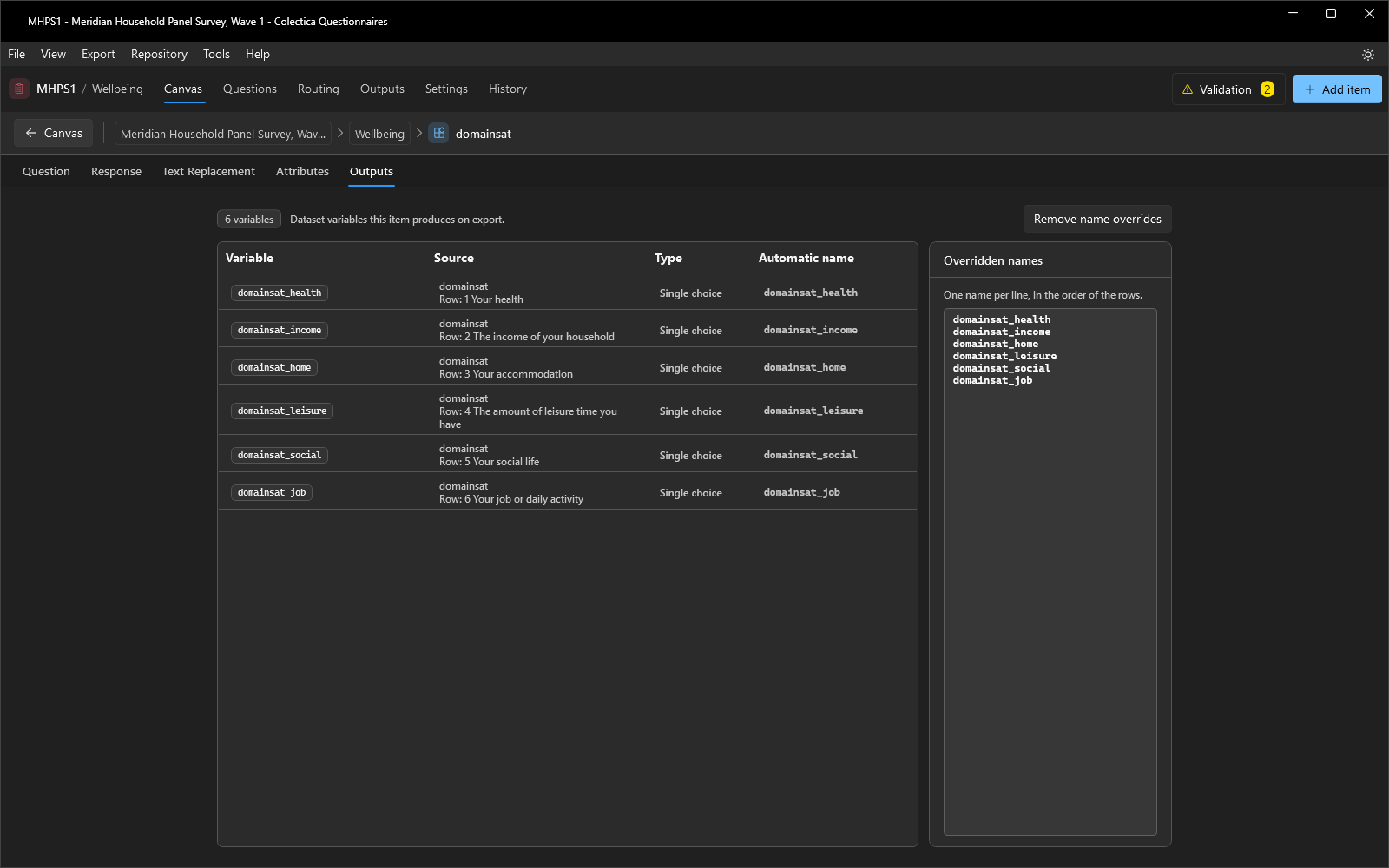
The tab lists the dataset variables this item produces on export: Variable, Source, Type, and Automatic name. Override names opens an editor that accepts one name per line, in the order of the rows; Remove name overrides returns to the automatic names. A warning appears when the overrides no longer match the number of variables. The naming rules are described in Outputs and Variable Names.