
Record Custom Fields#
Custom fields record information the standard fields do not cover, such as a review status, the questionnaire a question was adapted from, or a link to a concept. A field is defined once, in the Settings dialog, and then appears on every item of the kind it applies to.
Define a Field#
Choose Tools, then Settings…, and select Custom Fields.
Click Add.
Under Applies to, choose the kind of item the field belongs on.
Enter a Title and, if you wish, a Description.
Choose a Type. For a controlled vocabulary, enter the Choices one term per line, or point at a code list in a repository. For a related item, choose the Target type.
Click Save.
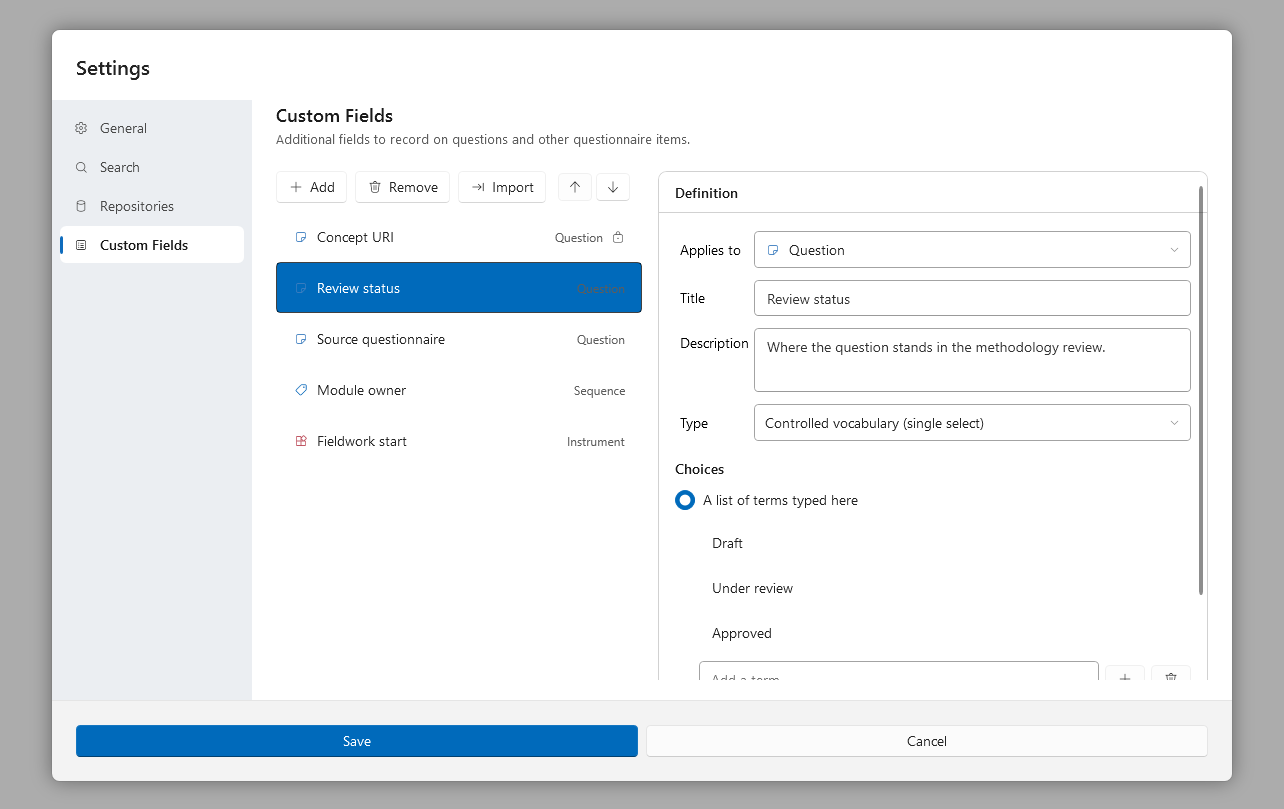
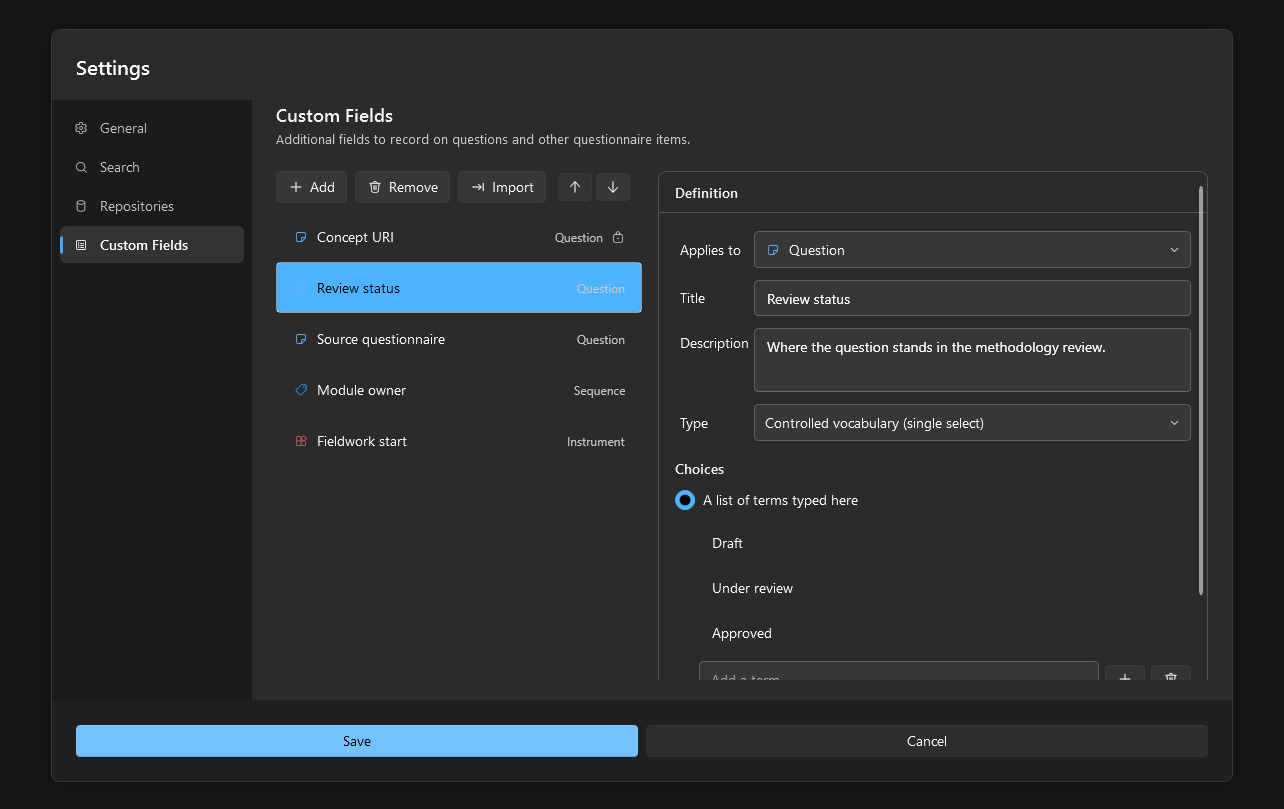
Definitions marked with a lock come from files your organization provides; they can be filled in but not edited here. The item kinds, the value types, and the definition fields are listed in Settings Dialog.
Fill In a Field#
Open the item’s editor with Edit on its card.
Scroll to the Custom fields card at the foot of the editor’s first tab. Every field defined for this kind of item is listed, whether or not it has a value.
Enter the value. Text and numbers are typed, dates are picked, controlled vocabulary terms are chosen from a list, and related items are chosen from a repository. The value is saved with the item when you leave the editor.
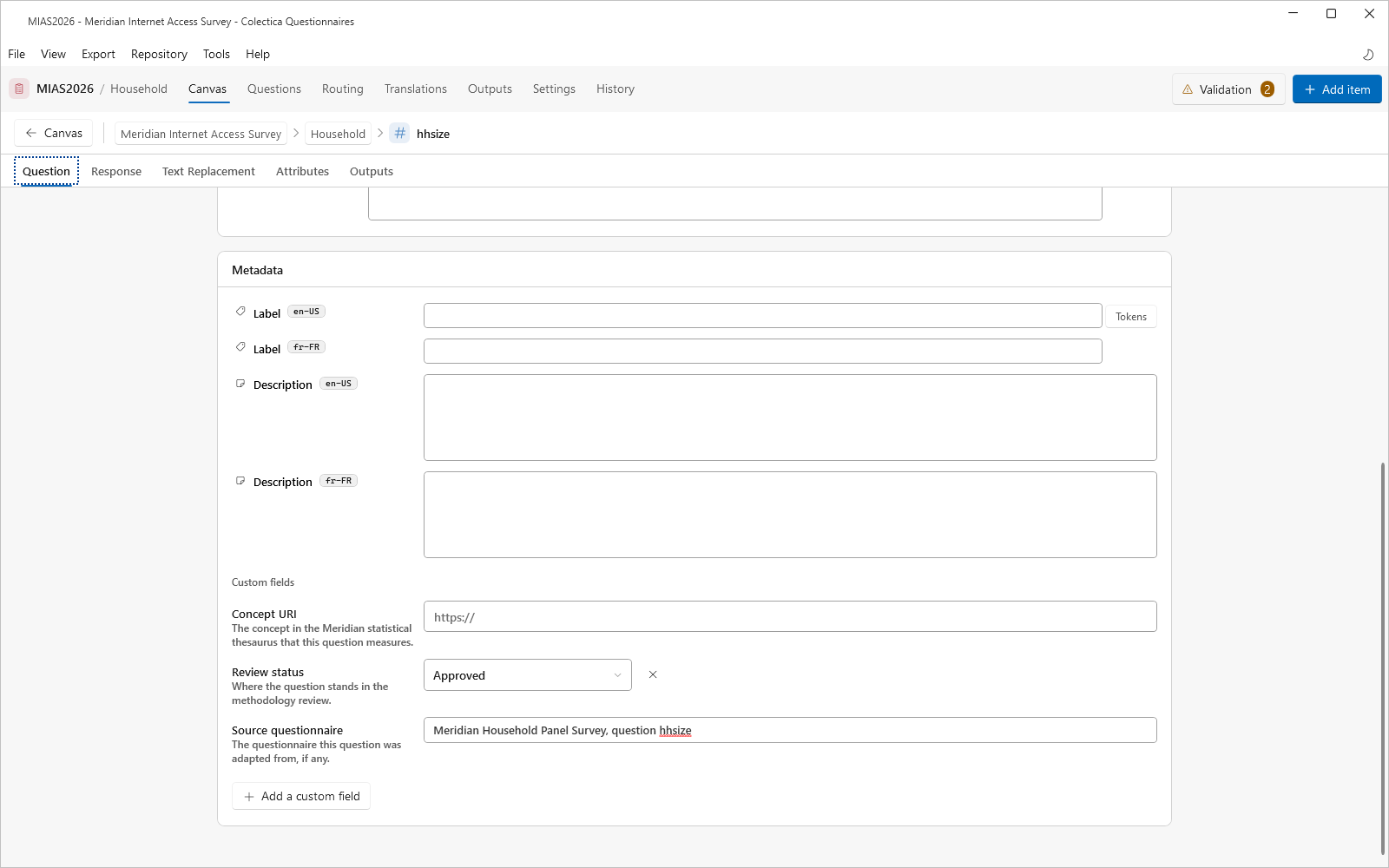
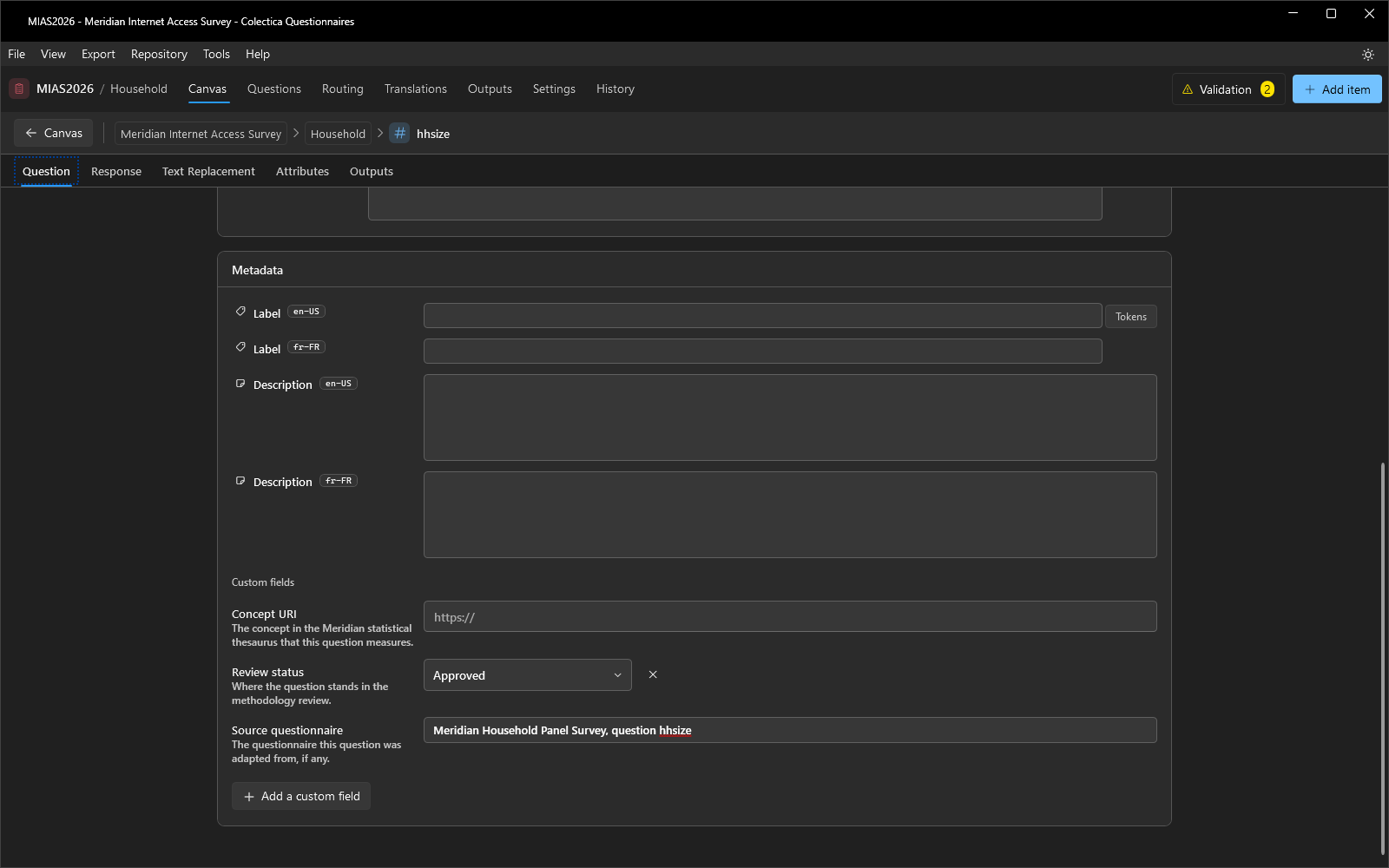
A field is stored on the item only once it has a value. Add a custom field adds a one-off text field to this item alone, with no definition behind it.
Import Definitions from Colectica Designer#
Colectica Designer keeps its own custom field definitions, in the same file format.
Choose Tools, then Settings…, and select Custom Fields.
Click Import. The Designer definitions that apply to questionnaire item kinds are added to your list; definitions you already have are skipped.
Click Save.