
Create Choice Grids and Question Grids#
Use a Choice Grid when every row shares one response scale, such as a satisfaction battery. Use a Question Grid when each column asks a different, typed question about every row, such as a name, an age, and a relationship per household member.
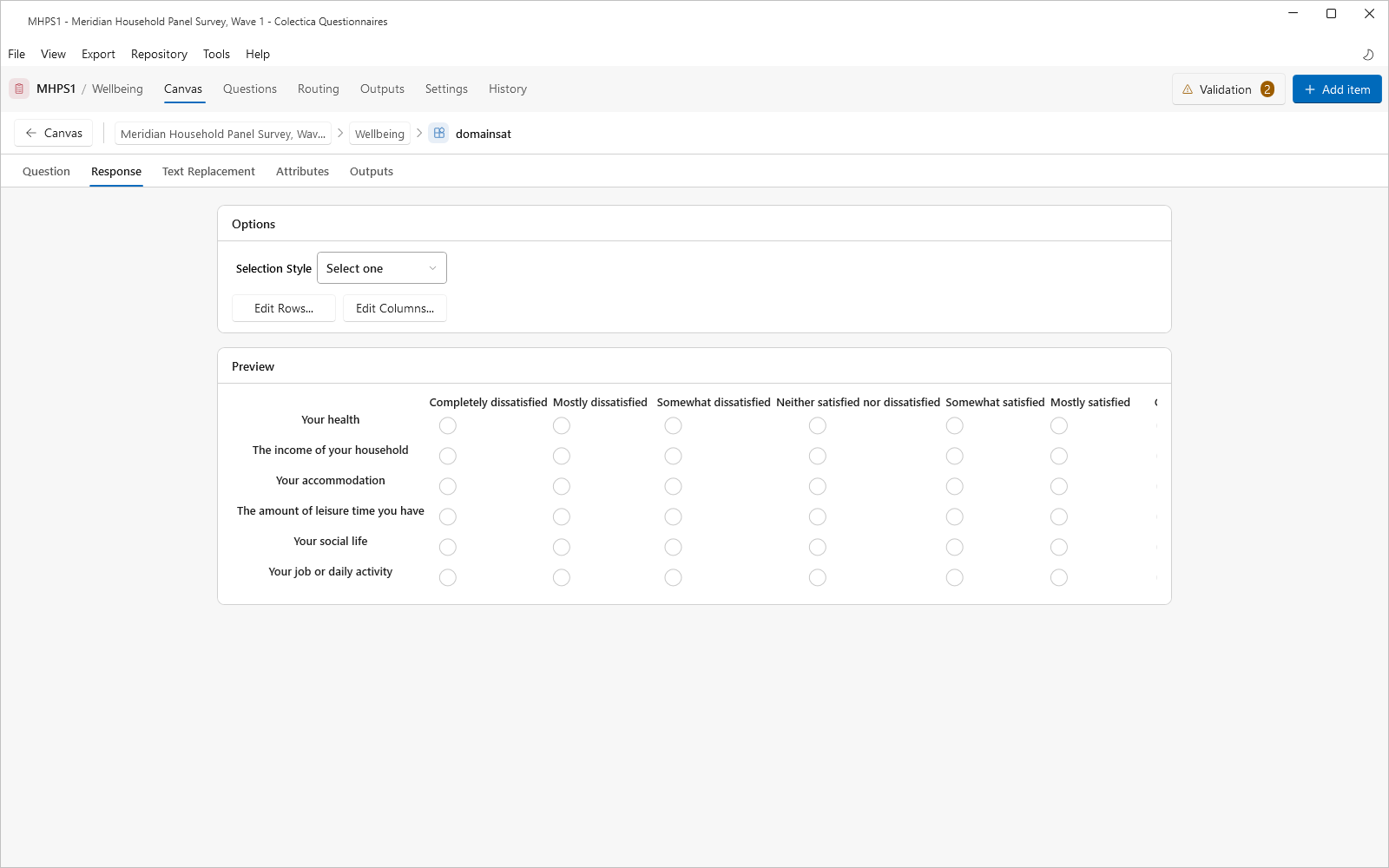
Create a Choice Grid#
Add a Choice Grid from the palette and open its editor.
On the Response tab, click Edit Rows… and add one code per row.
Click Edit Columns… and add the shared response scale, one code per column.
Set the Selection Style for one or several selections per row.
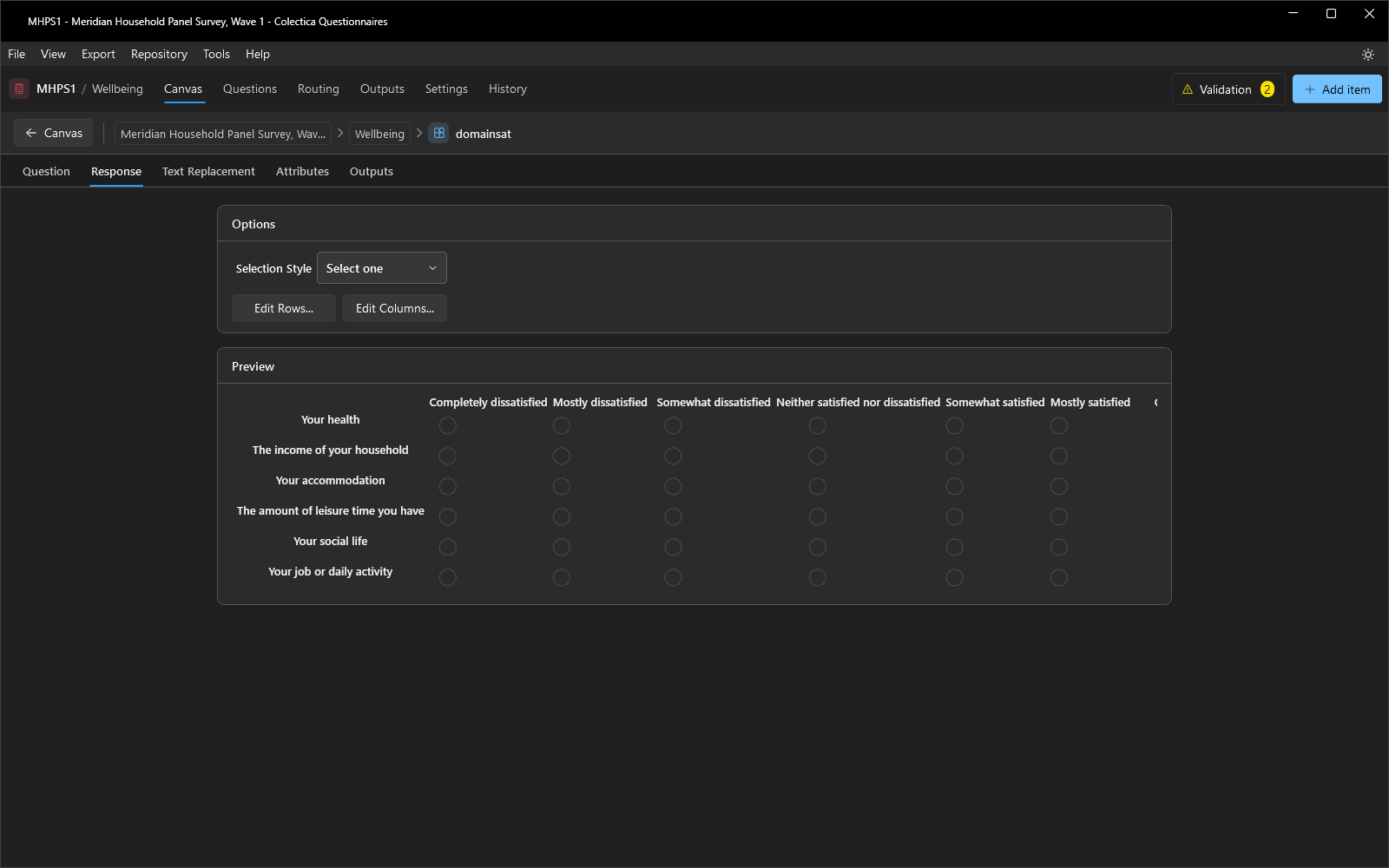
Check the result in the Preview card, which renders the grid live.
Create a Question Grid#
Add a Question Grid from the palette and open its editor.
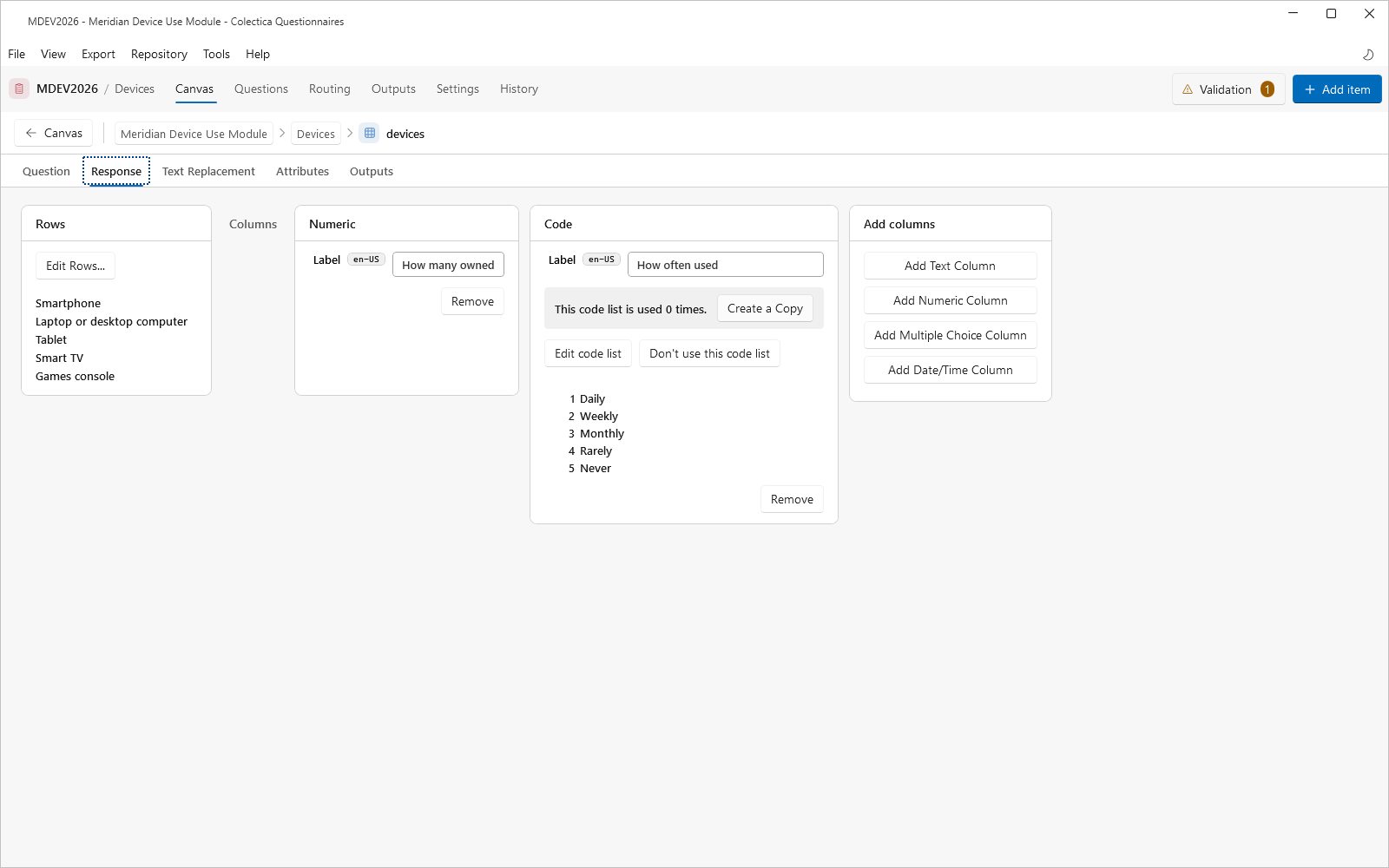
On the Response tab, click Edit Rows… and add one code per row.
Add the columns with Add Text Column, Add Numeric Column, Add Multiple Choice Column, or Add Date/Time Column.
Give each column a label in its card; for a choice column, provide its code list inline.
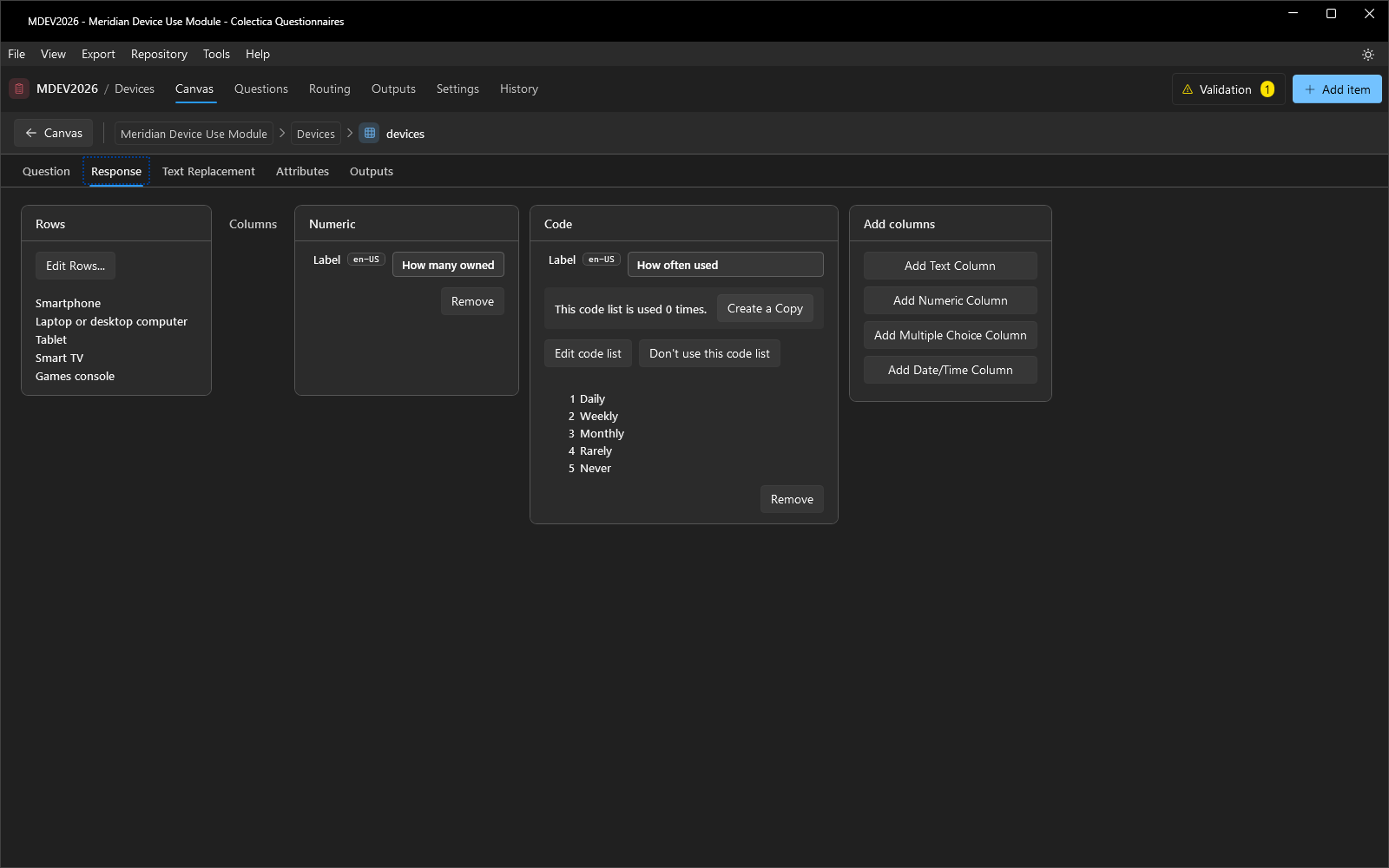
To remove a column, use the Remove button in its card.
Grids produce one output variable per row, or per row and column combination; see Outputs and Variable Names.
See also
For repeating a whole set of items per member instead of per row, see Repeat Questions with a Roster.