
Repository Dialogs#
Repository connections themselves are managed in the Settings dialog; see Settings Dialog.
The Question Bank#
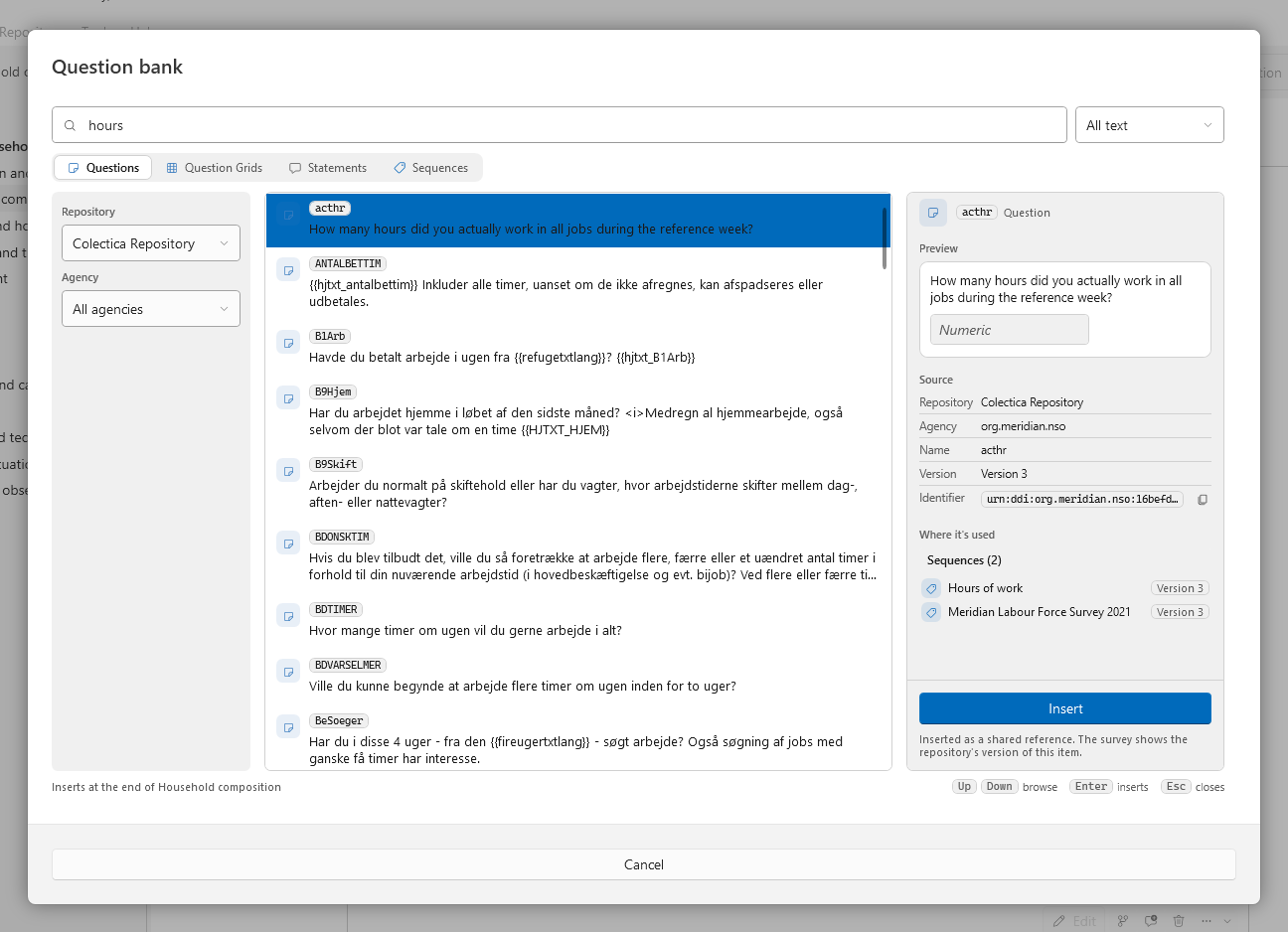
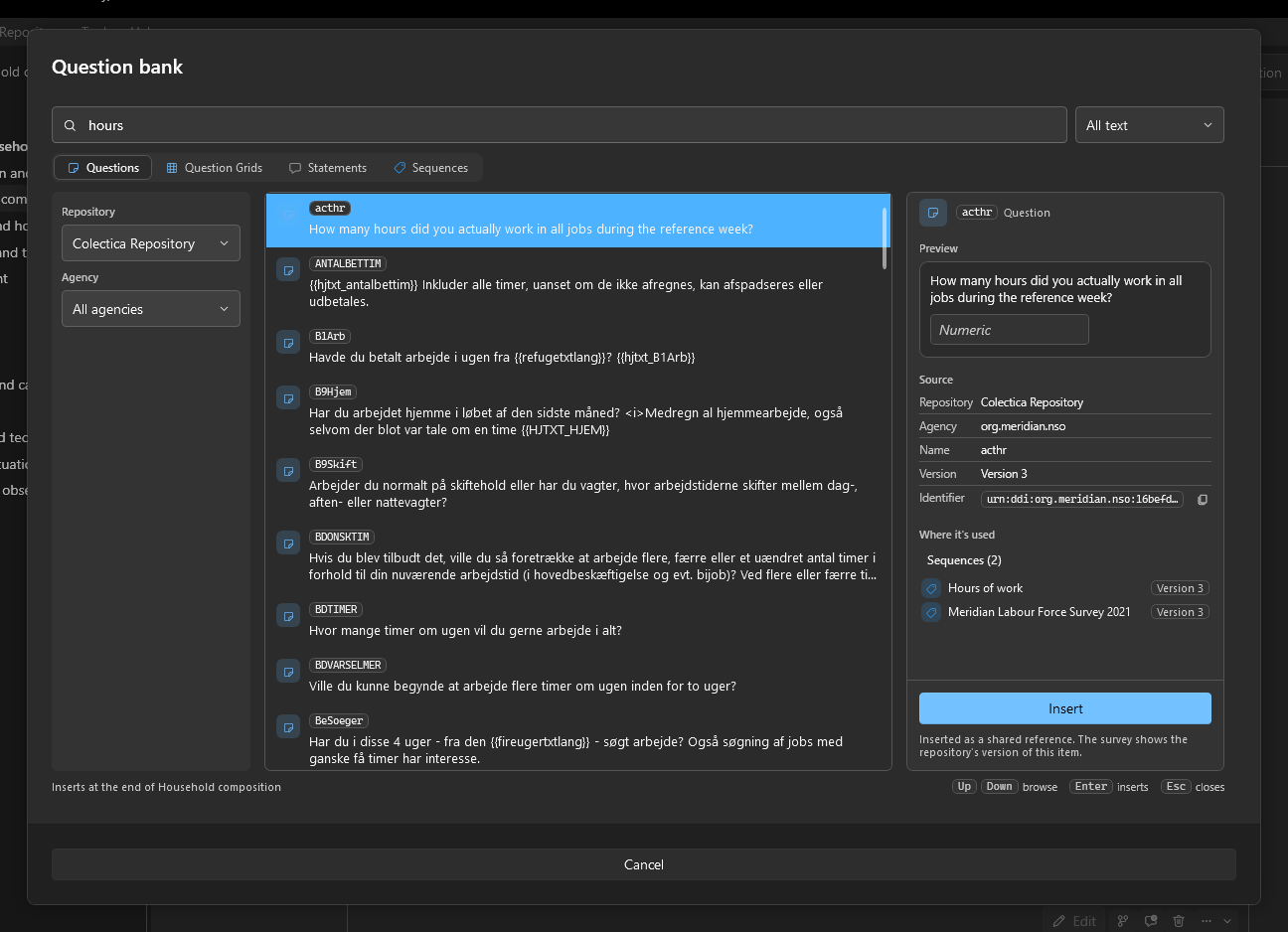
The Question bank opens from the add-item palette’s Repository group and inserts a shared item into the open section.
Control |
Description |
|---|---|
Search box |
Searches the repository as you type.
It also accepts a DDI URN, |
Search target |
All text, Question text, Name, Label, or Description. |
Kind |
Questions, Question Grids, Statements, or Sequences; the palette entry chooses the starting kind. |
Repository |
Shown when more than one repository is configured. |
Agency |
Shown when Enable searching by agency identifiers is on in the Settings dialog; All agencies or one agency. |
Results |
One row per item with its type icon, name, and text; a Deprecated chip marks withdrawn items. Results arrive in pages of 100, with Show more for the next page. |
Detail pane |
Preview renders the selected item as a respondent would see it. Source lists its repository, agency, name, version, last change, and identifier, with a copy button. Where it’s used lists the surveys and sequences that reference it. |
Insert |
Inserts the selected item as a shared reference; Enter and a double click do the same. |
Footer |
States where the item will be inserted. |
The Select an Item Dialog#
File, then Open from Repository…, and the welcome page’s Open from Repository… button open the Select an Item dialog, which lists the surveys held by a repository.
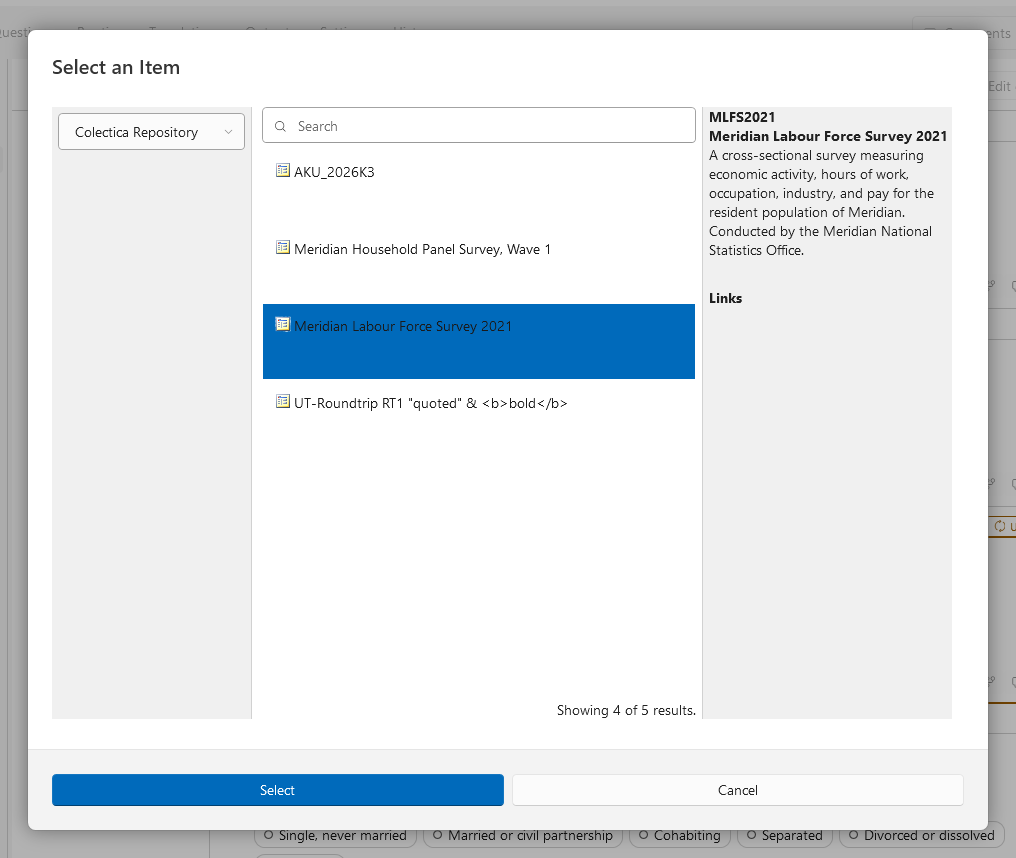
Choose a repository, search, select a survey, and click Select. The survey is checked out into your local workspace and opened.
The Synchronize Dialog#
Repository holds one Synchronize with … entry per configured repository. The dialog has three sections, each with a count.
Changes to Publish#
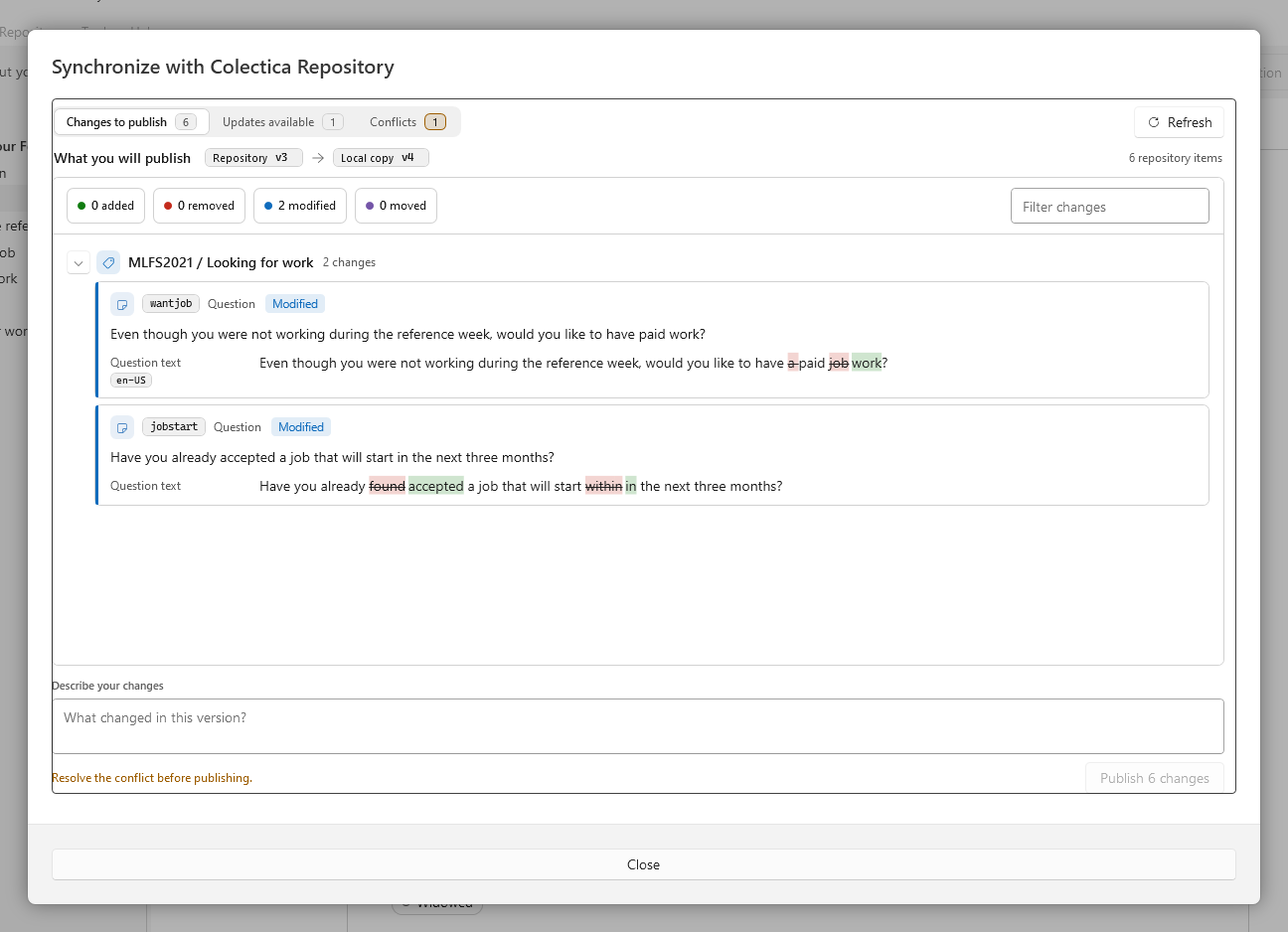
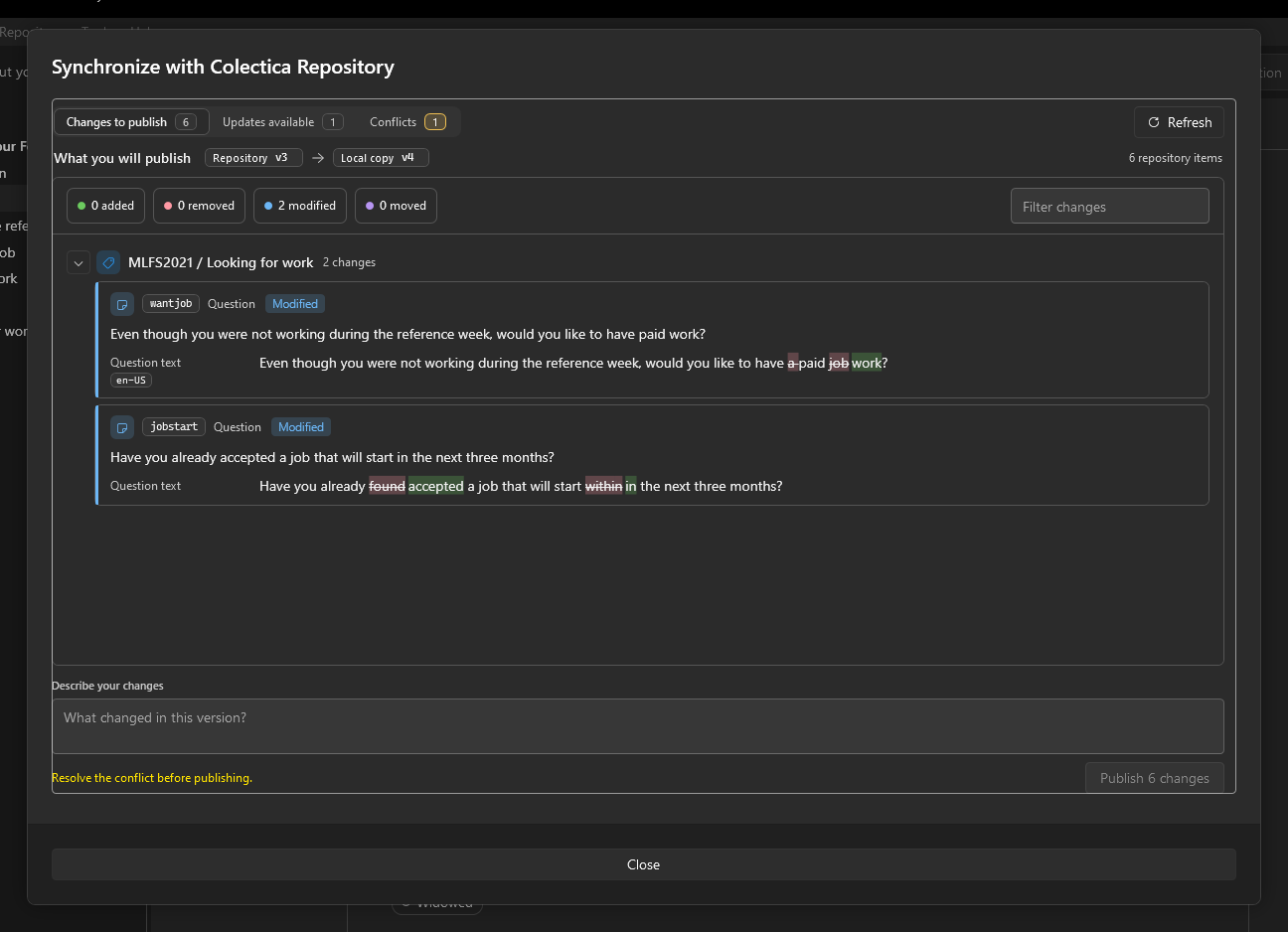
Local changes the repository does not have yet. The section shows a changelog of what you will publish, with the same change cards and word-level differences as the Compare page. Describe your changes records the publish message, and the publish button sends the changes. When publishing is not possible, the reason is shown instead.
Updates Available#
Newer versions in the repository that your local copy does not have. The section shows a changelog of what the repository has, and Update all adopts the newer versions. On the canvas, an out-of-date item carries an Update available tag that leads to this section.
Conflicts#
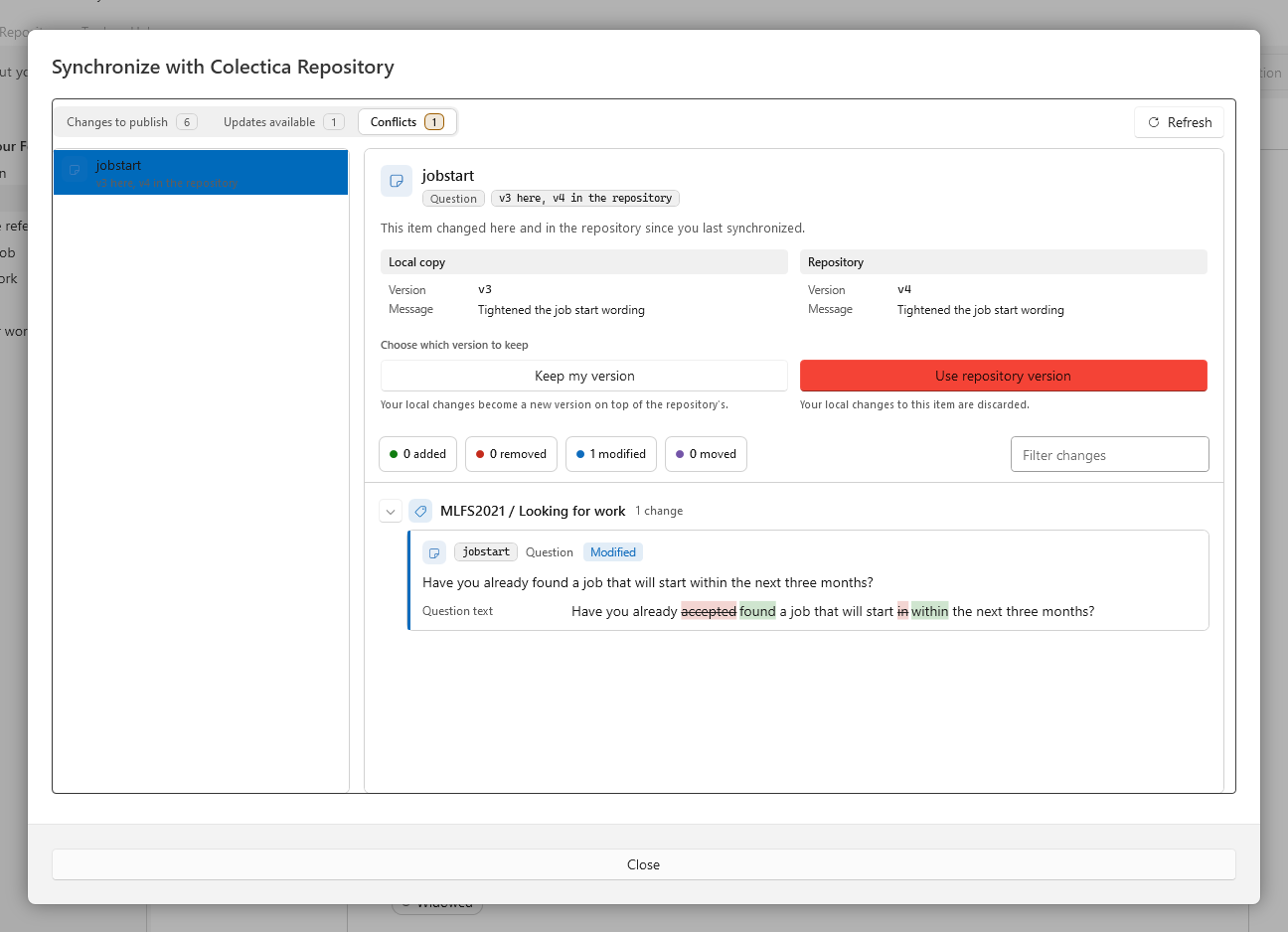
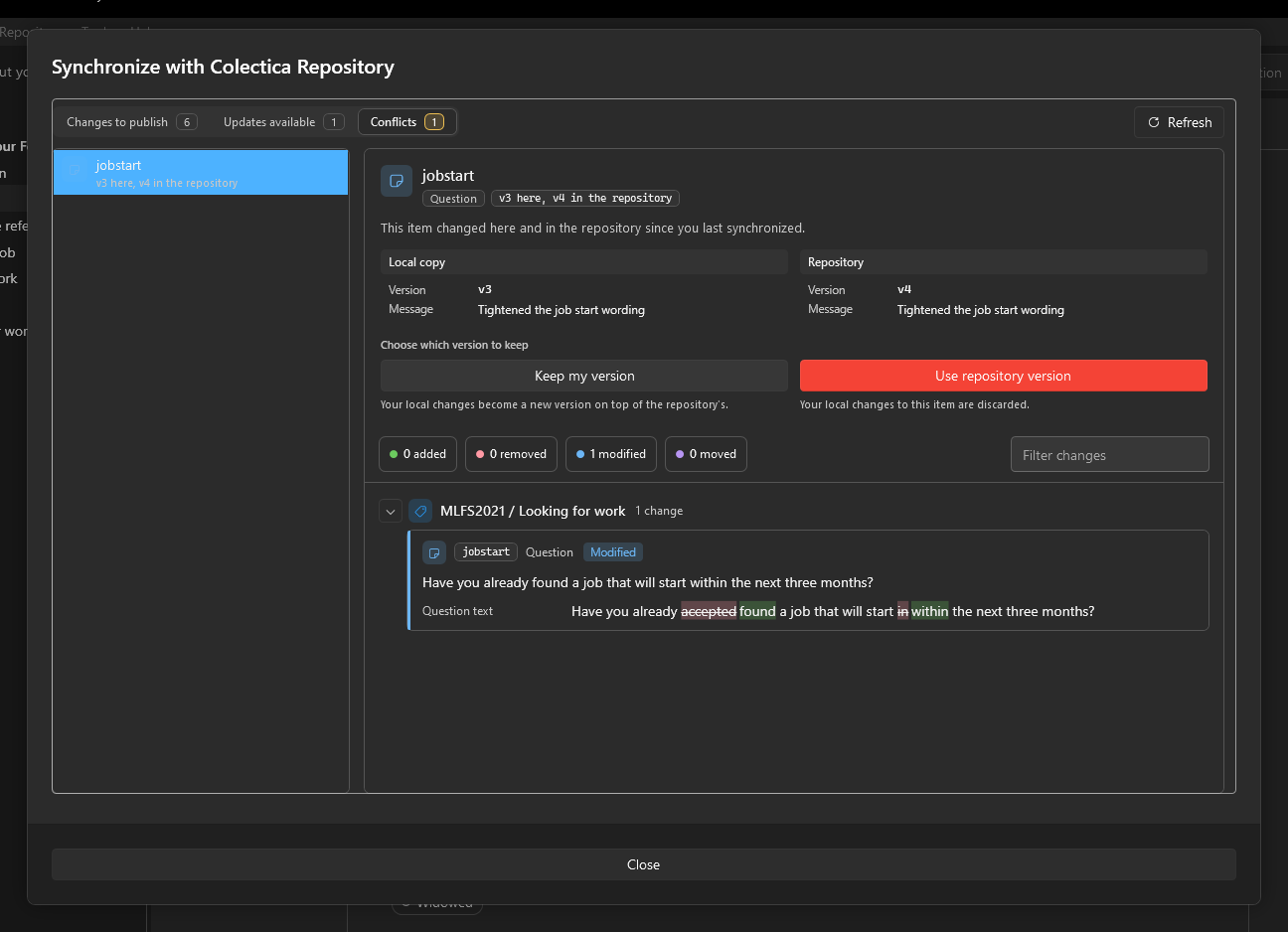
Items changed both locally and in the repository since your last synchronization. For the selected item, the dialog shows the local copy and the repository version side by side, with each version’s date, user, and message, and a changelog scoped to that item. Keep my version makes your local changes a new version on top of the repository’s. Use repository version discards your local changes to that item.
Other Behavior#
The survey is saved before the dialog opens, and it reloads afterward when anything was published, updated, or resolved. A refresh button checks the repository again. When a repository stops responding, a warning banner appears under the menu bar; background repository reads pause until Try again succeeds or a synchronization reaches the repository.
See also
For directions, see Reuse Items from a Repository and Synchronize with a Repository; for the versioning model behind publishing, see How Surveys Are Stored and Versioned.