
Manage Output Variable Names#
Each question produces output variables whose names follow automatic rules. Review them on the Outputs page, and override them where the automatic names do not fit your dataset conventions.
Review the Variables#
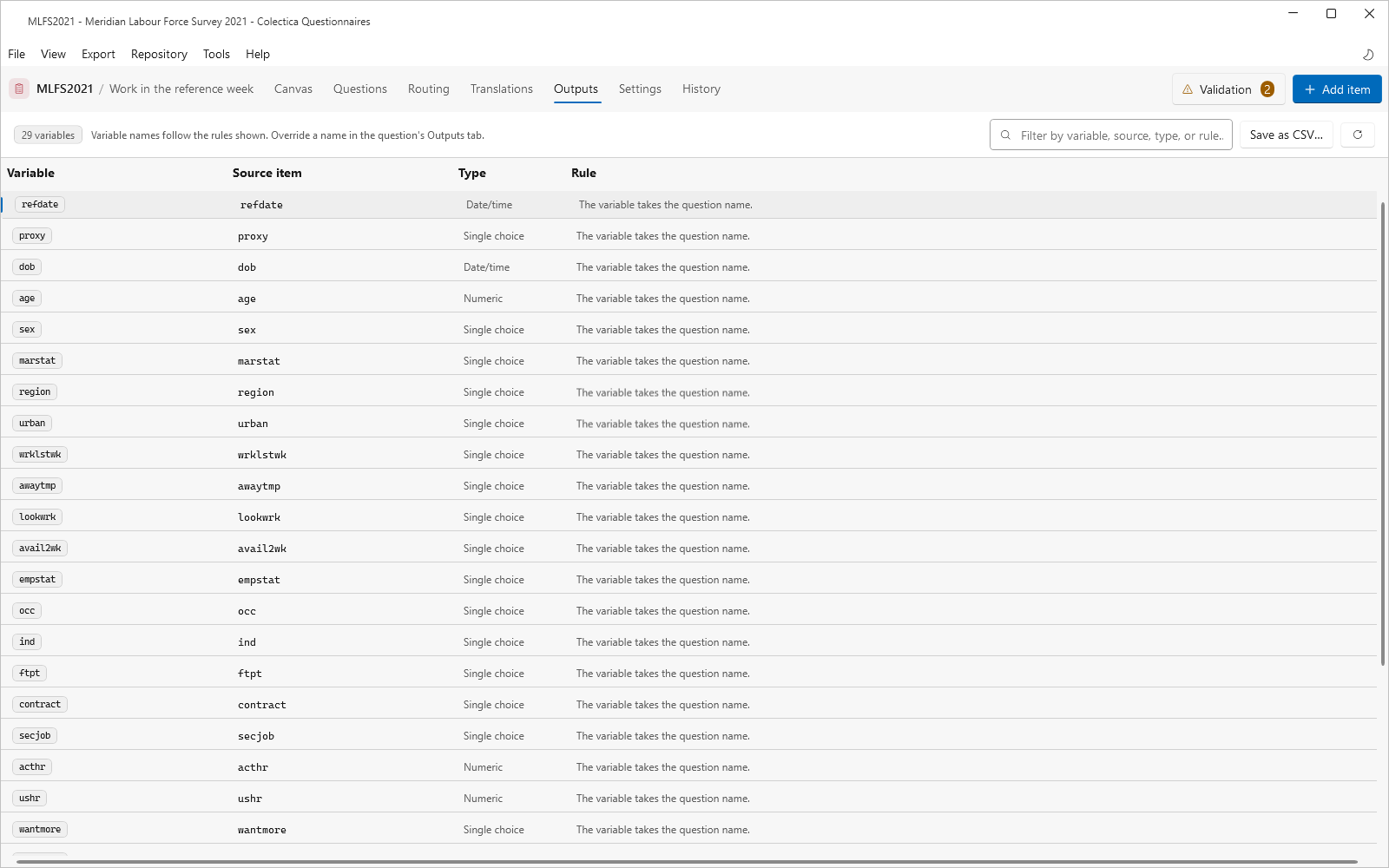
Open the Outputs page.
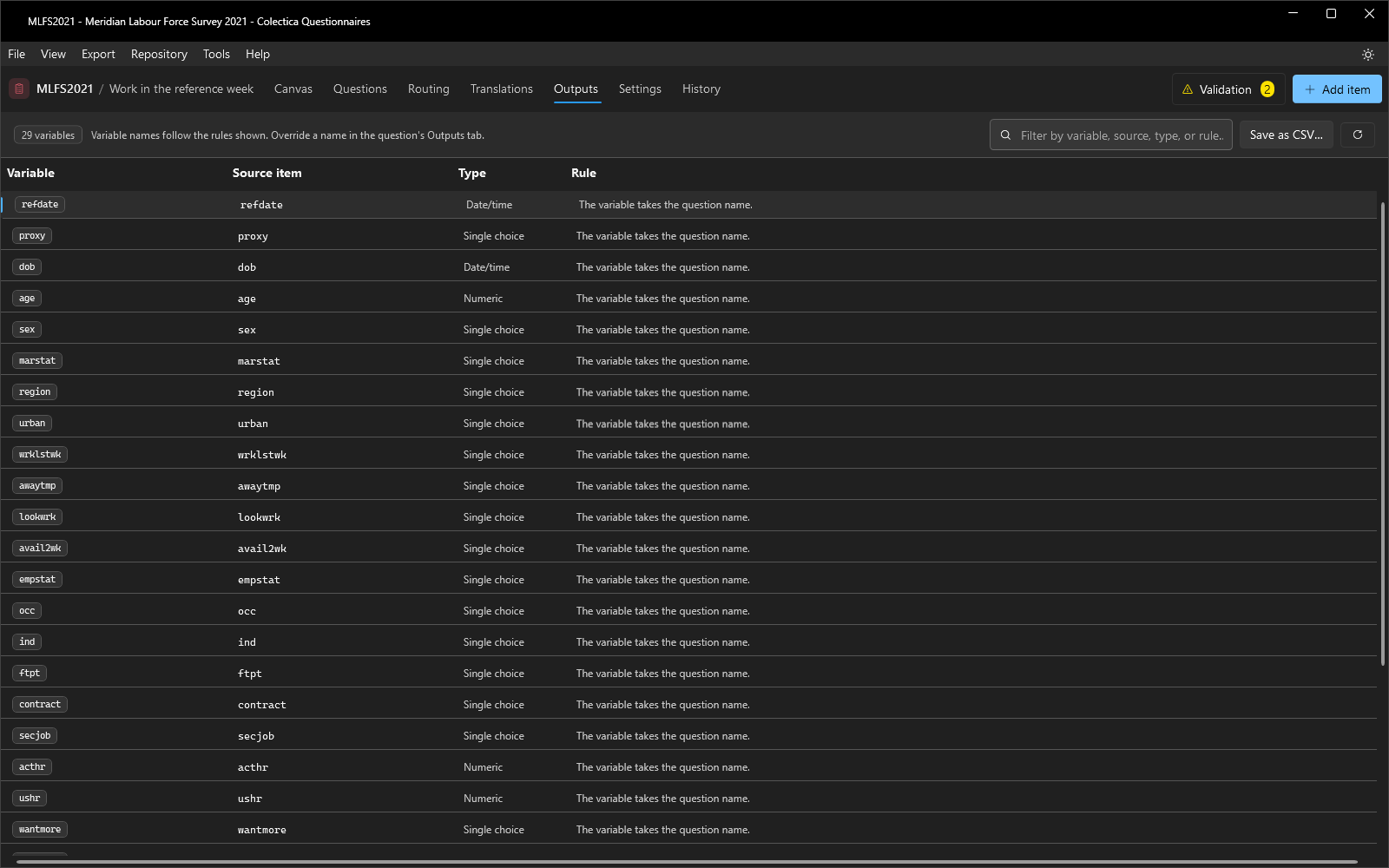
Each row shows the Variable name, its Source item, its Type, and the Rule that named it.
Filter by variable, source, type, or rule to audit a subset.
Click Save as CSV… to hand the list to data managers.
Override Names for a Question#
Double-click the variable’s row to open its question, then open the editor’s Outputs tab.
Click Override names.
Enter one name per line, in the order of the listed rows.
Leave the editor; the Outputs page now shows the overridden names with a pencil marker.
To return to the automatic names, click Remove name overrides. To drop the question-name prefix from all automatic names, tick Omit prefix based on question name from output names in the General section of Tools, then Settings….
See also
Outputs and Variable Names states the automatic naming rules. From Questions to Dataset Variables explains how the variables reach datasets.