
Synchronize with a Repository#
Saving writes to your local workspace only. The Synchronize dialog moves changes between your local copy and a repository: publishing yours, adopting others’, and resolving conflicts. A configured repository is required; see Connect to a Colectica Repository.
Open the Dialog#
Choose Repository, then Synchronize with your repository.
The survey is saved first, and the dialog opens with three sections: Changes to publish, Updates available, and Conflicts.
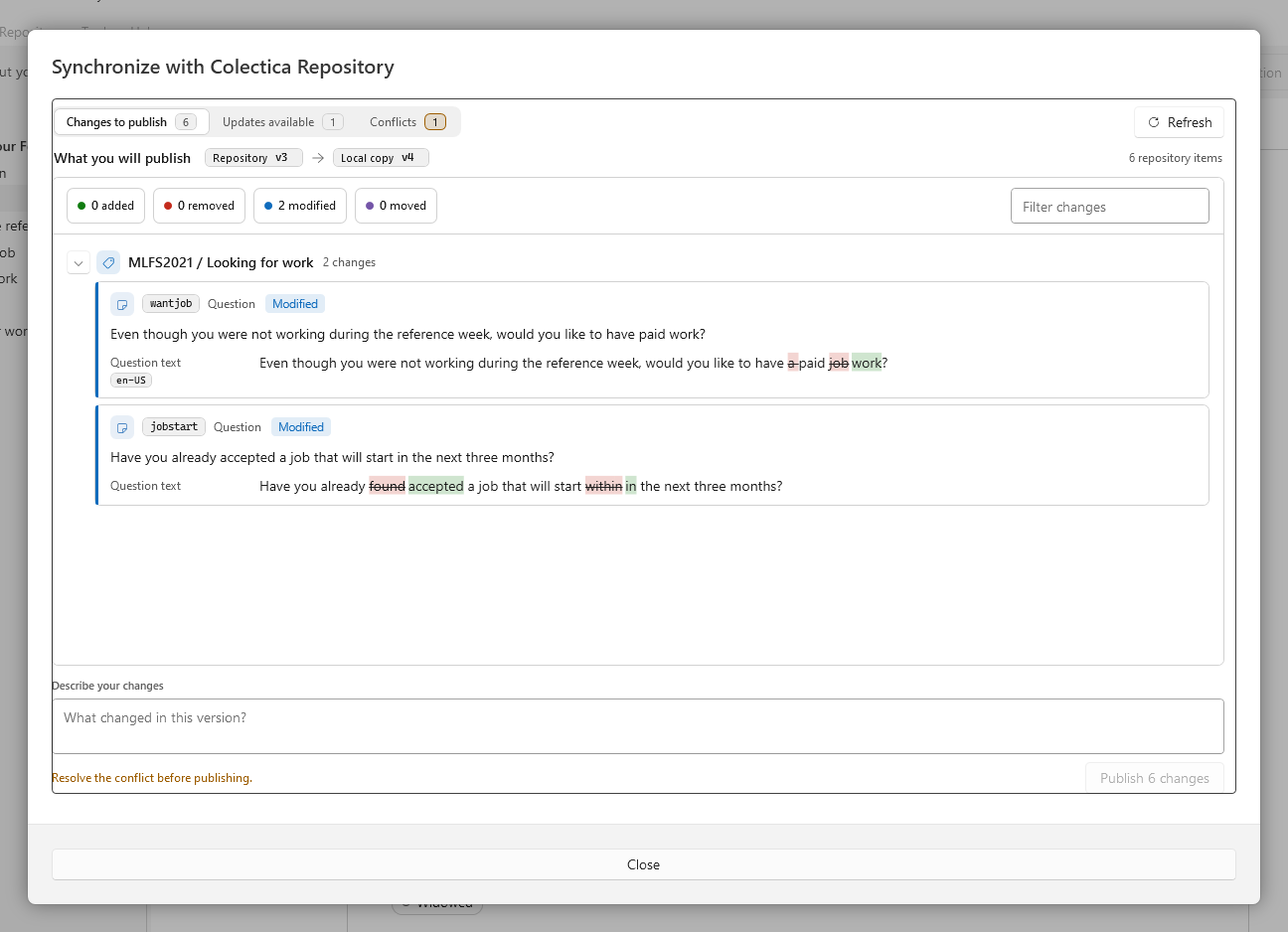
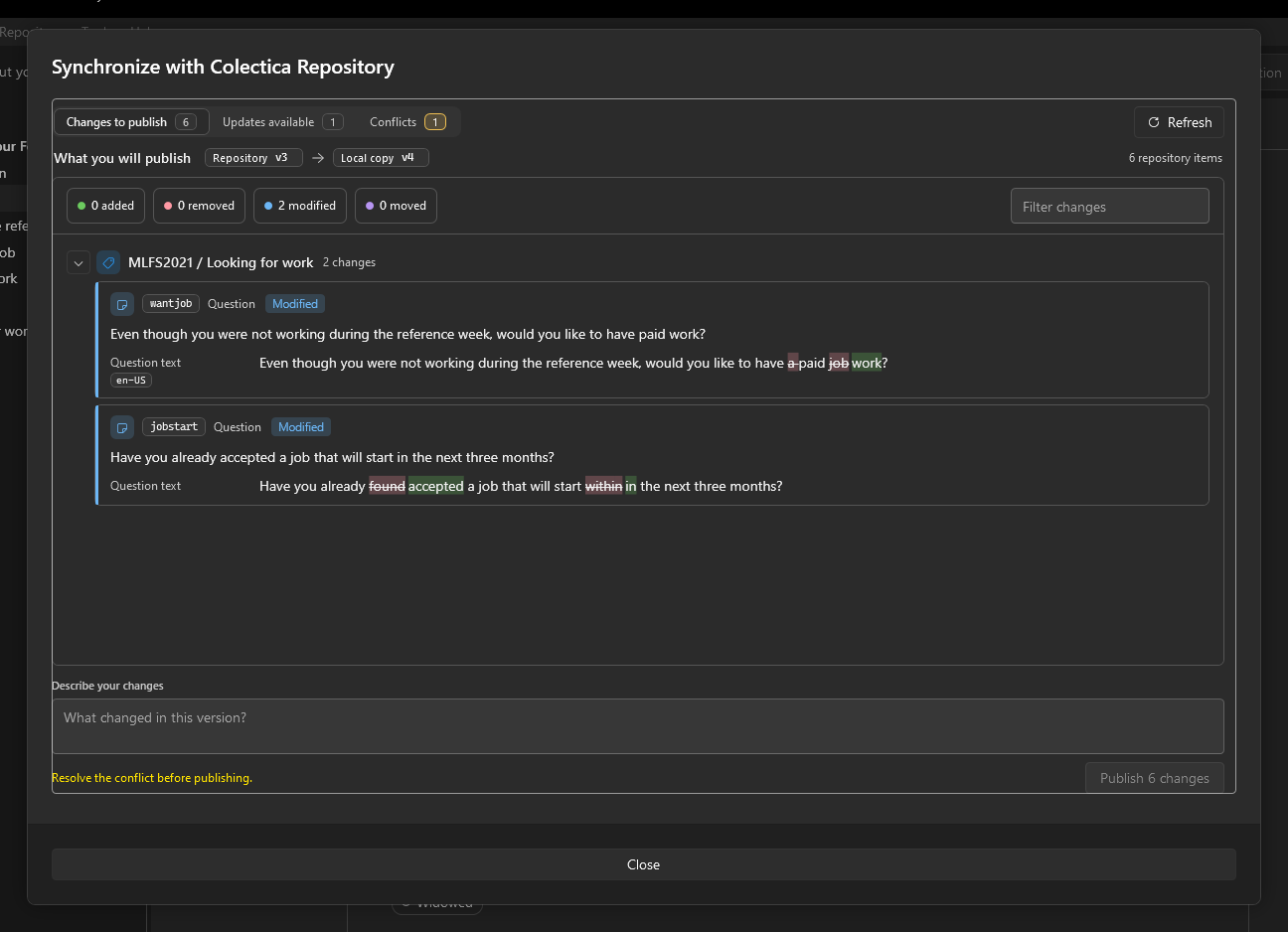
Publish Your Changes#
Open Changes to publish and review the changelog of what you will publish.
Describe your changes in the message box; the message appears in the version history.
Click the publish button.
Adopt Updates#
Open Updates available and review the changelog of what the repository has.
Click Update all.
An out-of-date item on the canvas carries an Update available tag and is read-only until updated; clicking the tag leads to this section.
Resolve Conflicts#
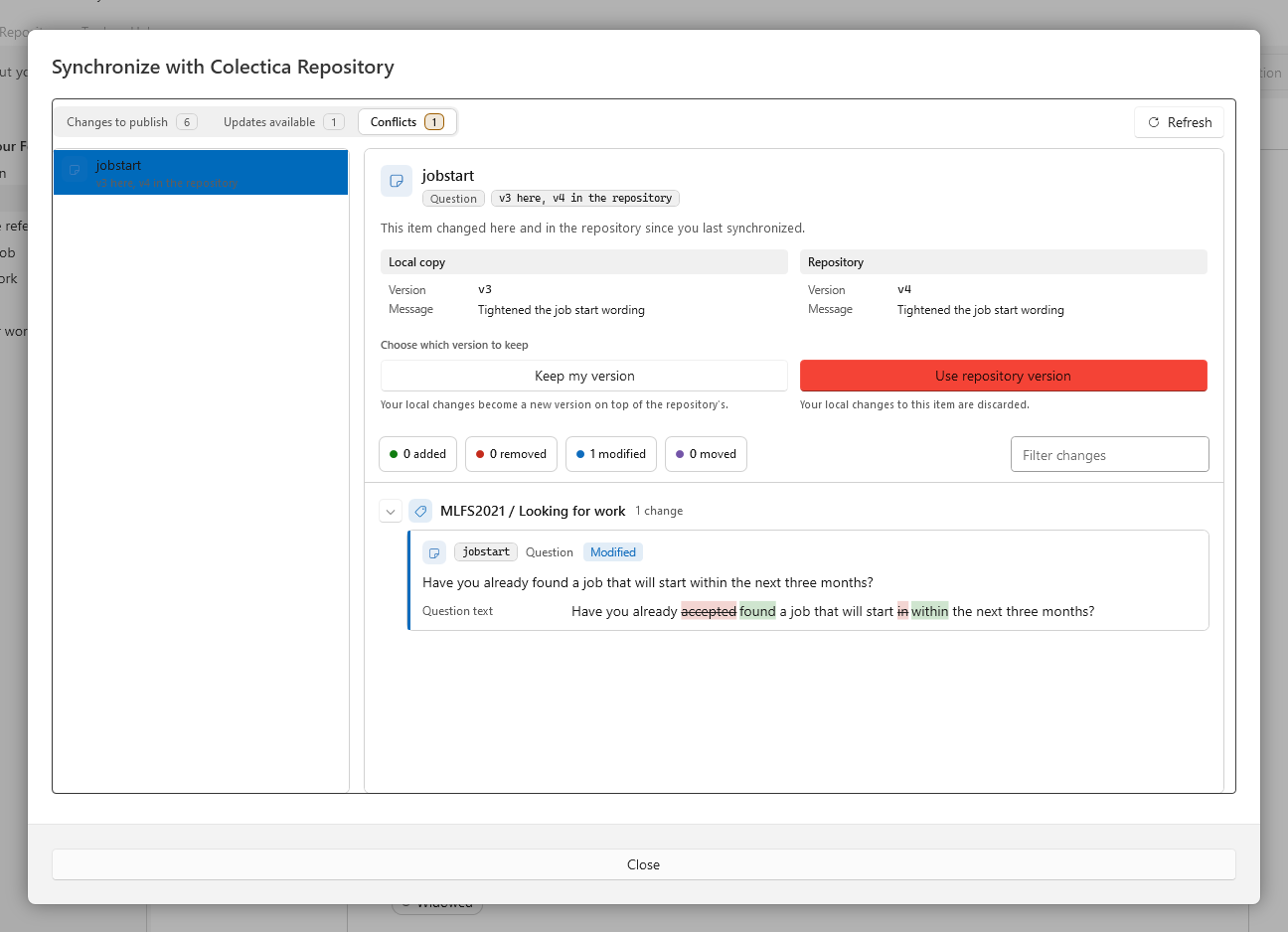
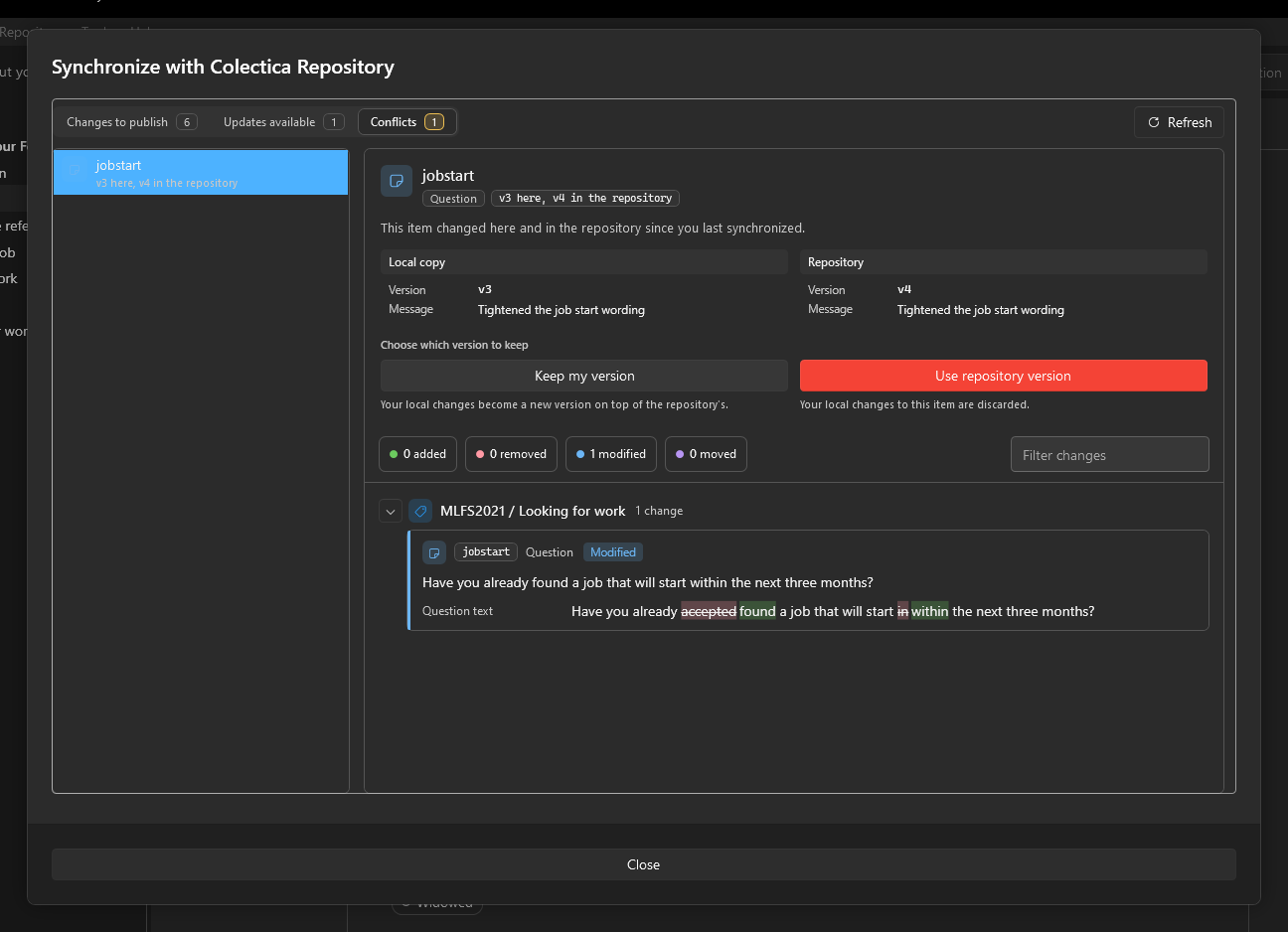
Open Conflicts and select an item changed both locally and in the repository.
Compare the two sides and their dates, users, and messages.
Click Keep my version to put your changes on top of the repository’s, or Use repository version to discard your local changes to that item.
After publishing, updating, or resolving, the survey reloads so the canvas reflects the result.
See also
Repository Dialogs describes every element of the dialog. View History and Compare Versions reviews the published versions.