
Test a Survey#
The live preview answers the survey as a respondent would, evaluating logic, fills, checks, and computations as you type. The validation rail runs the automated checks.
Walk the Survey#
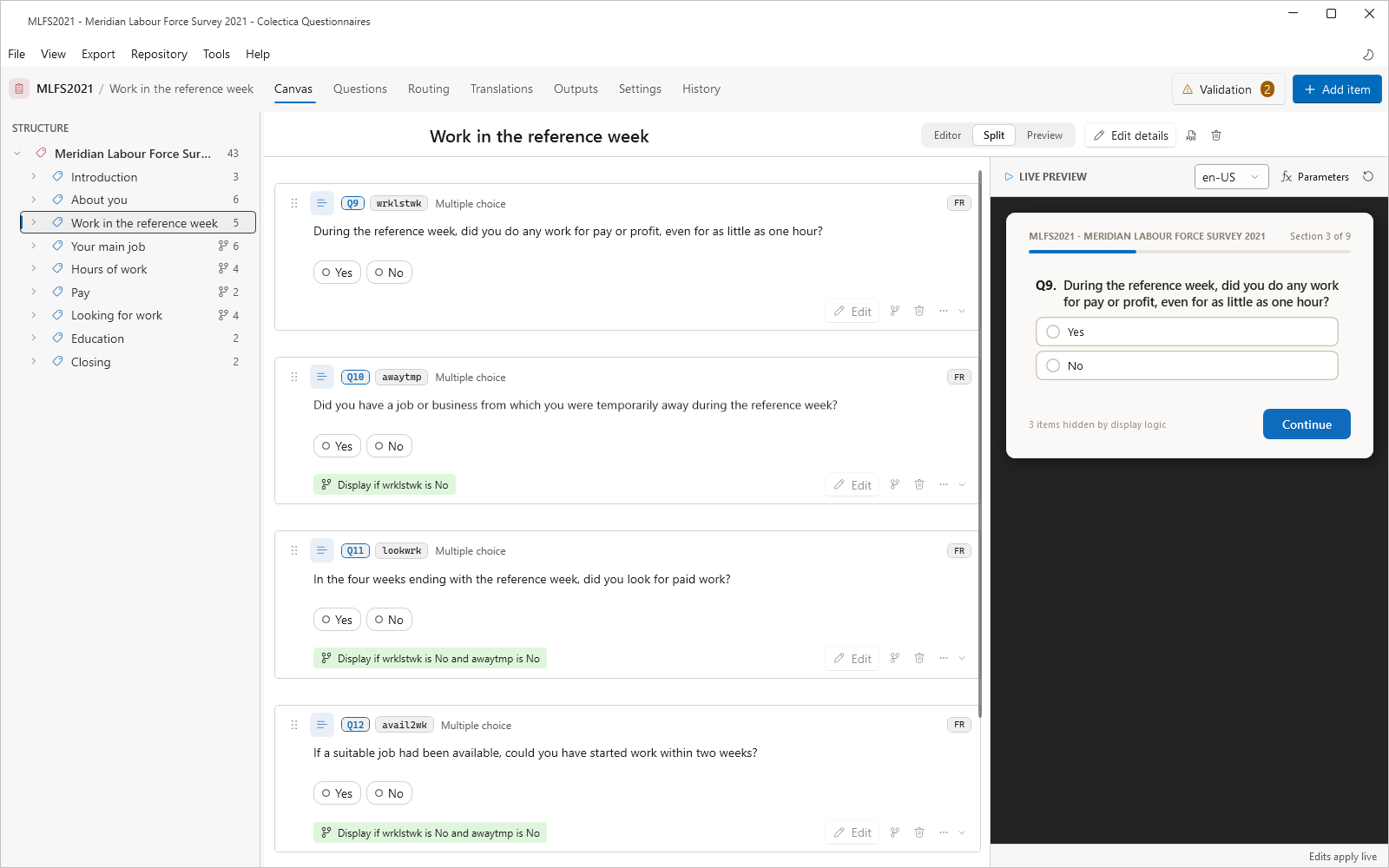
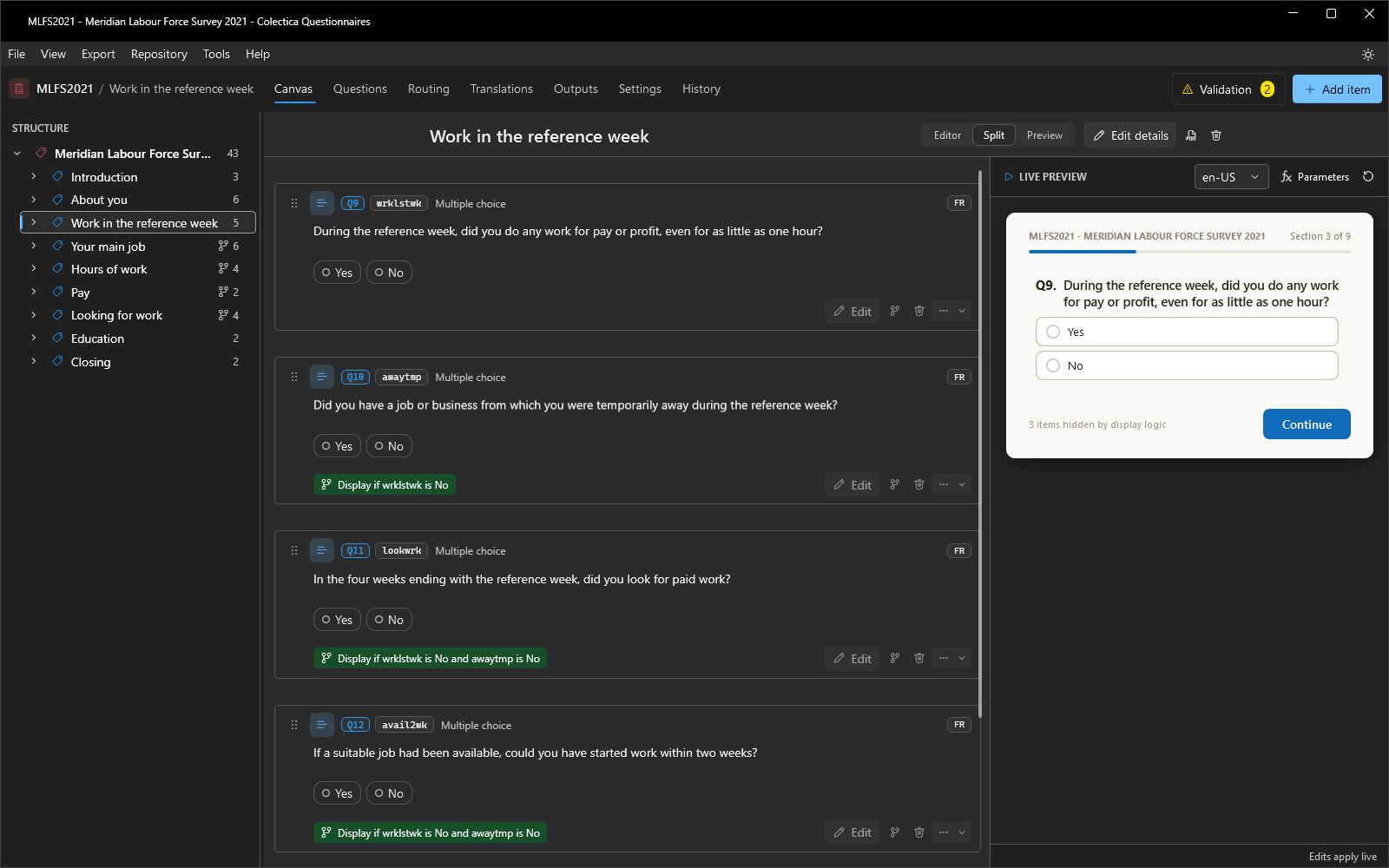
On the canvas, switch a section to Split to see the editor and preview together, or Preview for the preview alone.
Answer the questions; display logic, fills, and computed values react immediately.
Click Continue to advance section by section; answers carry through the whole run.
From the survey overview, Start preview begins a full run at the first section.
Use the restart button in the preview header to clear all answers.
Exercise Special States#
Questions referenced by a Refused or Don’t Know operator show REF and DK chips; click them to test those paths.
Trigger edit checks with implausible answers and confirm the messages.
Watch computed values on their cards in the preview, where each computation shows its name, its live value, and the answers it is derived from.
In a multilingual survey, switch the preview language and look for untranslated fallbacks.
Set Up a Scenario#
A scenario is a set of pinned values and answers that stay in place while you restart the preview and walk the survey again. Use it to test logic that depends on a computed value, a data lookup, or an answer given in an earlier section, without re-entering everything each time.
Click Scenario in the preview header. The button appears when the survey has computations or data lookups, and the tray opens under the preview.
On the Variables tab, find the variable; the rows are grouped by the section they are computed in, with the open section first, and the Filter box narrows them by name, kind, or section.
Type a value in the Pin a value box, or pick a code from the dropdown for a code variable. The live value is struck through while the pin overrides it, and the row is tinted.
A data lookup, or a computation the preview cannot evaluate, has no live value; pin a value to give it one.
To keep an answer, point at the question on the preview and click Pin. The chip reads Pinned, the question is tinted, and the answer is listed on the Pinned answers tab with its section.
Click the restart button to clear the other answers and walk the survey again under the scenario. Pinned values and answers stay; the Scenario button counts them.
Remove one pin with its clear button or Unpin, or remove them all with Clear pins.
Pins are saved with the survey, so a scenario is still in place after the survey or the application is reopened. Drag the tray’s top edge to resize it; the tray’s height and whether it is open are remembered.
Run the Automated Checks#
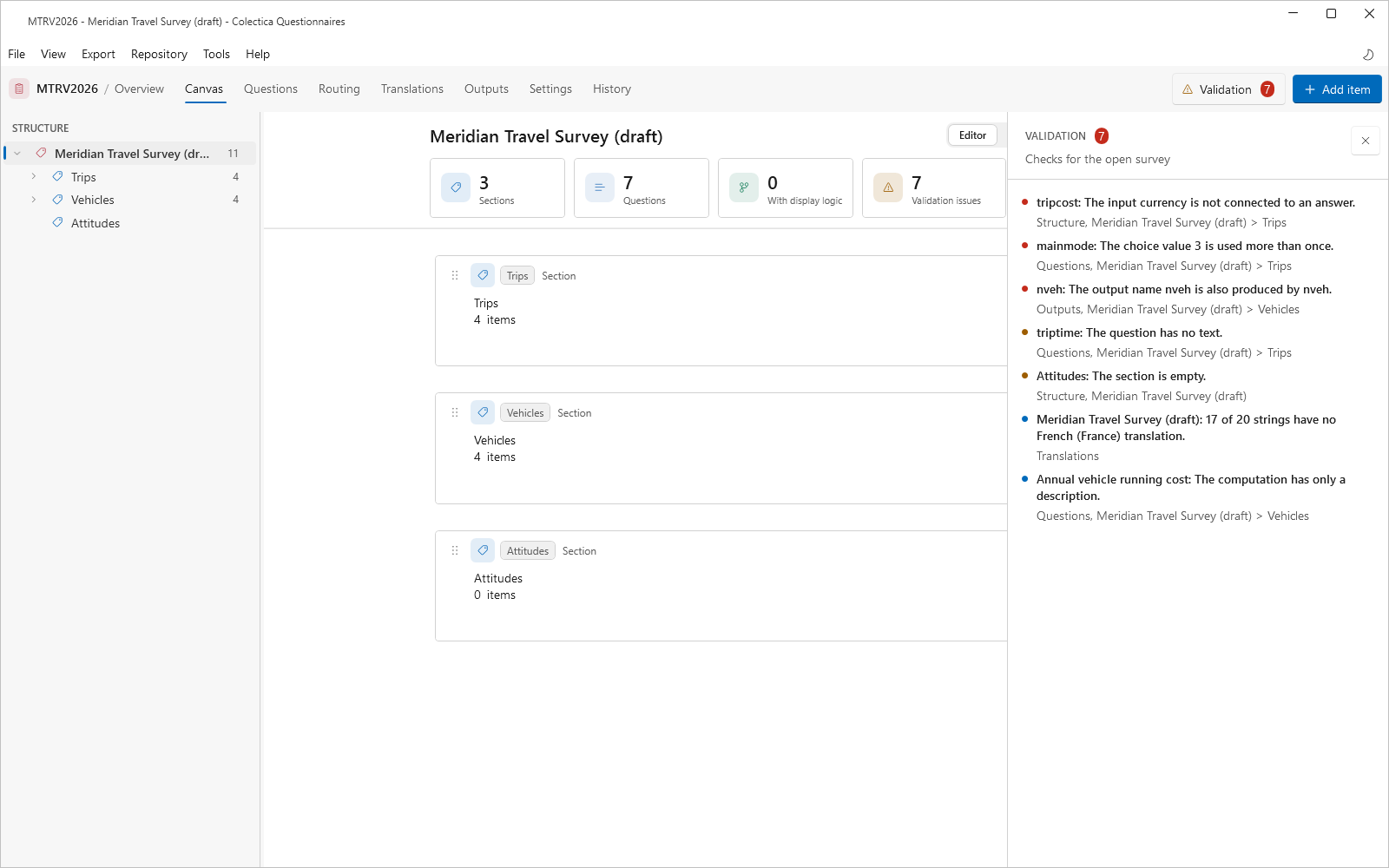
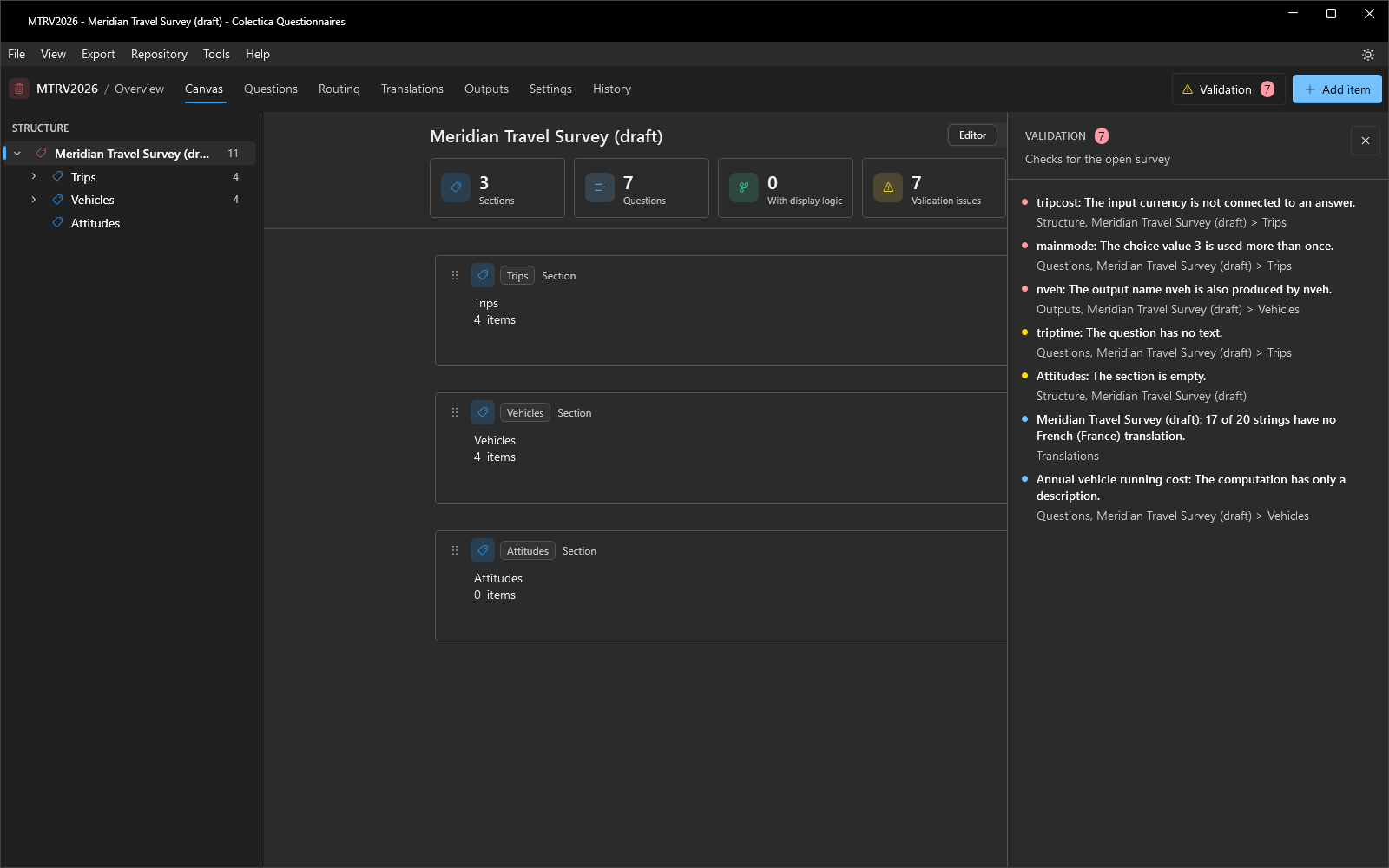
Choose Tools, then Check for Errors.
Work through the rows in the validation rail from the top; errors come first, then warnings, then information. Clicking a row opens the affected item.
Fix every error. An error means the survey is inconsistent, and the Blaise 5 export refuses a survey that has one.
Review the warnings and the information rows. They point at quality problems and advisories; no export refuses them.
The Validation badge in the navigation bar turns green when nothing remains.
See also
Validation Checks lists every check and its severity. Trace and Fix Routing audits the survey’s flow as a whole.