Application Window and Menus#
The Welcome Page#
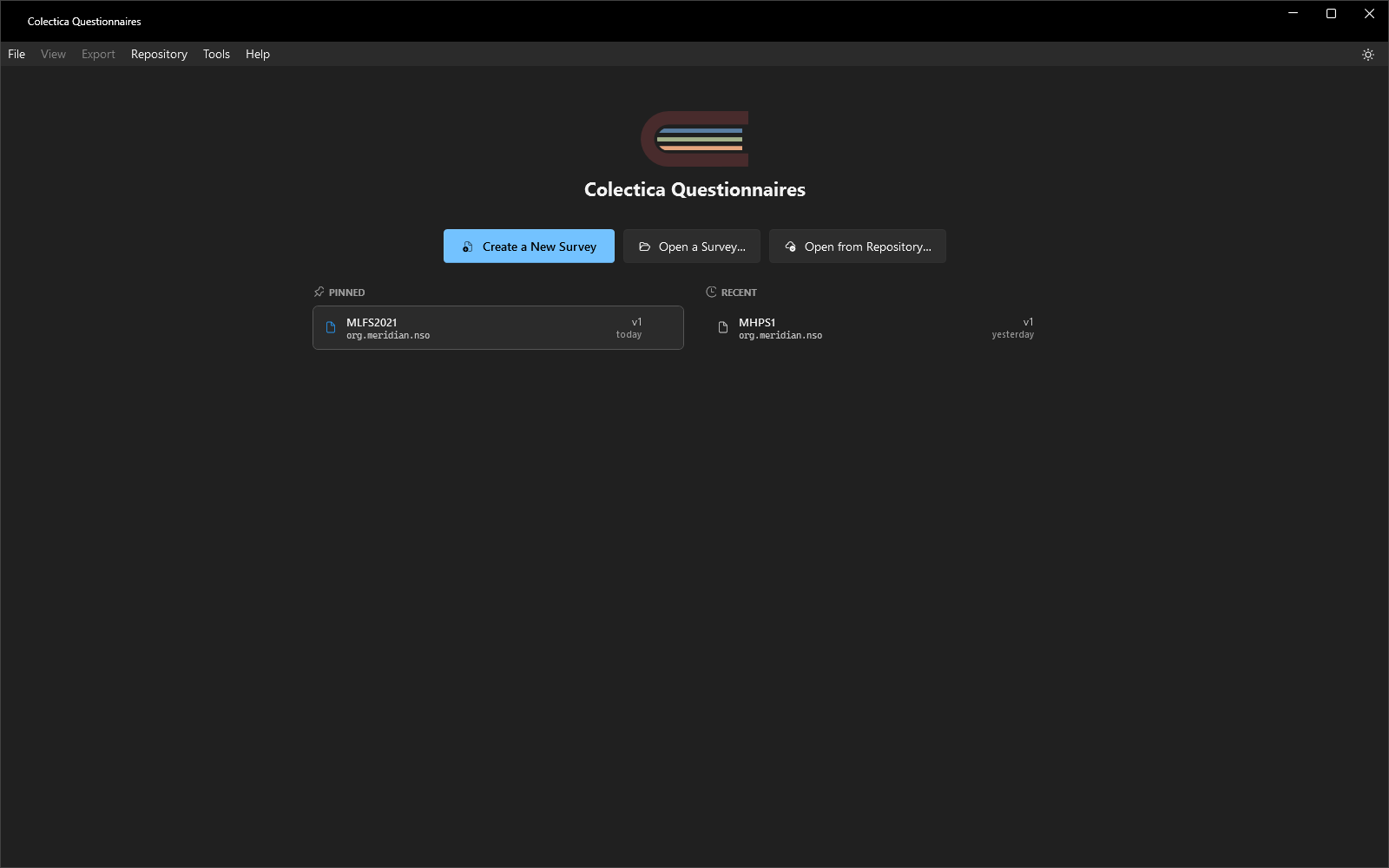
The welcome page appears when no survey is open.
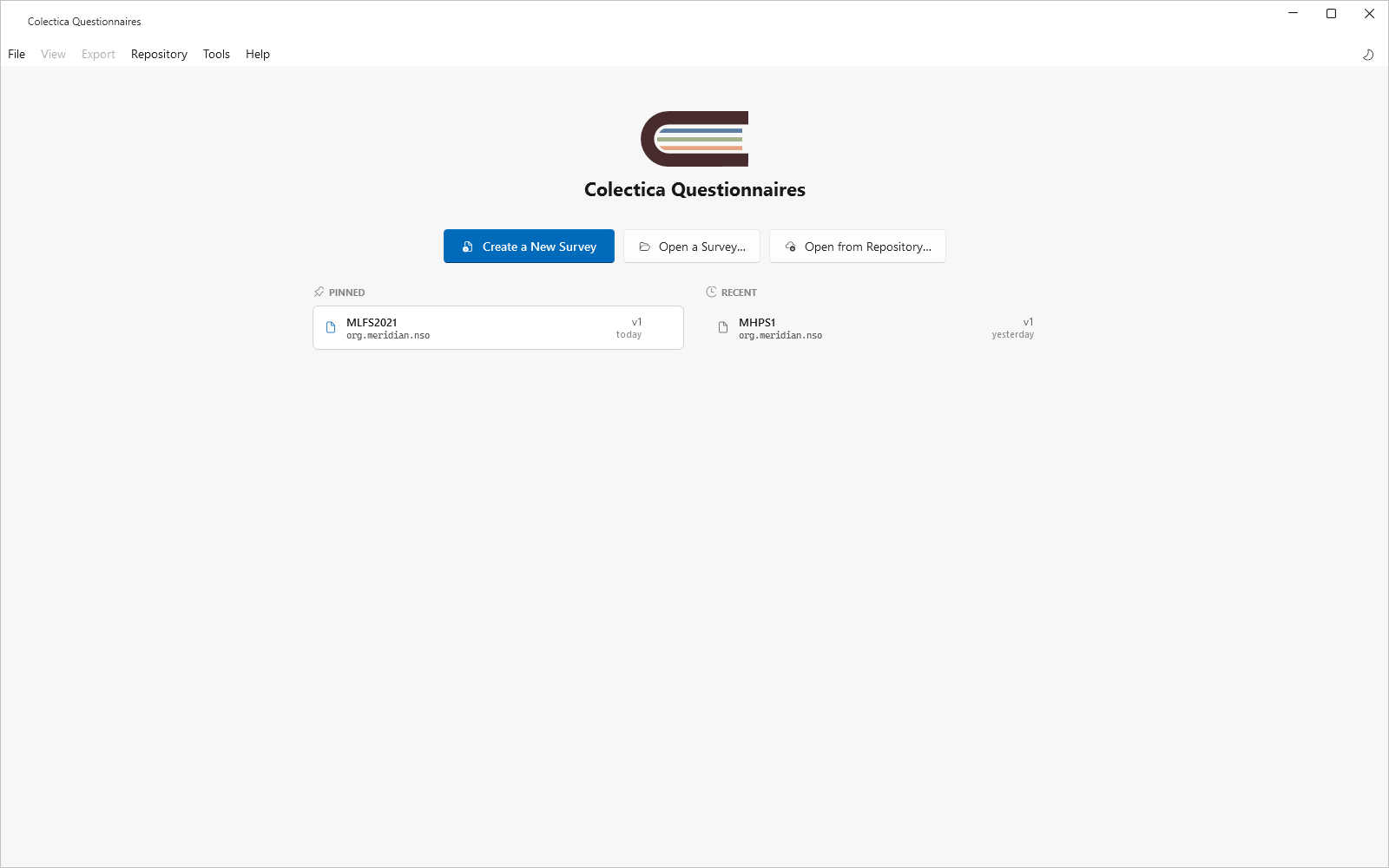
It offers three actions.
Create a New Survey opens the Create a Survey dialog.
Open a Survey… lists the surveys in your local workspace.
Open from Repository… downloads a survey from a configured Colectica Repository.
Below the actions, the Pinned list holds surveys you have pinned, and the Recent list holds the ten most recently opened surveys. Each row shows the survey’s name, its agency identifier, its version, and when it was last opened. Clicking a row opens the survey. Hovering over a row reveals a pin button that moves the survey between the two lists.
The Menu Bar#
File#
Command |
Effect |
|---|---|
New |
Creates a survey (Ctrl+N). |
Open… |
Lists the surveys in your local workspace (Ctrl+O). |
Open Recent |
Holds your pinned surveys, then your recent surveys. |
Open from Repository… |
Downloads a survey from a configured repository. |
Pin Survey |
Pins or unpins the open survey on the welcome page. |
Save |
Saves the open survey to the local workspace (Ctrl+S). |
Exit |
Closes the application. |
View#
The View menu mirrors the navigation bar: Canvas, Questions, Routing, Translations, Outputs, Settings, and History. The Translations entry appears when the survey has two or more languages.
Export#
One entry per available export format: Specification, Paper Form, and DDI 3.3. See Export Formats.
Note
This feature is available in Blaise Colectica Questionnaires.
In Blaise Colectica Questionnaires, the Export menu also offers Blaise 5 source generation.
Repository#
Configure Repositories… opens the Settings dialog on its Repositories section. Below it, one Synchronize with … entry appears per configured repository, enabled while a survey is open. See Settings Dialog and Repository Dialogs.
Tools#
Command |
Effect |
|---|---|
Search |
Opens the search rail (Ctrl+F). |
Check for Errors |
Runs the validation checks and opens the validation rail. |
Comments |
Opens the comments rail. |
Settings… |
Opens the Settings dialog. |
Help#
About reports the application version.
The Theme Toggle#
A sun or moon button at the right end of the menu bar switches between the light and dark themes (Ctrl+Shift+D). The choice is remembered across restarts. The General section of the Settings dialog offers the same choice, plus a System setting that follows the operating system theme.
The Navigation Bar#
While a survey is open, the navigation bar offers the survey’s workspace pages: Canvas, Questions, Routing, Translations (with two or more languages), Outputs, Settings, and History. To the left, a breadcrumb shows the survey’s name and the open section. To the right sit three buttons.
Comments opens the comments rail and shows the number of open comment threads.
Validation opens the validation rail and shows the number of findings. The badge is red when any finding is an error, amber when there are only warnings and information, and green when there are none.
Add item opens the add-item palette for the current section.
The Settings Dialog#
Tools, then Settings…, opens the application’s settings in one dialog: the agency identifier, the theme, output naming, repository search, repository connections, and custom field definitions. See Settings Dialog.
Keyboard Shortcuts#
Shortcut |
Effect |
|---|---|
Ctrl+N |
New survey. |
Ctrl+O |
Open a survey. |
Ctrl+S |
Save. |
Ctrl+F |
Search the survey. |
Ctrl+Shift+D |
Toggle the light and dark themes. |