
Check, Preview, and Export#
In this lesson you validate the survey, walk it end to end, and export it as a printable PDF.
The video below performs every step in this lesson.
Check for Errors#
Open the
Meridian Internet Access Survey.Choose Tools, then Check for Errors.
The validation rail lists what the checks found, errors first, then warnings, then information. For this survey the only row is an information row: the French translation from the previous lesson is incomplete, which is expected.
Click any row to open the affected item. Fix every error before exporting; warnings and information rows are advice.
Walk the Whole Survey#
Select the survey’s name in the structure tree to open the overview.
Switch to Preview and click Start preview.
Answer your way through both sections with Continue, as a respondent would.
Try both routes: a connected household and one without internet.
Use the restart button to clear the answers when done.
Export the Paper Form#
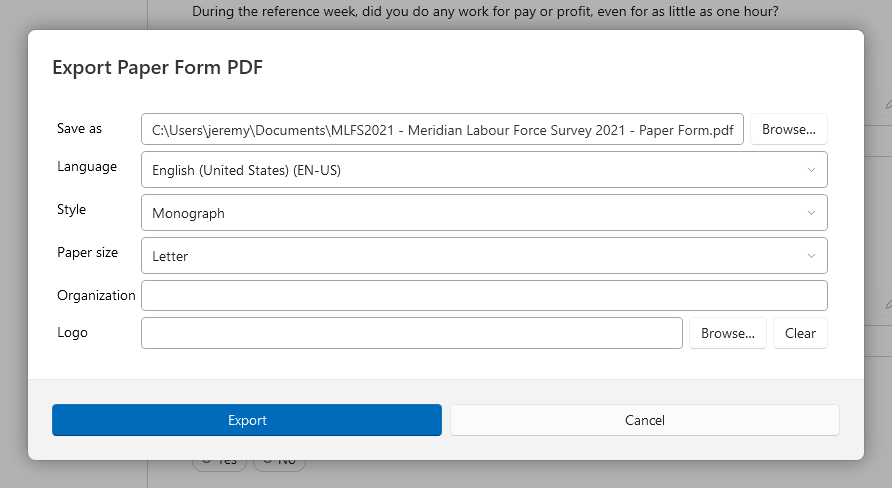
Choose Export, then Paper Form.
Choose where to save the file, keep the language on English, and pick a Style and Paper size.
Enter
Meridian National Statistics Officeas the Organization.Click Export.
The folder with the finished PDF opens: a printable questionnaire with tick boxes for the choices and ruled spaces for the written answers.
The questions are numbered Q1 to Q6, the same numbers the canvas shows.
See also
Next lesson: Reuse Questions from a Repository.