
Code Lists and Categories#
Create Code Lists#
Navigate to a Variable, Question, or other item that references a code list.
Click the Add button.
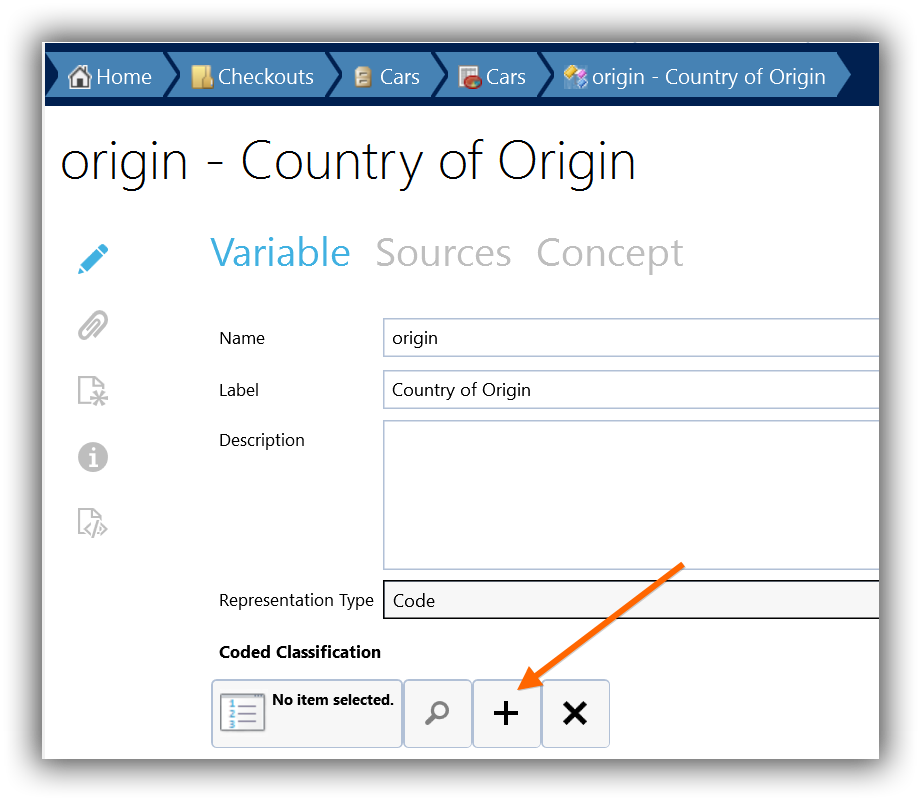
A new code list will be created and opened.
See Edit Classifications for information on editing code lists.
Edit Code Lists#
Add Items#
To add a new item to a code list, simply type a label for the item in the text box at the bottom of the code list editor and press Enter.
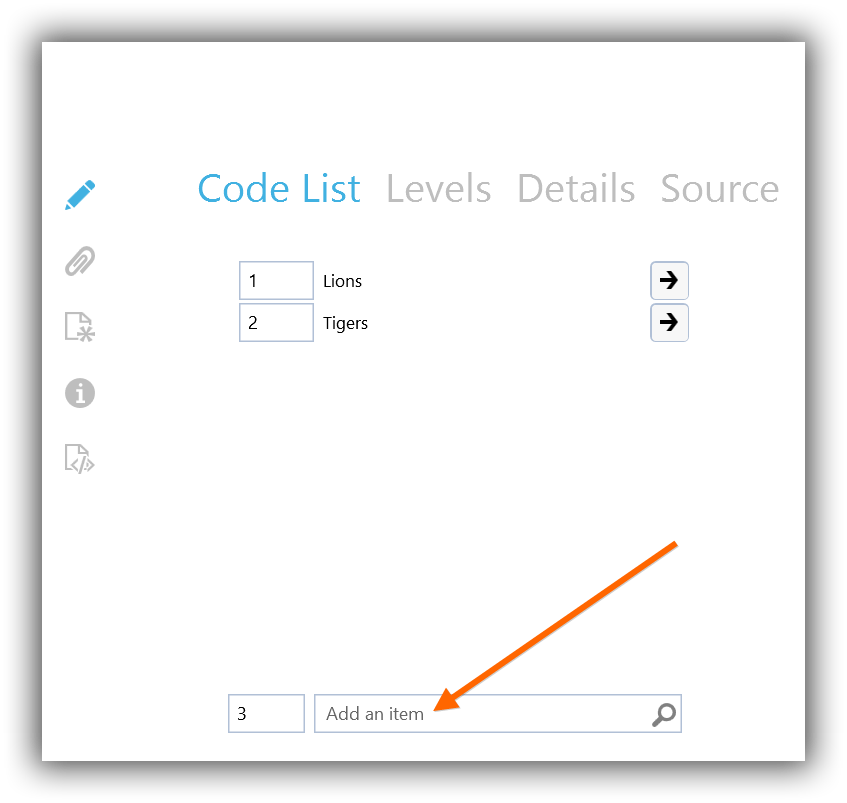
If you like you can also choose the value of the code; otherwise, the value will be automatically assigned and incremented.
Build Hierarchical Code Lists#
Code lists can contain multiple levels of items. For example, a code list with locations might contains several levels: continent, countries, and cities.
To move an item down one level, right click the item and select Move right. This will make the item a child of the item above it.
To move an item up a level, right click the item and select Move left. This will make the item a sibling of its former parent.
Label a Code List#
To give a name, label, and description to a code list:
Click the Details tab of the code list editor.
Enter a name, label, and description as appropriate.
Sort by Code Values#
Navigate to the code list.
In the Codes tab of the ribbon, click Sort by Codes.
The top-level codes are sorted by value, with numbers ordered naturally. For example,
2comes before10. Colectica saves the changed list.
Sorting preserves the code values. Child codes remain under their existing parents and are not sorted separately.
Renumber Codes#
Navigate to the code list.
In the Codes tab of the ribbon, choose Auto-Number Codes from 1 or Auto-Number Codes from 0.
Colectica replaces the code values with consecutive numbers beginning at the value you chose and saves the changed list.
The numbering follows the list’s existing order and includes child codes in a hierarchy. It continues across the entire list rather than starting over under each parent.
Note
Renumbering replaces existing code values as soon as the command runs. It does not change values stored in a data file. If variables use this code list, make sure the new codes still correspond to their data.
Alphabetize and Renumber#
Navigate to the code list.
In the Codes tab of the ribbon, click Alphabetize and renumber.
Colectica sorts the top-level codes by their category labels, then renumbers the entire list starting at
1.
This command changes both the order and the values of codes. Child codes are included in the numbering, but their order within each parent is preserved.
Create a Code List from a Category Set#
Navigate to a category set.
In the Categories tab of the ribbon, click Create Corresponding Code Scheme.
Colectica creates a code list with one code for each category directly in the set. Codes are numbered from
1in the order of the categories.Locate the new code list under the category set’s parent. If the category set has no metadata parent, the new list is added as a top-level item instead.
The new list uses the category set’s agency identifier and copies its name and label in the current language. Its codes refer to the existing categories, so editing one of those categories also changes what appears in the new code list.
See also
To create a statistical classification from a code list, see Create a Classification from a Code List.