
Response Types and Code Lists#
A question’s Response tab holds the settings of its response type.
Text#
Setting |
Description |
|---|---|
Maximum Length |
The longest accepted answer, in characters. |
Numeric#
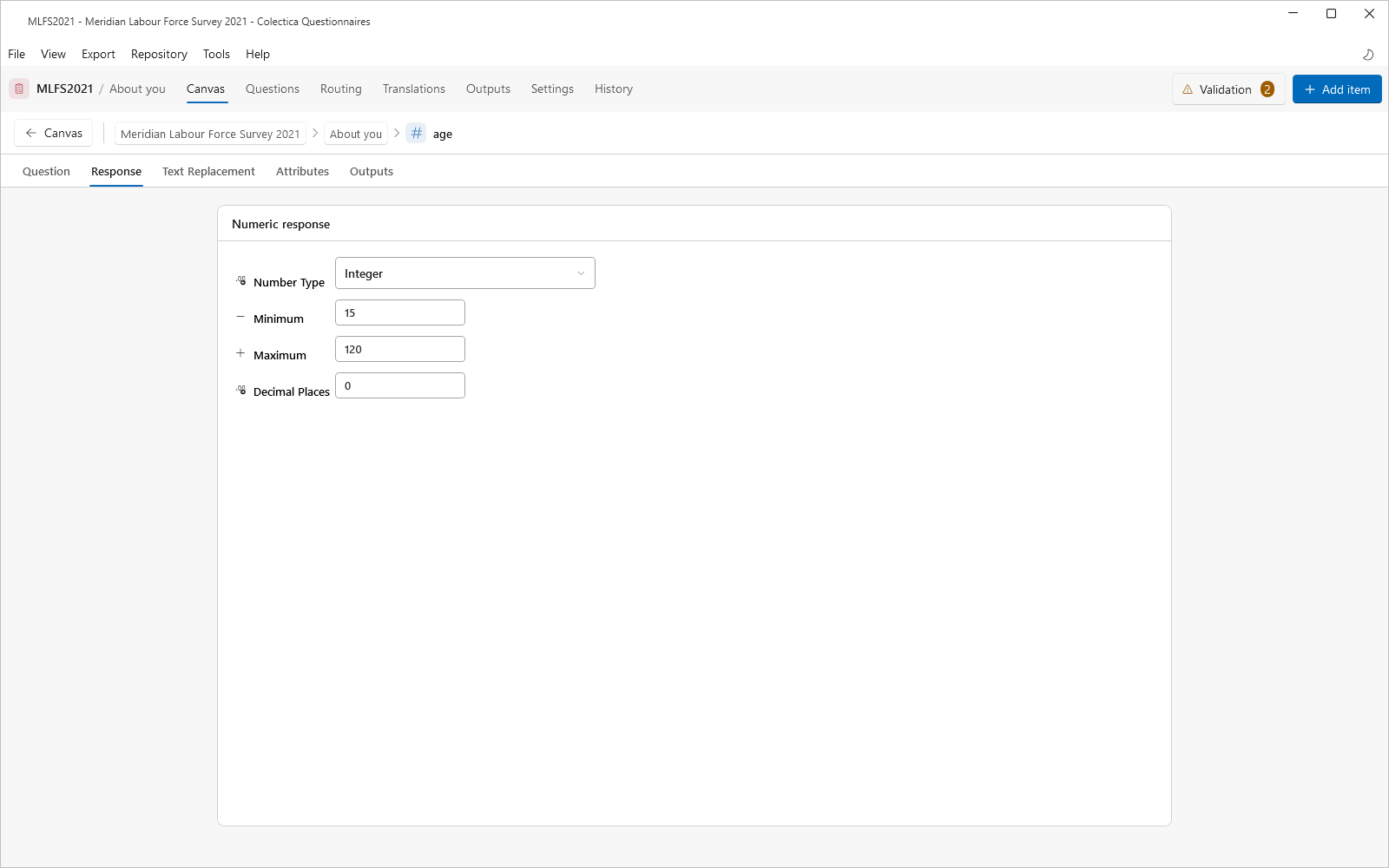
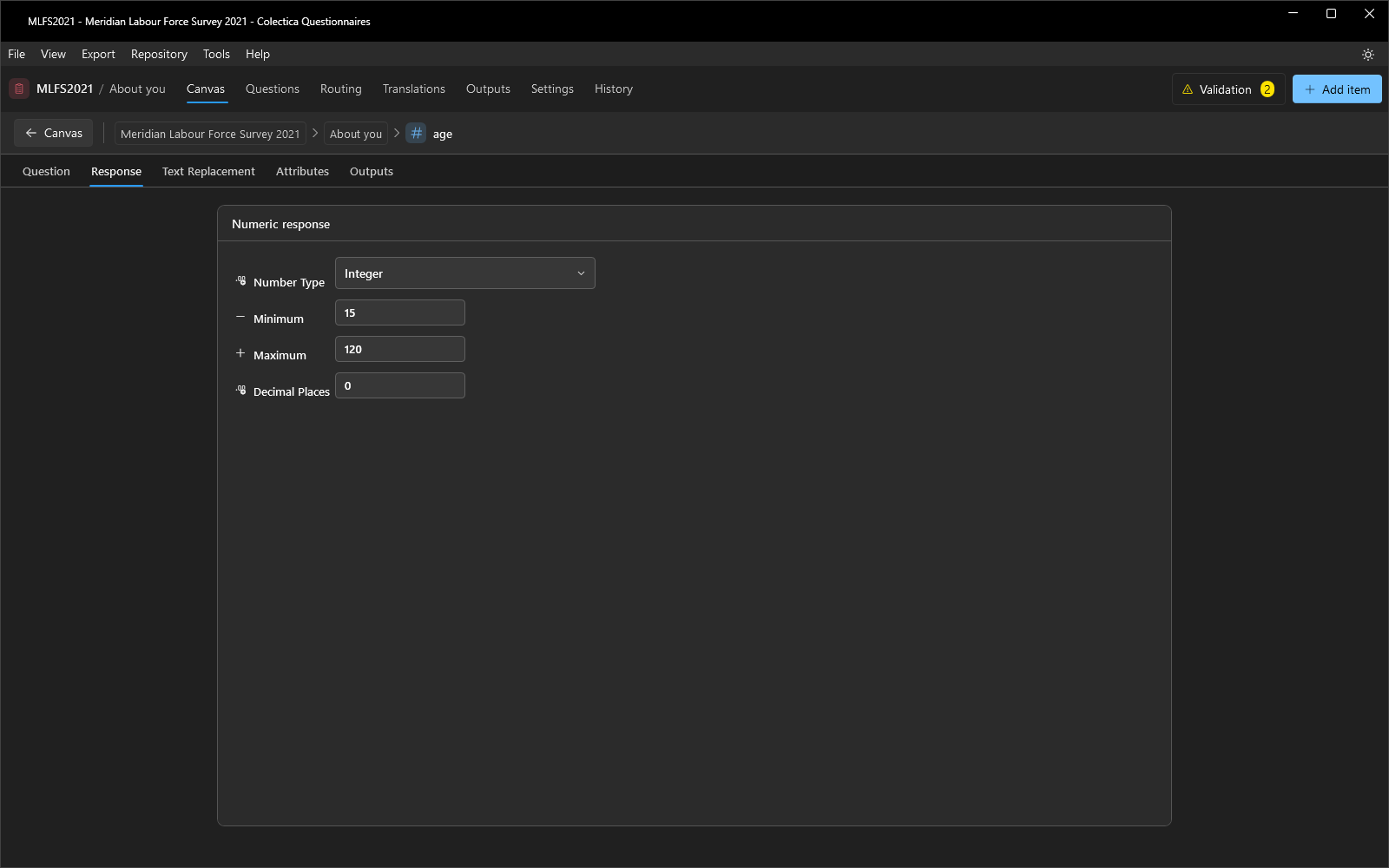
Setting |
Description |
|---|---|
Number Type |
The numeric kind of the answer. |
Minimum |
The lowest accepted value. |
Maximum |
The highest accepted value. |
Decimal Places |
The number of decimal places accepted. |
Date and Time#
Date and Time questions have no additional response settings.
Multiple Choice#
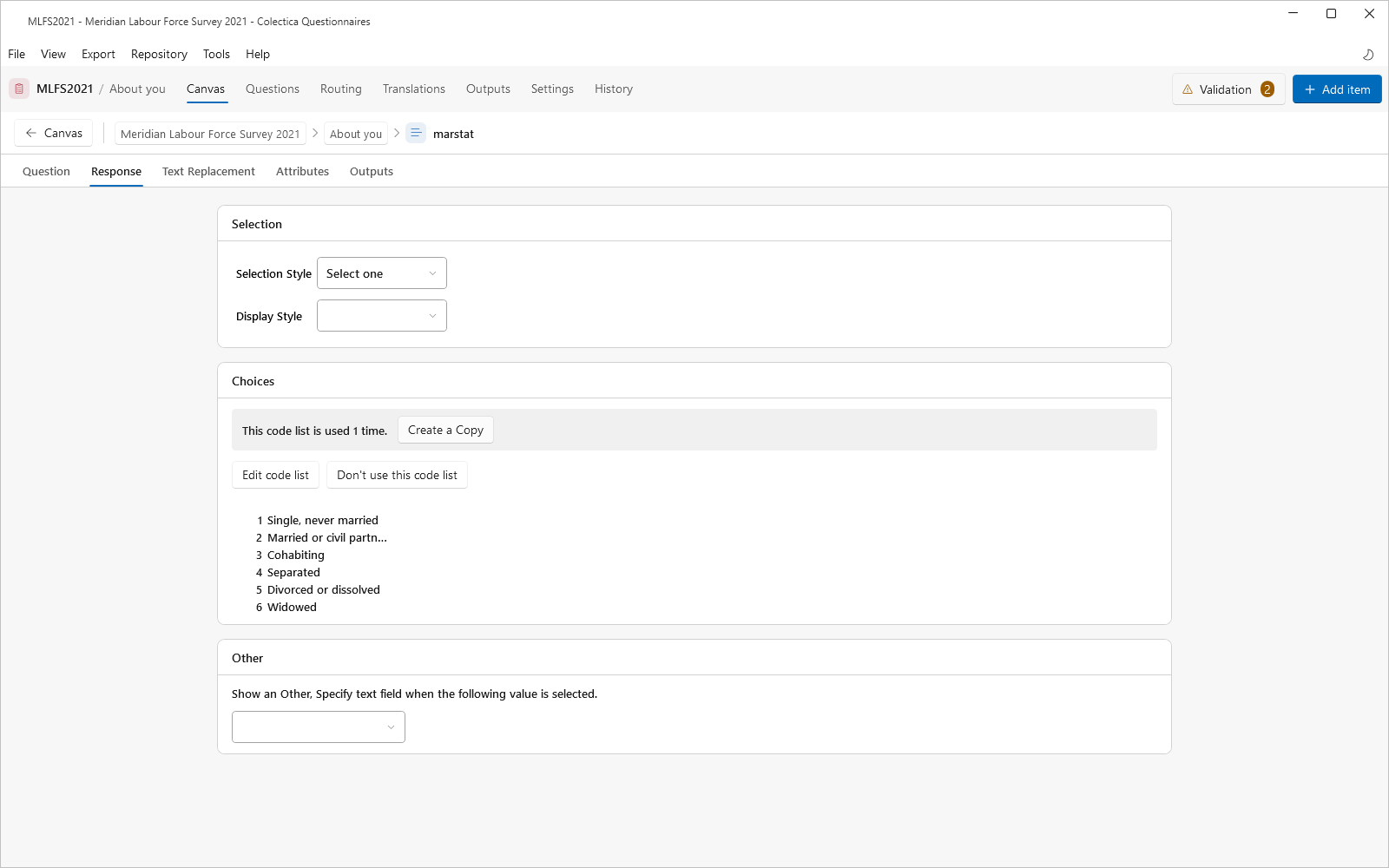
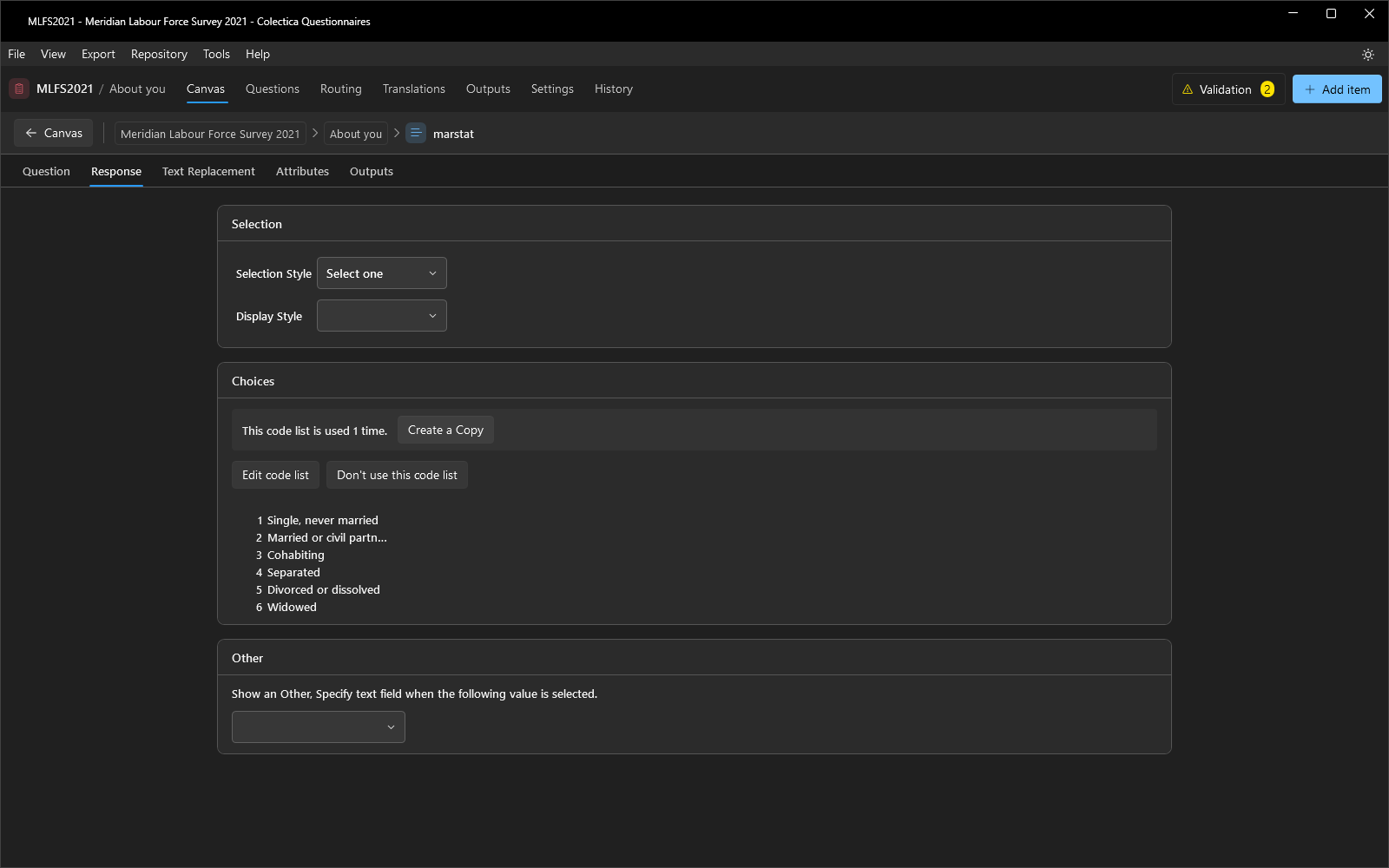
The Selection card sets how choices are picked and shown.
Setting |
Description |
|---|---|
Selection Style |
One choice, or up to a given number of choices. |
Display Style |
Vertical, Horizontal, DropDown, Likert, or Push buttons. |
The Choices card manages the question’s code list. When the question has no code list yet, you can Use an existing code list from the survey or a repository, or Create a new code list. When it has one, the card lists the values and labels, reports how many questions share the list, and offers Edit code list, Create a Copy, and Don’t use this code list. Because code lists are shared items, editing one changes every question that uses it; Create a Copy makes a private copy first.
The Other card adds an Other, Specify text field that appears when a chosen value is selected.
Question Grid#
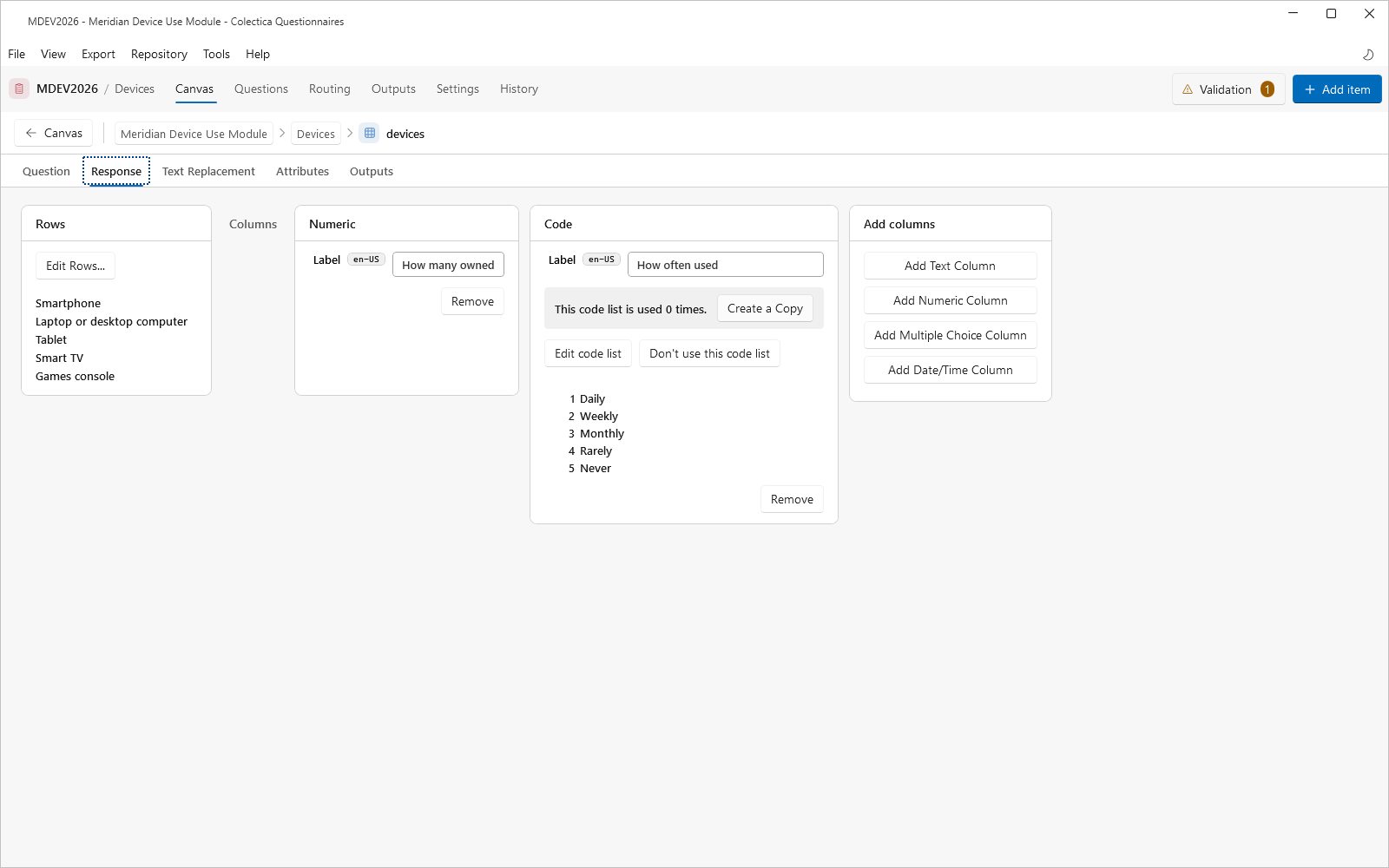
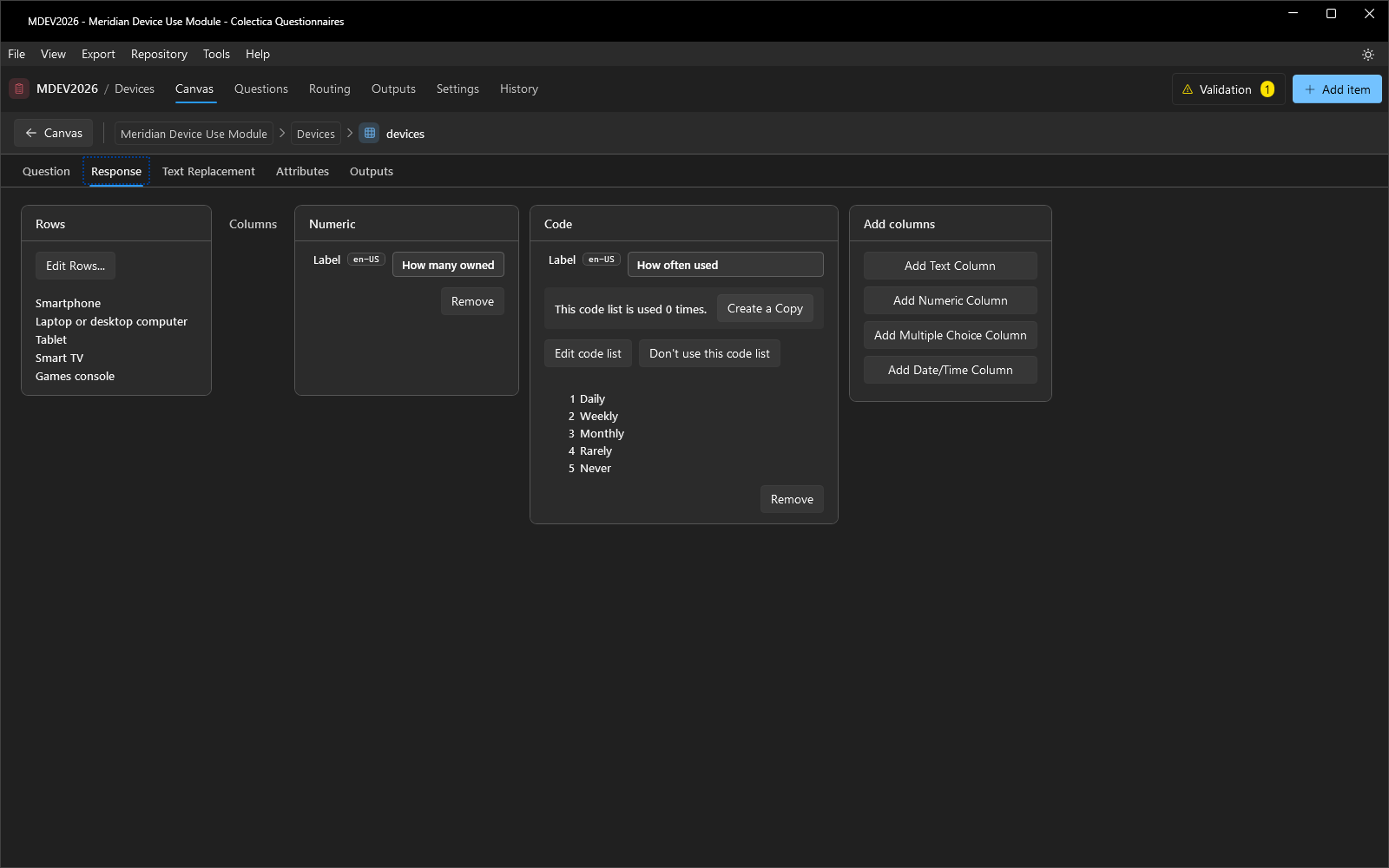
A question grid asks the same set of typed questions for every row. The Rows card opens the row list editor with Edit Rows…. Each column has its own card with a label and, for choice columns, an inline code list editor. The Add columns card appends a column of a chosen type: Add Text Column, Add Numeric Column, Add Multiple Choice Column, or Add Date/Time Column.
Choice Grid#
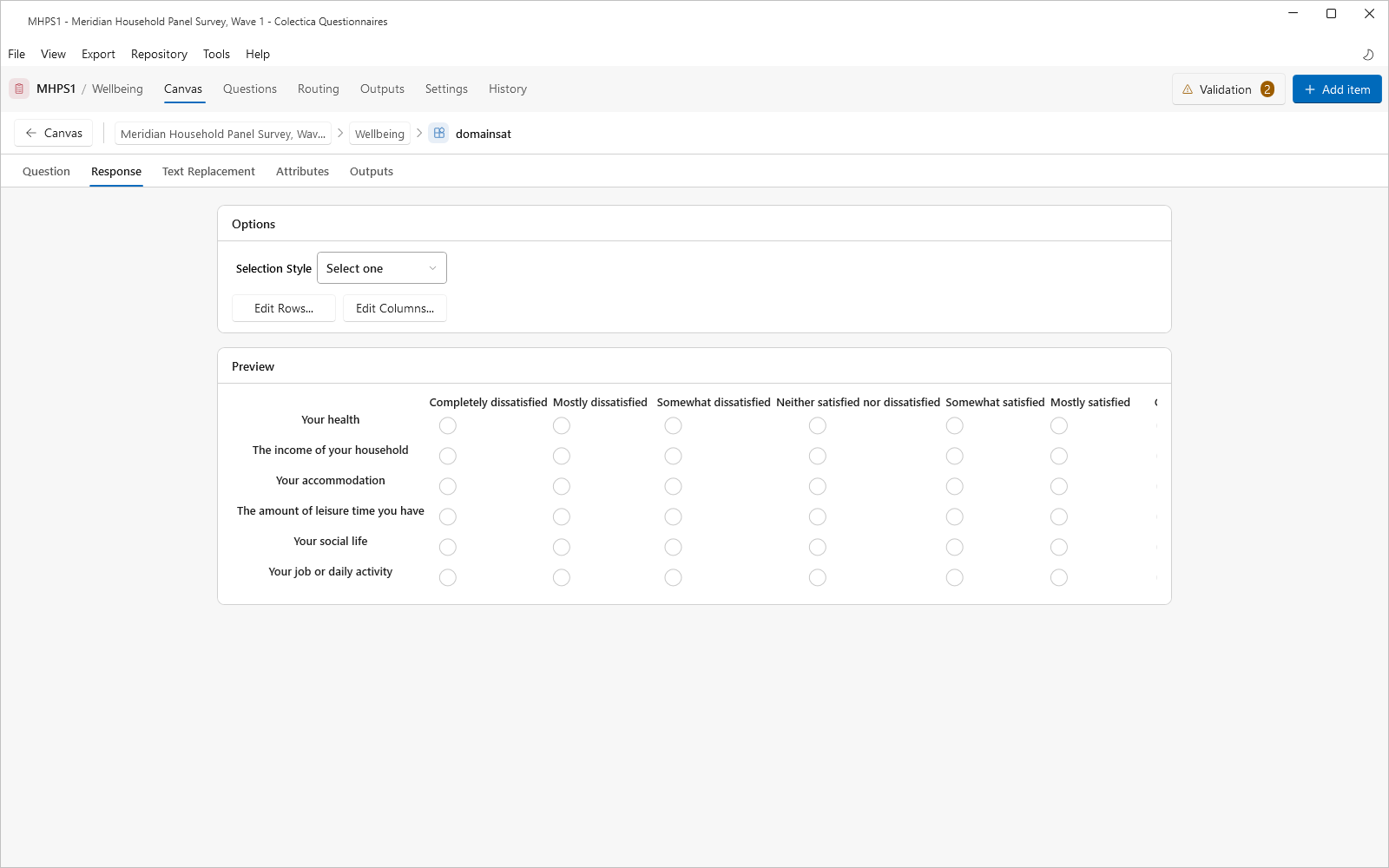
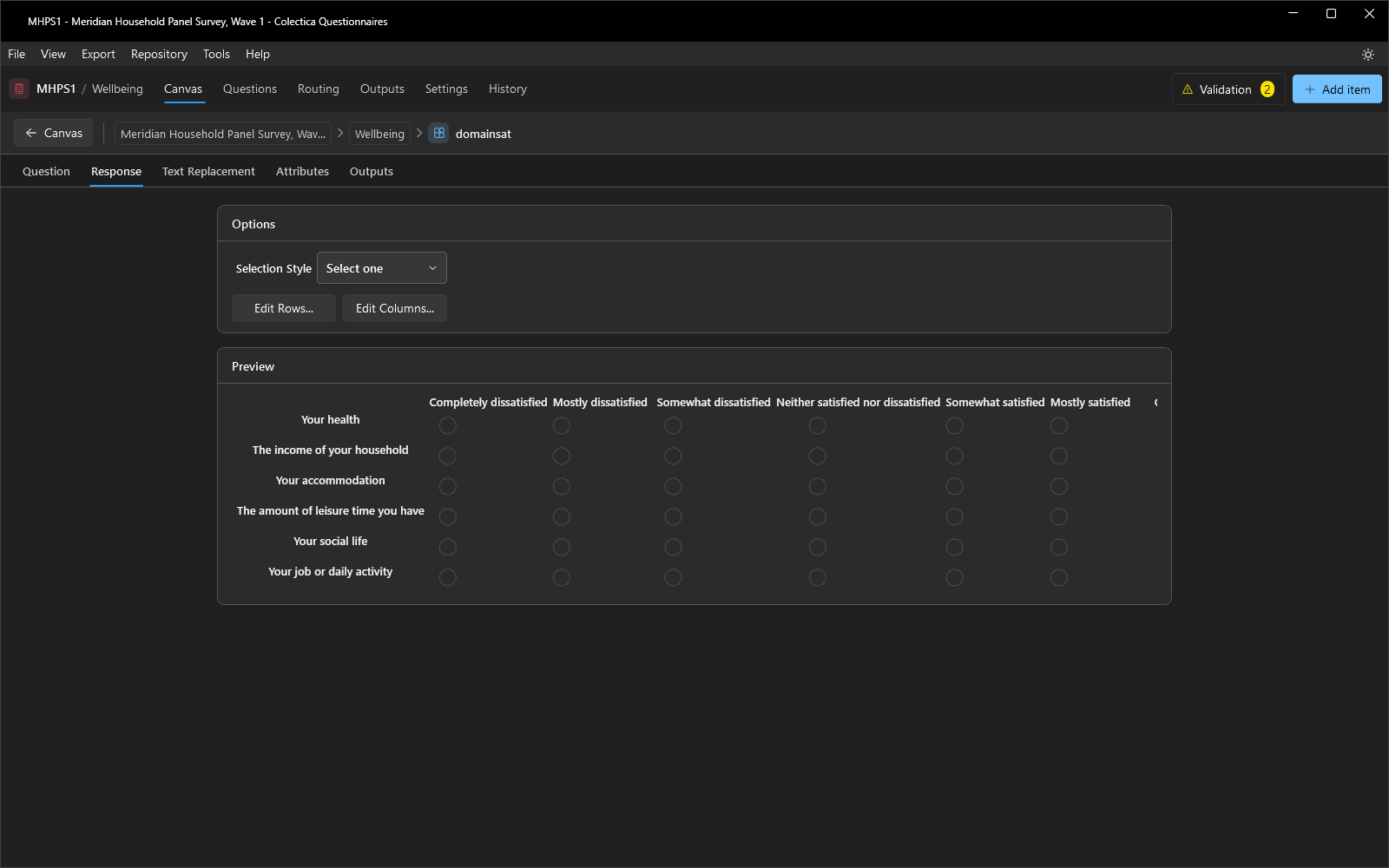
A choice grid asks one question per row, all rows sharing a single response scale. The Options card sets the Selection Style and opens the row and column lists with Edit Rows… and Edit Columns…. A Preview card renders the resulting grid live.
The Code List Editor#
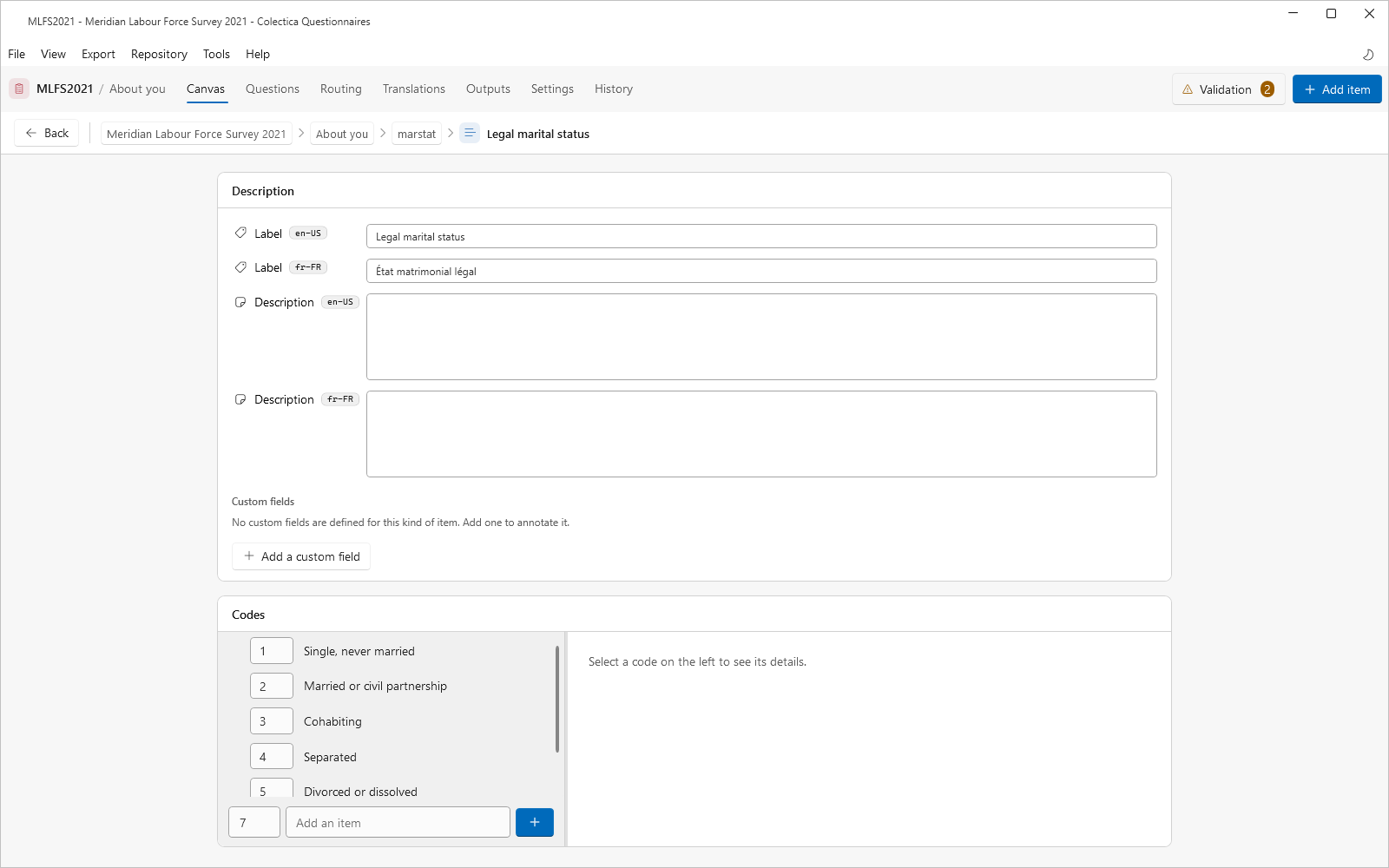
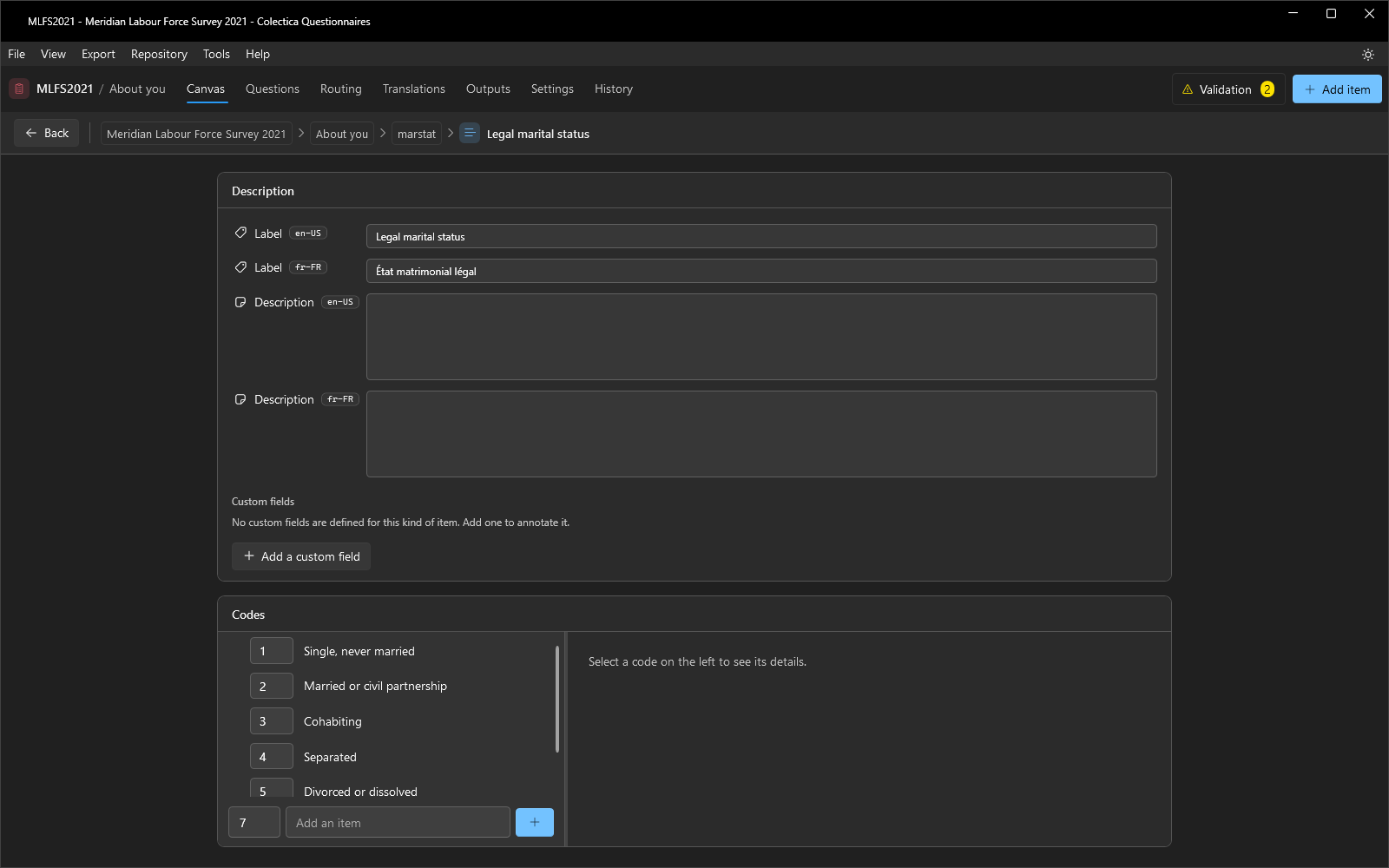
Code lists open as their own page, reached from a question’s Response tab; grid rows and columns open the same editor in a window. The Description card holds the list’s label and description. The Codes card shows the codes as a tree. A code’s context menu offers Move Up, Move Down, Move Left, Move Right, and Remove Item; moving right nests a code under the one above it. New codes are added with the value and label fields at the bottom of the tree. Selecting a code shows its Name, Label, and Description on the right.
See also
For directions, see Create a Multiple Choice Question and Create Choice Grids and Question Grids.