
Create a Multiple Choice Question#
A multiple choice question offers a list of choices backed by a code list.
Create the Question#
Add a Multiple Choice item from the palette and open its editor.
On the Response tab, set the Selection Style: one choice, or up to a given number of choices.
Choose a Display Style: Vertical, Horizontal, DropDown, Likert, or Push buttons.
Provide the Choices#
In the Choices card, click Create a new code list, or Use an existing code list to pick one from the survey or a repository.
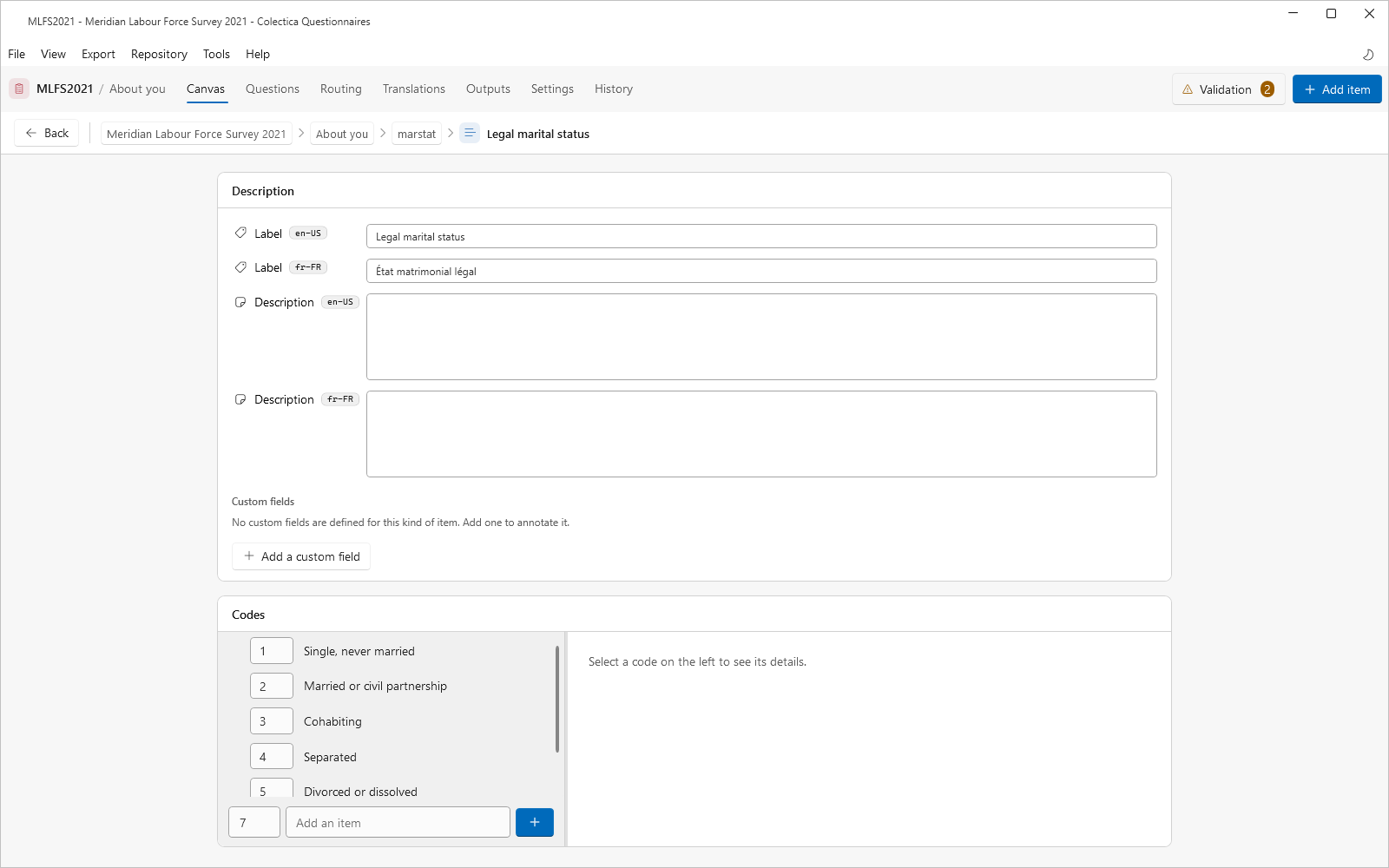
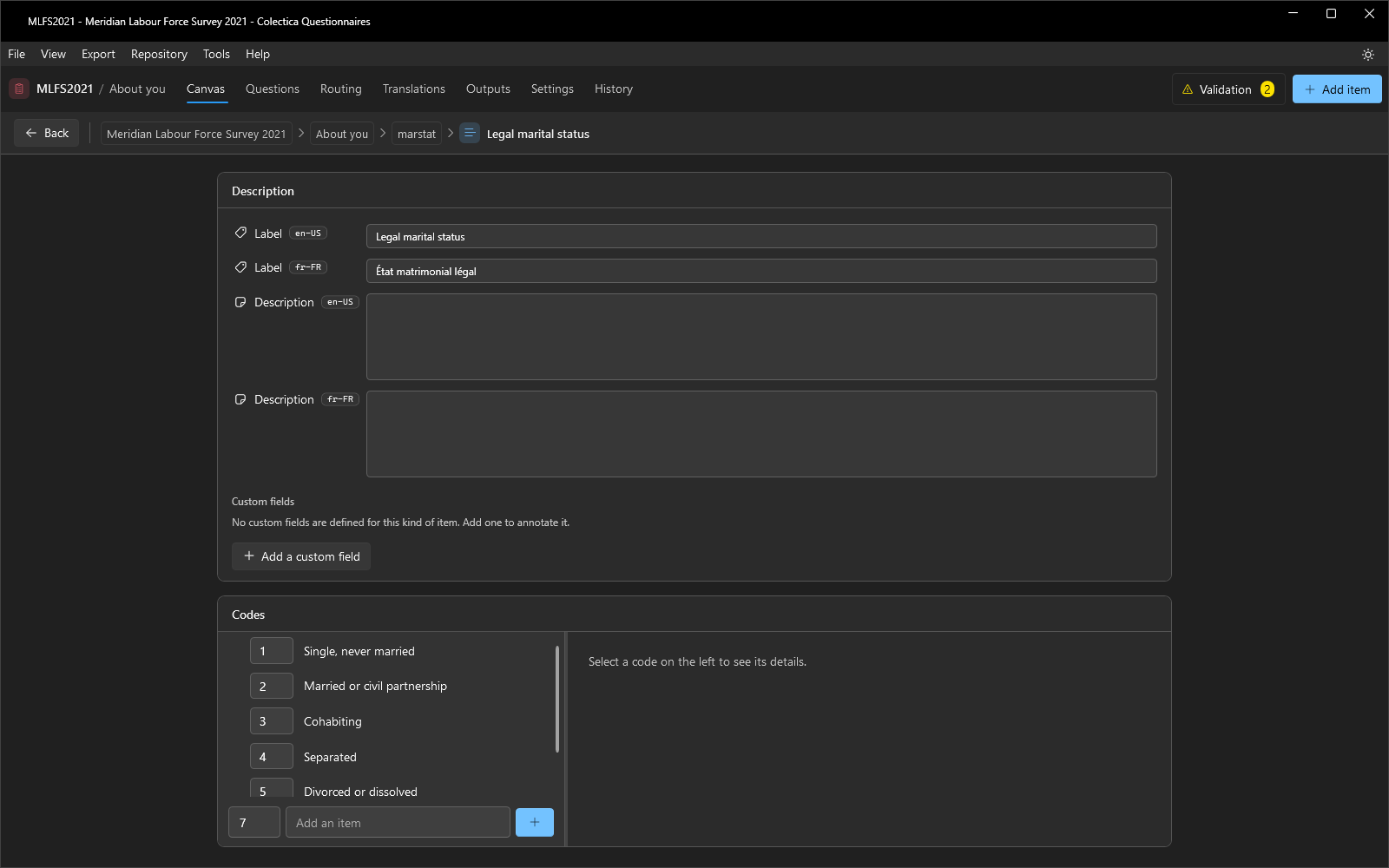
Click Edit code list to open the code list editor.
Add each choice with the value and label fields at the bottom of the code tree.
To reorder or nest codes, use a code’s context menu: Move Up, Move Down, Move Left, and Move Right.
Return to the editor with the Back button.
Code lists are shared items. The Choices card reports how many questions use the list; editing it changes all of them. To change the choices for this question alone, click Create a Copy first.
Add an Other, Specify Field#
In the Other card, choose the value that should reveal a text field, such as an “Other” code.
To remove it later, click Remove Other, Specify.
See also
Response Types and Code Lists describes every setting on the Response tab.