
Display Logic and Expressions#
The Display Logic Dialog#
The branch button on a card opens the Display Logic dialog. Its rule reads: show this item only while the condition below is true.
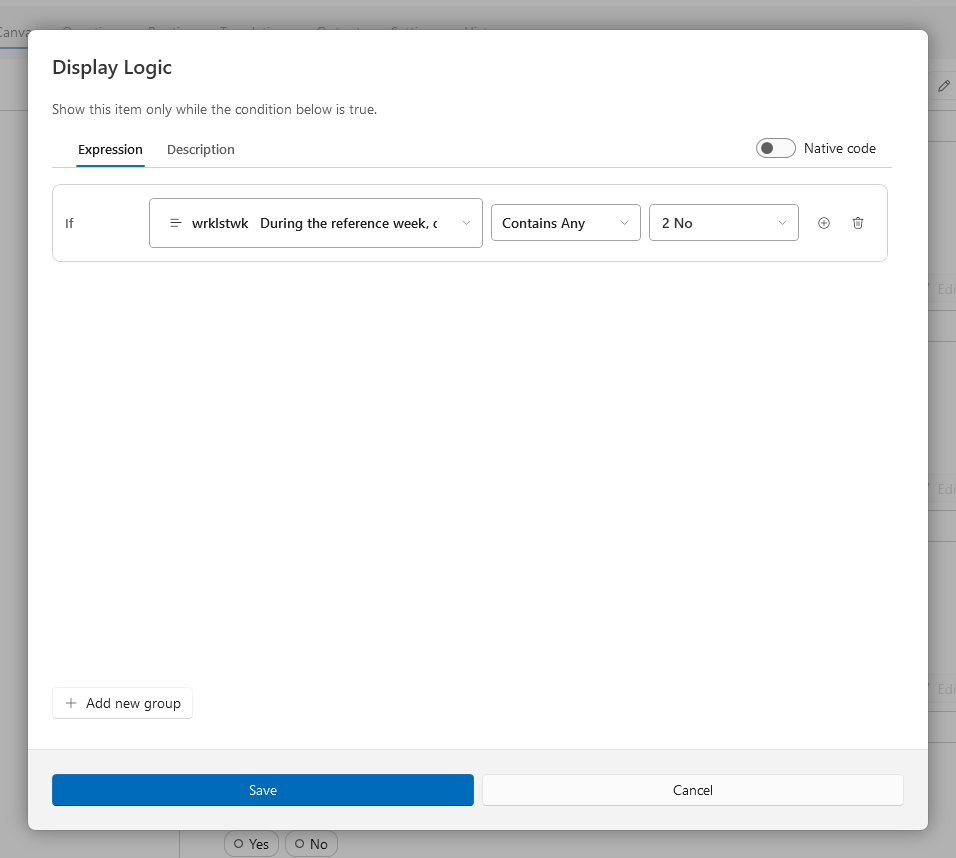
The Expression tab builds a formal condition. A condition is one or more If rows; each row names a subject (an earlier answer or computed value), an operator, and, for most operators, a comparison value. Rows combine with and or or, and Add new group starts a parenthesized group of rows. Only questions that appear earlier in the survey can be subjects; an empty survey position offers no subjects.
The Description tab records the condition as prose instead of, or in addition to, a formal expression. The Native code toggle replaces the expression editor with Inputs and Code tabs for platform source code.
Condition Kinds#
The application distinguishes four kinds of condition, and colors condition chips accordingly.
Kind |
Color |
Meaning |
|---|---|---|
Formal |
Green |
A structured expression the application can evaluate, preview, and export. |
Described |
Gray |
Prose only; documented, but not evaluable. |
Source code |
Blue |
Native platform code, exported verbatim. |
Broken |
Dark red |
A formal condition whose subject can no longer be resolved. |
For the trade-offs between the kinds, see How Logic and Dynamic Content Work.
Operators#
The operators offered for a subject depend on its response type.
Choice subjects: Contains Any, Contains All, Contains None of, Empty, Not Empty, Refused, Not Refused, Don’t Know, Not Don’t Know. The three Contains operators compare against one or more selected choices.
Numeric, date, and time subjects: Equal to, Not Equal to, Greater than, Greater than or Equal to, Less than, Less than or Equal to, Empty, Not Empty, Refused, Not Refused, Don’t Know, Not Don’t Know.
Text subjects: Equal to, Not Equal to, Contains, Does Not Contain, Empty, Not Empty, Refused, Not Refused, Don’t Know, Not Don’t Know.
Empty, Not Empty, and the Refused and Don’t Know operators take no comparison value.
Computation Functions#
The Expression tab of the computation editor assigns the result of a function to an output field. The available functions are grouped by the type of value they return.
String
Function |
Description |
|---|---|
Assignment |
Assigns a value to a string field. |
Join |
Joins any number of strings. |
Number
Function |
Description |
|---|---|
Assignment |
Assigns a value to a numeric field. |
Add |
Adds any number of values. |
Subtract |
Subtracts values in order. |
Multiplication |
Multiplies any number of values. |
Division |
Divides values in order. |
Absolute Value |
The absolute value of a number. |
Round |
Rounds to the nearest integer. |
Truncate |
Drops the fractional part. |
Date Difference |
The difference between two dates, in days. |
Date
Function |
Description |
|---|---|
Assign a Date |
A specific date from year, month, and day values. |
Current Date |
The date the survey is answered. |
Add to Date |
Adds years, months, and days to a date. |
Subtract from Date |
Subtracts years, months, and days from a date. |
Time
Function |
Description |
|---|---|
Assign Time |
A specific time from hour, minute, and second values. |
Current Time |
The time the survey is answered. |
Add to Time |
Adds hours, minutes, and seconds to a time. |
Subtract from Time |
Subtracts hours, minutes, and seconds from a time. |
Fills#
Question text may contain {{token}} placeholders.
A token’s name starts with a letter and contains only letters, digits, and underscores.
Tokens are declared on the item’s Text Replacement tab and bound to a source value through the Inputs dialog; the preview and exports substitute the bound value.
See also
For directions, see Show Items Conditionally, Compute Values from Answers, and Insert Answers into Question Text.