
Settings Dialog#
Tools, then Settings…, opens the application’s settings in one dialog. A rail on the left selects one of four sections: General, Search, Repositories, and Custom Fields. Save applies the changes in every section at once; Cancel discards them all. If a custom field definition or a repository connection is incomplete, Save stays in the dialog and shows the section that needs attention. Repository, then Configure Repositories…, opens the same dialog on its Repositories section.
The settings apply to the application, not to a survey. The settings of an open survey, such as its languages, live on the survey’s Settings page; see Survey Settings Page.
General#
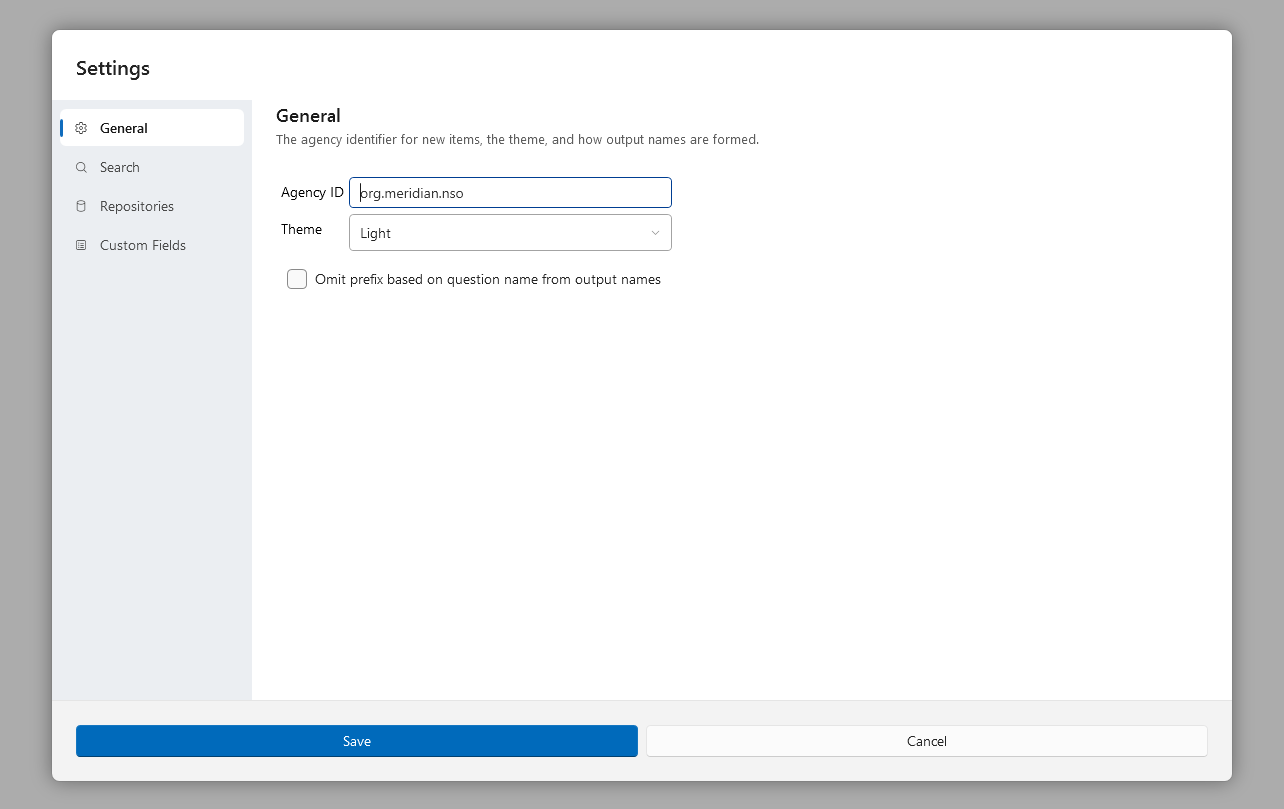
Setting |
Effect |
|---|---|
Agency ID |
The DDI agency identifier stamped on every item you create, in reverse domain form, such as |
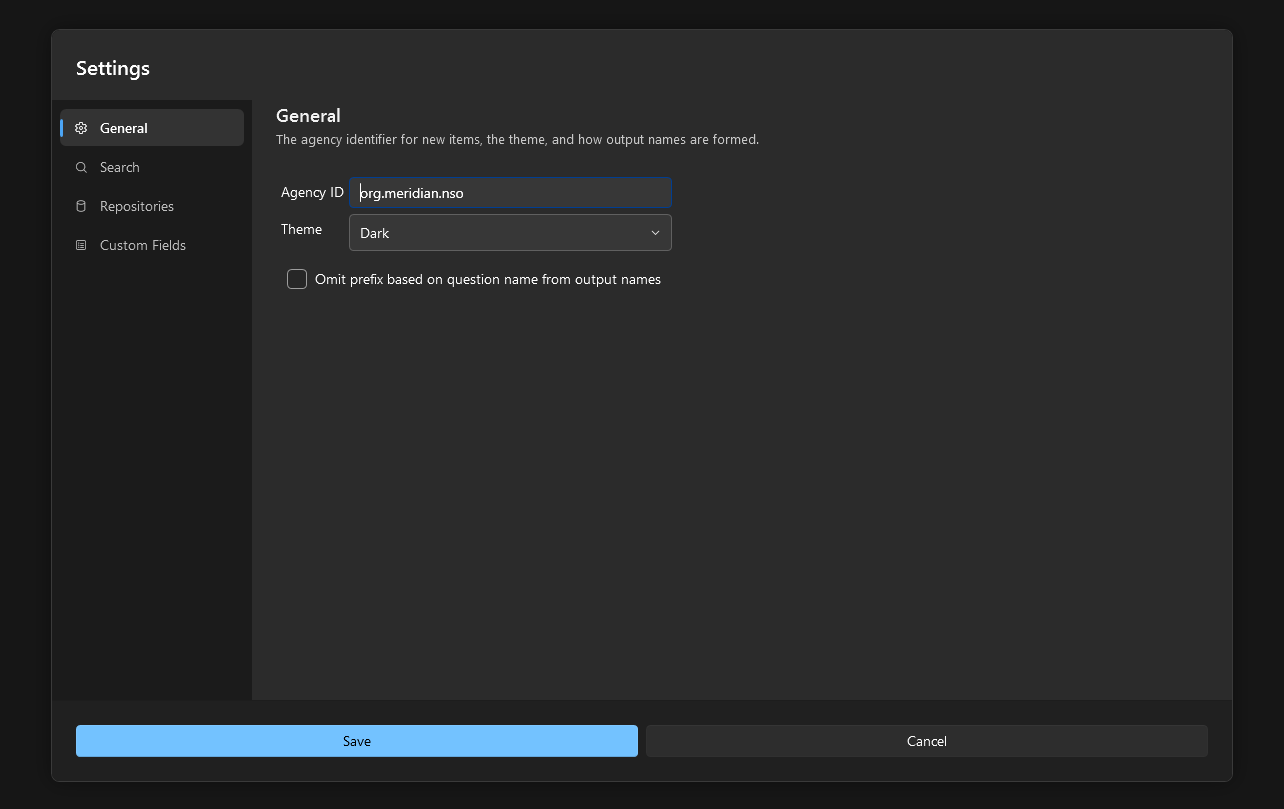
Theme |
System, Light, or Dark; the sun or moon button in the menu bar switches between the last two. |
Omit prefix based on question name from output names |
Drops the question-name prefix from automatic output variable names; see Outputs and Variable Names. |
For the meaning of the agency identifier, see How Surveys Are Stored and Versioned.
Search#
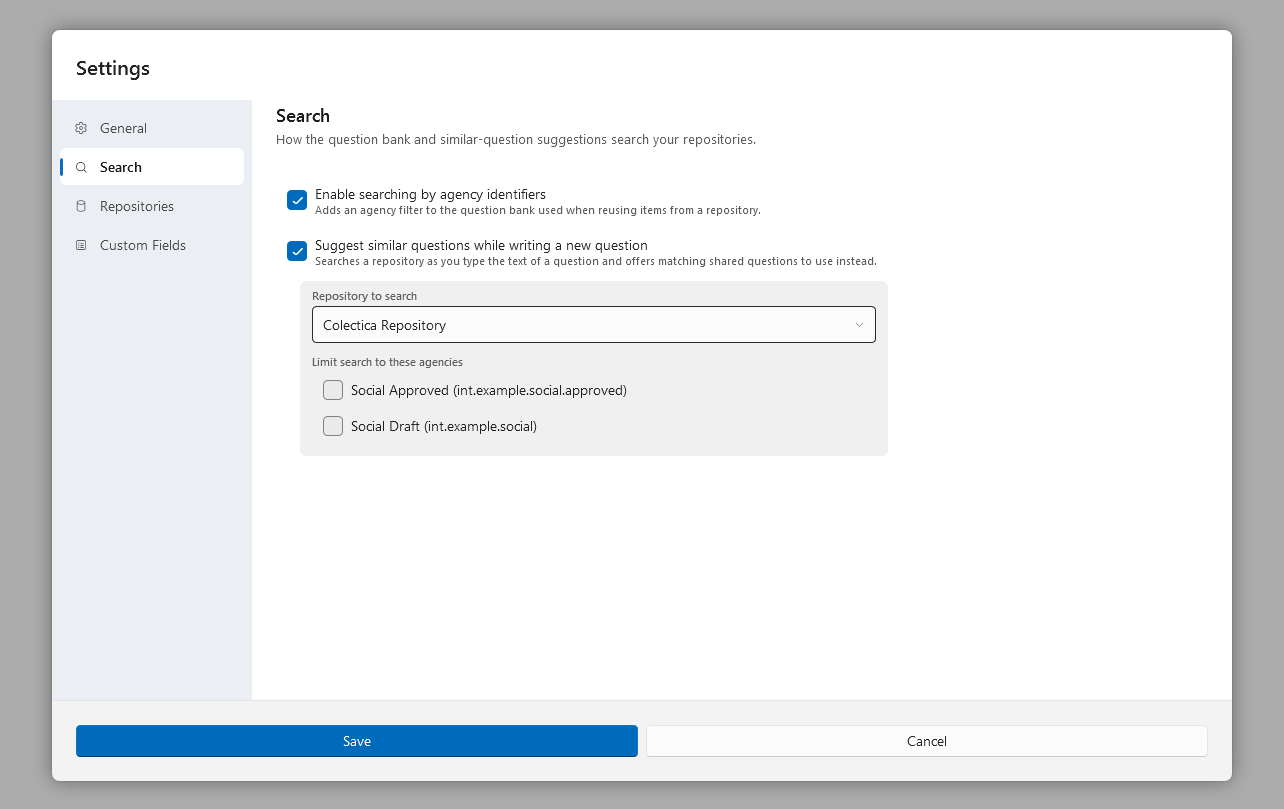
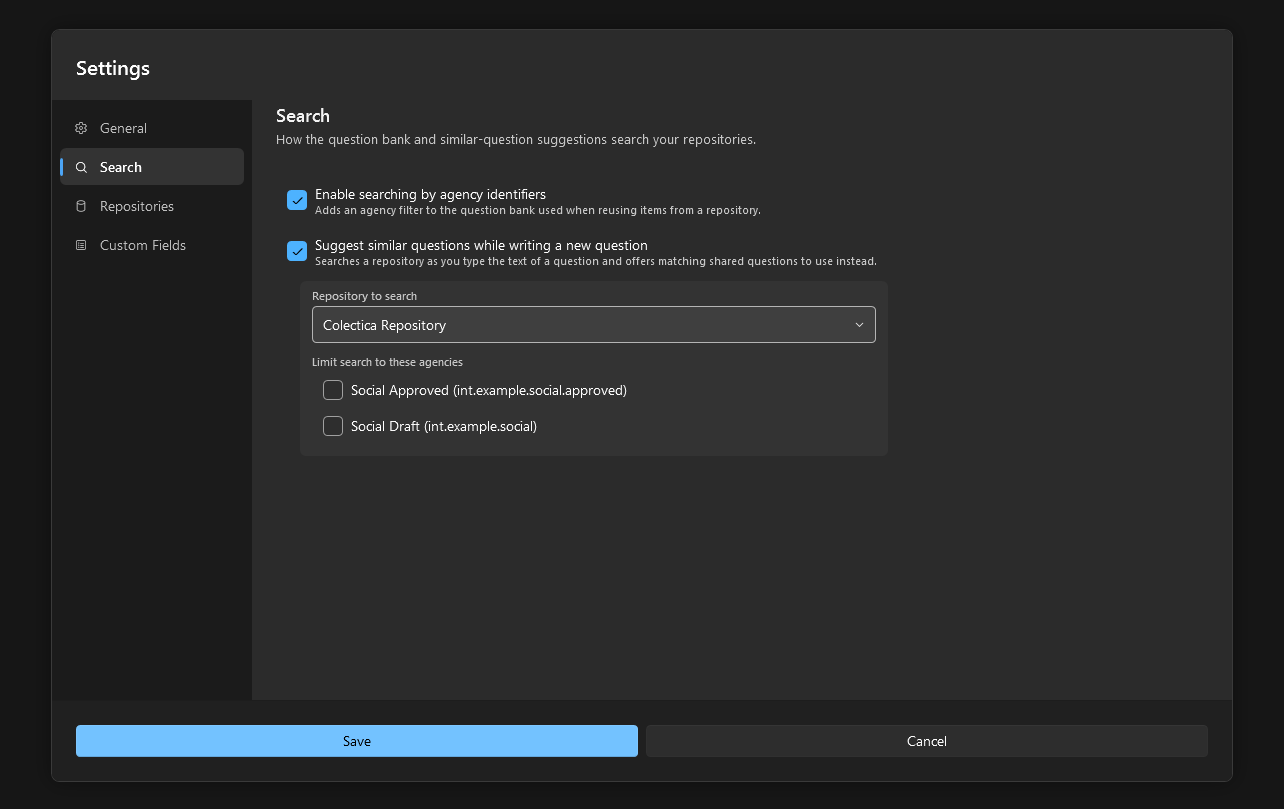
The Search section governs how the Question bank and the similar-question suggestions search your repositories. Both options are off in a fresh installation.
Setting |
Effect |
|---|---|
Enable searching by agency identifiers |
Adds an Agency filter to the Question bank. |
Suggest similar questions while writing a new question |
Searches a repository as you type the text of a newly added question and offers matching shared questions under the text. |
Repository to search |
Where the suggestions come from: your local workspace or one of the configured repositories. |
Limit search to these agencies |
The agencies of the chosen repository; tick some to restrict the suggestions, or none to search them all. |
See Reuse Items from a Repository for both features in use.
Repositories#
The Repositories section lists the Colectica Repository connections the application uses. Add and Remove manage the list, and Move up and Move down order it; the first repository is the one used for comments. Selecting a connection shows its fields.
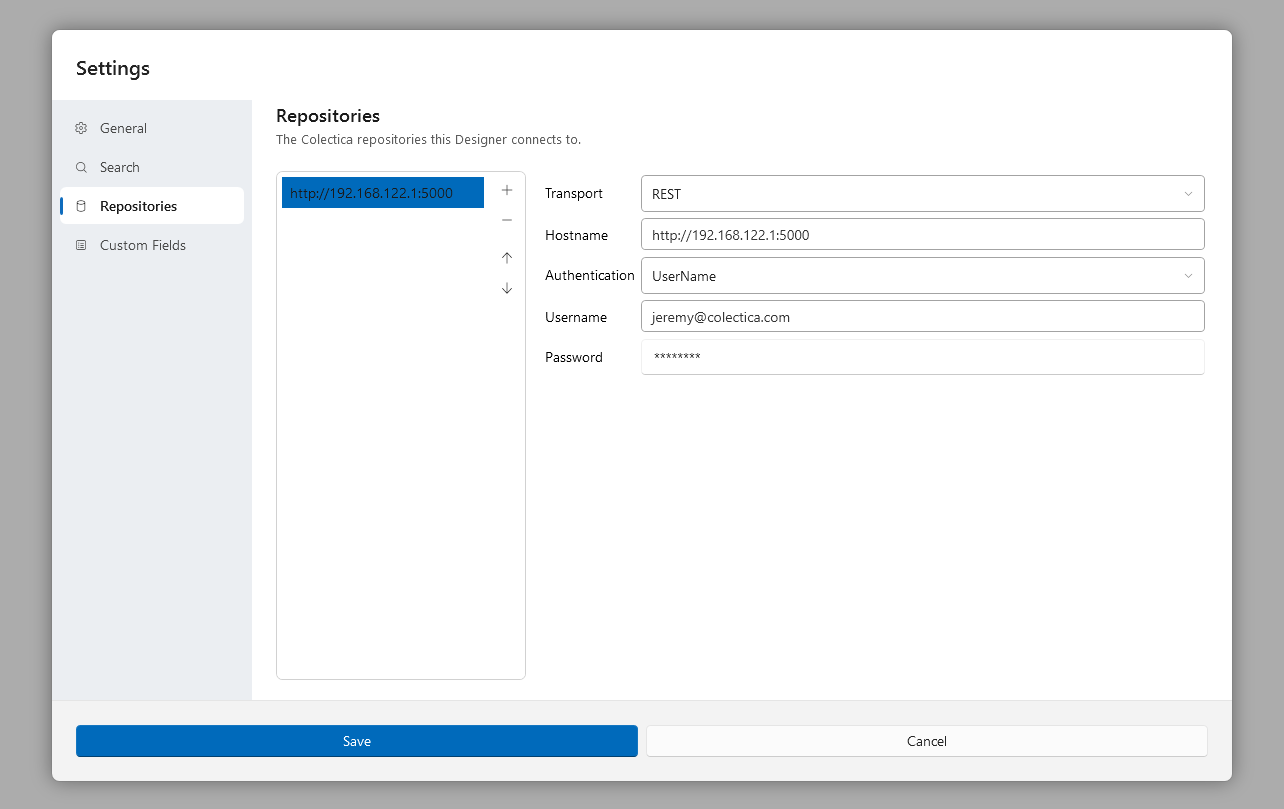
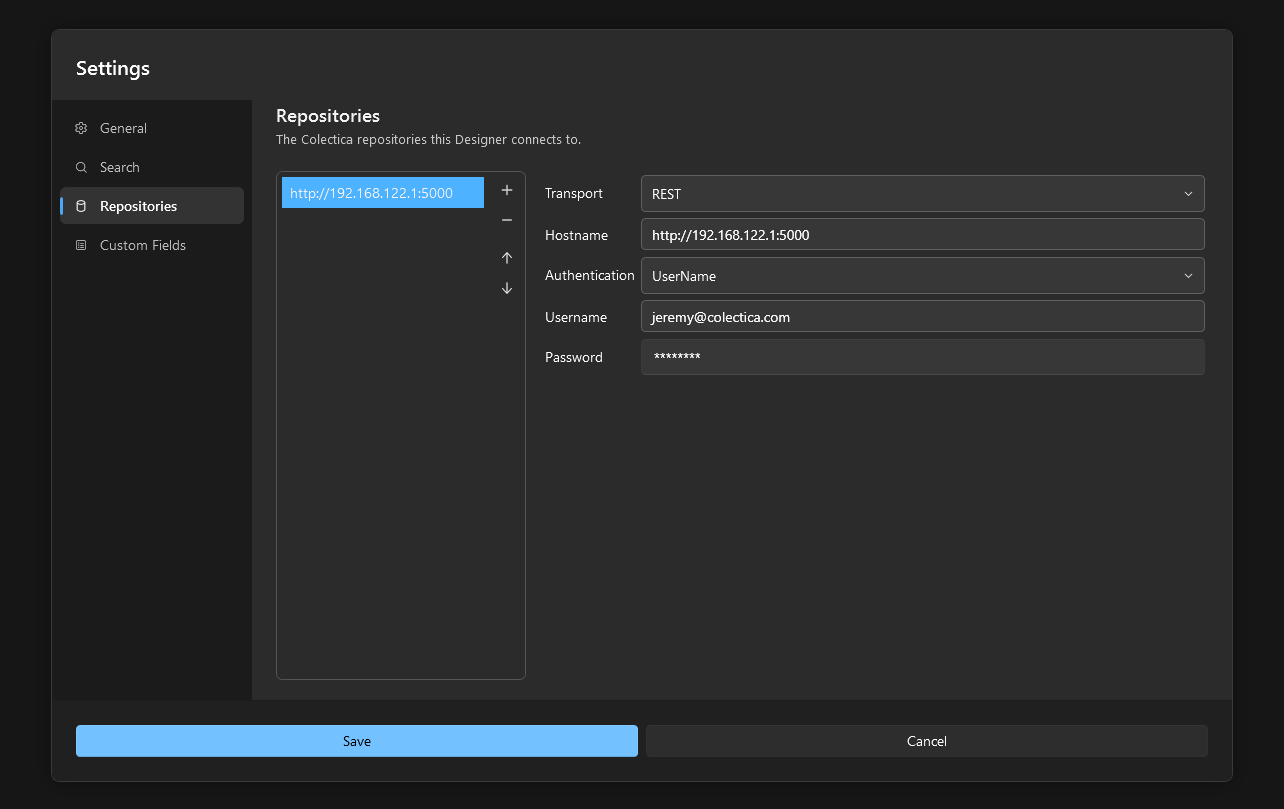
Field |
Description |
|---|---|
Transport |
The protocol the repository is reached with. |
Hostname |
The repository’s address. |
Authentication |
How you sign in: with a user name and password, through OpenID Connect, or through Microsoft Entra ID. The fields below change with the choice. |
Username, Password |
Your credentials, for user name and password authentication. |
Authentication Server URL |
The sign-in server, for OpenID Connect. |
Client ID |
The application registration, for OpenID Connect and Microsoft Entra ID. |
Tenant ID, Scope |
The directory and the requested scope, for Microsoft Entra ID. |
Elsewhere in the application, a repository is shown by its title, with its address as a tooltip. For directions, see Connect to a Colectica Repository.
Custom Fields#
The Custom Fields section defines the custom fields that item editors offer; see Record Custom Fields for directions. The list on the left holds every definition. Definitions marked with a lock are provided by your organization in read-only files and cannot be edited here. Add creates a definition, Remove deletes the selected one, Import copies the definitions from Colectica Designer that apply to questionnaire items, and Move up and Move down order the list, which is the order the editors use.
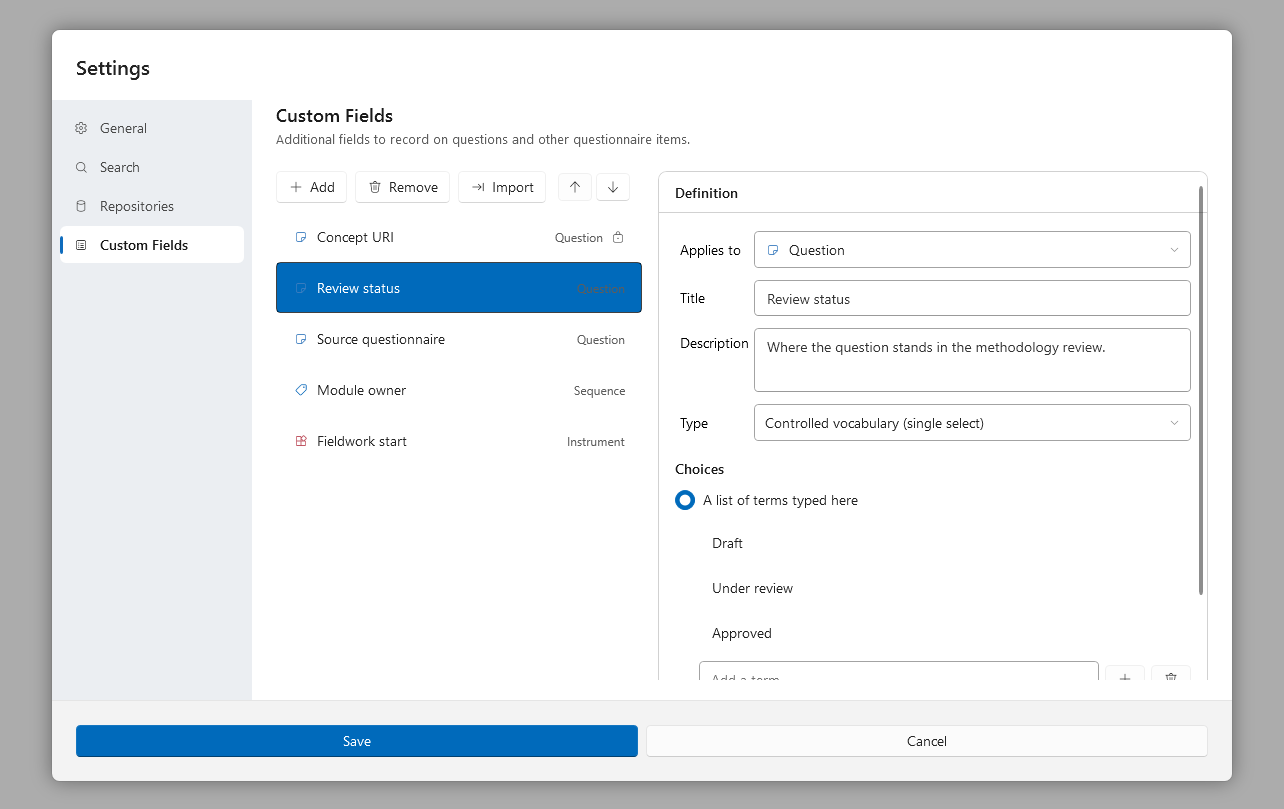
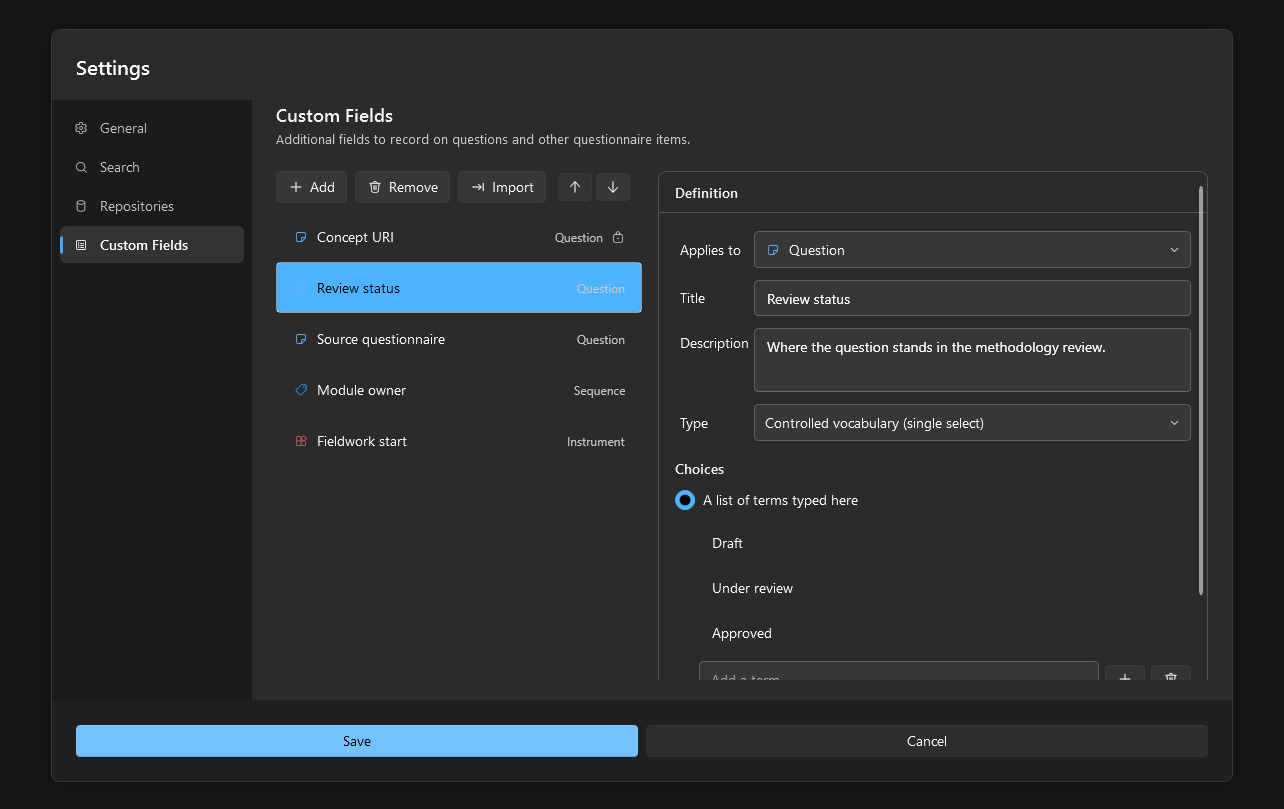
The Definition card edits the selected definition.
Field |
Description |
|---|---|
Applies to |
The kind of item the field appears on; see the table below. |
Title |
The label shown beside the field. |
Description |
Help text shown under the label. |
Type |
The kind of value the field holds; see the table below. |
Choices |
For a controlled vocabulary: either a list of terms typed here, one per line, or a code list in a repository. |
Target type |
For a related item: the kind of item the field points at. |
A field applies to one of the following kinds of item.
Applies to |
Where the field appears |
|---|---|
Instrument |
The survey’s Settings page. |
Sequence |
The sequence editor. |
Question |
The question editor. |
Question Grid |
The editor of a choice grid or question grid. |
Statement |
The editor of a descriptive text or note. |
Computation |
The editor of a computation, an edit check, or a data lookup. |
Loop |
The roster editor. |
Code List |
The code list editor. |
Category |
The editor of a choice, row, or column. |
A related-item field can point at any of those kinds, and also at a Concept, a Universe, a Variable, or an Organization.
A field holds one of the following types of value.
Type |
Value |
|---|---|
Text |
A single line of text. |
Multilingual text |
Text in each of the survey’s languages. |
URI |
A web address or other URI. |
Controlled vocabulary (single select) |
One term from the definition’s choices. |
Controlled vocabulary (multiple select) |
Any number of terms from the definition’s choices. |
Related item |
A reference to one repository item of the target type. |
Related items |
References to any number of repository items of the target type. |
Related item with description |
A reference to one repository item, with a multilingual description. |
Related items with descriptions |
References to any number of repository items, each with a description. |
Date |
A calendar date. |
Date or date range |
A date, or a start and end date. |
Multiple dates |
Any number of dates or date ranges. |
Number |
A number. |
Yes/No |
A yes or no value. |
Your own definitions are stored in %APPDATA%\Algenta\Colectica\QuestionnairesCustomFields.xml.
Read-only definitions are read from every .xml file in %PROGRAMDATA%\Algenta\Colectica\QuestionnairesCustomFields\ and %APPDATA%\Algenta\Colectica\QuestionnairesCustomFields\.
All three use the same file format as Colectica Designer’s custom field definitions.