
Build Your First Survey#
In this lesson you create a survey, give it two sections, and add three questions. At the end you will have a saved survey about household internet access, ready to grow in the next lessons.
The video below performs every step in this lesson.
Create the Survey#
Start Colectica Questionnaires.
On the welcome page, click Create a New Survey.
Enter
MIAS2026as the Short name andMeridian Internet Access Surveyas the Label.
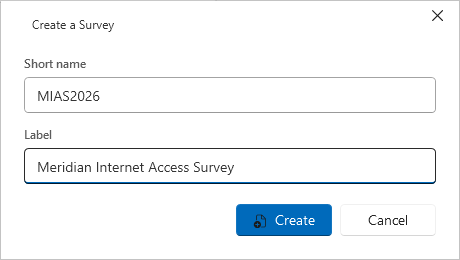
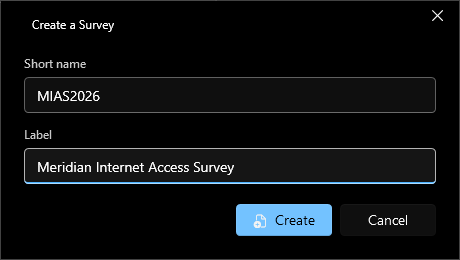
Click Create.
The survey opens on the Canvas. The left side shows the structure tree; the middle shows the survey overview.
Add Two Sections#
Click Add item in the top right and choose Sequence from the palette.
The new section’s editor opens; enter
Householdas the Label and go back with the Canvas button.Select the survey’s name in the structure tree, add a second Sequence the same way, and label it
Internet use.
The structure tree now lists both sections under the survey.
Add Three Questions#
In the structure tree, click Household to open it.
Click Add item and choose Numeric Entry.
Click the new card’s question text and type:
How many people live in your household?.Click Edit on the card, set the Name to
hhsize, and on the Response tab set the Minimum to1and the Maximum to20.Go back with the Canvas breadcrumb.
Add a Multiple Choice question, type the text
Does your household have an internet connection at home?, and name ithasnet. On its Response tab, create a new code list with the choicesYesandNo.Open the Internet use section, add a Text Entry question, type
Do you have any comments about your internet service?, and name itnetcomment.
Save and Check#
Press Ctrl+S to save.
Click the survey’s name at the top of the structure tree to see the overview.
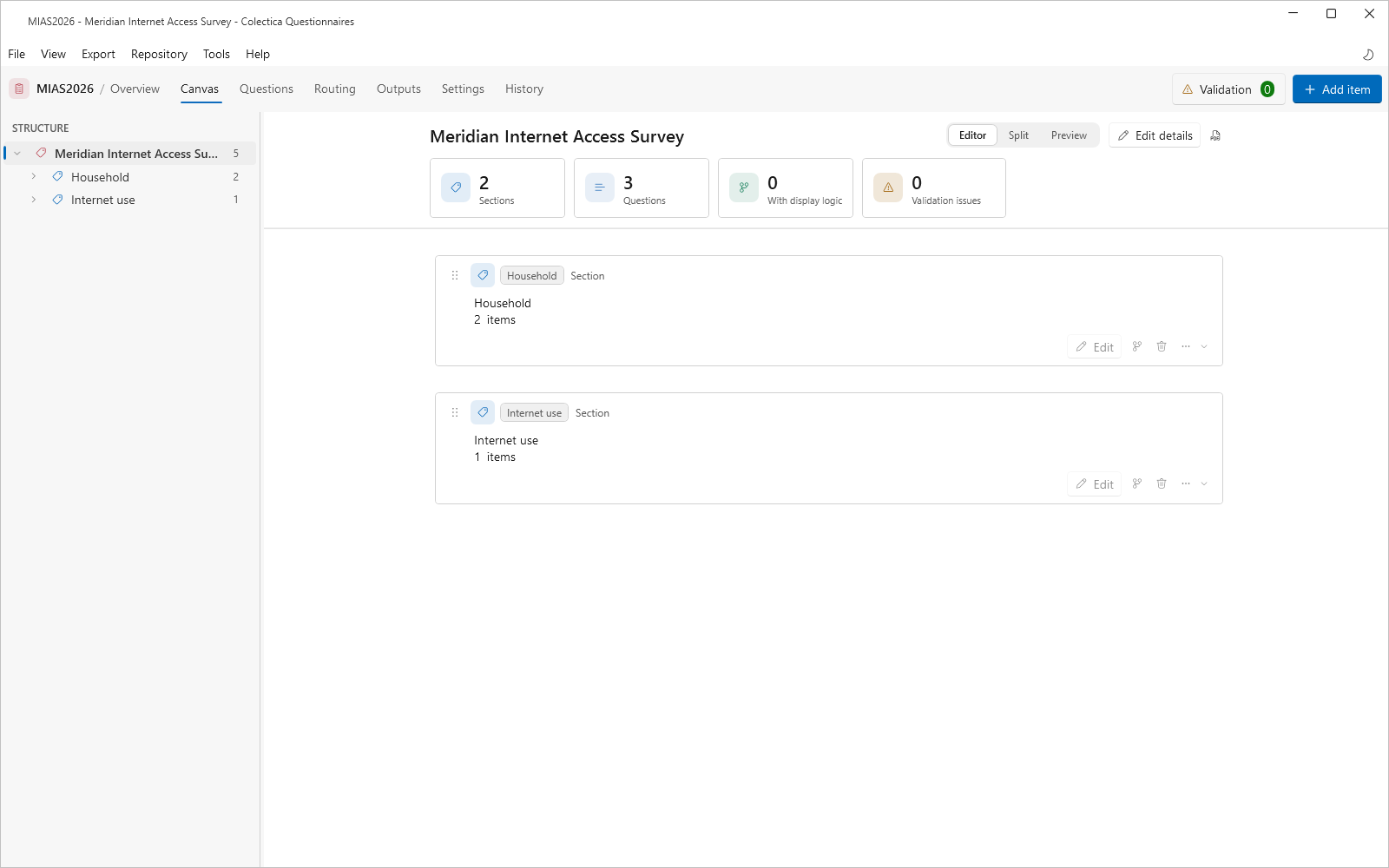
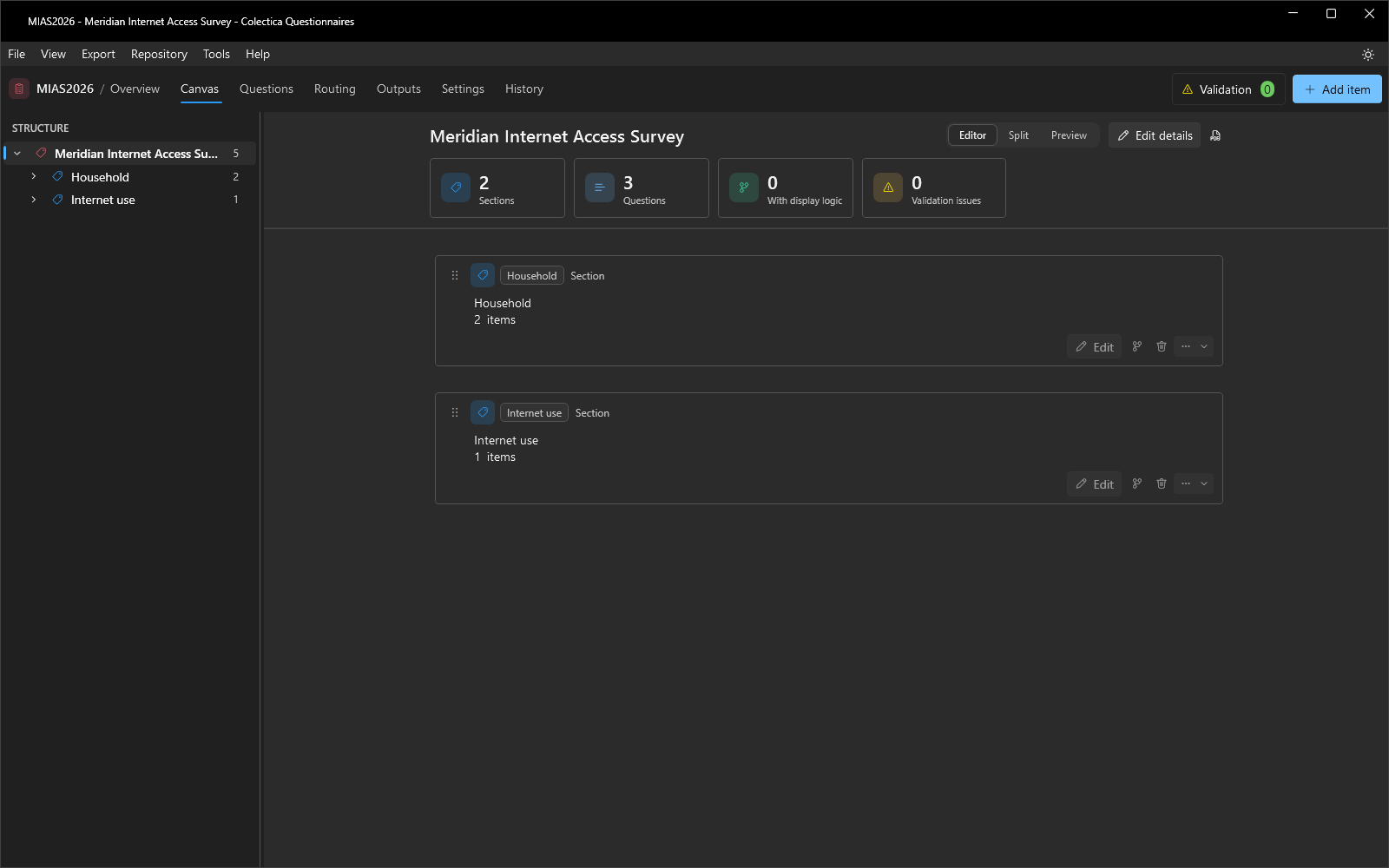
The overview reports two sections and three questions.
On the canvas and in the structure tree, the questions are numbered Q1 to Q3; the numbers are assigned automatically and change as you add and reorder questions.
Your survey is saved in your local workspace and appears on the welcome page’s recent list.
See also
Next lesson: Add Routing and Checks.