
Export to Open Standards#
Export DDI 3#
Colectica Designer can export metadata to DDI-Lifecycle 3.3, 3.2, or 3.1. We recommend DDI 3.3 unless the system receiving the file requires an earlier version.
Navigate to the item you would like to export.
In the Export ribbon tab, click Generate DDI 3.3.
Using the Save As dialog, select the file where you would like to save the DDI XML.
Colectica creates the file. You can follow the operation in the Progress pane.
This command exports the selected item and its referenced metadata as DDI fragments. To create a file for a system requiring an earlier DDI version, use Generate DDI 3.2 or Generate DDI 3.1 instead.
Export a DDI 3.3 Instance#
A DDI Instance is a project document that contains studies and metadata packages. Use Generate DDI 3.3 Instance when you need this whole-project structure rather than a collection of DDI fragments.
Navigate to the project you would like to export. This command is available for projects (
DDIInstanceitems).In the Export ribbon tab, click Generate DDI 3.3 Instance.
Choose the XML file to create in the Save As dialog.
Colectica loads the project’s referenced contents and writes the DDI 3.3 Instance document.
See also
If a project refers to items that are not included in its metadata containers, see /designer/manage-content/studies/gather-referenced-items.
Export DDI 2#
Colectica can export your project to DDI 2 format.
Note
Since DDI 2 offers a subset of the functionality offered by DDI 3 and Colectica, only certain types of items can be exported to DDI 2. Specifically, the exported type must be a project, (i.e., DDIInstance). The project must contain one or more studies (i.e., StudyUnit), which should each contain one or more data files (i.e., PhysicalInstance).
Click the Generate DDI 2 button in the Export ribbon tab.
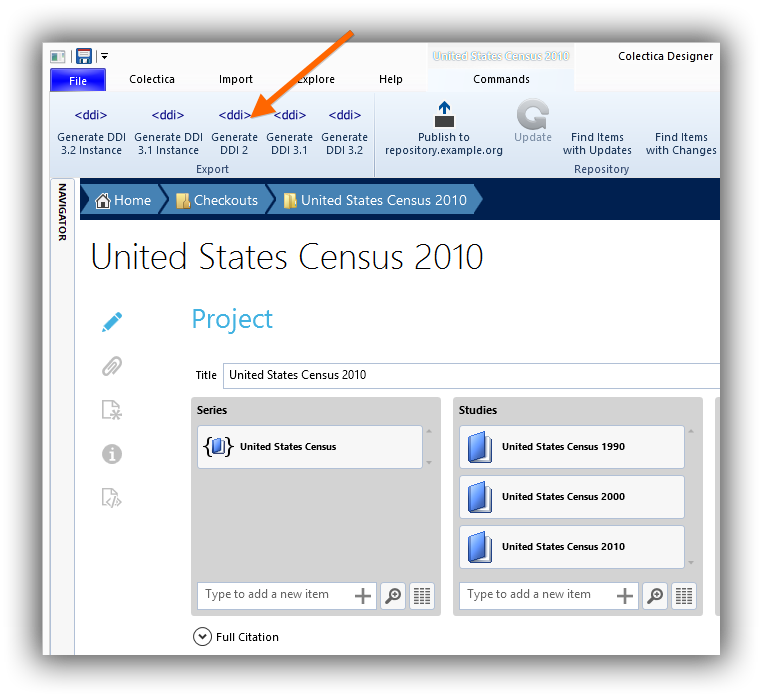
Using the Save As dialog, select the file where you would like to save the DDI 2.
Colectica will create your file.