
Questions, Search, Validation, and Comments#
The Questions Page#
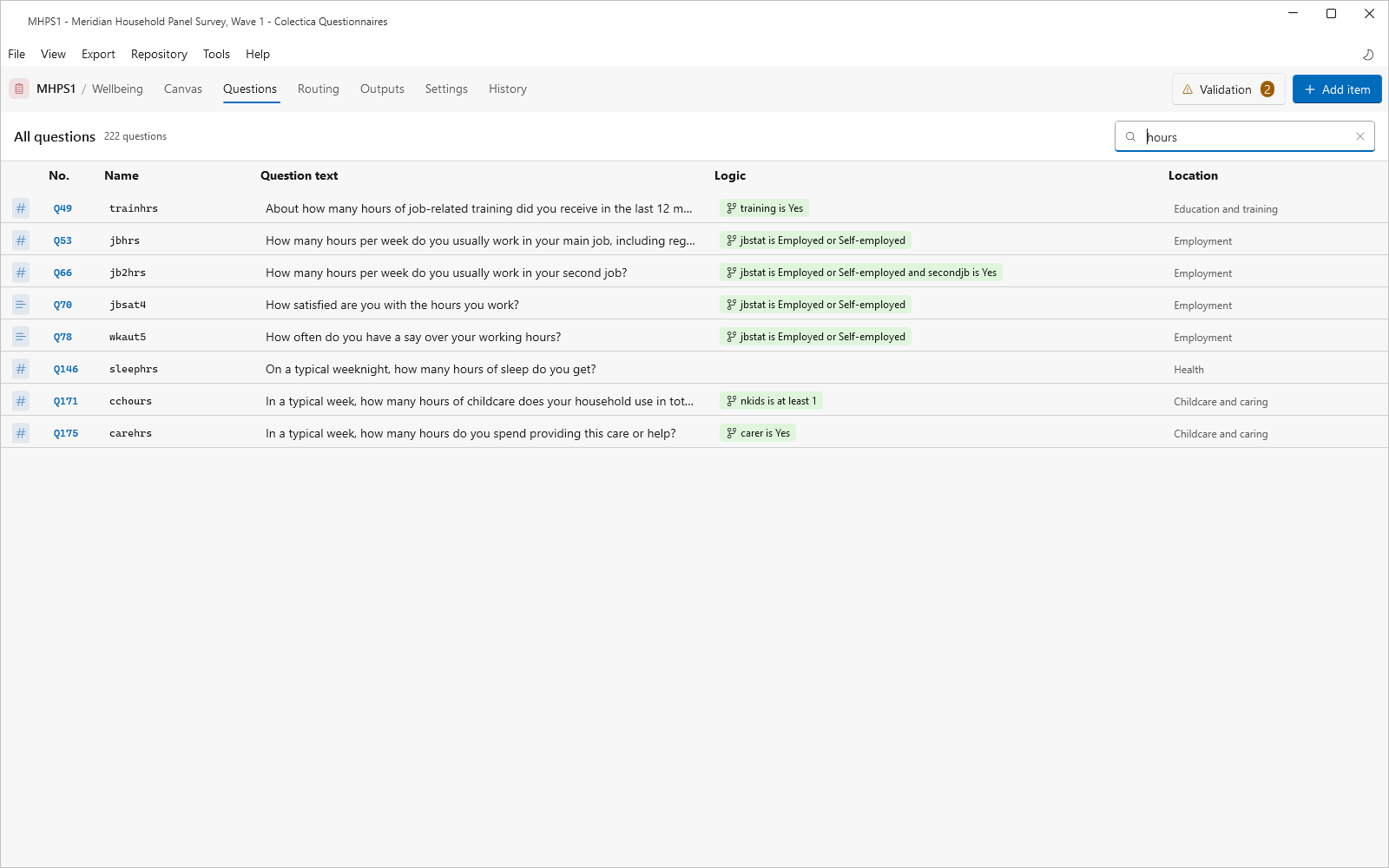
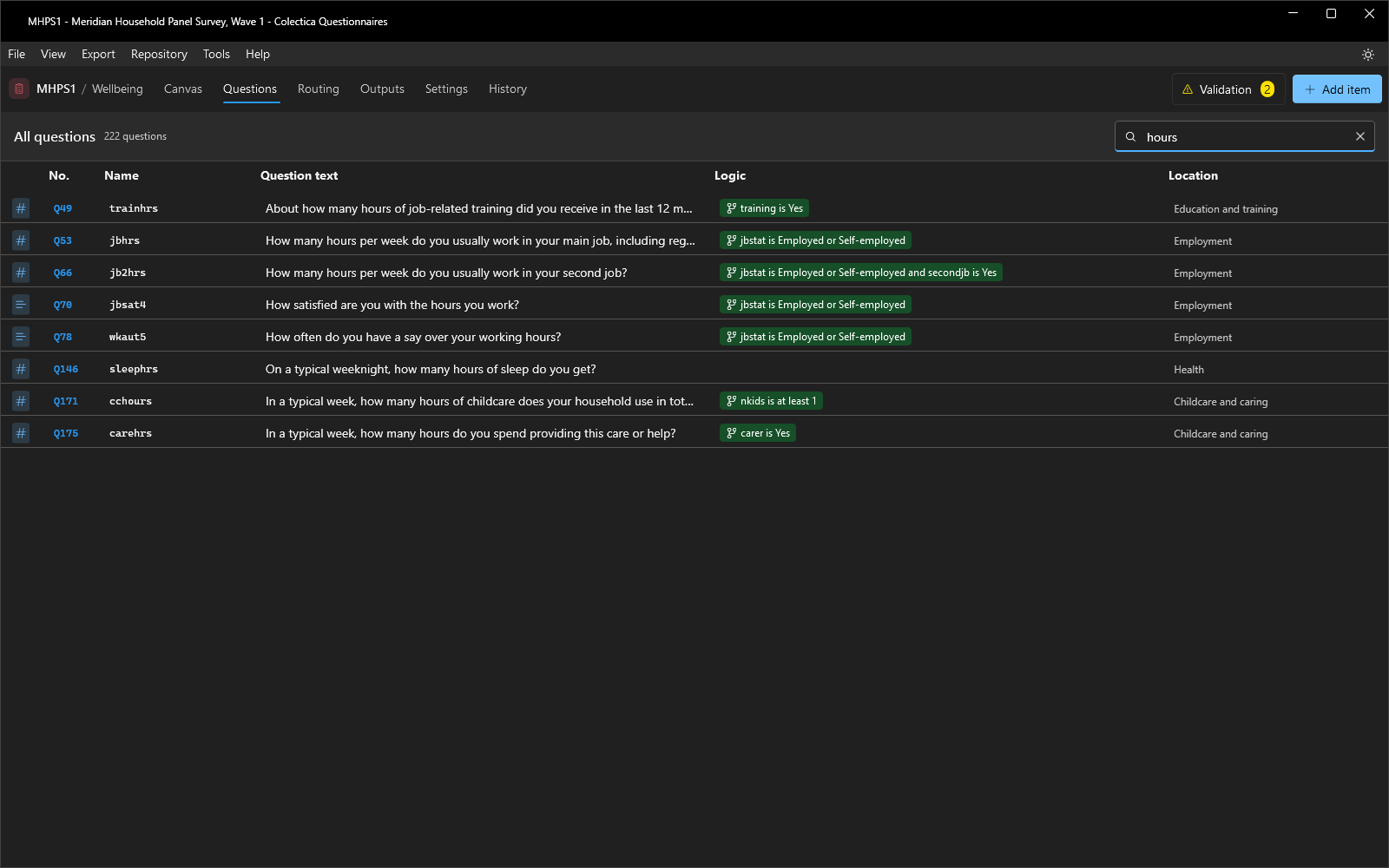
The Questions page lists every question in the survey as a flat, read-only table: a type icon, the question’s number in the No. column, the Name, the Question text, a Logic chip, and the Location within the survey. The numbers follow the rule in Question Numbers. The logic chip is green for a formal condition and gray for a described one. The filter box matches names, text, and logic. Double-clicking a row opens the question on the canvas.
The Search Rail#
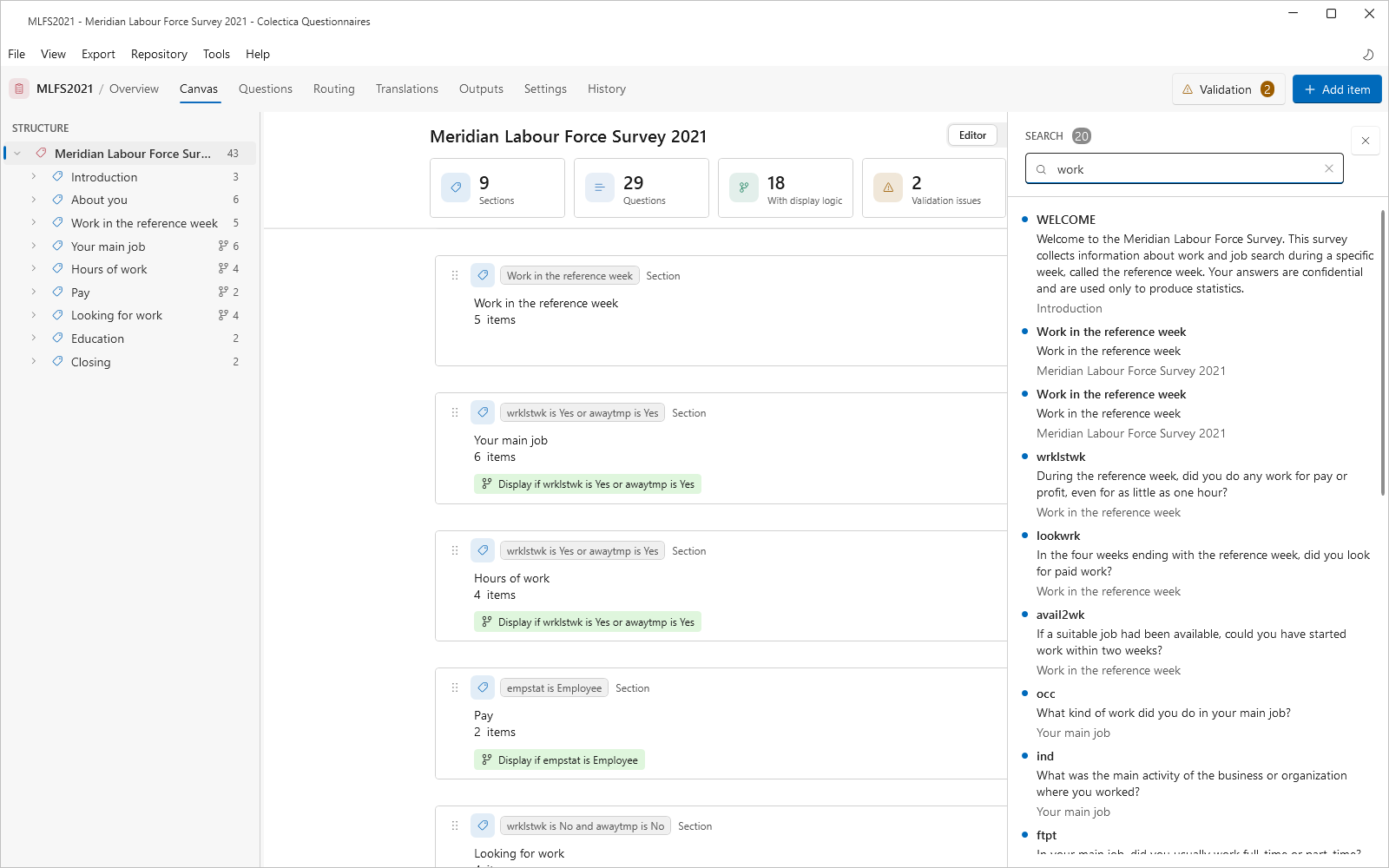
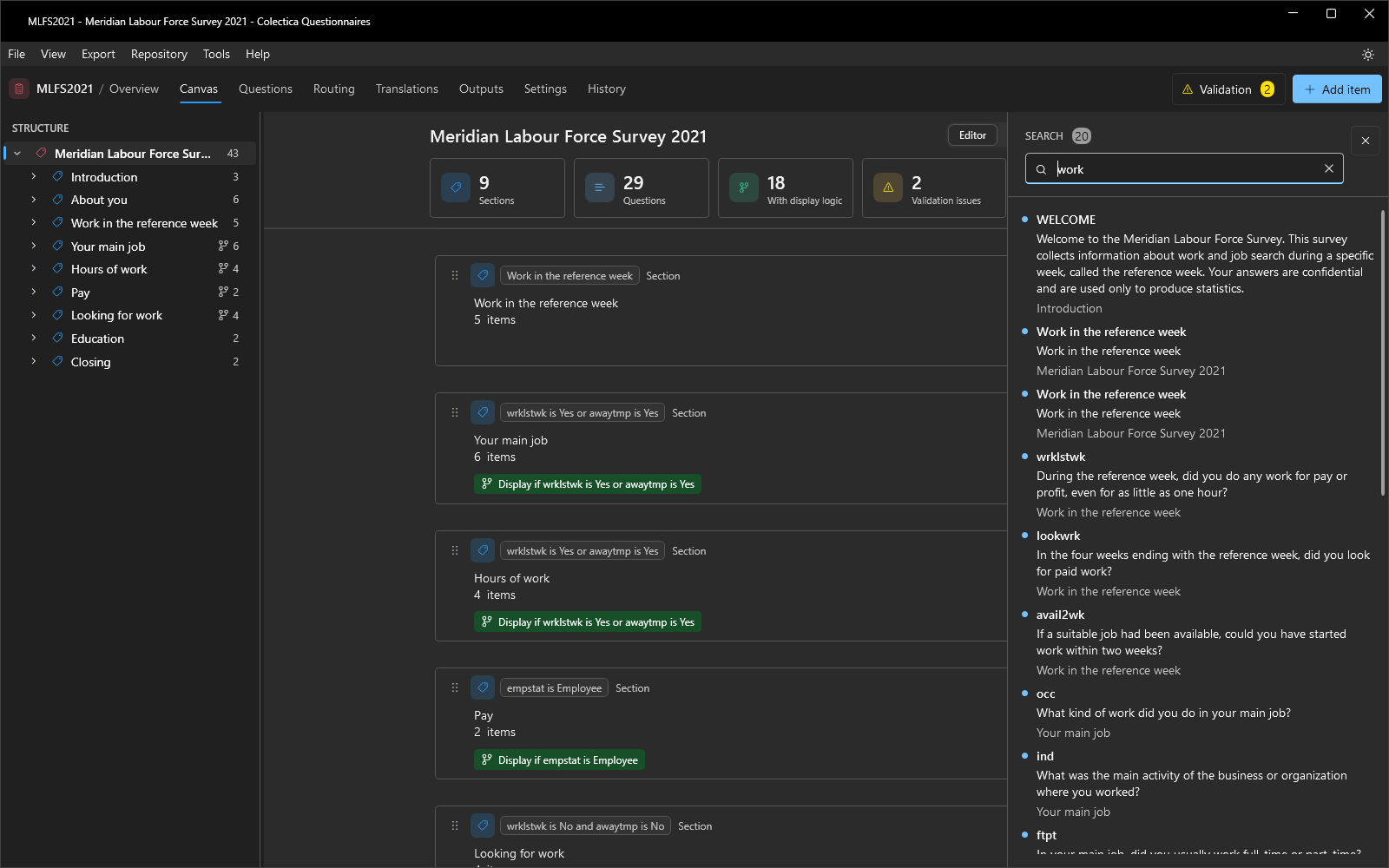
Ctrl+F opens the search rail on the right edge of the window. A search matches question text, names, labels, choices, and display logic. Each result is a card showing the item’s name and text, without its question number; clicking it opens the item on the canvas. The close button at the top of the rail dismisses it.
The Validation Rail#
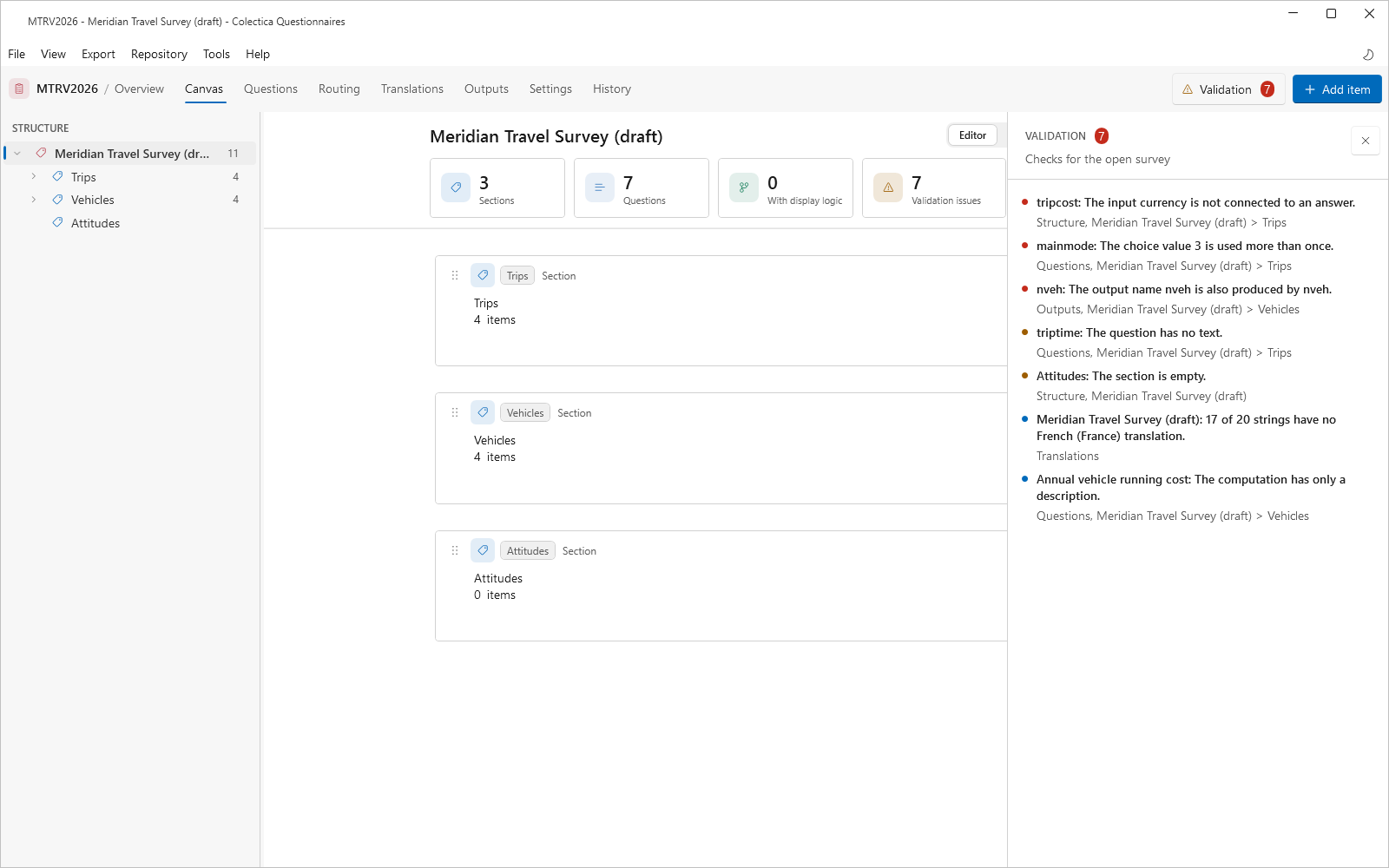
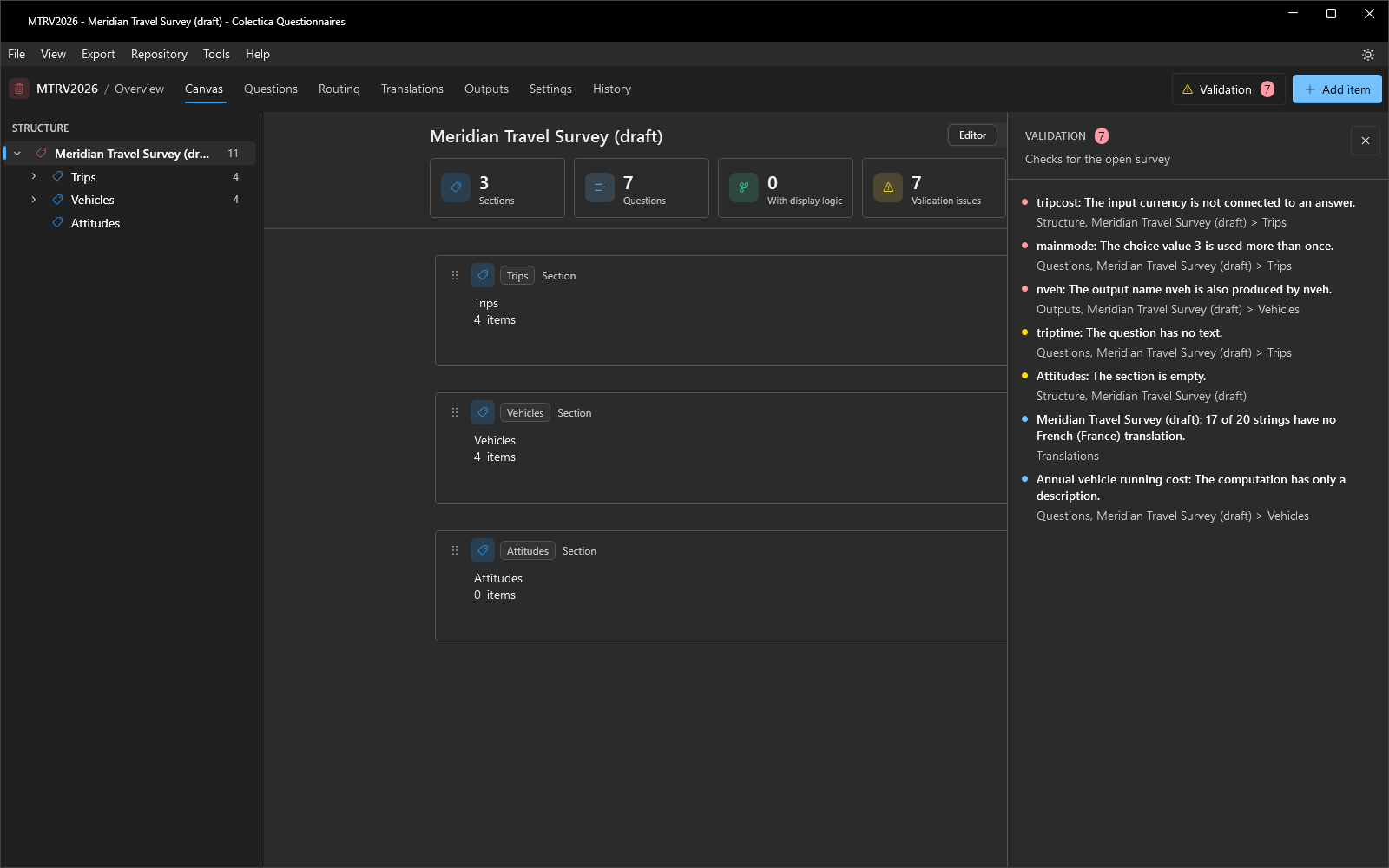
Tools, then Check for Errors, runs the validation checks for the open survey and opens the validation rail, headed Checks for the open survey. Each finding is a row: a severity dot, the item’s name followed by the message, and a second line naming the check’s source and the item’s location in the survey. Rows are sorted by severity, errors first, then warnings, then information, and within a severity in survey order. Clicking a row opens the affected item. When nothing is found, the rail reads No validation issues. The Validation button in the navigation bar shows the number of findings: red when any is an error, amber when there are only warnings and information, and green at zero. The checks, their severities, and the rule that decides whether an export is refused are listed in Validation Checks.
The Comments Rail#
Comments are discussion threads attached to survey items, stored on a Colectica Repository. The rail opens from Tools, then Comments, or from the Comments button in the navigation bar.
Threads are filtered with the Open and Resolved toggle, and a refresh button checks the repository for new comments. Each thread shows its item, with the question’s number where it has one, the comment authors and times, a reply box, and a resolve or reopen button. Clicking a thread’s item name opens the item on the canvas. Comments can also be read and posted from the comment button on any card, on any section header, and in the item editor’s title bar.
Commenting requires a configured repository, and an item must be published before its thread can start. If no repository is configured, the rail says so. See Discuss a Survey with Comments.