
Export a Survey#
Export a Specification or Paper Form#
Choose Export, then Specification for the technical document, or Paper Form for the printable questionnaire.
In the options dialog, choose the output file and the Language.
For a Specification, choose the Format: PDF for a paged document, or HTML for a single web page. The output file’s extension follows the format. The Paper Form is always a PDF, so the dialog shows no format for it.
Choose the Style (Monograph or Registry) and, for a PDF, the Paper size (Letter or A4).
Optionally set an Organization name and a Logo for the masthead.
Click Export; the folder with the finished document opens.
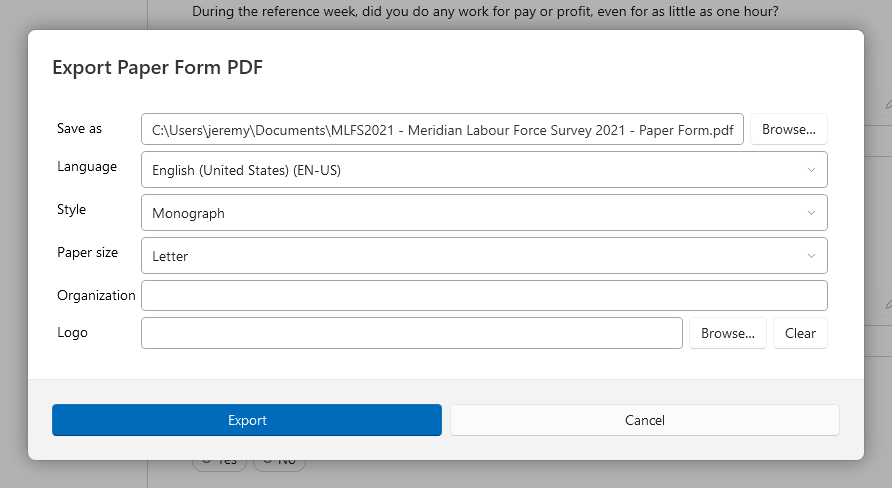
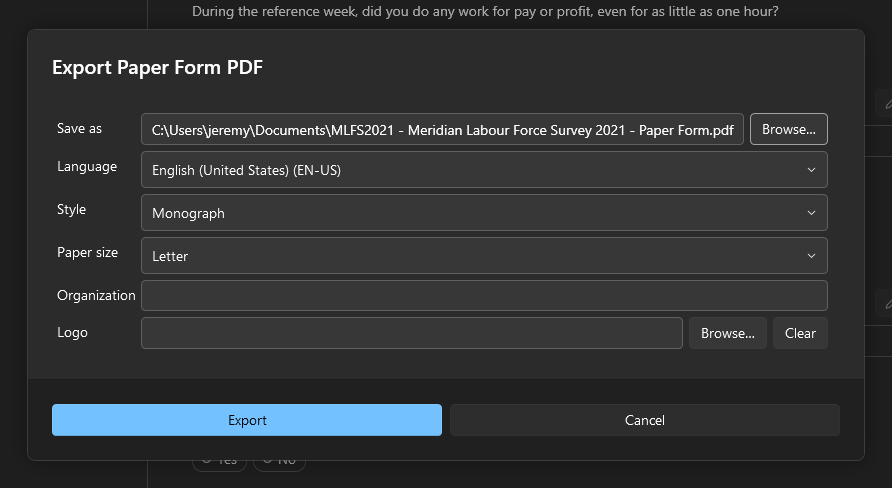
The dialog remembers the format, style, paper size, organization, and logo for the next export.
To export a single section as a Specification, use the export button in the section’s header on the canvas instead; the same dialog offers PDF or HTML.
Export DDI XML#
Choose Export, then DDI 3.3.
Choose the output file.
The file holds the survey as DDI Lifecycle 3.3 metadata, ready for import into Colectica Designer, Colectica Repository, or other DDI tools. Because item identifiers and versions are preserved, importing the file again updates items instead of duplicating them.
See also
Export Formats describes each format in detail. Generate a Blaise 5 Survey covers Blaise 5 source generation in Blaise Colectica Questionnaires.