
Show Items Conditionally#
Display logic shows an item only while a condition over earlier answers is true.
Add a Condition#
On the item’s card, click the branch button to open the Display Logic dialog.
On the Expression tab, add an If row: choose the subject (an earlier answer or computed value), an operator, and a comparison value.
Add further rows combined with and or or, or click Add new group for a parenthesized group.
Click Save.
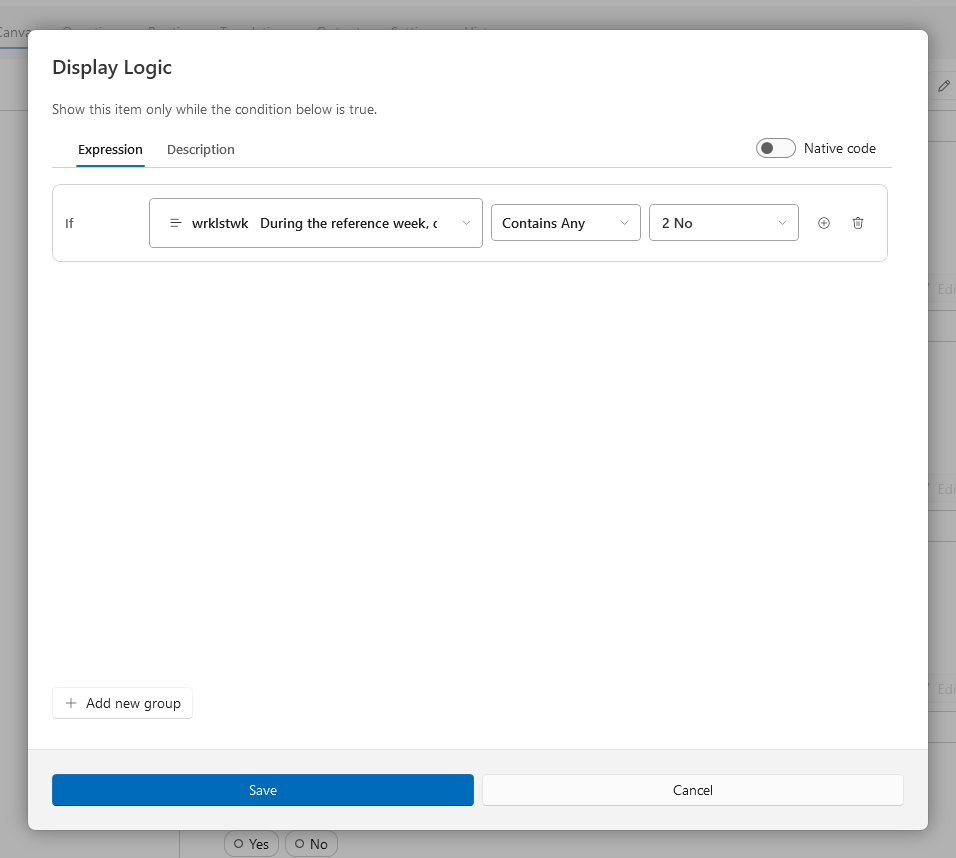
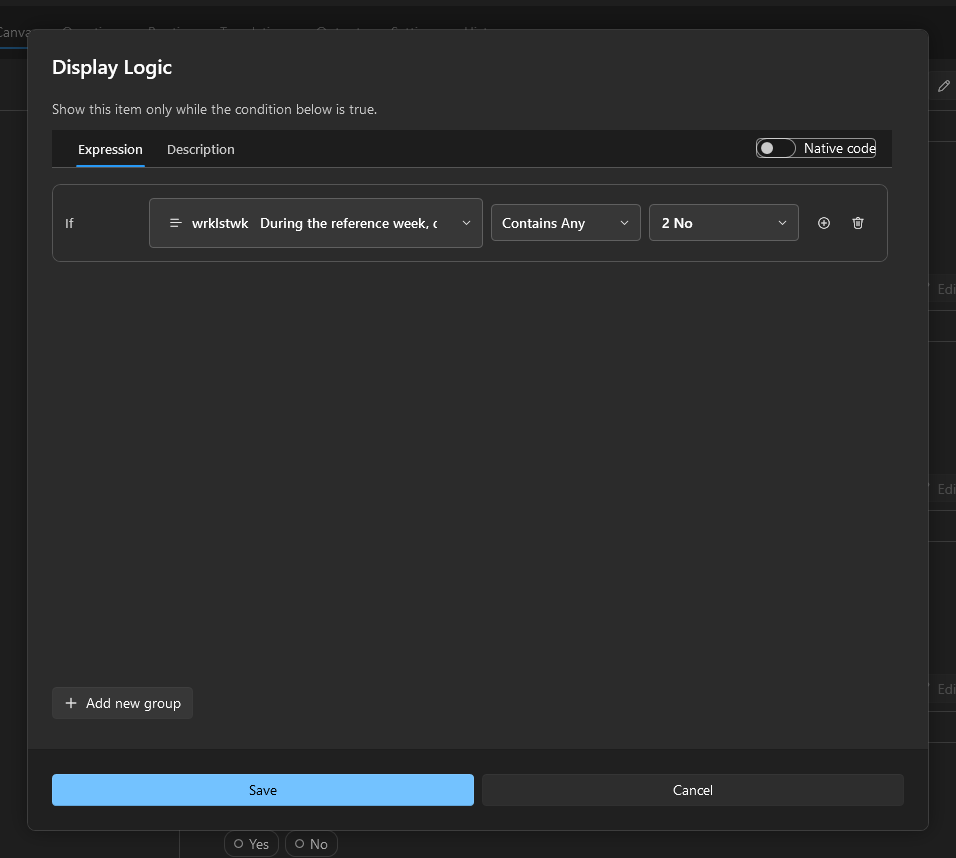
The card now shows the condition as a green chip, and the section header of a conditional section shows a Display if chip. Only questions earlier in the survey can be subjects; if the dialog offers none, add the source question above the item first.
Describe Instead of Formalize#
When the condition cannot or should not be formalized, record it as prose on the Description tab. A described condition is documented and exported, but the application cannot evaluate it, so the item always shows in the preview. The Native code toggle instead accepts platform source code, exported verbatim. For the trade-offs, see How Logic and Dynamic Content Work.
Change or Remove a Condition#
Click the condition chip or the branch button to edit the condition.
Use Remove Display Logic in the card’s overflow menu to delete it.
Verify#
Switch the section to Split or Preview.
Answer the source question and watch the conditional item appear and disappear.
Review all conditions on the Routing Page.
See also
Display Logic and Expressions lists every operator.