
Add Questions and Content#
This guide adds questions and static content to an open survey.
Add an Item#
Open the section that should hold the item.
Open the add-item palette in one of three ways: click Add item in the navigation bar, hover between two cards and click Insert an item here, or click Add the first item in an empty section.
Choose an item type. The palette’s groups are described in Item Types.
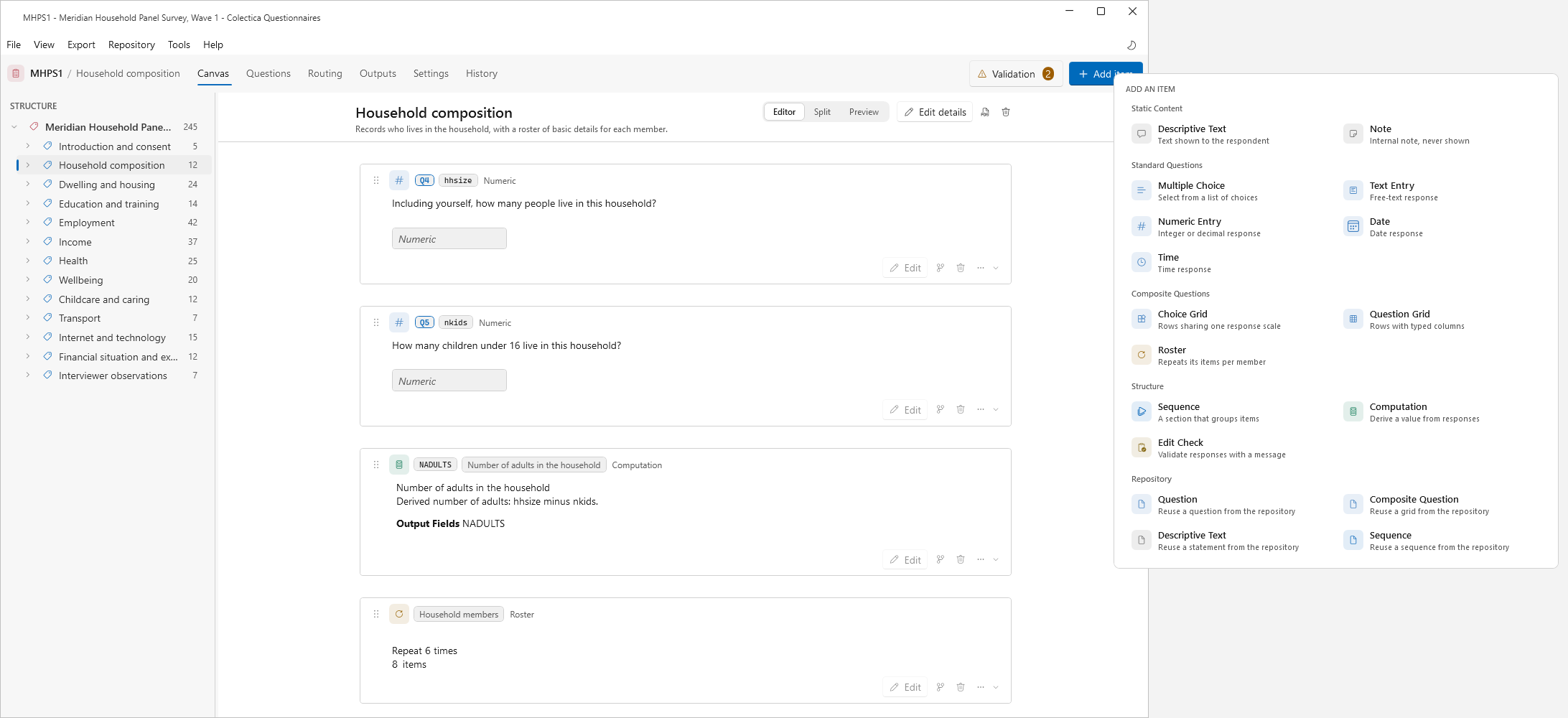
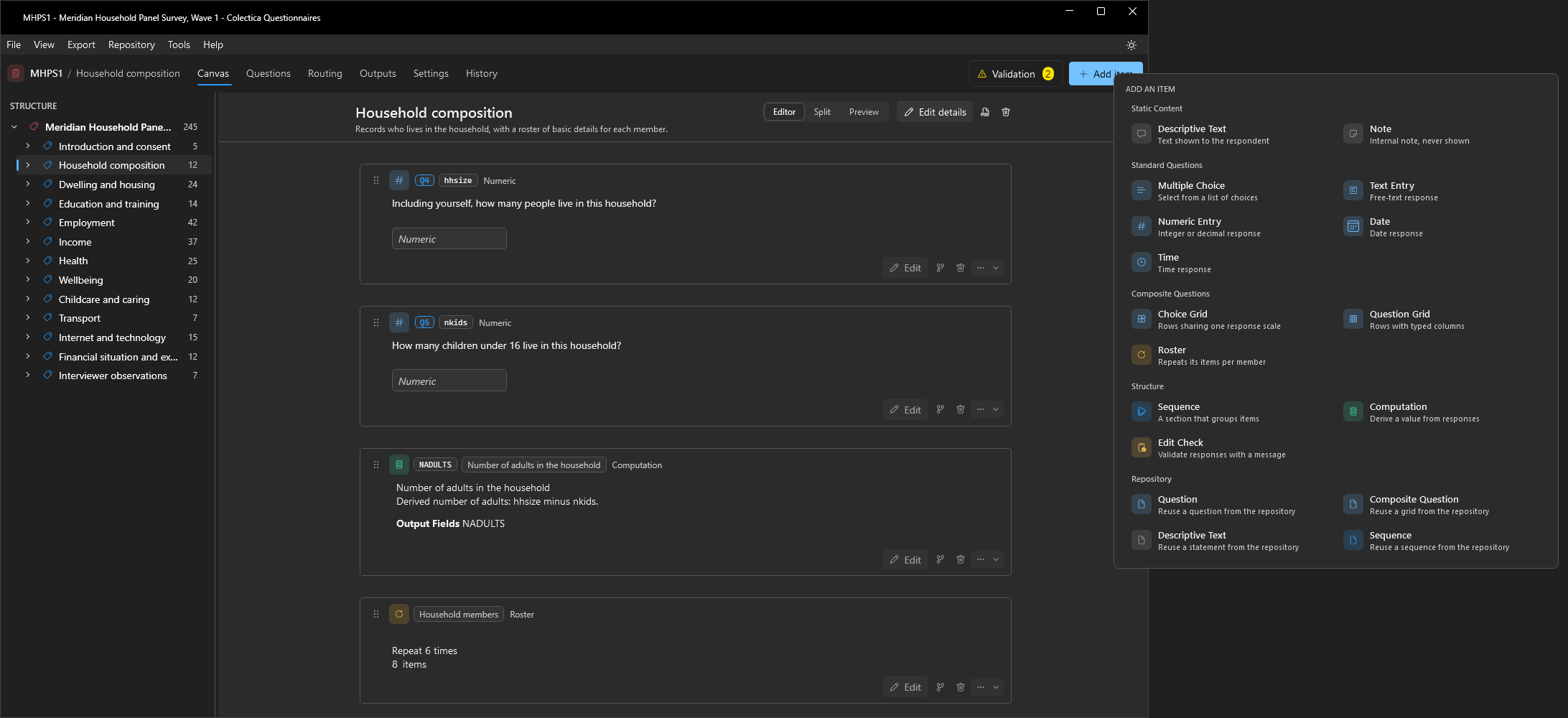
The new item appears as a card at the chosen position.
A question receives its number, Q1, Q2, and so on, automatically; see Question Numbers.
Write the Question#
Click the question text on the card and type; Enter commits, Esc cancels.
For everything else, click Edit on the card to open the full editor.
On the Question tab, set the Name; it becomes the question’s output variable name and its handle in logic.
Add Instructions if interviewers or respondents need guidance.
Leave the editor with the breadcrumb; changes are committed on exit.
If similar-question suggestions are turned on, a panel of matching shared questions may appear under the text while you type; see Reuse Items from a Repository.
Set the Response#
In the editor, open the Response tab.
For a Numeric Entry, set the Number Type, the Minimum and Maximum, and the Decimal Places.
For a Text Entry, set the Maximum Length.
Date and Time questions need no response settings.
For a Multiple Choice question, see Create a Multiple Choice Question.
Add Static Content#
Add a Descriptive Text item for text the respondent should read, such as an introduction.
Add a Note for internal remarks; notes are never shown to the respondent and are excluded from respondent-facing exports.
See also
Question Editor describes every tab of the editor. Response Types and Code Lists describes every response setting.