
Colectica Questionnaires 8.0#
Welcome to the 8.0 release of Colectica Questionnaires and Blaise Colectica Questionnaires. This is a major update focused on improving the user experience for authoring surveys. It includes improvements across all features, while maintaining full backward compatibility with DDI Lifecycle content from previous versions.
The release notes below present the changes by area. For the complete list of additions, changes, and fixes, see the Colectica Questionnaires section of the 8.0 changelog. For full descriptions of every page, editor, and dialog, see the Questionnaires documentation.
User Experience: A navigation bar and structure tree, a design canvas with a Questions view, and a dark mode.
Survey Authoring: Automatic question numbering, a Routing page, a validation rail, version history and comparison, and a synchronization dialog with conflict resolution.
Search: A Question bank for inserting shared items from a repository, and similar-question suggestions while writing a new question.
PDF Outputs: Accessible PDF generation with two document styles, and redesigned Specification and Paper Form outputs.
Collaboration: Comment threads on survey items, stored in the repository, with resolve and reopen.
Other Changes: Custom fields for Questionnaires, response editor improvements, and fixes.
User Experience#
Navigation#
The application window has been reorganized around a navigation bar that is visible whenever a survey is open. The bar offers the survey’s workspace pages: Canvas, Questions, Routing, Translations (shown when the survey has two or more languages), Outputs, Settings, and History. To the left, a breadcrumb shows the survey’s name and the open section. To the right, the Comments and Validation buttons open their rails and show live counts, and Add item opens the add-item palette for the current section.
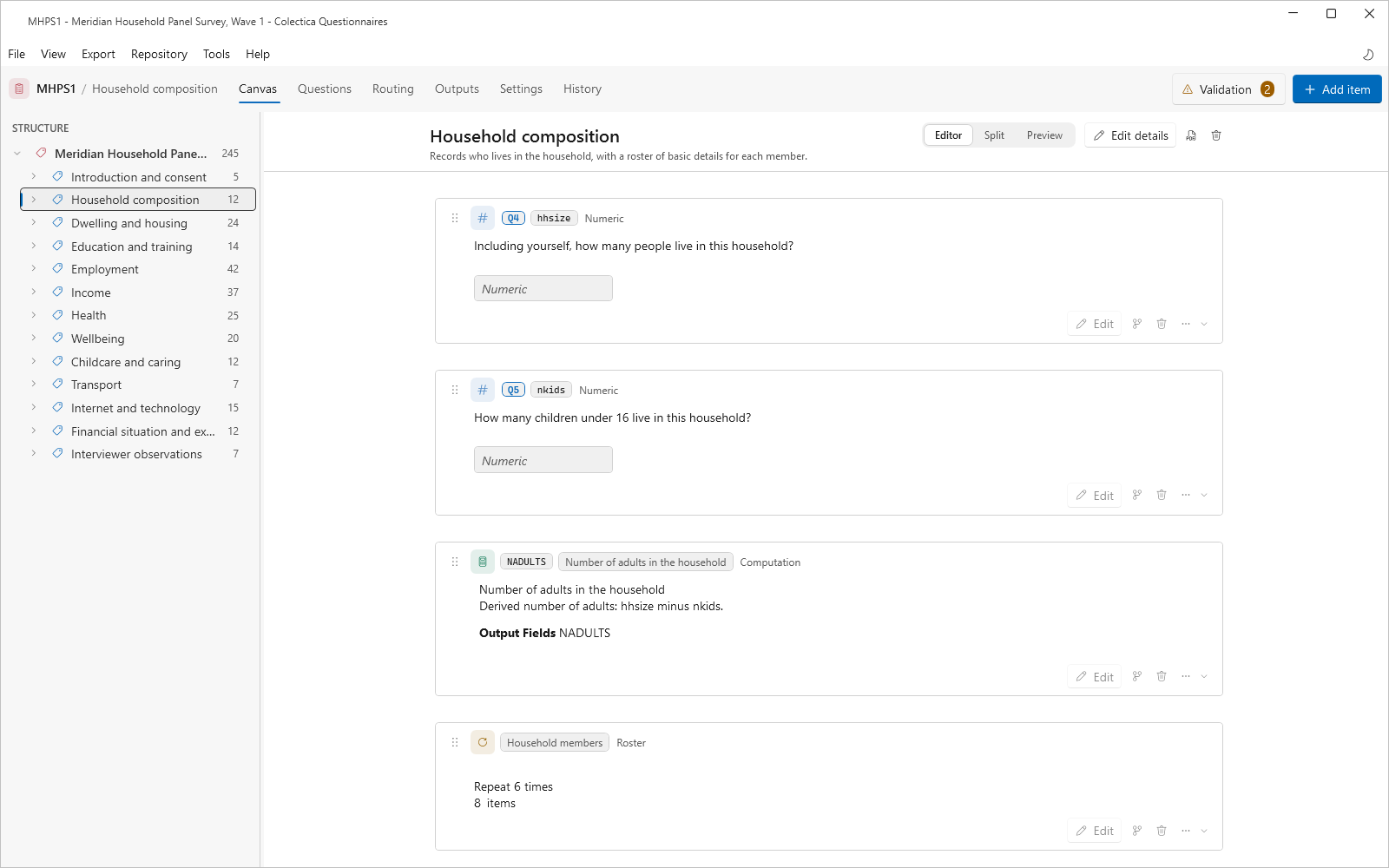
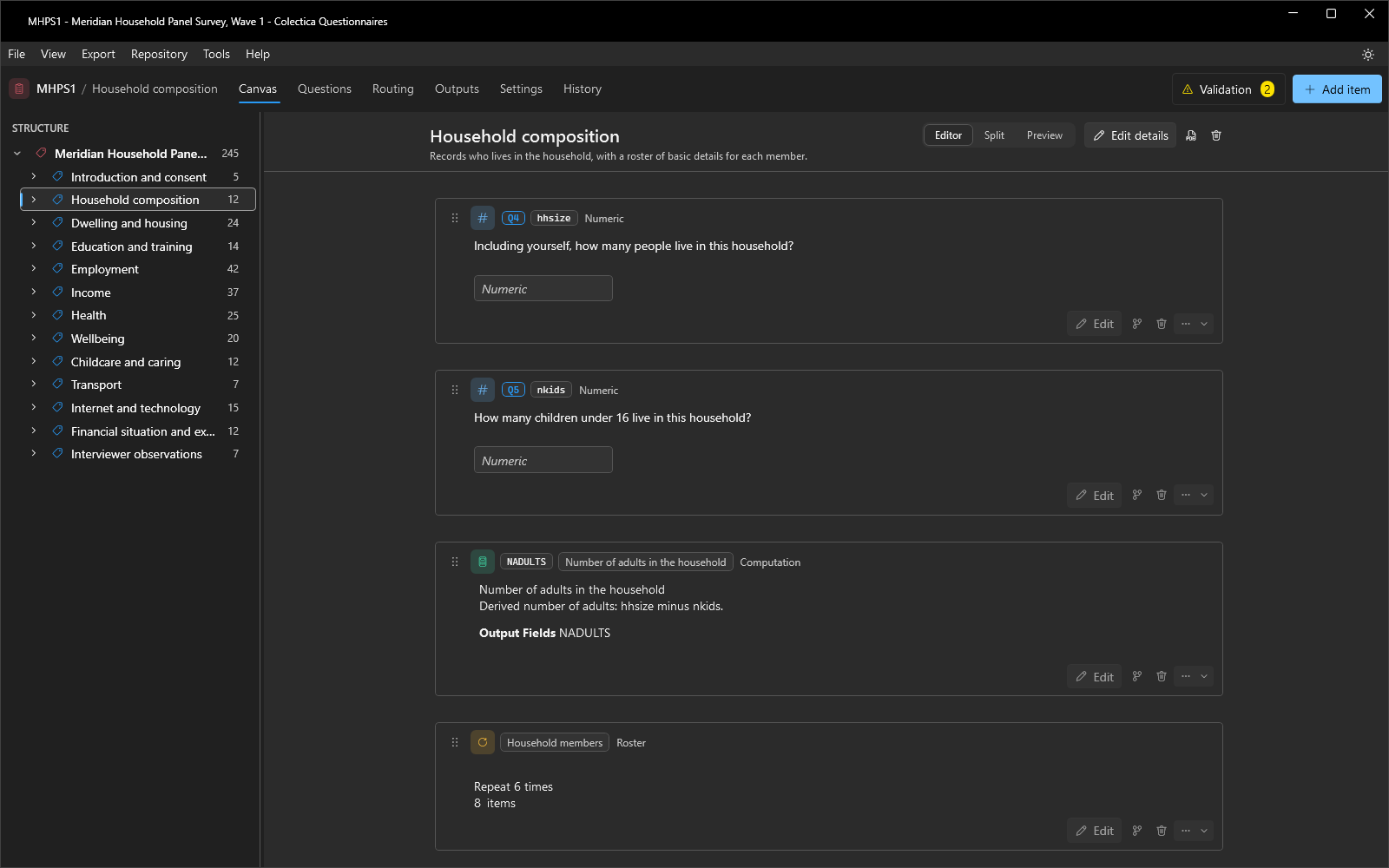
The Structure tree on the left of the Canvas shows the whole survey. Each row shows an item’s type icon and label. A question’s row also shows its number, a section’s row shows a count of its descendants, and conditional items have a branch badge. Selecting a row opens that part of the survey on the canvas and scrolls the matching card into view, and rows can be dragged to reorder the survey.
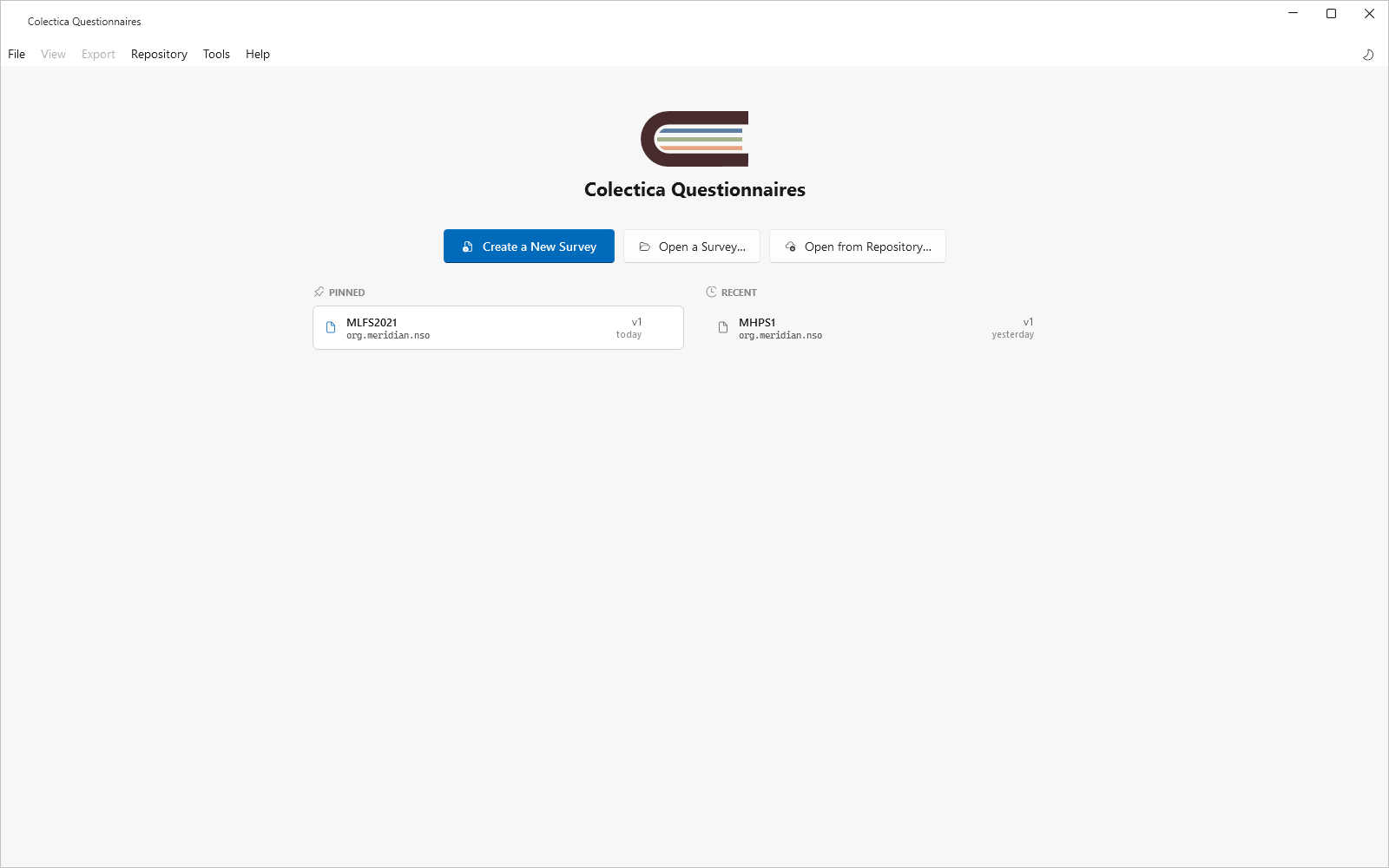
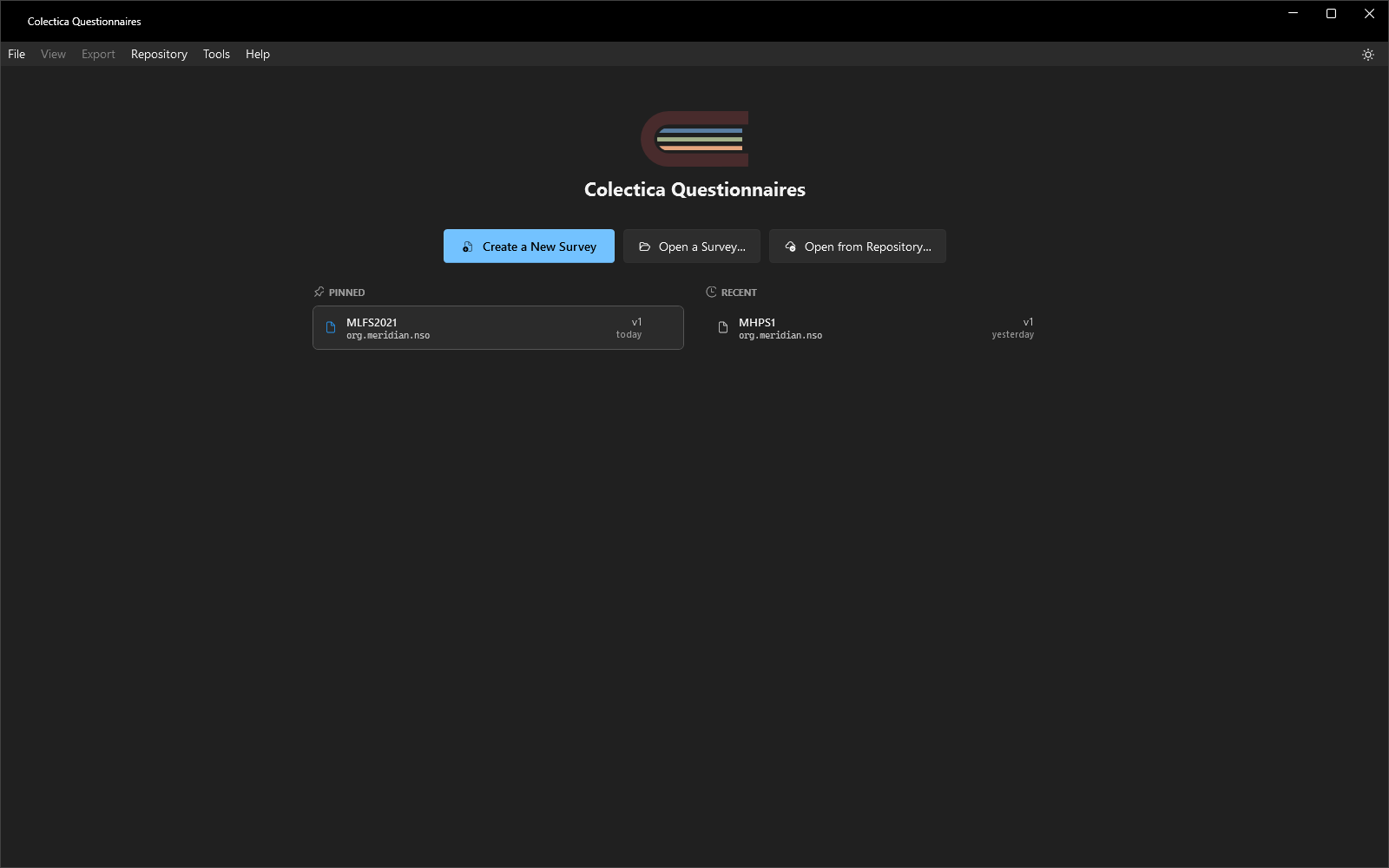
The welcome page, shown when no survey is open, offers Create a New Survey, Open a Survey…, and Open from Repository…, followed by a Pinned list and a Recent list of surveys. Each row shows the survey’s name, agency identifier, version, and when it was last opened.
Easier Reading#
Card design. Every item in an open section is presented as a card. A card shows the item’s type icon, its name chip, its label chip, and its content, such as question text and a rendering of the response options. Question and choice grid previews are always shown on canvas cards. A question card carries its question number in a pill at the left of its header. If an item carries a condition, a condition chip renders the rule on the card, colored by its kind: green for a formal condition the application can evaluate, gray for a described condition, blue for native source code, and dark red for a broken condition. Question text can be edited directly on the card, and cards can be dragged by the gripper on their left edge to reorder items. Hovering between two cards reveals an Insert an item here band that opens the add-item palette at that position.
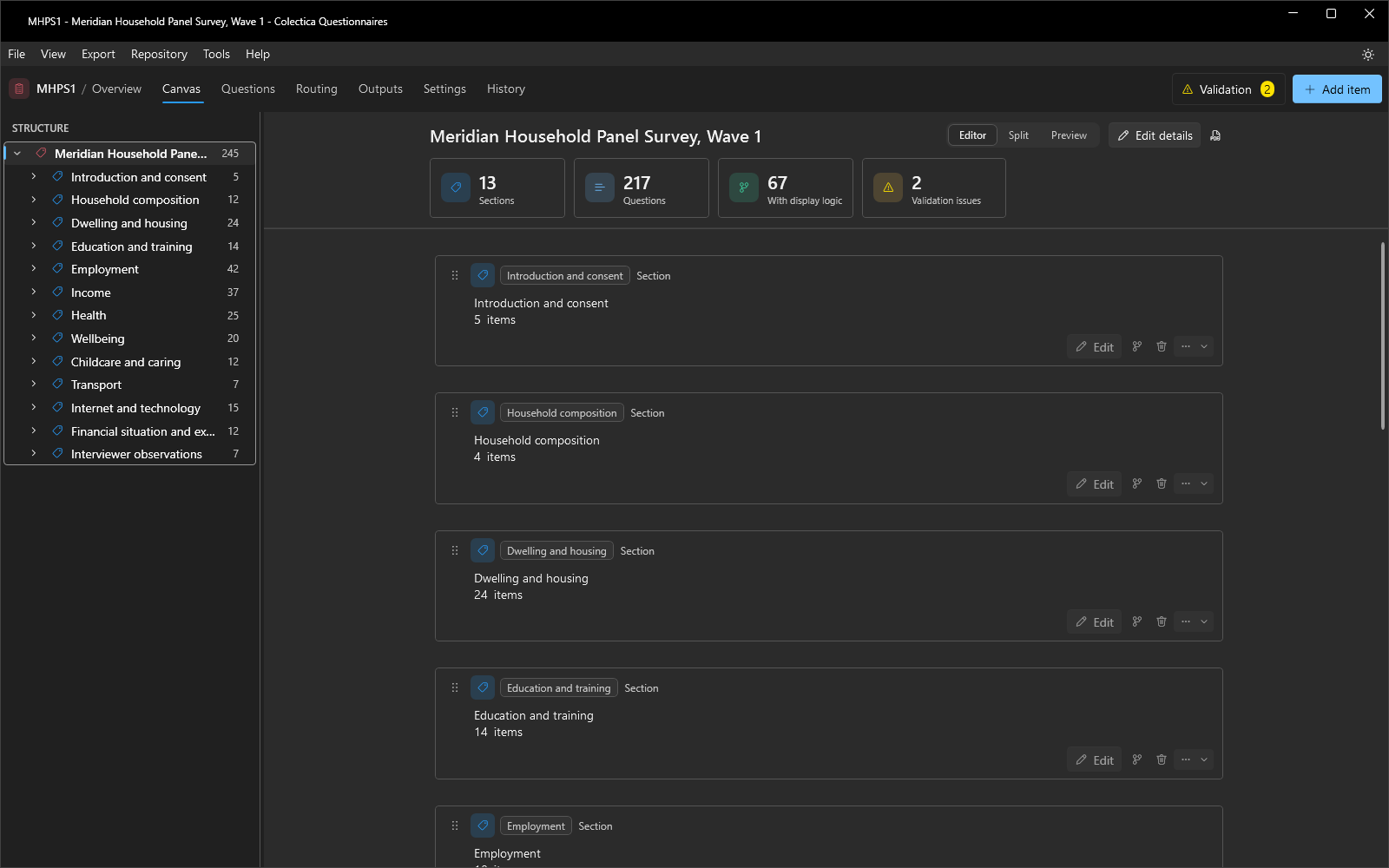
Survey overview. Selecting the survey root in the structure tree shows an overview with statistic cards for Sections, Questions, With display logic, and Validation issues, followed by one card per top-level section.
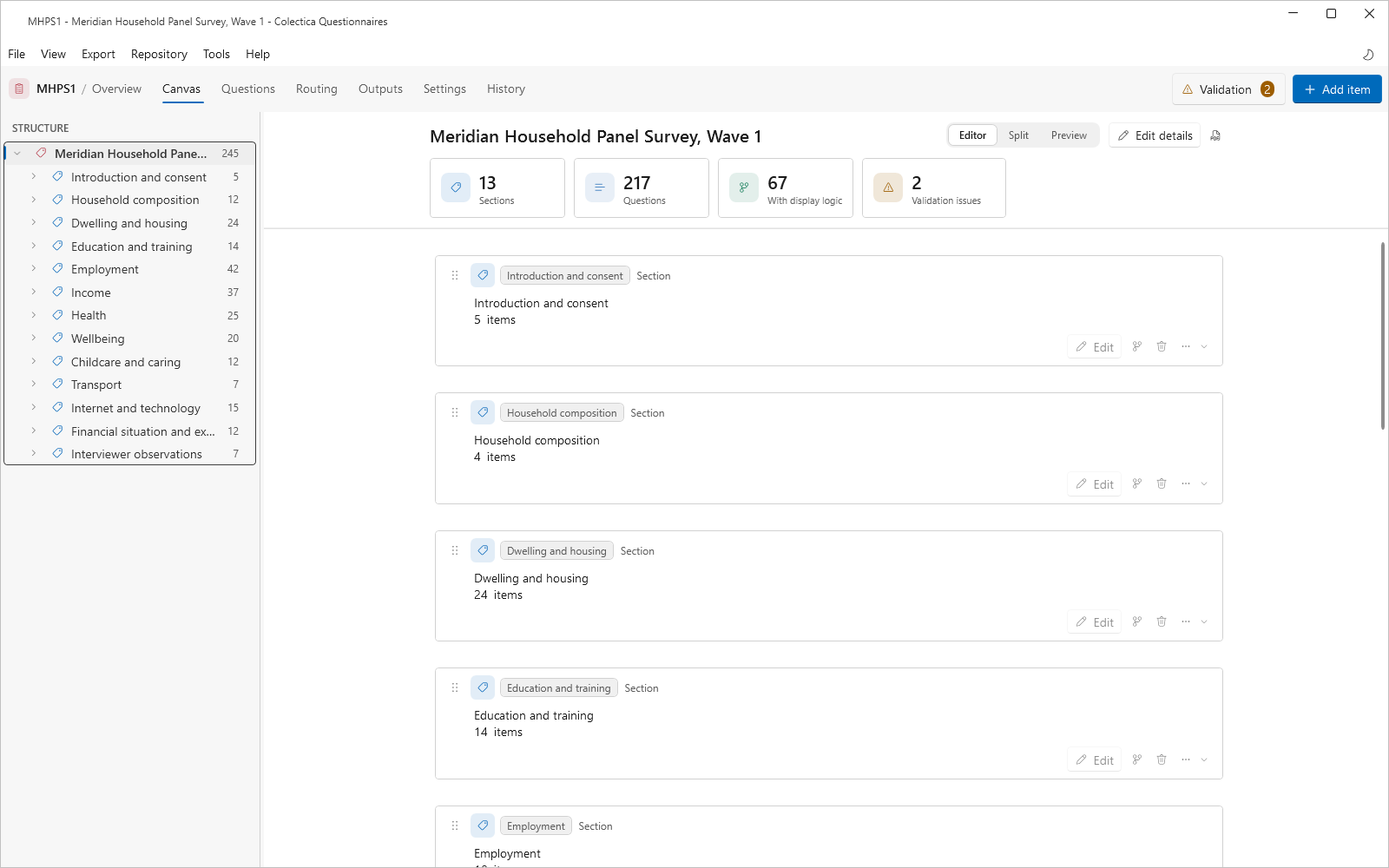
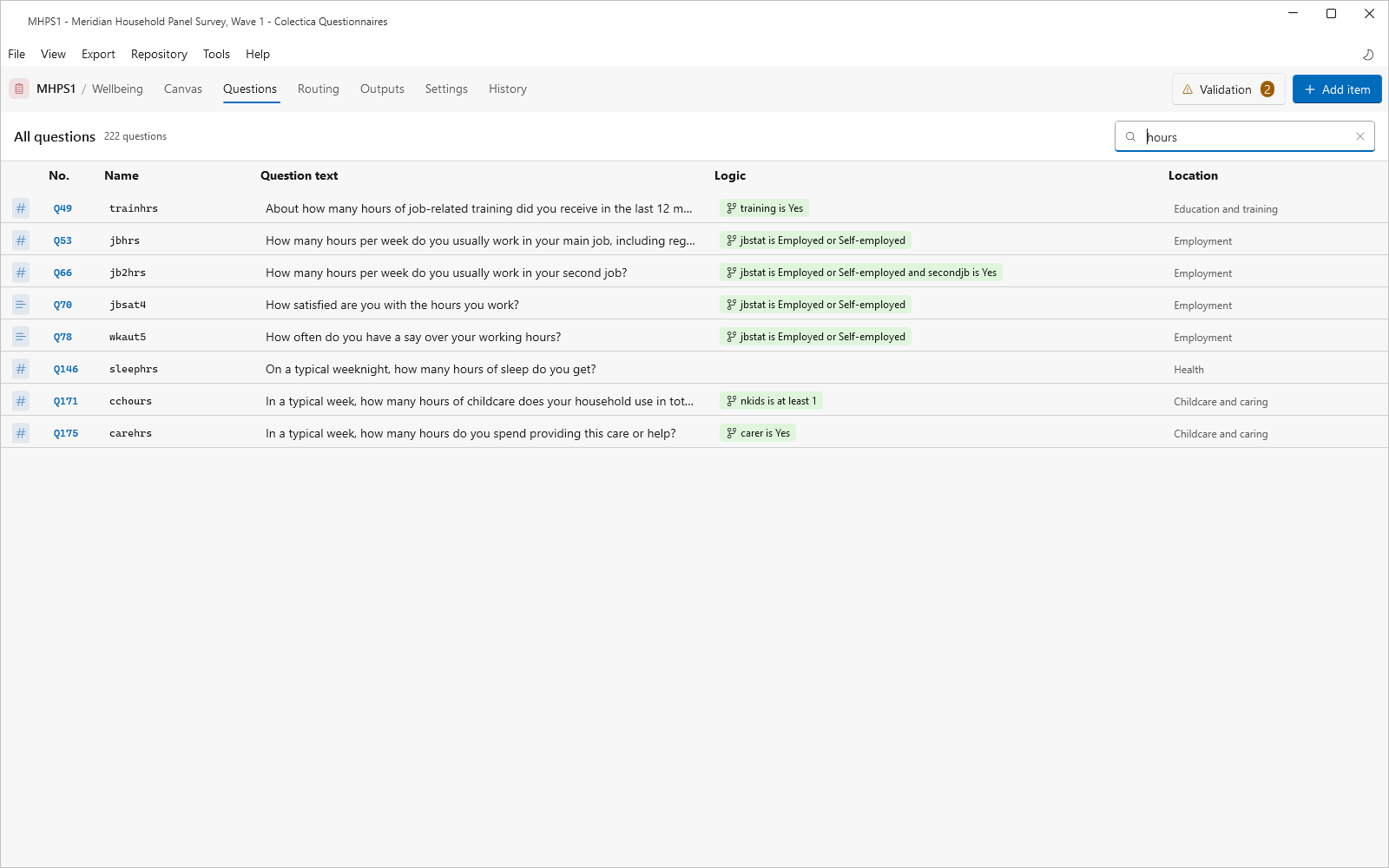
Questions view. The new Questions page lists every question in the survey as a flat, read-only table: a type icon, the question’s number, its name, its question text, a logic chip summarizing its display logic, and its location within the survey. The filter box matches names, text, and logic. Double-clicking a row opens the question on the canvas.
Dark Mode#
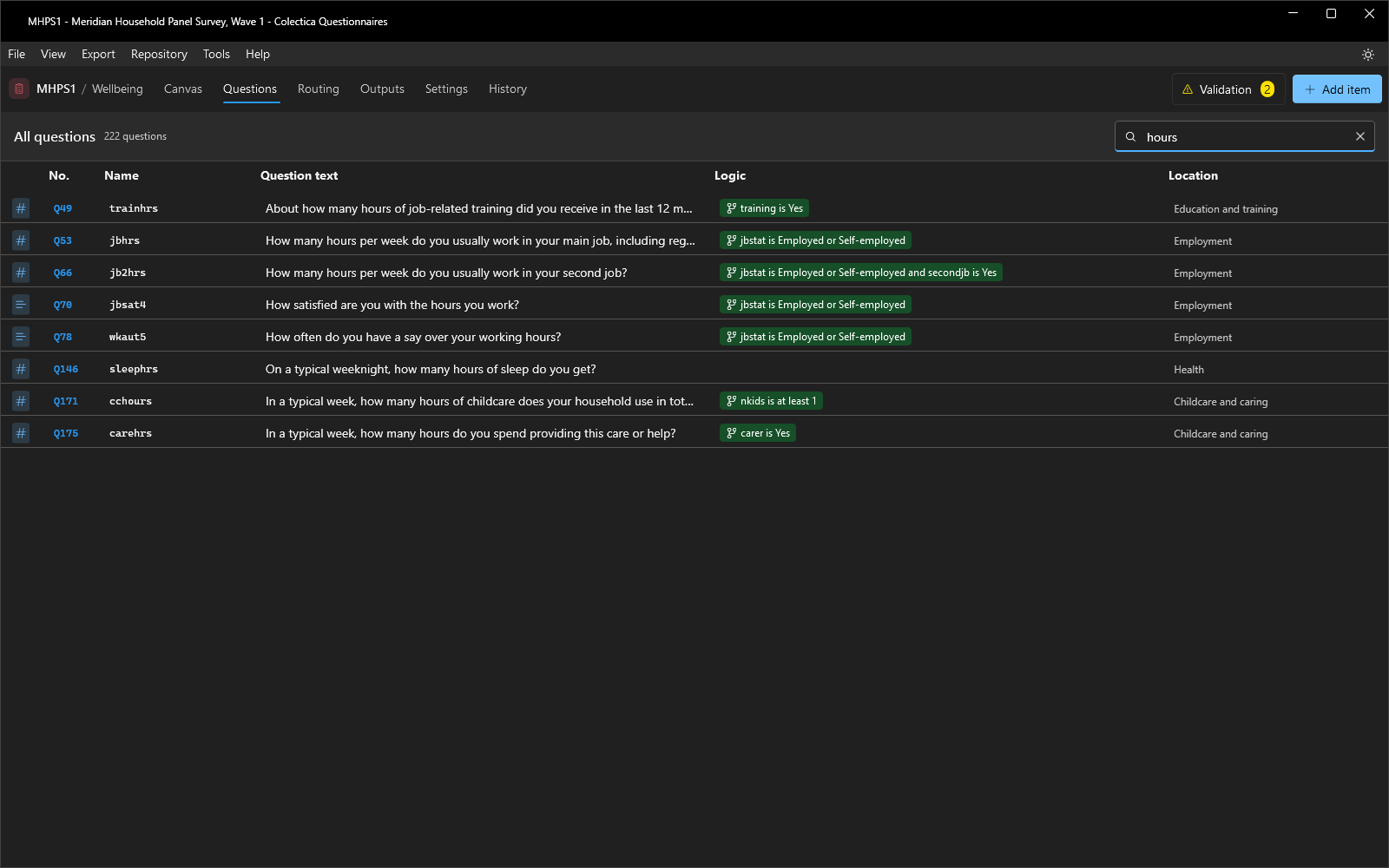
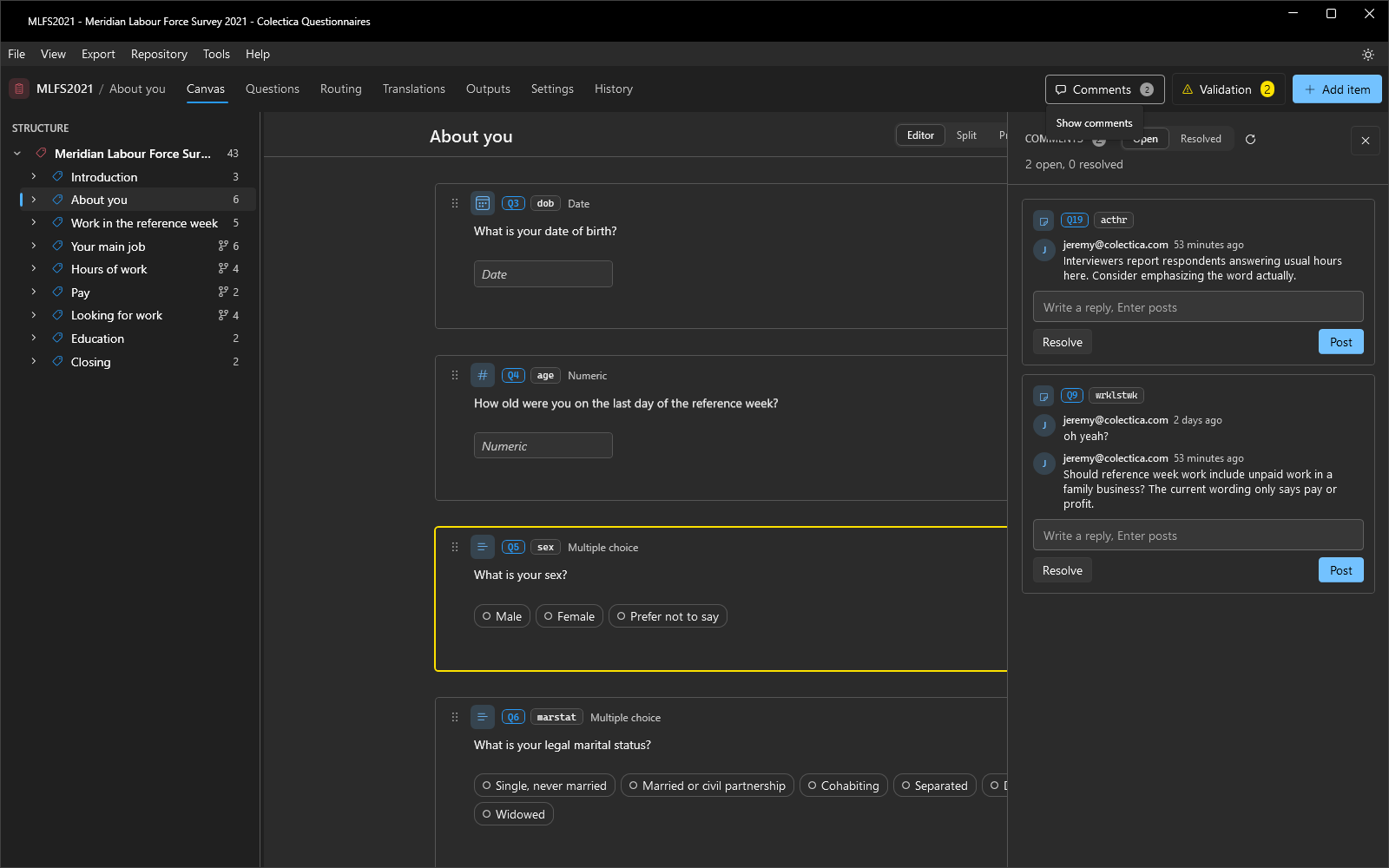
The application now has light and dark themes. A sun or moon button at the right end of the menu bar switches between them, as does Ctrl+Shift+D. The General section of the Settings dialog offers Light, Dark, and System, which follows the operating system theme. The choice is remembered across restarts.
Survey Authoring#
Question Numbering#
Every question in a survey now carries a number, Q1, Q2, and so on, assigned by the application.
The numbers are computed from the survey’s structure each time it changes.
They are not stored with the survey, and they cannot be edited.
One sequence runs through the whole survey in document order. Sections do not restart it.
Only questions are numbered. A choice grid or a question grid counts as one question. Descriptive text, notes, computations, edit checks, sections, and rosters get no number.
Questions inside a roster or inside a display-logic branch are numbered in place, where they occur.
A question that is reused in more than one place is numbered where it first occurs.
Inserting, deleting, or reordering an item renumbers everything after it immediately.
The same number appears everywhere a question is shown: on canvas cards, in the structure tree, on the Questions page, on the Routing page, in the live preview, on the Translations page, in the comments rail, and in the PDF exports. A single section exported from its header keeps the numbers it has in the full survey.
See Question Numbers.
Routing View#
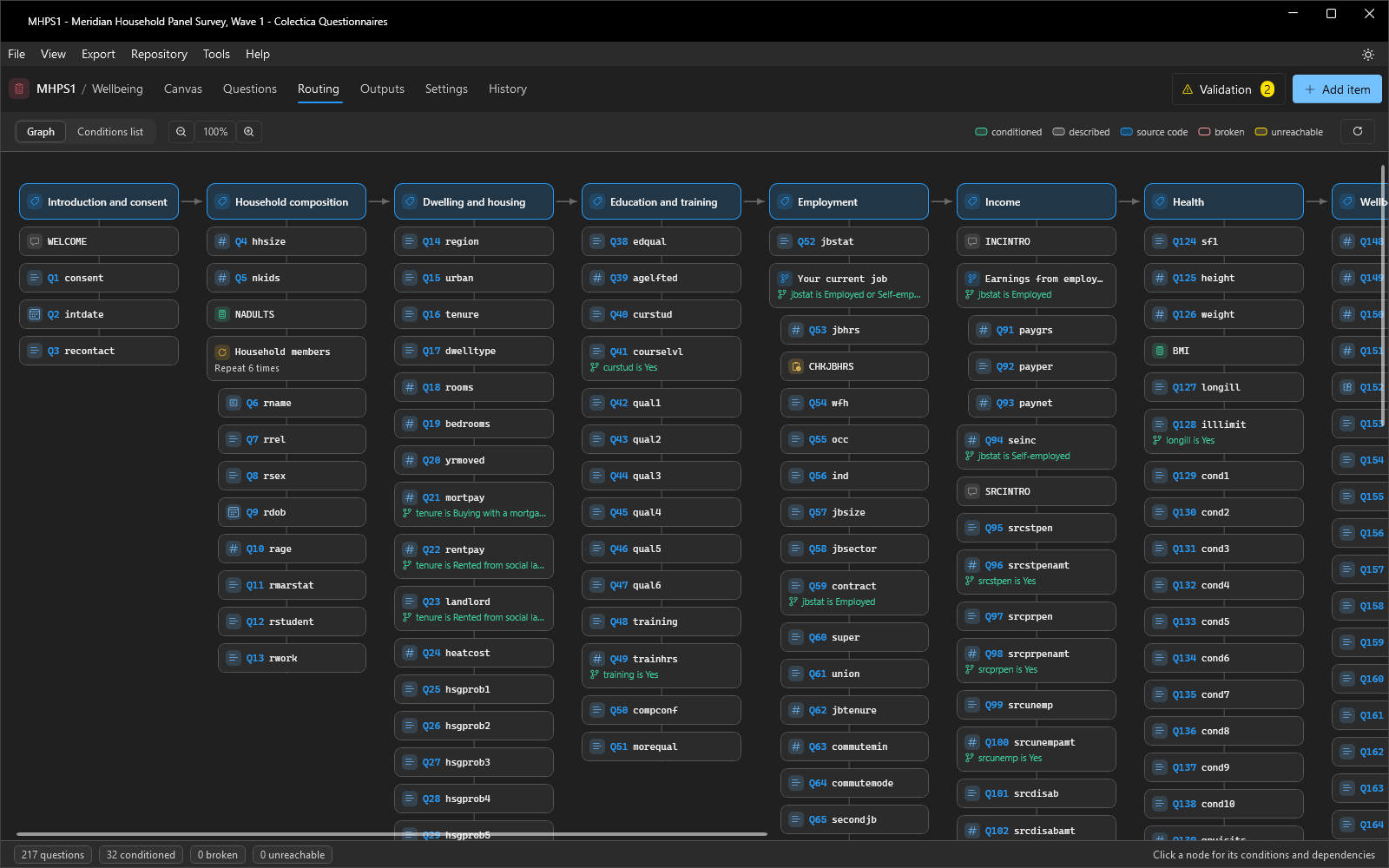
The new Routing page visualizes the survey’s flow and every condition in it. You can switch between the Graph and the Conditions list.
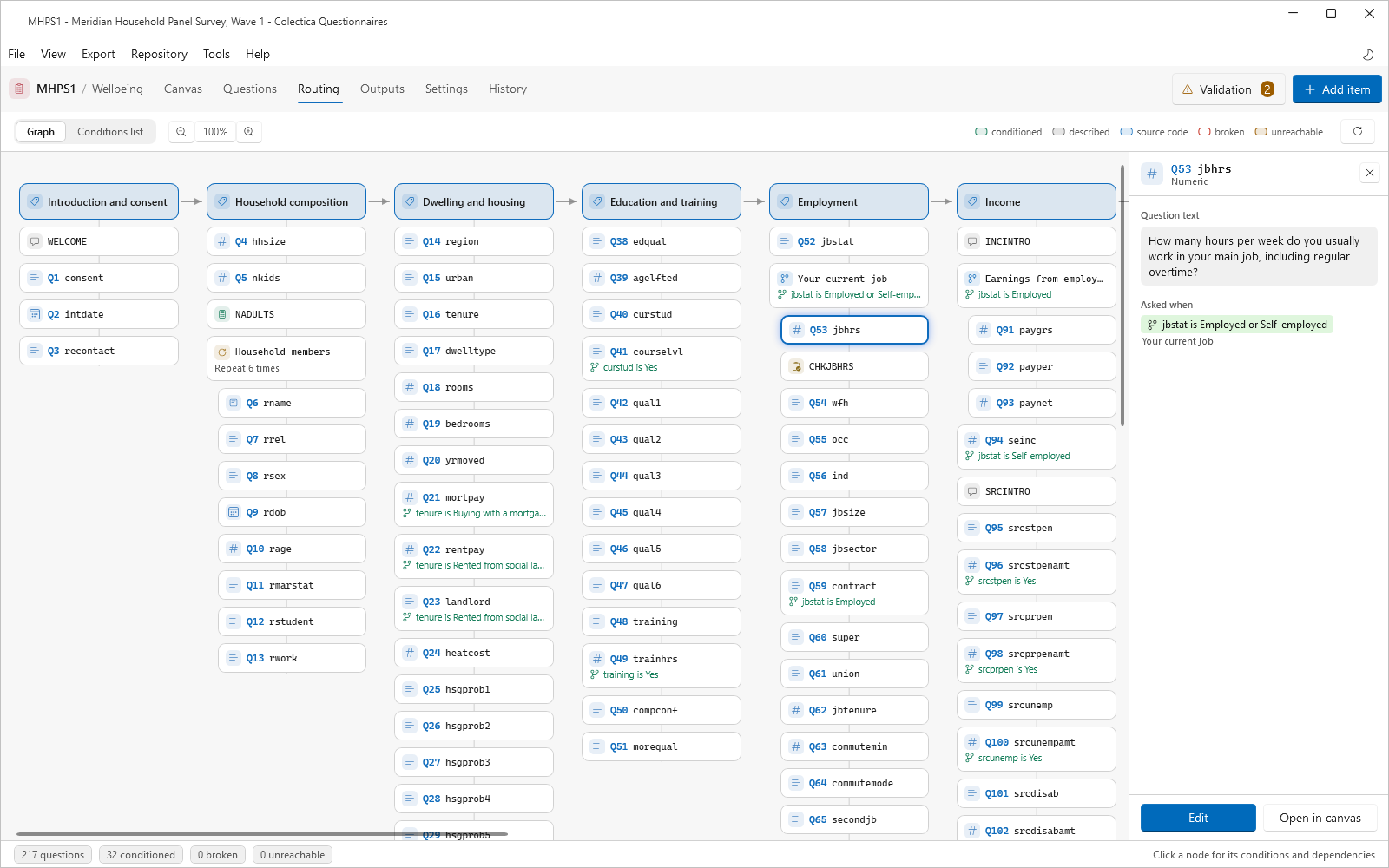
The graph lays the survey out as one column per section, with a node per item. A question’s node shows its number, and a conditional node shows its condition. Edges connect conditions to the answers they depend on. The legend distinguishes node states: conditioned, described, source code, broken, and unreachable. The surface pans by dragging and zooms with the zoom buttons or Ctrl and the mouse wheel. A footer counts the survey’s questions and its conditioned, broken, and unreachable items.
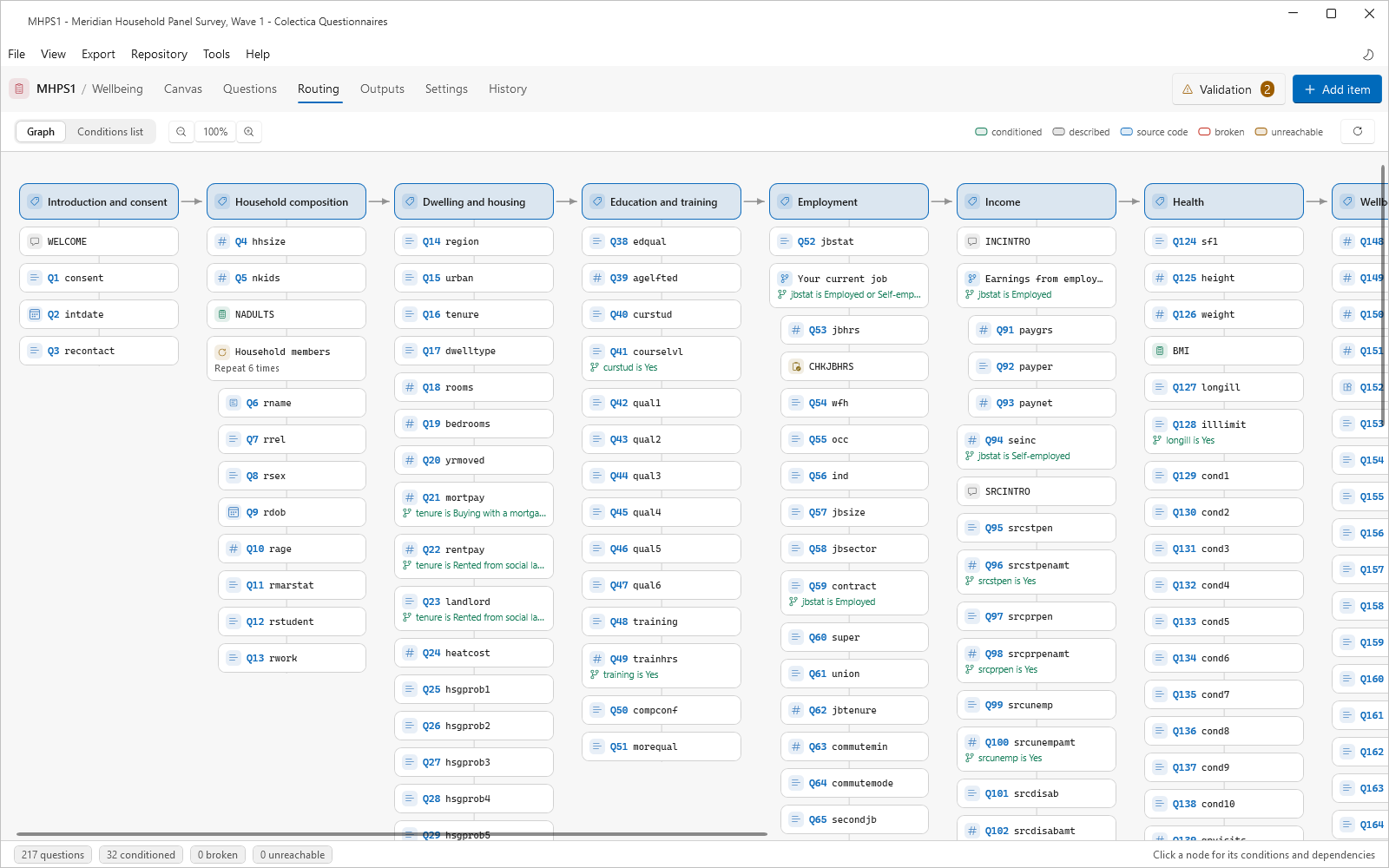
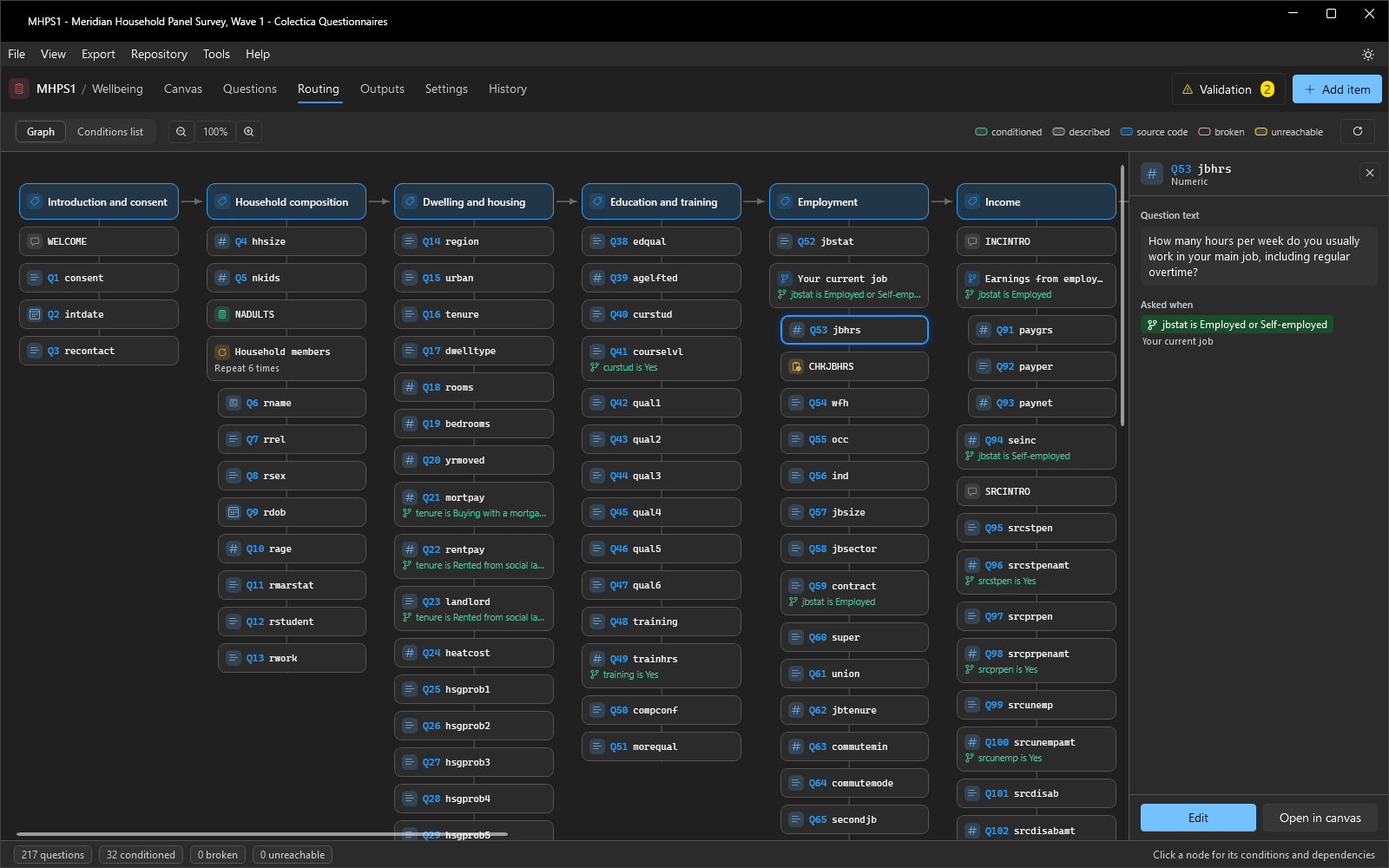
Selecting a node opens a panel with the item’s name, type, and text. Asked when states the conditions that must hold for the item to be asked, or that the item is always asked. Depends on lists the answers the item’s condition reads, and Gates lists the items whose conditions read this answer. Information bars flag broken or unreachable items. Edit opens the item’s editor, and Open in canvas jumps to its card.
The Conditions list presents every condition in the survey as a flat list for auditing, with the same states and the same navigation actions as the graph.
See Routing Page.
Validation Messages#
Validation results are presented in a rail on the right edge of the window. Tools, then Check for Errors, runs the checks for the open survey and opens the rail. Each finding is a row: a severity dot, the item’s name followed by the message, and a second line naming the check’s source and the item’s location in the survey. Rows are sorted by severity, errors first, then warnings, then information, and within a severity in survey order. Clicking a row opens the affected item.
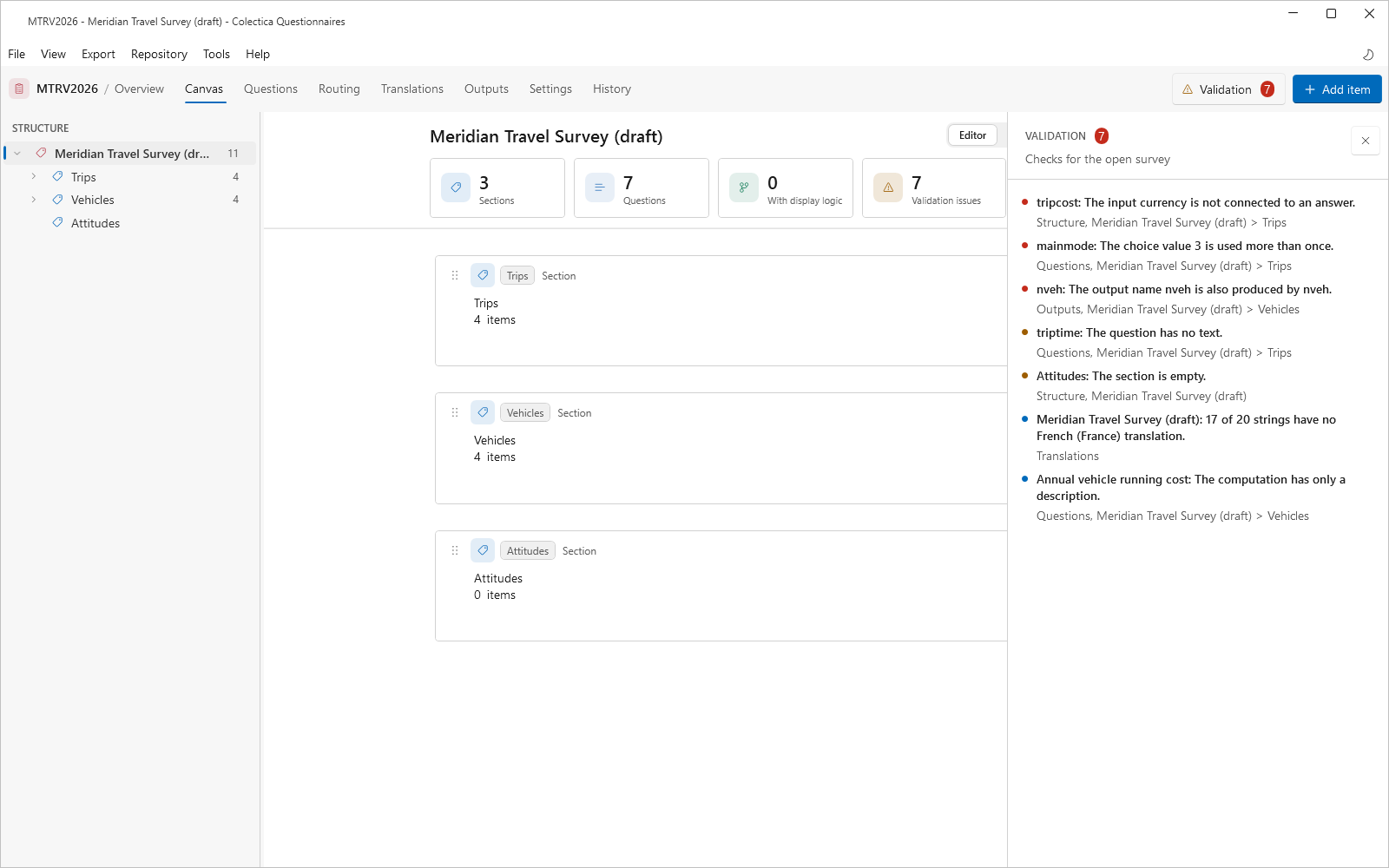
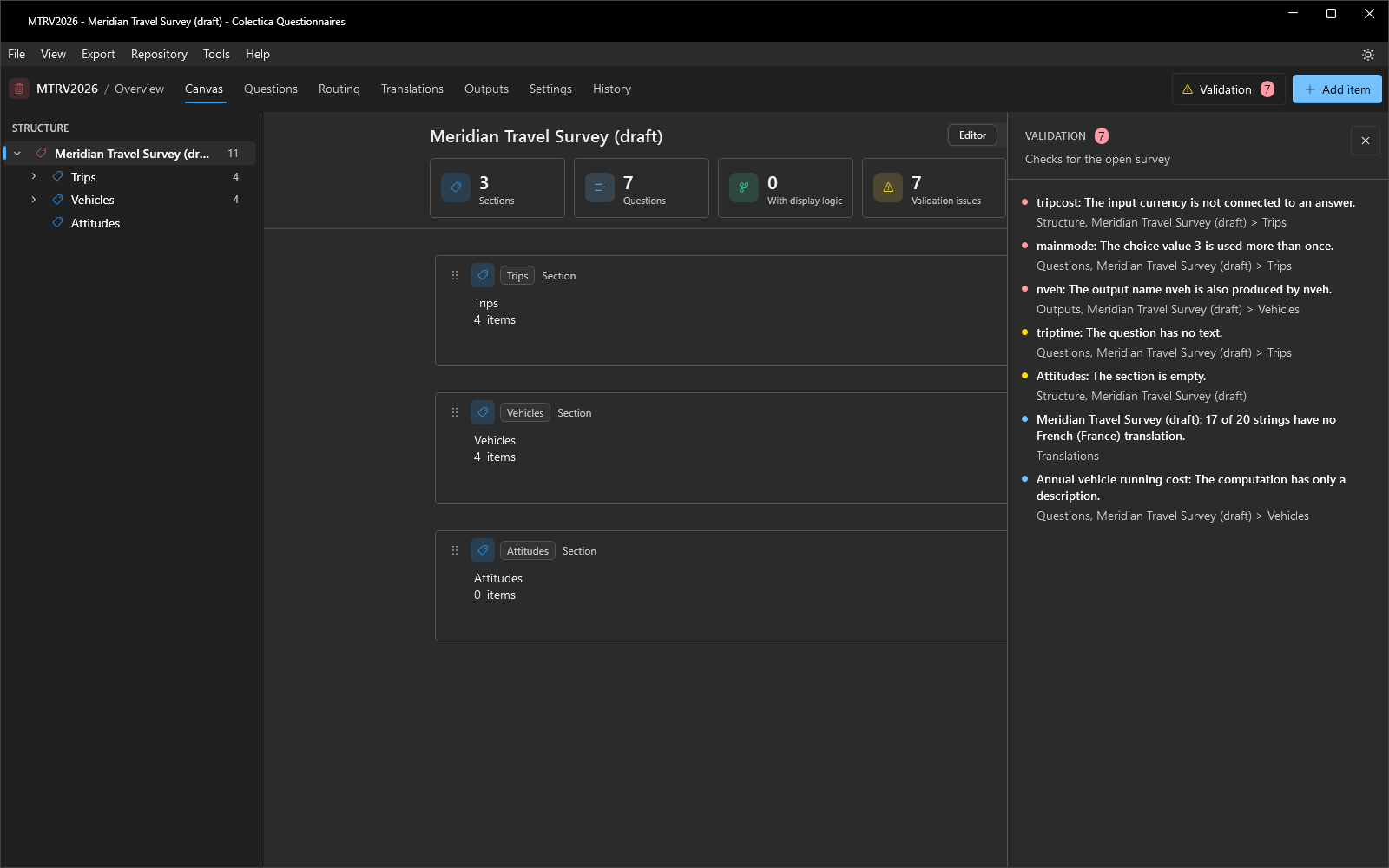
The Validation button in the navigation bar shows the number of findings at all times. It is red when any finding is an error, amber when there are only warnings and information, and green when there are none.
Findings are grouped by source: Structure, Questions, Outputs, Logic, and Translations. Messages name the item, value, or number they report, such as a duplicate choice value, an output name produced by two items, or an input that is not connected to an answer. Validation results now identify missing and invalid bindings.
The checks are shared by both editions. Blaise Colectica Questionnaires adds Blaise 5 checks which validate what the Blaise 5 generator cannot express or will change, such as non-numeric choice values, description-only display logic, or names that will be rewritten as Blaise identifiers. Every export runs the checks first. The Specification, Paper Form, and DDI 3.3 exports proceed whatever the checks find. The Blaise 5 export refuses to run while any finding is an error and shows a message counting the issues to fix.
See Validation Checks.
History and Comparison#
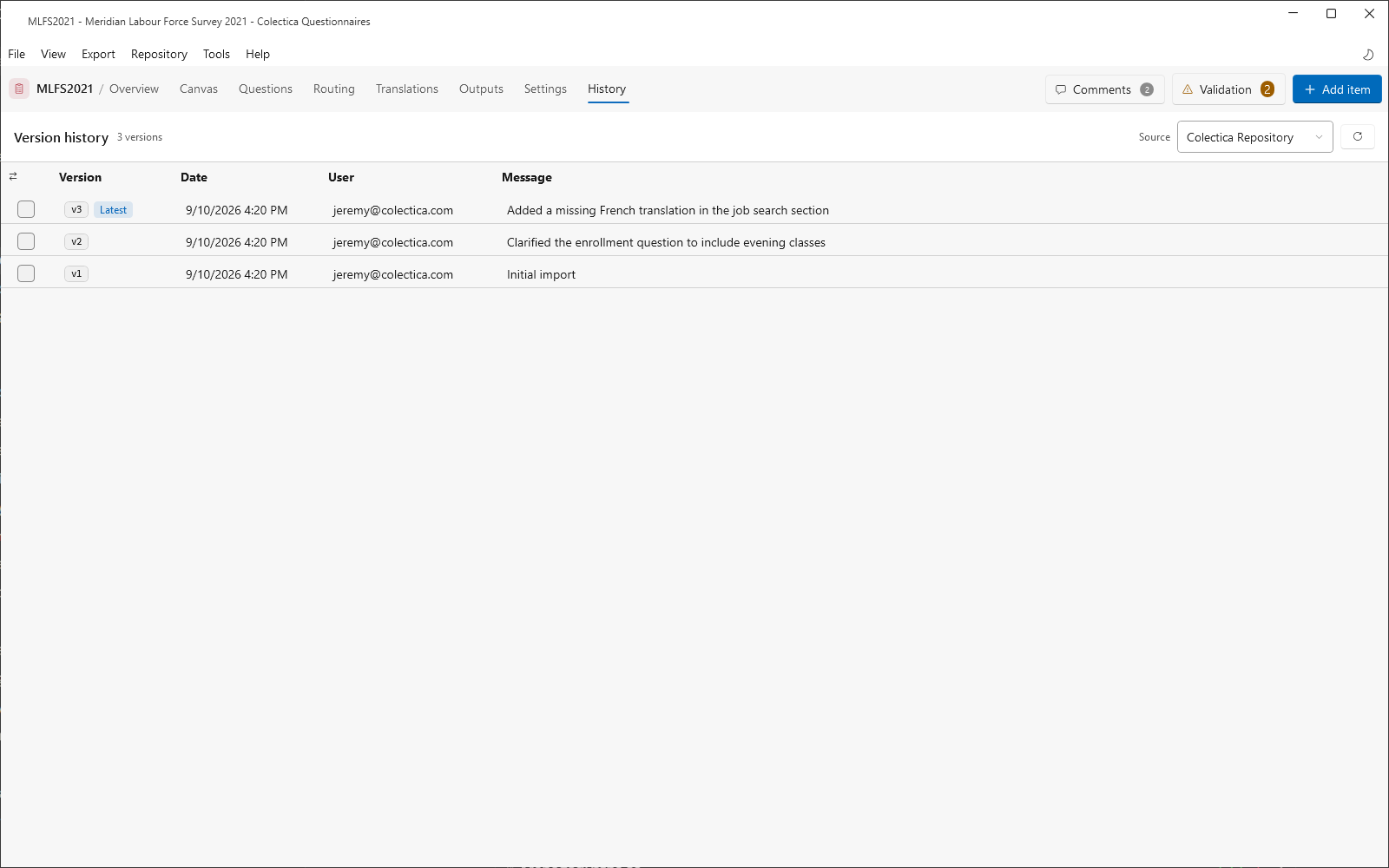
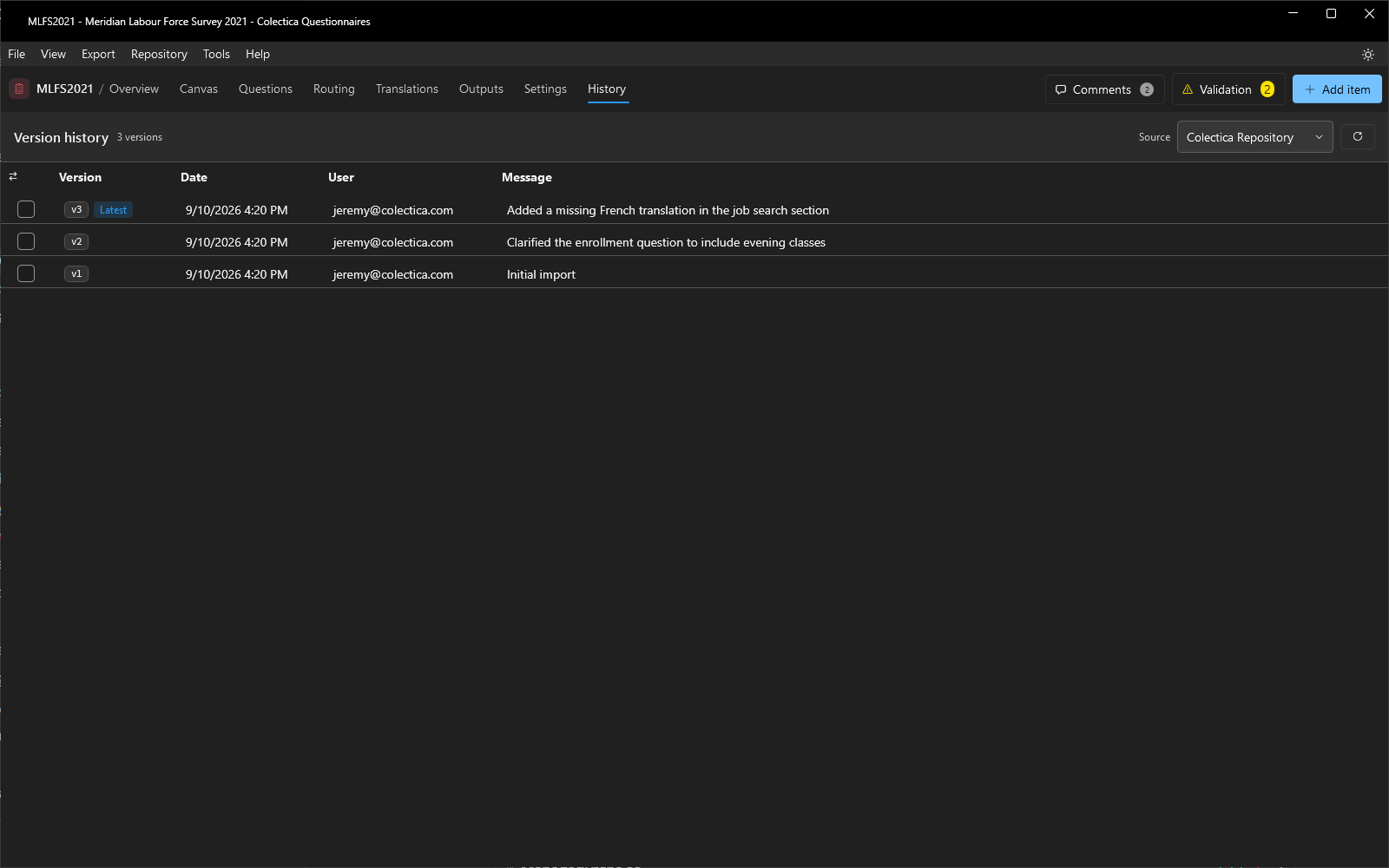
The History page lists a survey’s versions. The Source dropdown selects where the versions come from: each configured repository, or This computer for the local workspace. The table shows each version with a Latest tag on the newest, the date, the user, and the publish message. Hovering over a row reveals Compare with previous, and checking two versions offers Compare versions.
The Compare page reports the survey-level differences between two versions. The header names the old and new versions as pills, with a button that swaps them. Four toggle chips count and filter the changes: added, removed, modified, and moved. A filter box narrows the list, and expand and collapse buttons control the section groups. The body lists the changes by section as cards, and modified text shows word-level differences inline. Renames are reported as modifications, and an item that gains or loses display logic is reported as modified.
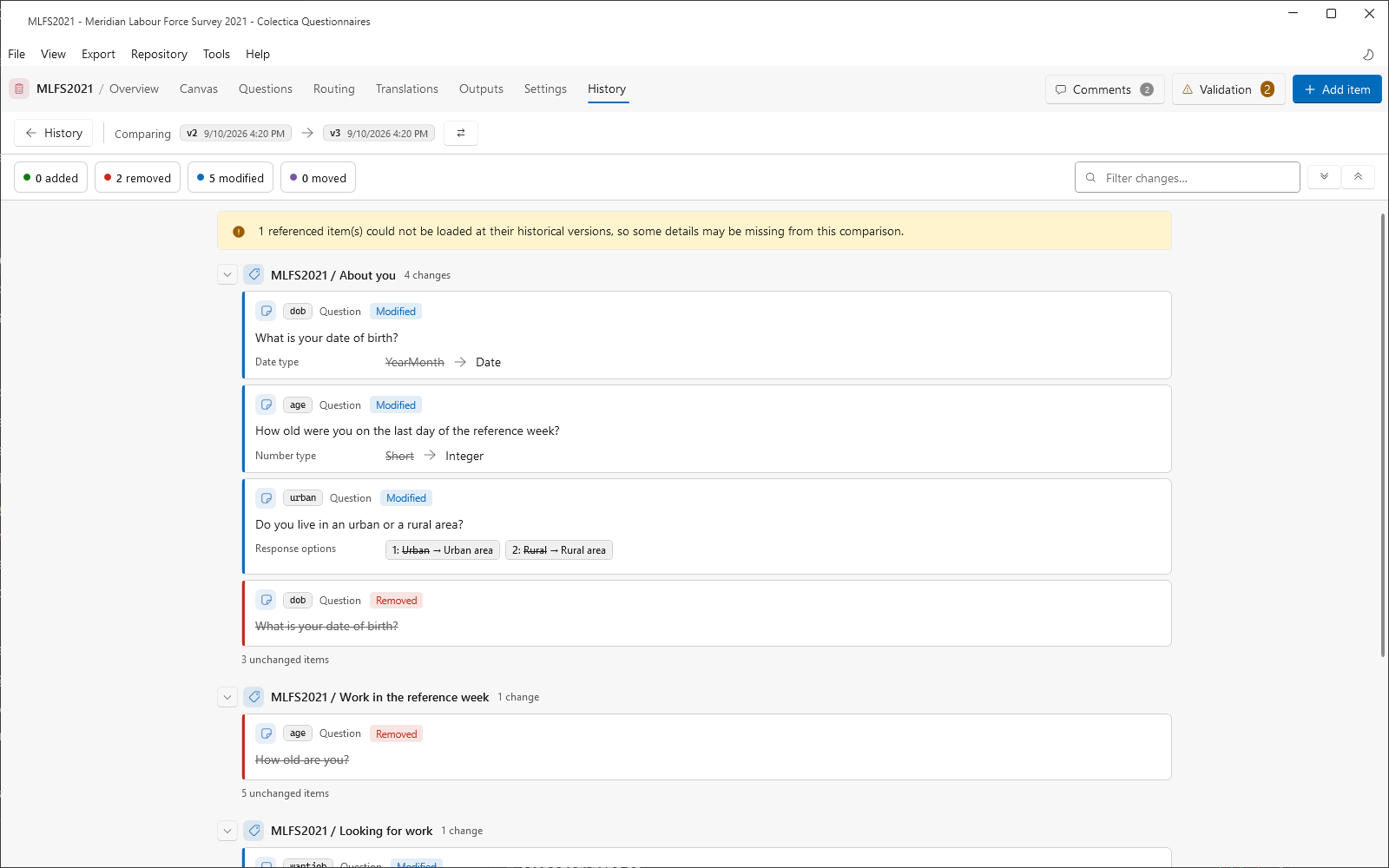
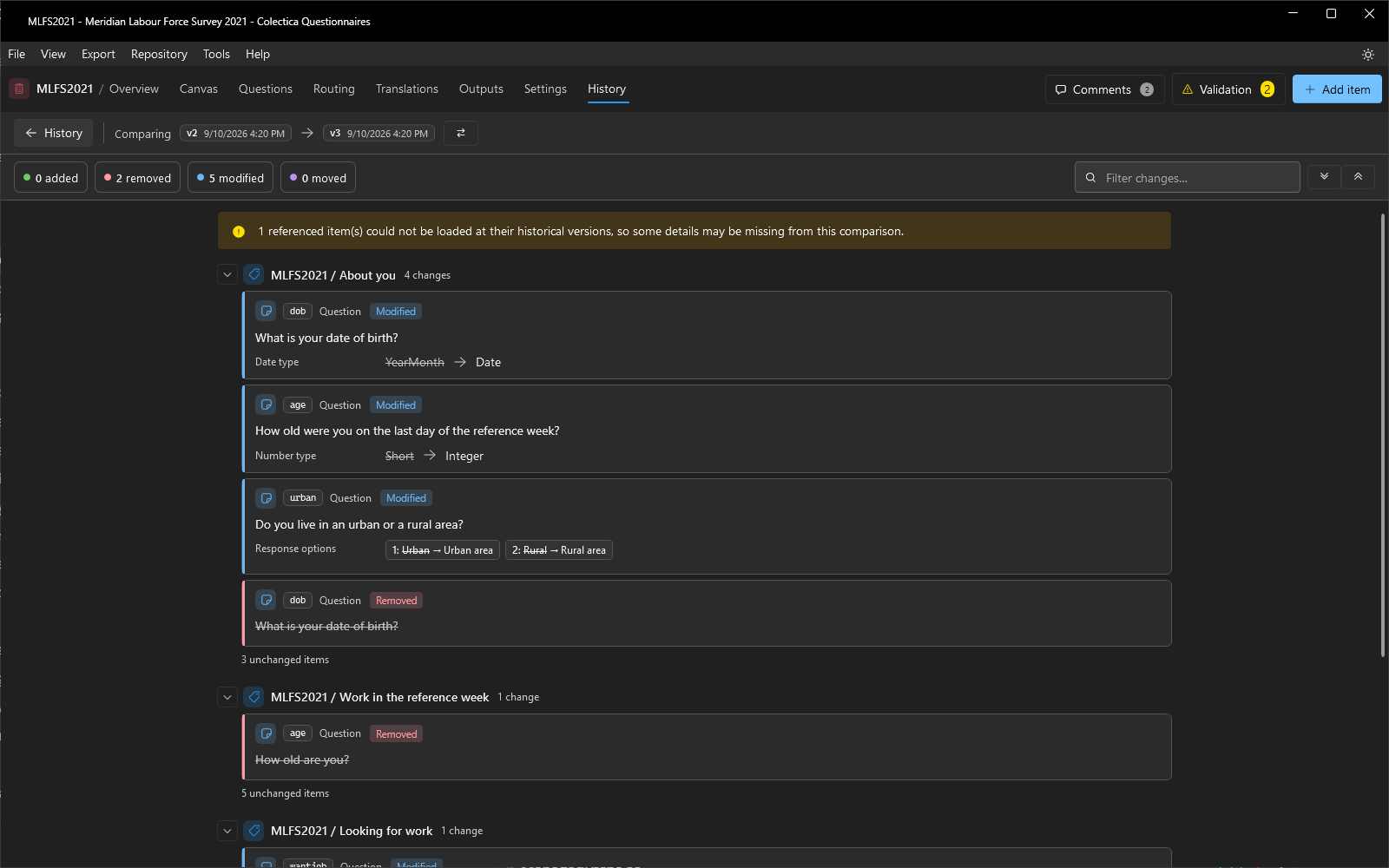
See History and Compare.
Synchronization#
The Synchronize dialog moves changes between the local copy of a survey and a Colectica Repository. It opens from the Repository menu, which holds one Synchronize with … entry per configured repository. The dialog has three sections, each with a count.
Changes to publish lists local changes the repository does not have yet. The section shows a changelog of what you will publish, with the same change cards and word-level differences as the Compare page. Describe your changes records the publish message, which then appears in the version history.
Updates available lists newer versions in the repository that the local copy does not have, with a changelog of what the repository has. Update all adopts them. On the canvas, an out-of-date item carries an Update available tag and is read-only until it is updated.
Conflicts lists items changed both locally and in the repository since the last synchronization.
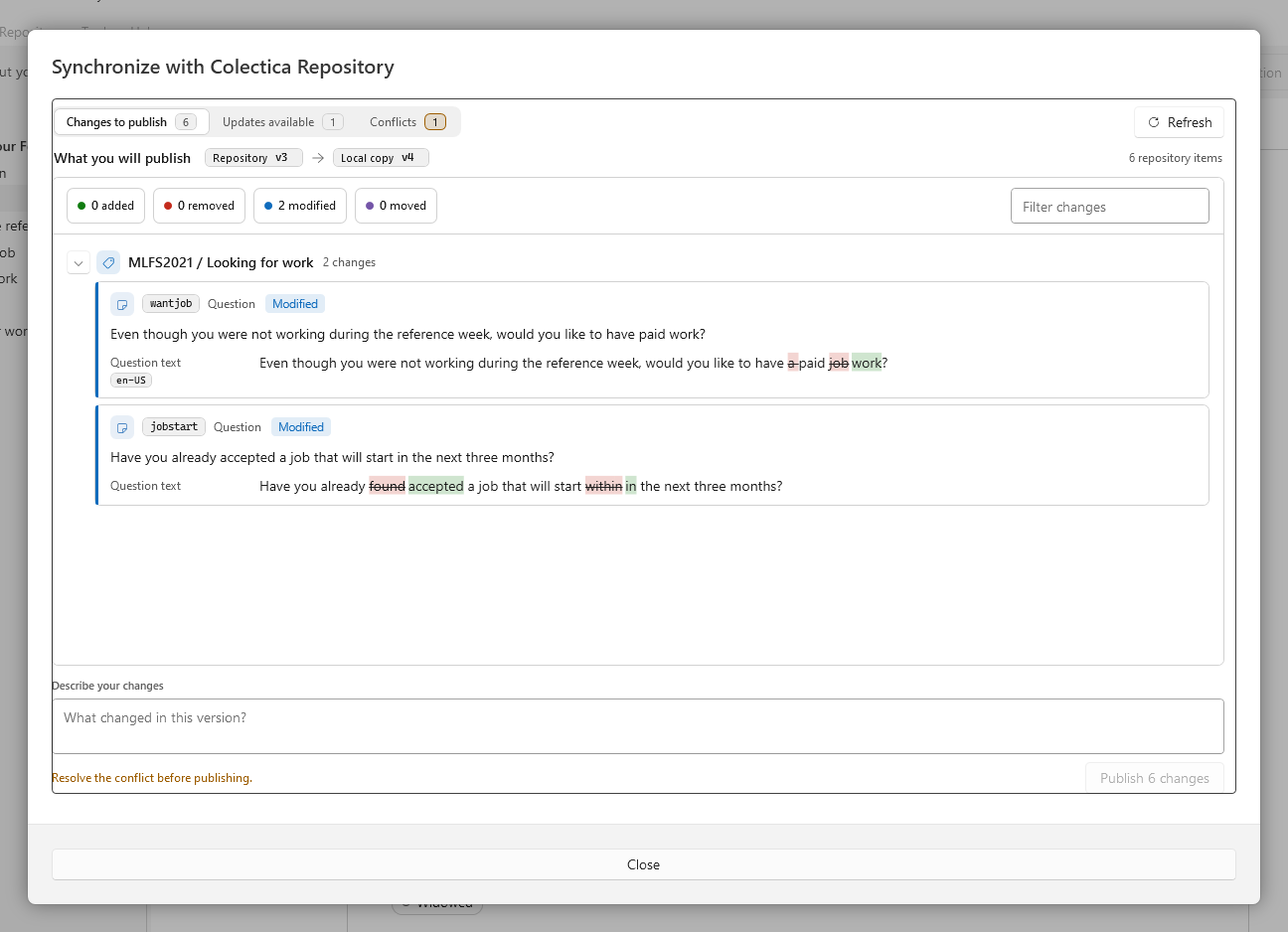
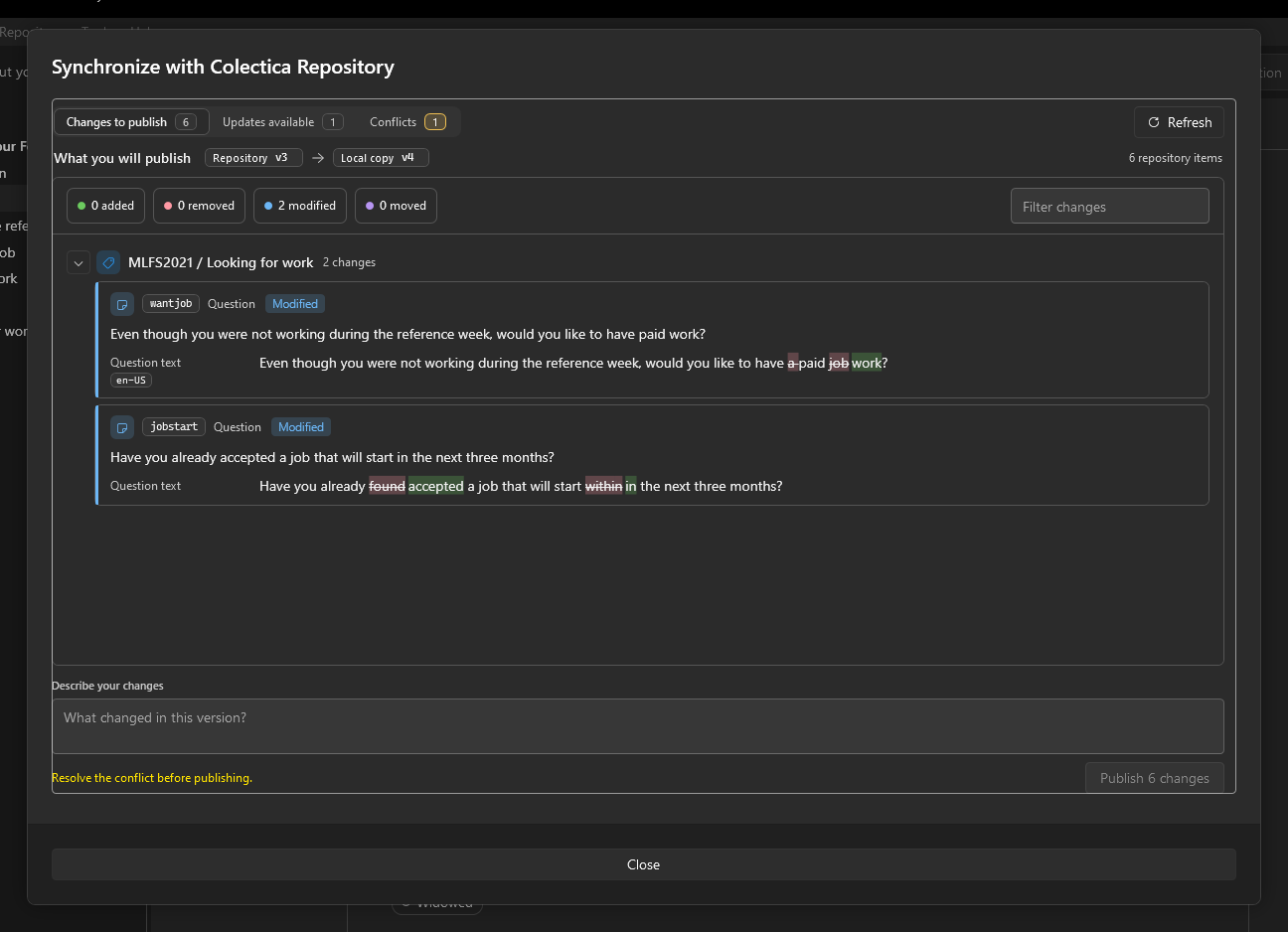
For a conflicting item, the dialog shows the local copy and the repository version side by side, with each version’s date, user, and message, and a changelog scoped to that item. Keep my version makes the local changes a new version on top of the repository’s. Use repository version discards the local changes to that item.
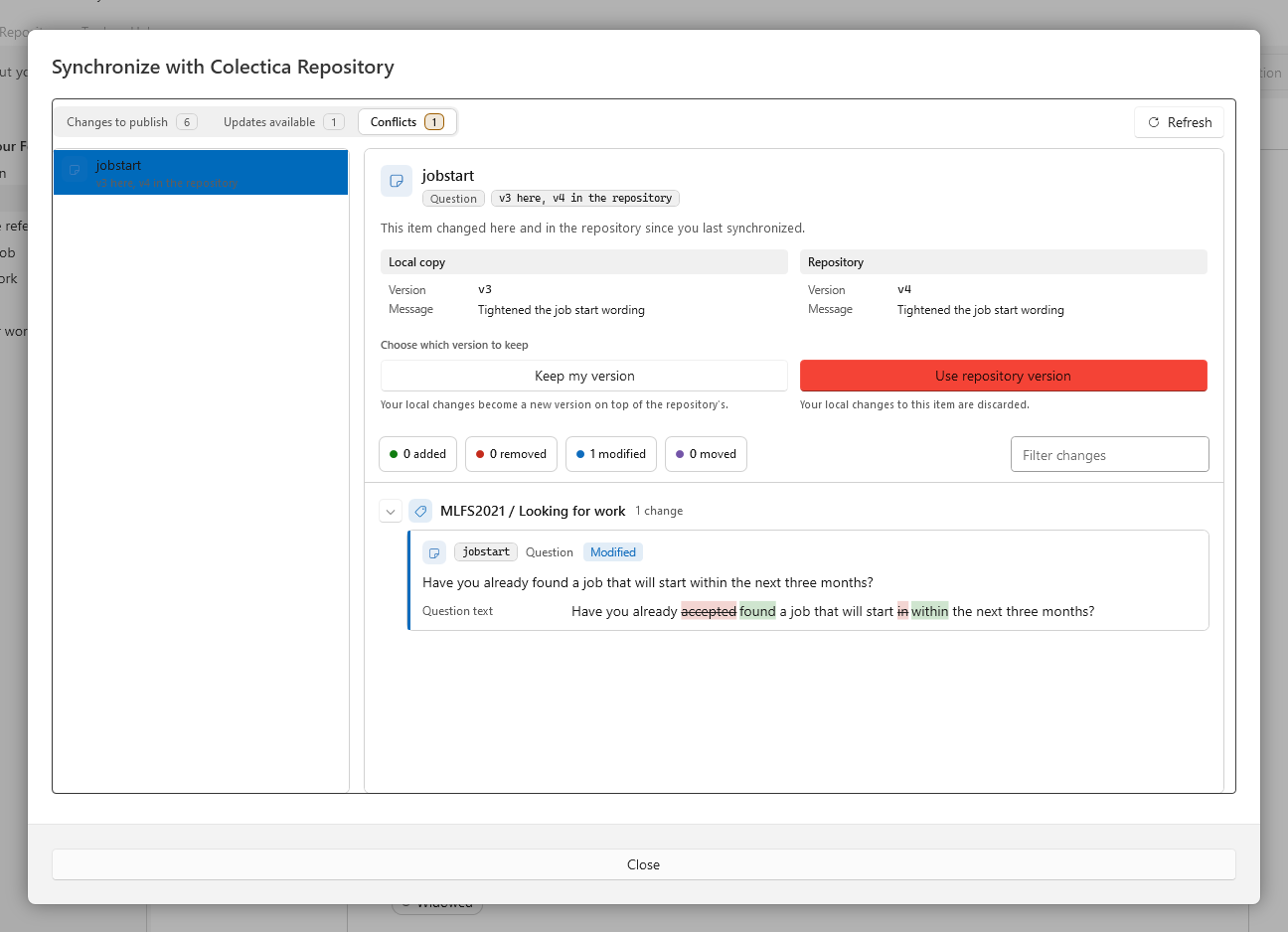
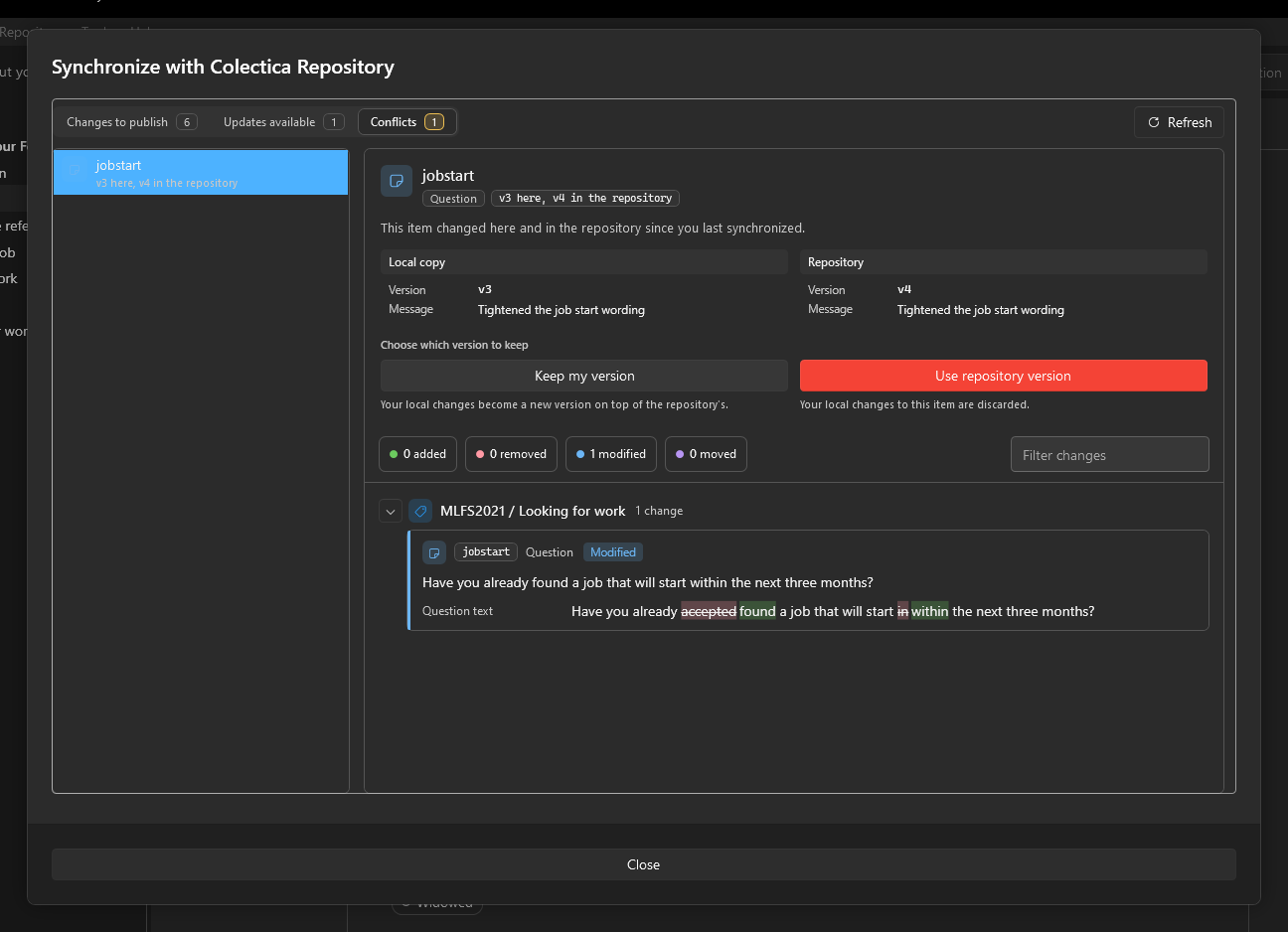
The survey is saved before the dialog opens, and it reloads afterward when anything was published, updated, or resolved. When a repository stops responding, a warning banner appears under the menu bar, and background repository reads pause until Try again succeeds.
Search#
Question Bank Window#
The Question bank opens from the add-item palette’s Repository group and inserts a shared item from a repository into the open section. It searches as you type, and a dropdown beside the search box narrows the search to All text, Question text, Name, Label, or Description. A row of kinds switches between Questions, Question Grids, Statements, and Sequences.
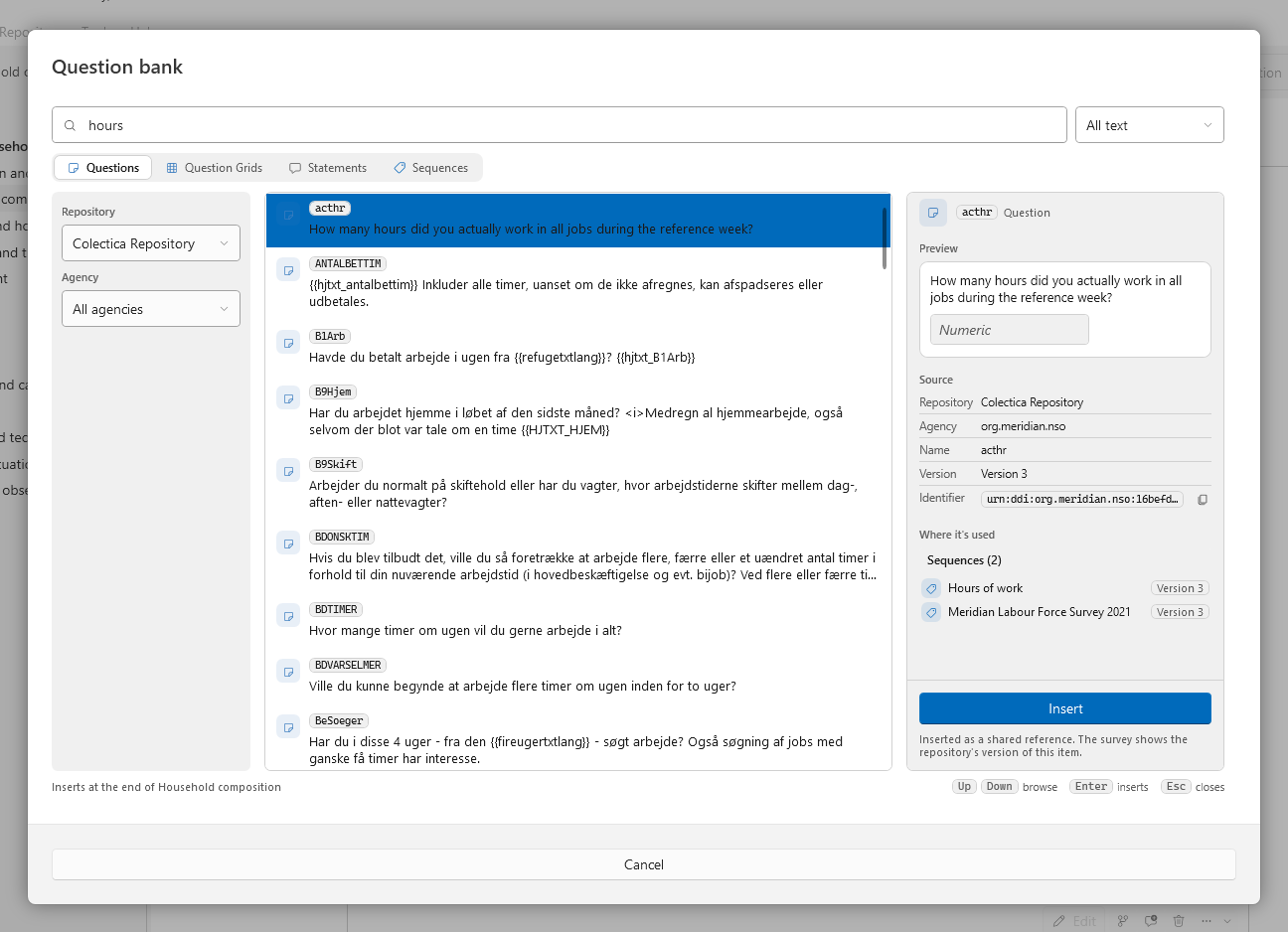
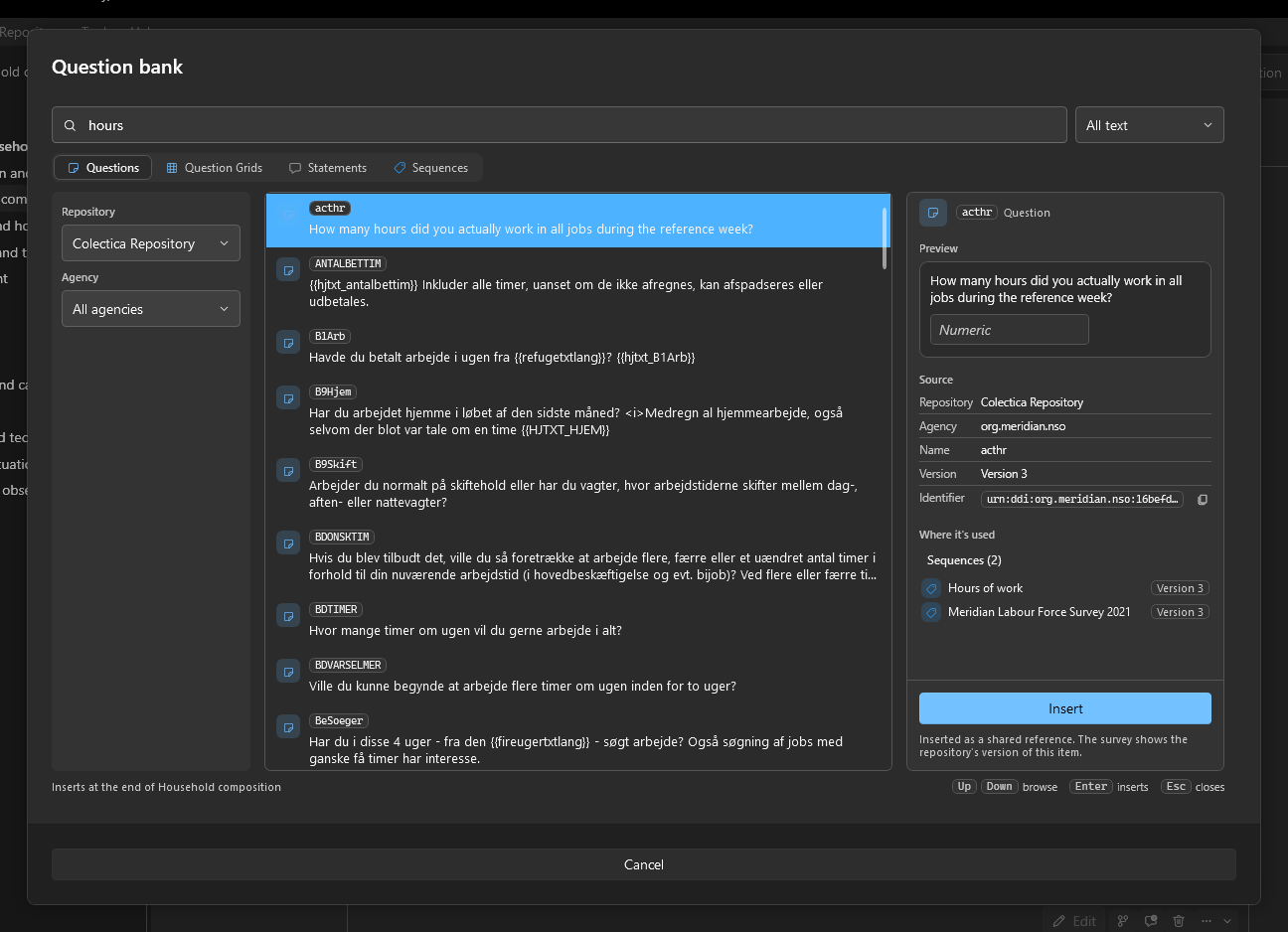
A Repository filter appears when more than one repository is configured. Repositories are shown by title.
An Agency filter appears when Enable searching by agency identifiers is on in the Settings dialog.
The search box also accepts a DDI URN, an
agency:identifierpair with an optional:version, or a bare identifier of your own agency, and opens that one item directly.Results show each item’s type icon, name, and text. A Deprecated chip marks withdrawn items, and local items are identified. Results arrive in pages of 100, with Show more for the next page.
The detail pane has three parts. Preview renders the selected item as a respondent would see it. Source lists its repository, agency, name, version, last change, and identifier, with a button that copies the identifier. Where it’s used lists the surveys and sequences that reference it.
Insert adds the selected item as a shared reference. Enter and a double click do the same. The footer states where the item will be inserted.
Inline Search During New Item Creation#
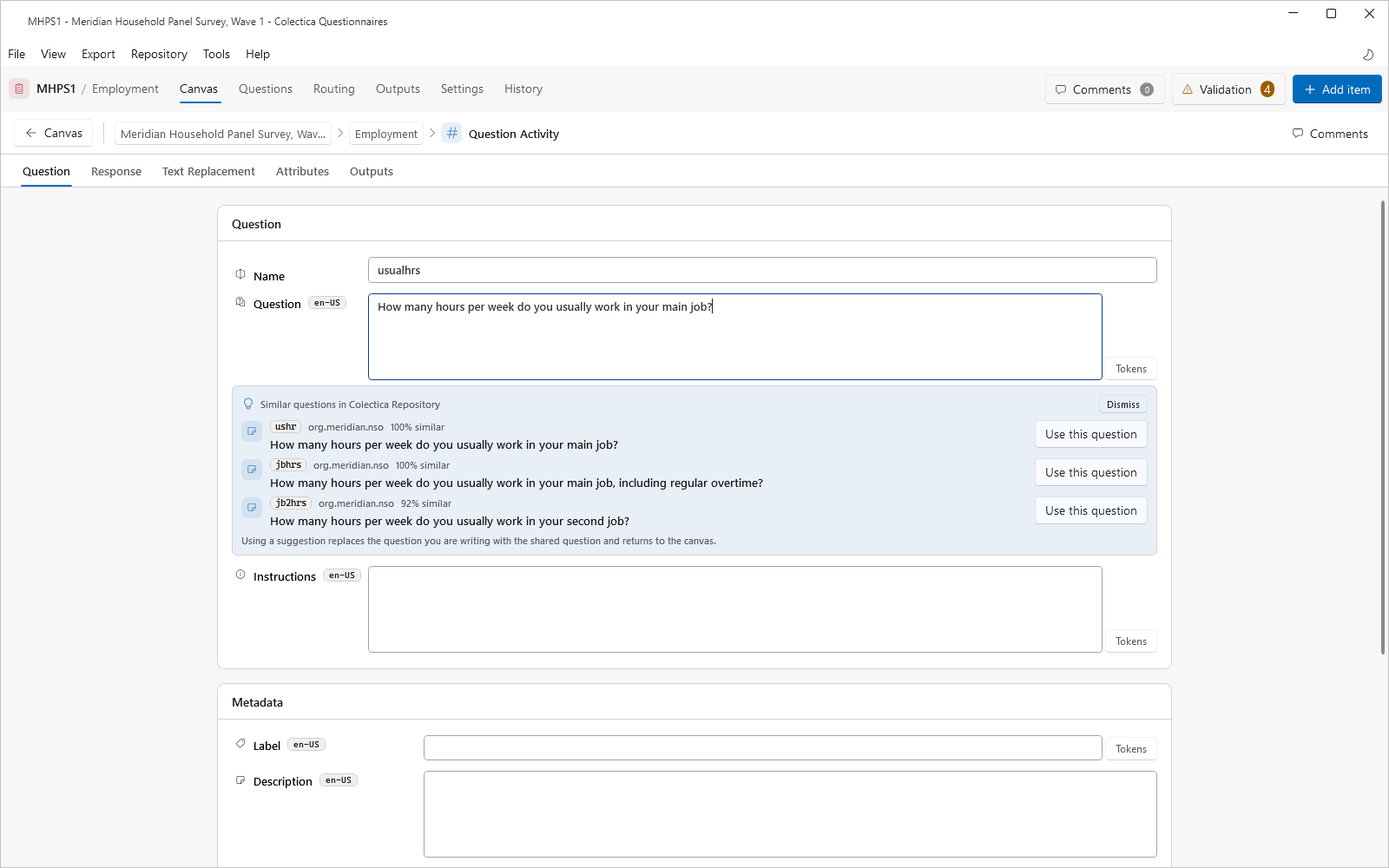
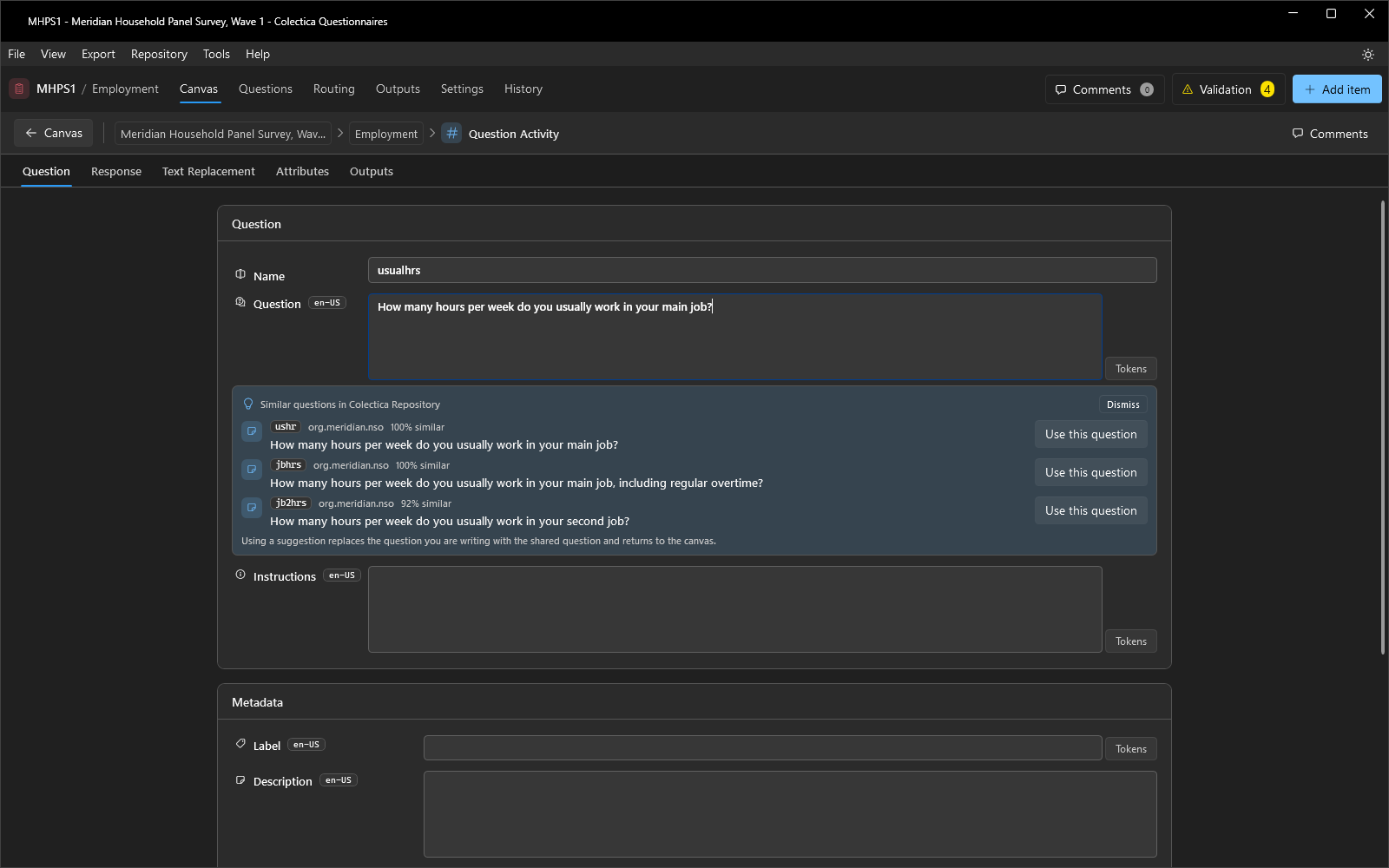
The application can search a repository while you write a new question and offer shared questions that say the same thing. The feature is turned on in the Search section of the Settings dialog with Suggest similar questions while writing a new question. The same section chooses the Repository to search, which can be the local workspace or a configured repository, and can limit the search to particular agencies.
After a question is added from the palette and its text is typed in the editor, a Similar questions panel appears under the text after a short pause. It lists up to three matches, each with its name, agency, and how closely it matches. Use this question replaces the question being written with the shared one and returns to the canvas. Dismiss hides the panel for this question. Suggestions are offered only for a question just added from the palette, never for a question that already exists.
See Settings Dialog.
PDF Outputs#
New Document Styles#
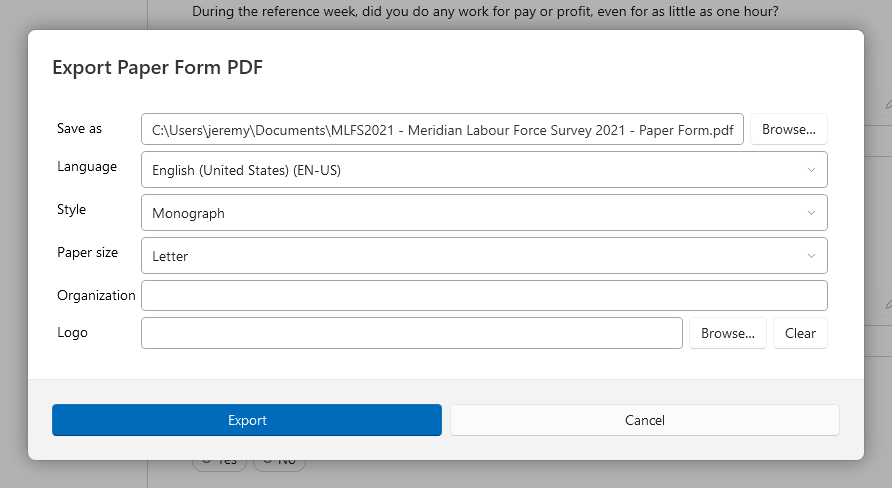
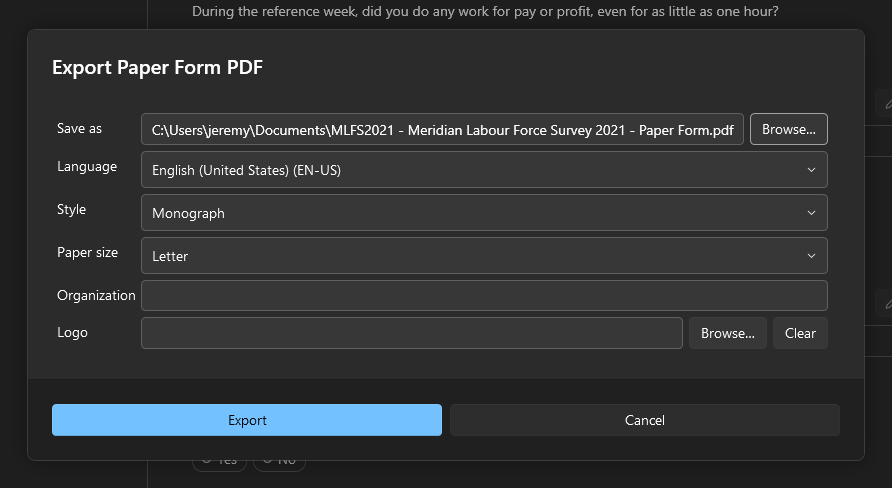
PDF generation is now based on Typst. The Specification and Paper Form exports share one options dialog, which chooses the output file, the survey Language to render, the Style, and the Paper size, Letter or A4. An Organization name and a Logo can be added to the document’s masthead.
Two document styles are available.
Monograph is a book-like style: an academic serif face on a clean white page, with an oxblood accent, warm hairline rules, and dotted leaders in the contents.
Registry is a modern style: a sans-serif face with a blue accent, bordered cards, and grid tables.
A single section can also be exported as a PDF from its section header on the canvas.
Question numbering in a section export stays consistent with the full survey, so a section whose first question is Q12 on the canvas prints from Q12.
See Export Formats.
Instrument Specification#
The Specification is a complete technical description of the survey for review, programming, and archiving.
It opens with a cover carrying the survey’s statistics and front matter with a table of contents and language coverage.
The instrument follows in document order, with section dividers, questions with their response domains, computations, edit checks, and statements.
Each question is printed with its number, its internal name, its instructions, and its display logic.
Cross references cite the number and the name, as Q5 (AGE).
Display logic is documented with its label and description, using an improved Description layout.
When multiple-choice response categories have names, the response table includes a column for them.
The document closes with an appendix listing the output variables the survey produces.
Paper Form#
The Paper Form is a printable, respondent-facing questionnaire.
It opens with a cover carrying an introduction and completion instructions.
Questions follow with drawn tick boxes for choices, ruled spaces for written answers, and rendered grids.
Each question is numbered as Q5. before its text.
Computations, edit checks, internal notes, and technical metadata such as internal names, codes, and output rules are omitted.
Display statements are kept, and described conditions appear as respondent guidance and skip instructions where appropriate.
Collaboration#
Commenting and Resolving#
Comments are discussion threads attached to survey items and stored on a Colectica Repository, so everyone who synchronizes with the repository sees the same discussion. A thread can be started from the comment button on any card, on any section header, and in the item editor’s title bar. Writing a comment and pressing Enter posts it, and Shift+Enter starts a new line.
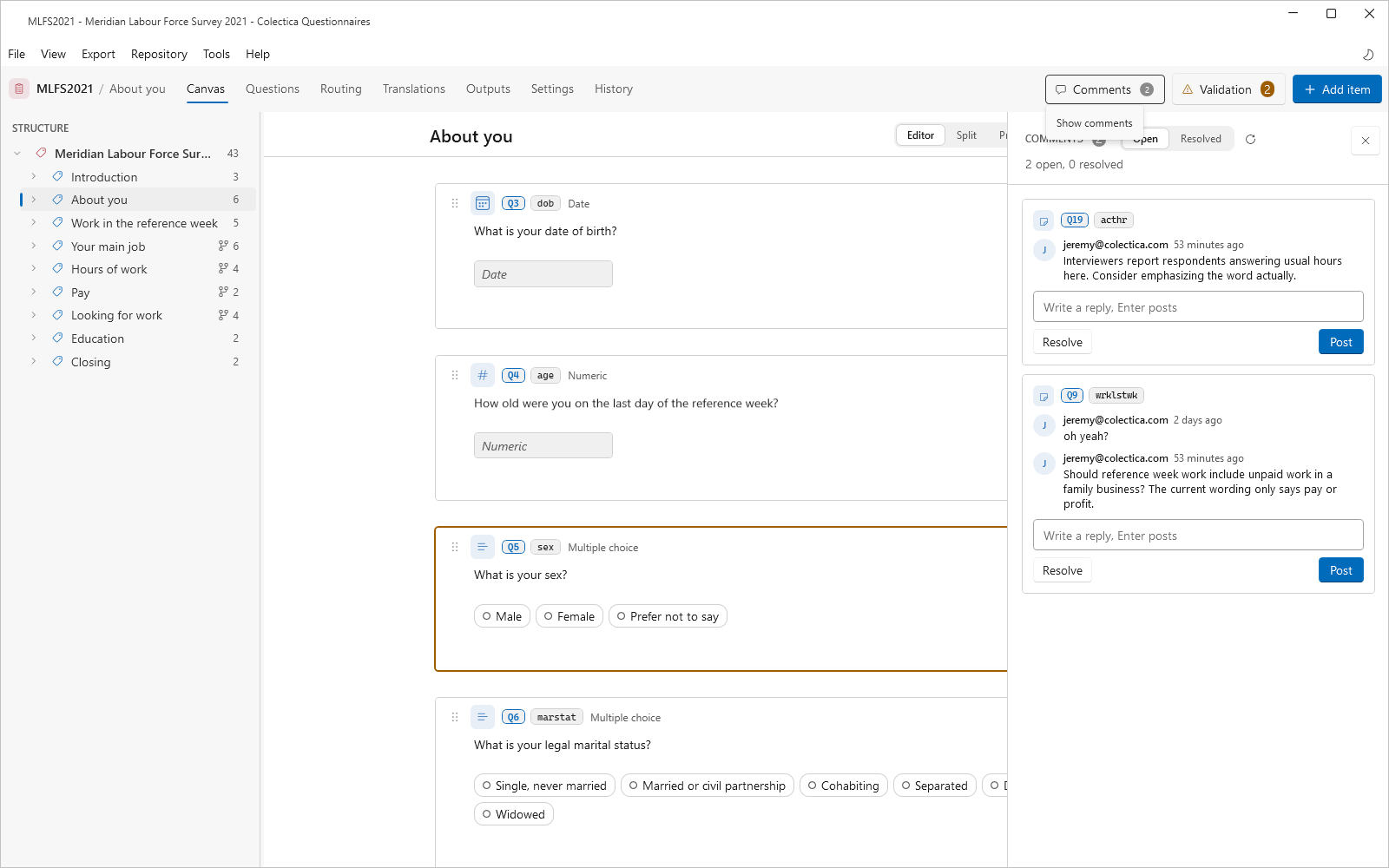
The comments rail opens from the Comments button in the navigation bar, or from Tools, then Comments. Each thread shows its item, with the question’s number where it has one, the comment authors and times, a reply box, and a resolve or reopen button. Clicking a thread’s item name opens the item on the canvas. Threads are filtered with the Open and Resolved toggle, and a refresh button checks the repository for new comments on demand.
Resolve closes a thread when its discussion is settled. Resolved threads stay readable under the Resolved filter, and Reopen or a new reply reopens them. The Comments button in the navigation bar counts the open threads.
Commenting requires a configured repository, and an item must be published before its thread can start. When more than one repository is configured, the first one in the Settings dialog is used for comments.
Other Changes#
Custom fields can be configured specifically for Questionnaires, for every supported item type and value type, in the Custom Fields section of the Settings dialog. Definitions can be imported from Colectica Designer, and read-only definitions can be provided by an organization.
Numeric and Date questions show dropdowns with the appropriate choices in their response settings.
Choice-grid code lists open in a full-window editor.
Numeric and text response editors commit on focus loss and show validation details for invalid input.
Open editors, translations, and code lists are committed when the application closes.
The complete list of additions, changes, and fixes is in the 8.0 changelog.